

How to Hide Photos on iPhone in 2026 (Complete Guide)
Five methods tested. Only one actually encrypts your files.
You can hide photos on iPhone using the built-in Hidden Album in the Photos app, which requires Face ID or Touch ID in iOS 18. But hidden photos are not encrypted. Anyone with your passcode can disable the Face ID lock, and connecting your iPhone to a Mac exposes hidden photos in Finder and Image Capture. For actual protection, an encrypted vault app like Vaultaire uses AES-256-GCM encryption, making photos mathematically unreadable without the correct pattern.
The iPhone Hidden Album is the most common way to hide photos, and it works fine against a casual glance. It does not work against someone who has your passcode, access to your Mac, or five minutes alone with your unlocked phone. This guide covers five methods for hiding photos on iPhone, tests each one against real threats, and shows you which method actually protects your files.
How to Hide Photos Using the iPhone Hidden Album
The Hidden Album is a built-in iOS feature that moves selected photos out of your main library into a separate album protected by Face ID or Touch ID. In iOS 18, the Hidden Album is locked by default. In older versions (iOS 15 and earlier), it was visible to anyone who opened the Photos app.
Step 1: Select the photos you want to hide. Open the Photos app. Tap Select in the top-right corner. Tap each photo or video you want to hide. Selected items show a blue checkmark.
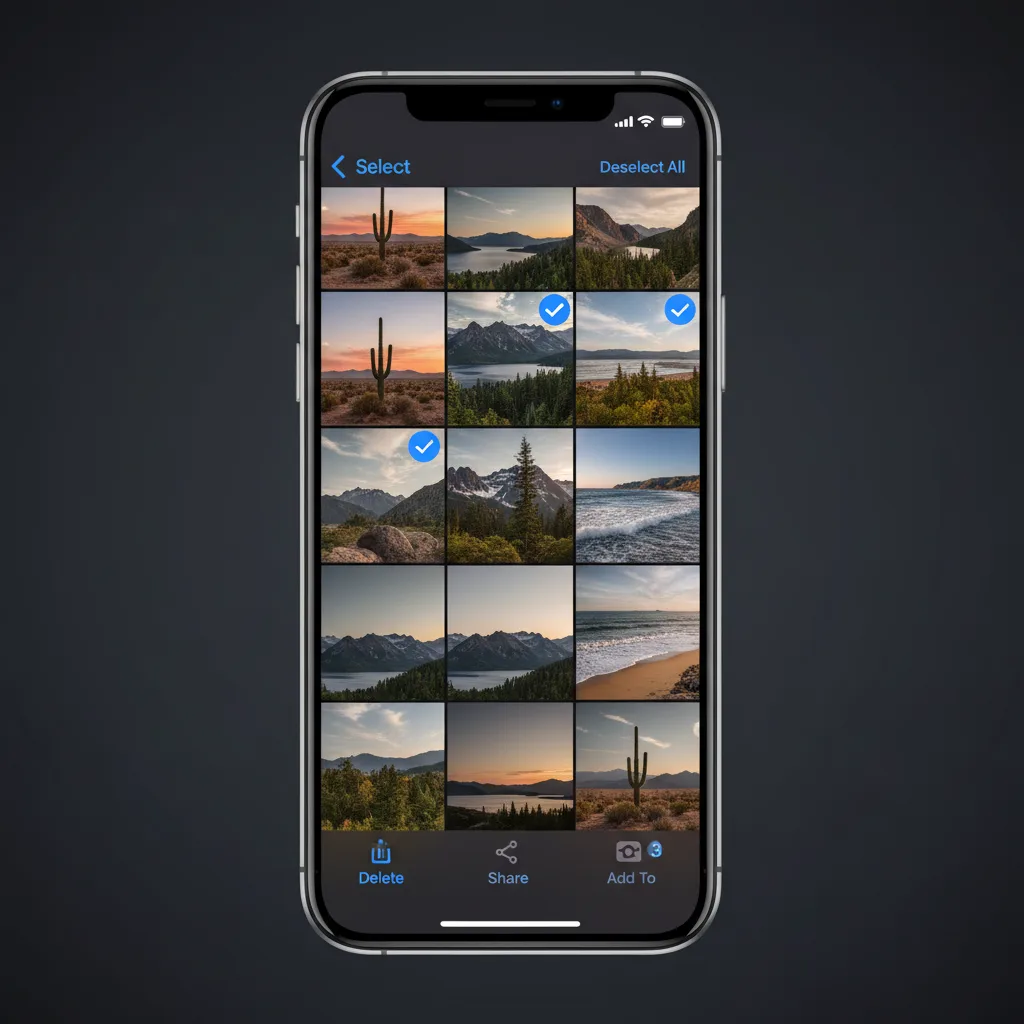
Step 2: Tap the share button and choose "Hide." With your photos selected, tap the share icon (the square with an upward arrow) in the bottom-left corner. Scroll down the share sheet and tap Hide. A confirmation dialog appears.
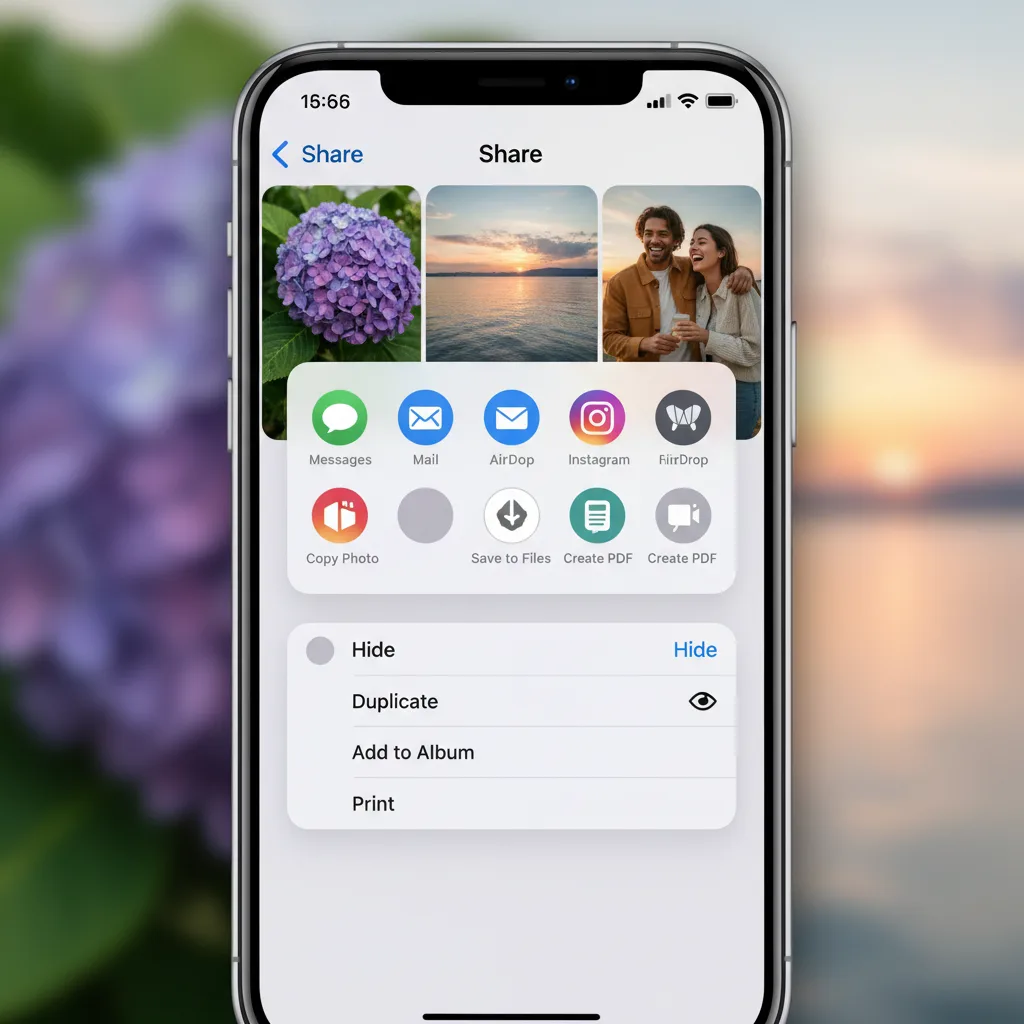
Step 3: Confirm by tapping "Hide [X] Photos." The selected items disappear from your main library, Memories, search results, and the Photos widget. They move to the Hidden Album under Albums > Utilities > Hidden.
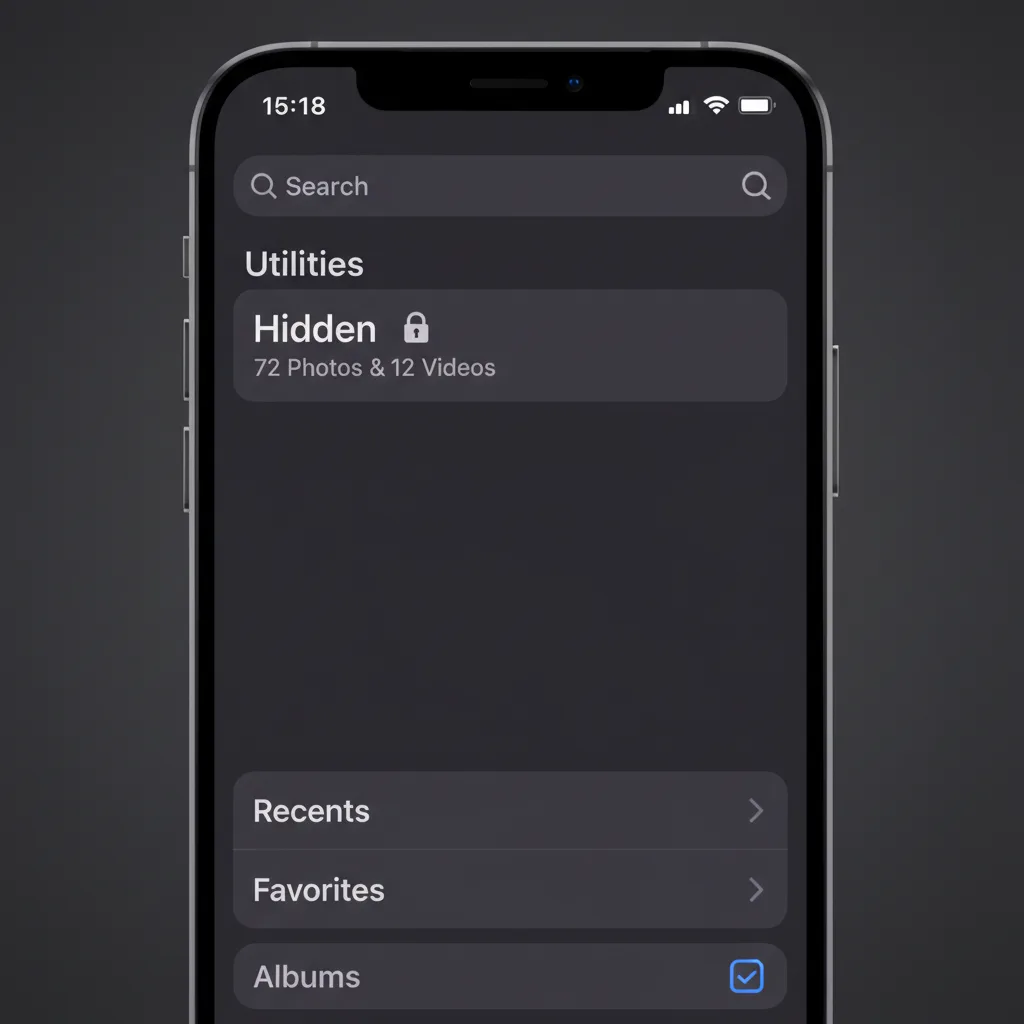
Step 4: Verify Face ID protection. Open Settings > Photos and confirm that Show Hidden Album is toggled on and that Use Face ID (or Touch ID) is enabled. When both are active, opening the Hidden Album requires biometric authentication.
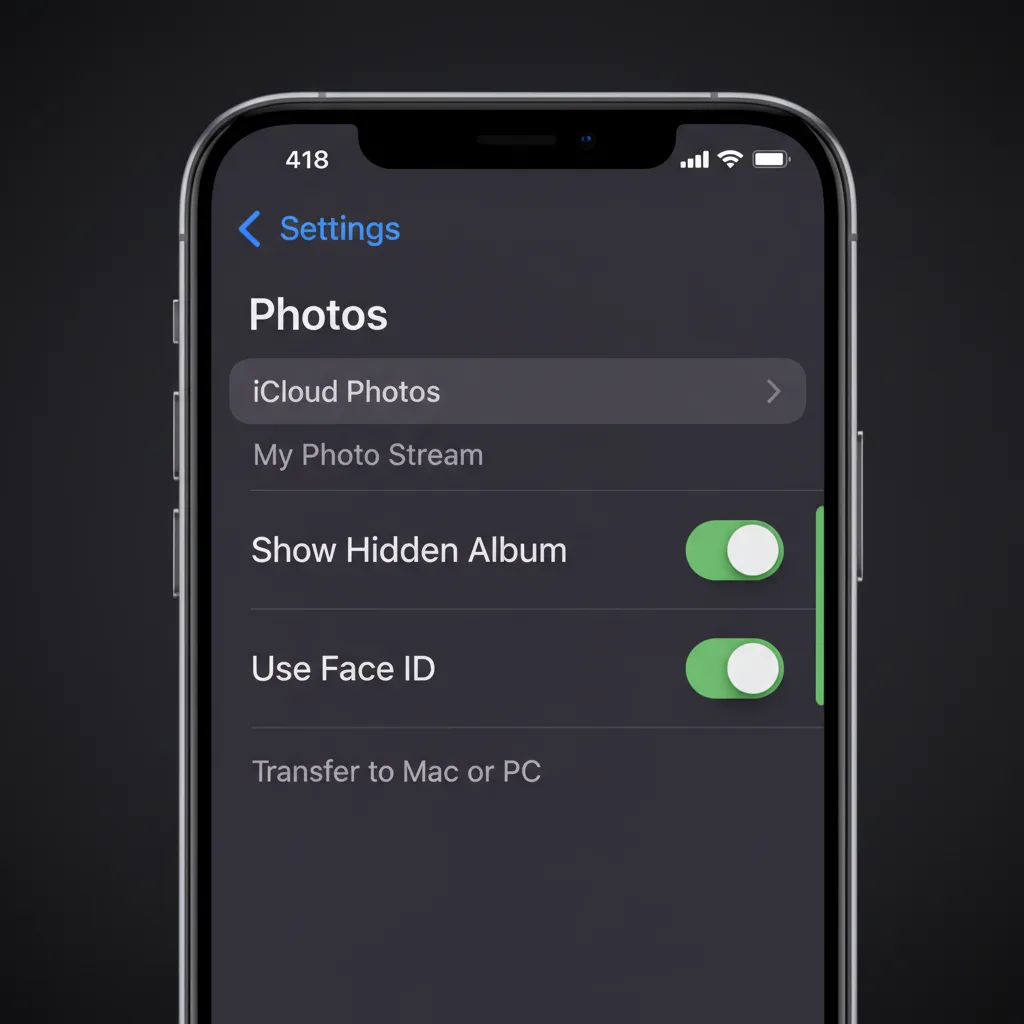
What this gives you: Photos removed from your main library, protected by Face ID when someone opens the Photos app.
What this does not give you: Encryption. The photos still exist as readable JPEG and HEIC files on your device storage. The Face ID lock is an access gate, not a cryptographic barrier.
The Hidden Album Is Not Actually Hidden (Security Testing)
Most guides stop at "tap Hide and you're done." We tested what actually happens when someone tries to find your hidden photos through other means.
Test 1: Connect iPhone to a Mac
We connected an iPhone running iOS 18.3 to a MacBook Pro using a Lightning cable and opened Image Capture (a built-in macOS app). Every photo on the device appeared in the list, including photos in the Hidden Album. Finder's iPhone sidebar also showed all photos when browsing the device.
Result: Hidden photos are fully visible when your iPhone is connected to any Mac, regardless of the Hidden Album's Face ID lock. No authentication was required beyond the initial "Trust This Computer" prompt.
Test 2: iCloud Backup Exposure
When iCloud Photos is enabled, hidden photos sync to iCloud alongside your regular library. If someone accesses your iCloud account (through a shared family plan, a compromised password, or access to a logged-in Mac), hidden photos are visible in the Photos app on that device.
Result: The Hidden Album provides zero protection against anyone with access to your iCloud account. The "hidden" flag does not survive cross-device sync in a meaningful security sense.
Test 3: Face ID Toggle (iOS 18)
We tested disabling Face ID protection for the Hidden Album. Open Settings > Photos and toggle off Use Face ID. No secondary authentication is required to flip this switch. Once off, the Hidden Album opens with a single tap.
Result: Anyone with your device passcode can disable the Face ID lock for hidden photos in under 10 seconds. The passcode is the single point of failure.
What This Means
The Hidden Album protects against exactly one scenario: someone picking up your unlocked phone and scrolling through the Photos app. It does not protect against a partner who knows your passcode, a Mac connected via cable, iCloud account access, or any form of forensic analysis.
Who Are You Hiding From? A Threat Model
The right method depends on the threat you face. Not every situation calls for AES-256 encryption, and not every situation is solved by the Hidden Album.
Tier 1: Casual Snooper. A friend, coworker, or child picks up your unlocked phone and scrolls through your photo library. The Hidden Album is sufficient. It removes photos from the main library, Memories, and search. Face ID adds a barrier.
Tier 2: Someone With Your Passcode. A partner, family member, or roommate knows your iPhone passcode. They can disable Face ID for the Hidden Album, connect your phone to a computer, or access your iCloud account. You need a third-party app with its own separate authentication.
Tier 3: Forensic or Legal Access. A border agent demands device access during a crossing. Law enforcement seizes your phone with a warrant. A forensic examiner uses professional tools. You need AES-256 encryption with key derivation from a credential that is not stored on the device.
| Threat Level | Hidden Album | Notes Lock | Vault App (No Encryption) | Encrypted Vault (AES-256) |
|---|---|---|---|---|
| Casual snooper | Yes | Yes | Yes | Yes |
| Passcode holder | No | No | Partial | Yes |
| Mac/Finder access | No | No | No | Yes |
| iCloud exposure | No | No | Depends | Yes (if zero-knowledge) |
| Forensic analysis | No | No | No | Yes |
5 Methods to Hide Photos on iPhone (Compared)
Here are five methods for hiding photos on iPhone, ranked from simplest to most secure.
Method 1: Hidden Album (Built-In). The default option. Select photos, tap Hide, and they move to the Hidden Album. Face ID protects access in iOS 18. Free, built-in, requires no additional apps. Protects against casual browsing only. No encryption.
Method 2: Lock Photos in Notes. Create a new note in the Notes app, add photos to it, then lock the note with a password. Apple encrypts locked notes end-to-end when using a custom password. However, the original photos remain in your photo library unless you manually delete them.
Method 3: Shortcuts Automation. Build an iOS Shortcut that moves selected photos to a specific folder in the Files app, then deletes them from the photo library. Power-user method. No authentication layer by default. No encryption.
Method 4: Third-Party Vault Apps (No Real Encryption). Apps like Keepsafe, Private Photo Vault, and Calculator# create a PIN-protected interface for storing photos. Most store photos as renamed files in an app sandbox directory. Connecting the phone to a Mac can expose them. Many collect user data and show ads.
Method 5: Encrypted Vault App (AES-256). Apps like Vaultaire encrypt files with AES-256-GCM before writing them to storage. The encryption key is derived from a user-drawn pattern on a 5x5 grid using PBKDF2 with 600,000 iterations. The key never touches a server and is wiped from memory when the app closes. Protects against all five threat levels. The tradeoff: if you lose the key, the data is gone.
| Method | Encryption | Threat Level Covered | Ease of Setup | Recovery if Forgotten |
|---|---|---|---|---|
| Hidden Album | None | Tier 1 only | 10 seconds | Always recoverable |
| Notes Lock | Apple E2E (limited) | Tier 1-2 (partial) | 2 minutes | Apple ID reset |
| Shortcuts | None | Tier 1 only | 10-15 minutes | N/A |
| Vault Apps (no encryption) | None or weak | Tier 1 only | 2 minutes | PIN reset |
| Encrypted Vault (AES-256) | AES-256-GCM | Tier 1-3 | 2 minutes | Recovery phrase |
How Encrypted Vaults Actually Protect Your Photos
The difference between a vault app that hides photos and one that encrypts them is the difference between putting a lock on a door and replacing the door with a wall.
When Vaultaire encrypts a photo, the original file is transformed into a stream of data that is indistinguishable from random noise. This is not obfuscation or file renaming. It is AES-256-GCM encryption, the same standard the US government uses for classified information. Each file receives a unique initialization vector, so even identical photos produce completely different encrypted outputs.
The encryption key is derived from a pattern drawn on a 5x5 grid of 25 dots. The pattern feeds into PBKDF2 with HMAC-SHA512 and a per-vault random salt. A different pattern produces a different key. A different key produces noise instead of photos. There is no "wrong password" message. The app cannot tell you whether the pattern is correct.
- No readable files on disk. Connect the phone to a Mac: you see encrypted blobs, not JPEG files.
- No iCloud exposure. If you use Vaultaire's optional encrypted iCloud backup, the data is encrypted before it leaves your device.
- No vault registry. Vaultaire has no vault index. The existence of additional hidden vaults cannot be proven, even by forensic tools.
- Plausible deniability. Every pattern opens a different vault. There is no way to prove other vaults exist.
Common Mistakes When Hiding Photos on iPhone
Hiding photos but leaving them in Recently Deleted. When you hide a photo, it moves to the Hidden Album. But if you also delete it from there, it sits in Recently Deleted for 30 days. Anyone can see it there.
Forgetting about iCloud sync. If iCloud Photos is on, your hidden photos sync to every device signed into your Apple ID. A shared Mac, an iPad your kids use, or an old iPhone you gave away could all show your hidden photos.
Using a vault app without checking encryption. Many apps on the App Store claim to be "vaults" but store photos in a renamed folder with no encryption. The only way to verify: connect your phone to a computer and look for the files.
Not deleting the originals. After importing photos into a vault app, the originals remain in your photo library. You must manually delete them and then empty Recently Deleted.
Using the same passcode everywhere. If your vault app's PIN matches your iPhone passcode, anyone who knows one knows both. Use a separate, unrelated credential.
Frequently Asked Questions
Can someone see my hidden photos if they have my passcode?
Yes. Anyone with your iPhone passcode can disable the Face ID lock on the Hidden Album in Settings > Photos. They can also connect your phone to a Mac and view all photos, including hidden ones, through Image Capture or Finder. The passcode is the single point of failure.
Does hiding photos on iPhone encrypt them?
No. The iPhone Hidden Album moves photos out of your main library view, but the files remain as standard JPEG or HEIC files on your device storage. They are not encrypted. An encrypted vault app like Vaultaire converts photos into AES-256-GCM encrypted data that is unreadable without the correct key.
Are hidden photos visible in iCloud?
Yes. When iCloud Photos is enabled, hidden photos sync to iCloud and appear on any device signed into your Apple ID. The "hidden" flag is a library organization feature, not a security boundary.
What is the most secure way to hide photos on iPhone?
An encrypted vault app that uses AES-256 encryption with key derivation from a credential not stored on the device. Vaultaire derives encryption keys from a pattern drawn on a 5x5 grid using PBKDF2 with HMAC-SHA512. The encrypted files are mathematically indistinguishable from random data without the correct pattern.
Can police access my hidden photos?
Law enforcement with a warrant can compel you to provide your device passcode in many jurisdictions. Once they have the passcode, they can access the Hidden Album, disable Face ID protection, and use forensic tools to read all unencrypted files on the device. Only AES-256 encrypted files with a key not stored on the device remain protected.
Do hidden photos show up in iPhone search or Memories?
No. Photos in the Hidden Album do not appear in search results, Memories, Featured Photos, or the Photos widget. They are only visible inside the Hidden Album under Albums > Utilities > Hidden. However, they do appear when the iPhone is connected to a Mac via Image Capture.
What happens to hidden photos if I reset my iPhone?
If you erase your iPhone and restore from an iCloud backup, your hidden photos return to the Hidden Album as part of the backup. If you erase without a backup, the photos are permanently deleted. For photos stored in an encrypted vault like Vaultaire, restoring depends on whether you enabled encrypted iCloud backup before the reset.
The Bottom Line
The iPhone Hidden Album is good enough for keeping photos out of your main library. It stops a friend from accidentally scrolling past something private. That is a valid use case, and for many people, it is sufficient.
But "hidden" does not mean "protected." The moment someone has your passcode, access to your Mac, or access to your iCloud account, the Hidden Album offers nothing. The photos are right there, in plain JPEG, waiting to be found.
If you need protection beyond casual snooping, you need encryption. Not a locked folder. Not a PIN gate. Actual cryptographic transformation that turns your photos into unreadable noise without the correct key.
Vaultaire does this with AES-256-GCM encryption, a 5x5 pattern grid for key derivation, and zero-knowledge architecture that means the company cannot access your data even if compelled by a court order. The free tier includes up to 5 vaults with 100 files each. Every encryption feature is included at every tier.