How to Hide Photos on iPad (and Who Can Still See Them)
Hiding a photo on an iPad looks the same as on an iPhone, but the device around it is different. An iPad tends to live on a kitchen counter or a coffee table, gets handed to children, and is often signed in to an Apple ID that other people in the house also use. That changes who can reach a hidden photo.
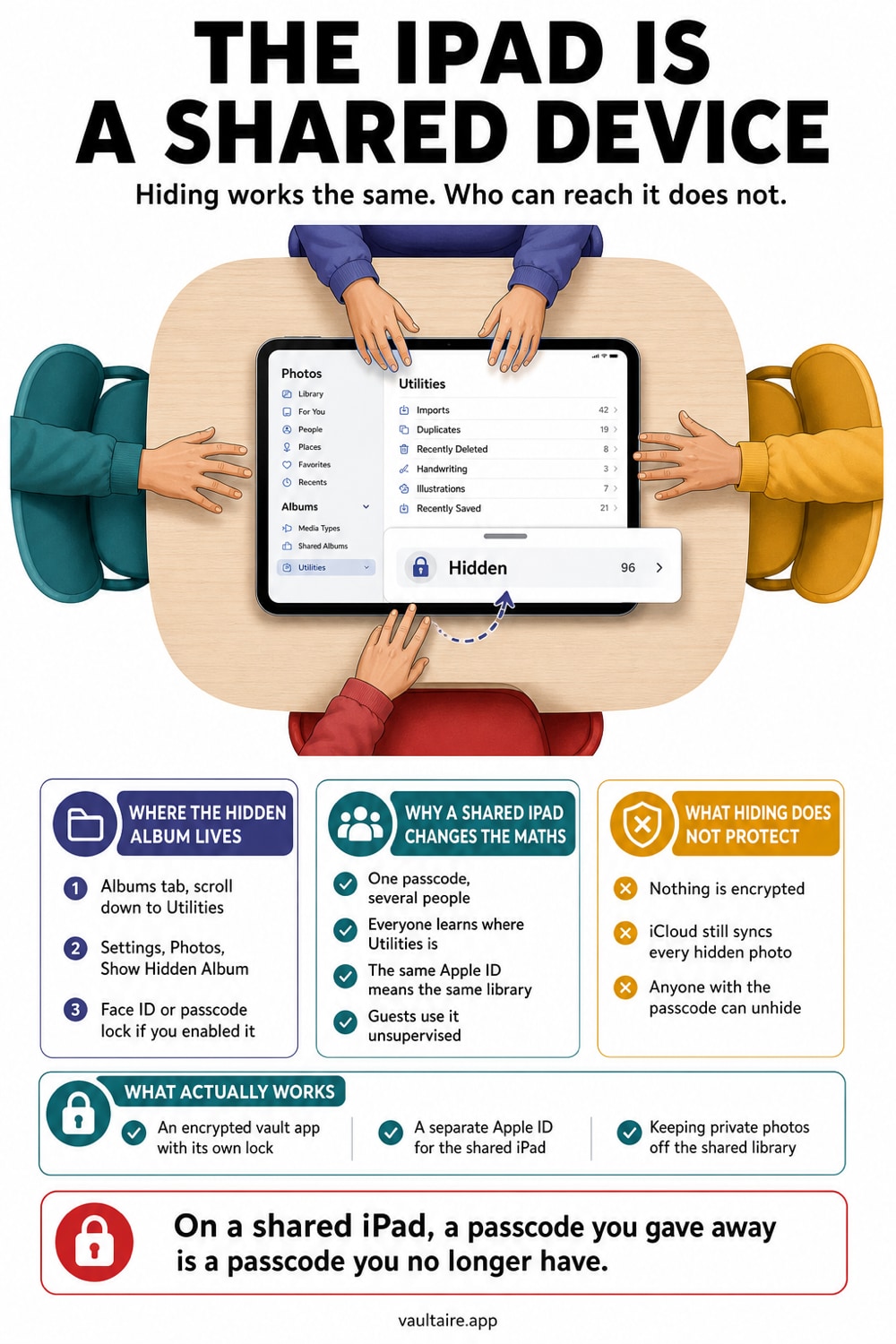
To hide a photo on iPad, touch and hold it in Photos, tap Hide, and confirm. It moves to the Hidden album, which lives in the Photos sidebar under Utilities, and on iPadOS 16.1 and later that album is locked behind Face ID, Touch ID, or your passcode by default. You can also turn off Show Hidden Album in Settings, Apps, Photos so the album is not visible at all. What none of this does is encrypt anything. The Hidden album is a filter, not a vault, and on a shared iPad anyone whose face or fingerprint is enrolled on the device, or who knows the passcode, can open it in seconds.
Where the Hidden Album Lives on iPad
The steps to hide a photo are identical across Apple devices: touch and hold the photo or video in Photos, tap Hide, and confirm. Finding it again is where iPad differs. On iPhone you tap the Albums tab and scroll to Utilities, but on iPad the Photos app leans on the sidebar, so you open the sidebar and look for Hidden in the Utilities section. Apple has reshuffled that sidebar more than once across recent iPadOS releases, which is why so many people search for the album rather than the action. The contents are the same wherever it appears.
Two settings are worth knowing before you rely on it. On iPadOS 16.1 and later the Hidden album is locked by default, so opening it prompts for Face ID, Touch ID, or your passcode. Separately, in Settings, Apps, Photos there is a Show Hidden Album toggle. Turn it off and the album vanishes from the sidebar entirely, so someone flicking through your Photos app never learns that a hidden collection exists. That second toggle is the one most people miss, and on a shared iPad it does more practical work than the lock does.
Why a Shared iPad Changes the Math
An iPhone is a personal device with one face enrolled and one person carrying it. An iPad often is not. Touch ID accepts up to five enrolled fingerprints, and on a family iPad those slots tend to get filled by whoever needed access at some point, including children. Because the Hidden album accepts the same biometric that unlocks the device, every enrolled finger is also a key to your hidden photos. Nobody has to guess a passcode or break anything. They simply press the button they were already invited to press, and the album opens.
The Apple ID question matters just as much. If your household signs in to one Apple ID across several devices, iCloud Photos syncs the Hidden album to all of them, so a photo hidden on your iPad is sitting in the same album on the iPhone or Mac in someone else lap. Family Sharing with separate Apple IDs avoids that, but plenty of households never split them. Our guide on private photos on a shared Apple ID walks through which arrangement you actually have.
What the Hidden Album Does Not Protect
The Hidden album is a visibility filter applied inside the Photos app. It removes photos from your Library view, from other albums, from search results, and from the Photos widget, and that is genuinely useful against an accidental glance while you scroll. It is not encryption. The image files sit in the same photo library as everything else, protected by the same device passcode and nothing more. Anyone who can unlock the iPad can reach them, and any app you grant full photo library access to can enumerate them as well.
There is one more trap specific to families. If a hidden photo belongs to an iCloud Shared Photo Library, hiding it does not hide it from the other participants. Every member can still see it in their own Hidden album, and any of them can unhide it. So the feature that families are most likely to switch on is exactly the one that quietly undoes hiding. The same caution applies on Mac, where the album behaves the same way and is covered in our guide to hiding photos on a Mac.
How to Actually Lock Private Photos on iPad
Start by using what is built in properly. Hide the photos you do not want surfacing, then turn off Show Hidden Album so the collection is not advertised in the sidebar. If other people have fingerprints enrolled on the iPad, remove the ones that no longer need to be there in Settings under Touch ID and Passcode. If the iPad is genuinely a household device, check whether it shares your Apple ID, and move to a separate ID with Family Sharing if it does. Those steps cost nothing and close the easy gaps.
For photos that must never be one fingerprint away, the durable answer is to take them out of Photos altogether. An encrypted vault app such as Vaultaire stores images behind its own key rather than the device passcode, so unlocking the iPad does not unlock the vault, and an enrolled child fingerprint is not a way in. Move the photos across and accept its offer to delete the originals, then empty Recently Deleted so no copy lingers. If you want to compare the options first, our roundup of the best photo vault apps covers what to look for.
Related reading:
- How to hide photos on iPhone
- How to hide photos on a Mac
- Private photos on a shared Apple ID and Family Sharing
- Best photo vault apps for iPhone
- Device Sync
Sources
Frequently Asked Questions
How do I hide photos on iPad?
Open Photos, touch and hold the photo or video you want to hide, tap Hide, then confirm. The item moves to the Hidden album and stops appearing in your Library, your other albums, your search results, and the Photos widget. You can hide several at once by tapping Select, choosing the items, then using the more button and tapping Hide.
Where is the Hidden album on iPad?
Open the Photos sidebar and look under Utilities for Hidden. The exact path has shifted between iPadOS versions, so if you do not see Utilities, scroll the sidebar or check Collections. If the album is missing entirely, it is probably switched off: open Settings, tap Apps, tap Photos, and turn Show Hidden Album back on.
Can my family see my hidden photos on a shared iPad?
Yes, in two common cases. The Hidden album unlocks with the same Face ID, Touch ID, or passcode that unlocks the iPad, and Touch ID holds up to five fingerprints, so anyone enrolled on a family iPad can open it. Separately, if the photo belongs to an iCloud Shared Photo Library, every participant sees it in their own Hidden album and can unhide it.
Is the iPad Hidden album encrypted?
No. The Hidden album is a visibility filter inside the Photos app, not encryption. The files stay in your normal photo library with the same protection as every other photo, which is your device passcode. Anyone who can unlock the iPad can reach them. An encrypted vault app protects photos with a separate key, so unlocking the device is not enough to open them.