How to Remove Location Metadata from iPhone Photos
Remove GPS location from iPhone photos before sharing, stop new photos from saving location, and check what metadata remains.
To remove location from an iPhone photo before sharing, open the photo, tap Share, tap Options, and turn Location off. To remove stored location from the original item, open the photo info screen, tap the location, and choose No Location or adjust the location if your iOS version offers it.
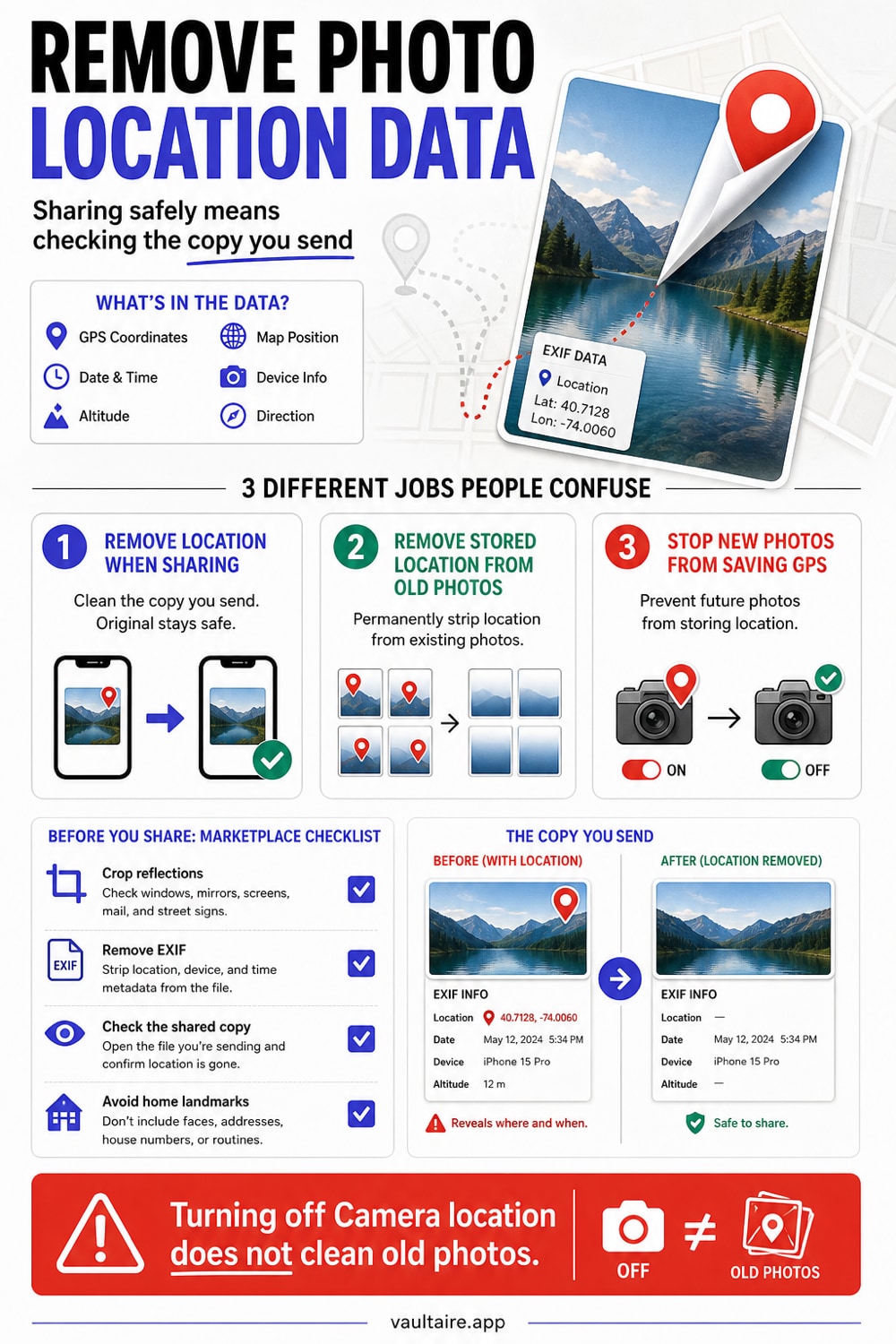
Three different jobs people mix up
Location privacy has three separate workflows. Pick the one that matches what you need today.
| Method | Changes original file? | Best for | Risk |
|---|---|---|---|
| Share Options location toggle | No | One-time share | Easy to forget next time |
| Photos app location adjustment | Yes, for that item | Existing private photo | Other metadata can remain |
| Camera location off | Future photos only | Ongoing privacy | You lose place search in Photos |
| Metadata stripping shortcut or app | Usually creates a copy | Public posting | You must trust the tool |
The share toggle helps for one send. It does not clean your library. Camera location settings help future photos. They do not rewrite old ones.
Remove location when sharing one photo
- Open Photos.
- Select the photo or video.
- Tap Share.
- Tap Options at the top of the share sheet.
- Turn Location off.
- Share the photo.
This is the fastest fix before sending a photo through Messages, Mail, AirDrop, or a marketplace app. It keeps the original item unchanged in your library.
Remove stored location from an existing photo
- Open the photo in Photos.
- Swipe up or tap the info button.
- Tap the location or map area.
- Choose No Location or adjust the location if your iPhone shows that option.
Do this for photos you plan to keep but might share again later. It reduces the chance that you forget the share toggle next time.
Stop new photos from saving GPS location
- Open Settings.
- Tap Privacy & Security.
- Tap Location Services.
- Tap Camera.
- Choose Never.
This stops the Camera app from adding GPS coordinates to new photos. Other camera apps may have their own settings, so check those separately.
Check the shared copy
Do not assume the job worked. Send the photo to yourself, save the received copy, then open the info screen and check whether a map still appears.
For a deeper check, use the free photo metadata viewer and remover to inspect GPS, EXIF, editing, and supported provenance fields in the exact copy you plan to share. Some websites strip metadata. Some preserve it. Some generate a new compressed copy. Treat each site as a separate test.
Marketplace and social posting checklist
Location metadata is not the only leak. A photo can show your house number, school name, license plate, reflection, shipping label, Wi-Fi network, or calendar on a wall.
Before posting photos of furniture, cars, pets, receipts, school events, or anything near your home, check both the file metadata and the image itself.
Vaultaire protects files while they stay inside the vault. If you export a file and post it publicly, you still need to check metadata and visible details before sharing.
When location removal is not enough
GPS coordinates are only one part of the problem. A photo can reveal a place without metadata if the image shows a street sign, school logo, window view, parcel label, badge, vehicle plate, or the inside of a home. A cleaned file can still identify you if the picture itself contains enough clues.
Before you post a photo publicly, zoom in. Check corners, reflections, mirrors, screens, paperwork, and background objects. If the photo is for a marketplace listing, crop tightly and retake it against a plain surface. If the photo is evidence, keep an untouched original in a private archive and share a cleaned copy.
Build a repeatable sharing habit
Use the same workflow every time you share sensitive images: clean the copy, send it to yourself, inspect the received file, then share that verified copy. This feels slow once. After a few rounds, it becomes faster than wondering whether an upload exposed your home address.
For repeat work, keep a "share-safe" folder separate from your originals. That gives you a clear boundary between archive copies and public copies, and it reduces the chance that you post the wrong version.
Related reading:
- Share photos securely
- Hide photos from social media apps
- iPhone privacy settings
- Journalist source photo metadata
- Secure sharing
- How to remove photo metadata on an iPhone
- How to find out where a photo was taken
Sources
- Apple Support: See photo and video information on iPhone
- Apple Support: Control access to information in apps on iPhone
FAQ
Does turning off Camera location remove location from old photos?
No. It affects new photos only. Remove location from old photos one by one or use a metadata stripping workflow that creates cleaned copies.
Does AirDrop keep location metadata?
AirDrop can send the original file with metadata unless you turn off Location in the share options. Check the file before sending sensitive photos.
Should I use a metadata removal app?
Use one only if you trust it with the photo. For a few iPhone photos, Apple's built-in location controls are usually enough.