

App Icons: Choose How Vaultaire Looks on Your Home Screen
A vault icon on the first Home Screen page invites a question. Vaultaire Pro lets you swap it for a plain utility icon, and on iOS 18 and later you can add a tile with your own name.
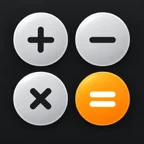
App Icons is a Vaultaire Pro setting that replaces the Home Screen icon with one of seven utility icons: Calculator, Printer, Units, Device Info, Level, Sound Meter or Network. iOS confirms each change with an alert, and the name under the icon stays Vaultaire. Every icon opens the pattern screen.
The Seven Icons
Each icon looks like a tool many people keep on an iPhone. You can preview all of them in Settings > App Icon on the Free plan. Setting one needs Pro.







How to Change the Icon
1. Open Settings > App Icon
Unlock a vault, open Settings, and tap App Icon. The screen shows the standard Vaultaire icon and the seven alternates.
2. Tap an icon
Vaultaire asks iOS to change the icon, and iOS shows an alert that the icon changed. Every app that changes its own icon gets this alert, and no app can turn it off. If iOS refuses the change, Vaultaire keeps the old icon and tells you.
3. Switch back at any time
Tap the Vaultaire icon on the same screen to return to the standard icon.
A Home Screen Tile With Your Own Name
iOS does not let an app rename itself, so the label under any alternate icon still reads Vaultaire. On iOS 18 and later, the Shortcuts app can add a tile to the Home Screen with any picture and any name. Vaultaire uses that.
Below the icon grid, type a name of up to 20 characters and tap Add to Home Screen. The first time, Vaultaire asks you to import its signed "Vaultaire Home Screen" shortcut: tap Open Shortcuts, choose Shortcuts, then tap Add Shortcut. You do this once. After that, Vaultaire hands the shortcut only the name and which icon you chose. The icon pictures are already inside the shortcut, and Shortcuts adds the tile.
The tile opens Vaultaire, and Vaultaire still asks for your pattern. If you want only the tile on your Home Screen, move the original Vaultaire tile to the App Library.
The icon changes a picture. It does not hide the app. Vaultaire stays in the App Library, in Settings, and in search for Vaultaire, and the original stays installed when you add a tile. No icon opens a working calculator or another decoy screen. Anyone who opens the app sees the pattern screen, and the pattern is what protects your files.
Who It Is For
The icon helps when the risk is a glance: a friend scrolling past your Home Screen, a child borrowing the phone, a screenshot you share. It does not help against someone who searches the phone for vault apps. For that case, Vaultaire's protection is inside the app: pattern encryption for every vault, hidden vaults that do not appear in normal navigation, and duress mode for a pattern you may be forced to enter.
Frequently Asked Questions
Can I change the Vaultaire app icon?
Yes, with Vaultaire Pro. Go to Settings > App Icon and pick Calculator, Printer, Units, Device Info, Level, Sound Meter or Network. Free users can preview every icon but cannot set one.
Does the calculator icon open a working calculator?
No. Every icon is a picture only. Tapping it opens Vaultaire's pattern screen, the same as the standard icon.
Why does iOS show an alert when I change the icon?
iOS shows that alert for every app that changes its own icon. An app cannot turn it off.
Can I change the name under the icon?
Not for the app itself: iOS keeps the name Vaultaire. On iOS 18 and later, Vaultaire can use the Shortcuts app to add a second Home Screen tile with the icon you chose and a name of up to 20 characters.
Does the icon hide Vaultaire from my iPhone?
No. Vaultaire still appears in the App Library, in Settings, and in search for Vaultaire. The icon changes what the Home Screen shows. The pattern is what protects the files.
Pick an Icon That Fits In
Seven utility icons and a Home Screen tile with your own name, included with Vaultaire Pro.
Download Vaultaire Free