How to Show One Photo on iPhone Without Letting Someone Swipe
You hand your iPhone to a friend to show one photo, and a second later they are swiping through your camera roll, past pictures you never meant to share. It is one of the most common ways private photos get seen, and stopping it in the moment feels awkward. The good news is that iPhone has a built in feature, Guided Access, that locks the screen to a single app or even a single photo, so a casual swipe goes nowhere. This guide shows you how to set it up in under a minute, what it does and does not protect, and the more durable fix for the photos that should never be one swipe away.
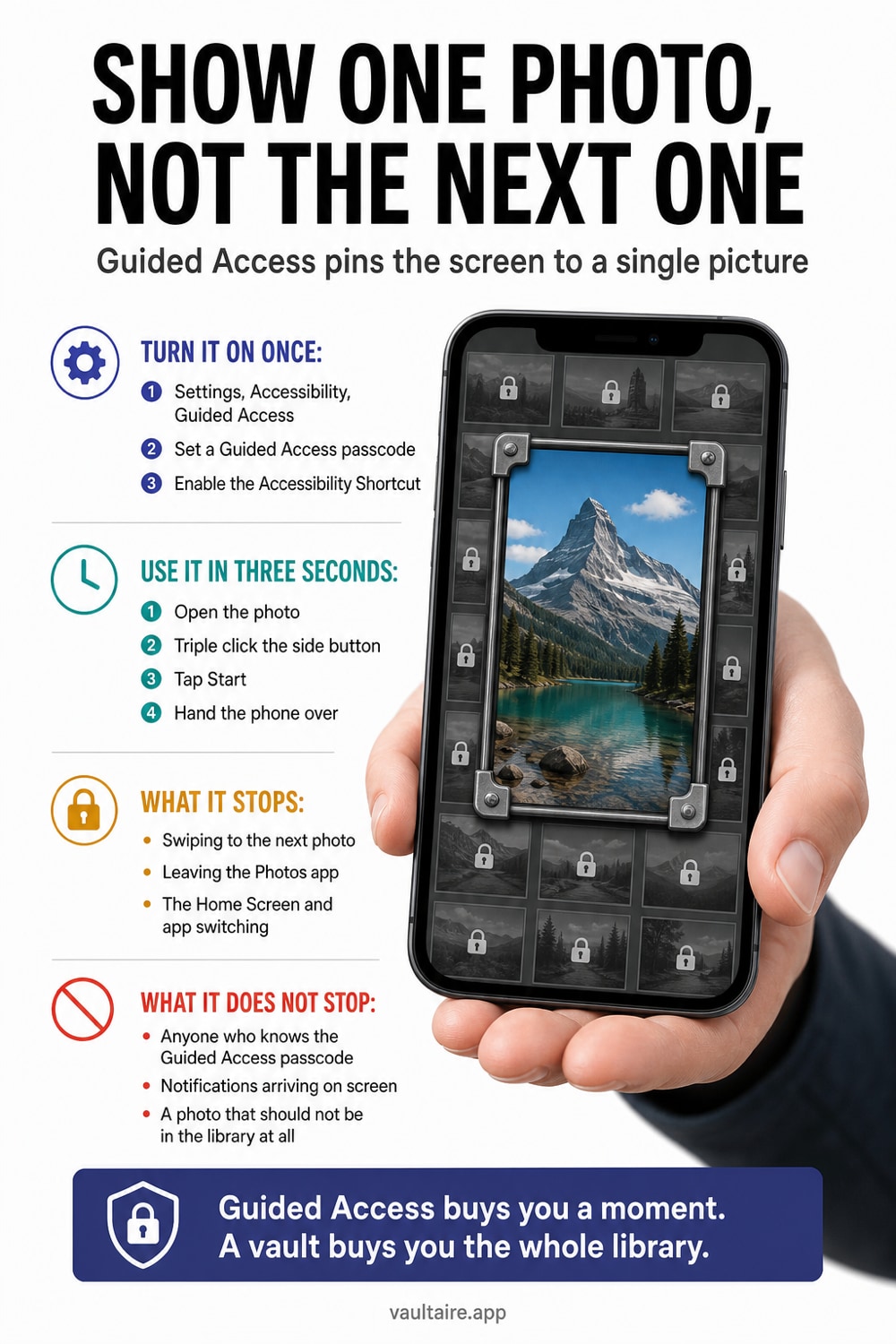
To show someone one photo on your iPhone without letting them swipe to others, use Guided Access. Turn it on in Settings under Accessibility, open the photo you want to show, then triple click the side button and tap Start. With Touch turned off the screen freezes on that single photo, so no swipe, tap, or gesture does anything until you end the session with your passcode or Face ID. Guided Access is the quickest fix for a phone you hand over in person. For photos that must never be one swipe away, keep them out of the camera roll entirely in an encrypted vault app.
Why handing over your phone is risky
A photo you show someone lives in your main camera roll, right next to everything else. The Photos app is built for swiping, so the same left or right flick that moves to the next holiday snap also moves to the private picture three frames over. Most people who keep swiping are not malicious. They are curious, or they simply expect that scrolling is what you do with a photo on a phone. That is exactly why it happens so often and why it feels so awkward to stop.
The risk is not limited to the person holding the phone. A notification banner can slide down mid conversation and reveal a message you did not want read aloud. A tap on a shared photo can open a thread. Once your iPhone is unlocked and in someone else's hands, every photo, album, and app is one gesture away. Guided Access closes that gap by pinning the phone to the one thing you meant to show.
Set up Guided Access to lock the screen to one photo
First turn the feature on. Open Settings, tap Accessibility, then tap Guided Access near the bottom and switch it on. Tap Passcode Settings, choose Set Guided Access Passcode, and pick a code, or turn on Face ID or Touch ID so only you can end a session. This is a one time setup. Once it is done the feature waits quietly until you call on it.
When you want to show a photo, open it in the Photos app, then triple click the side button, or the top or Home button on older models. Tap Start in the top corner and the phone is now locked to Photos. To fix it on the single photo, tap Options and turn Touch off, which stops every swipe and tap. Hand the phone over with confidence, then triple click again and enter your passcode or use Face ID to end the session when you take it back.
What Guided Access does and does not protect
Guided Access is a live lock, not a hiding place. It protects only while a session is running, and only the app you started it in. It does nothing to the photo itself: the picture still sits in your camera roll, still syncs to iCloud if that is on, and is visible again the moment the session ends. If you forget to start a session before handing the phone over, it offers no protection at all. It is a habit you have to remember, not a setting that works in the background.
It also does not solve the deeper problem, which is that sensitive photos are mixed in with everyday ones. Anyone who knows your device passcode can still end a Guided Access session, and anyone you fully trust with an unlocked phone can browse freely. Guided Access is excellent for the quick, in person moment of showing a single picture. It is not designed to keep a determined person, or a shared passcode, away from photos that need real separation.
The durable fix: keep private photos out of the camera roll
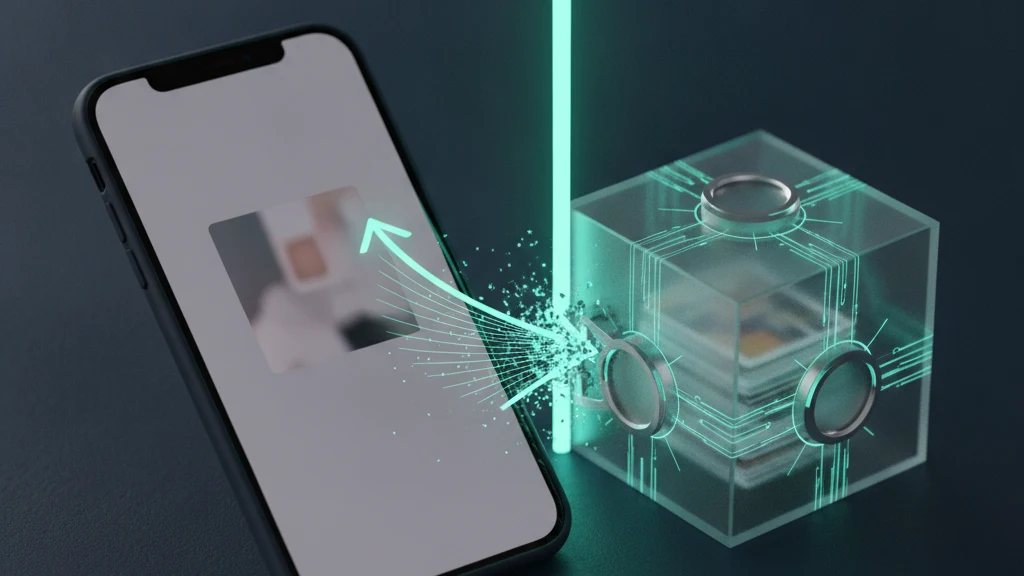
The reliable way to make sure a photo can never be swiped into is to keep it out of the camera roll in the first place. A photo vault app stores your most private pictures in a separate, encrypted container locked behind its own lock, one that is not the same as your phone unlock code. Because those photos never appear in the Photos app, no swipe, shared album, or app photo picker can reach them, whether or not you remembered to start Guided Access.
Vaultaire is built for this separation. It encrypts imported photos under a random master key, keeps them outside the camera roll and iCloud Photos, and derives the vault key from a drawn pattern separate from the iPhone passcode. Move the pictures that should not be one swipe away into the vault, confirm the import, then delete the Photos originals and empty Recently Deleted. The vault copies remain encrypted while the vault is locked.
Related guides
- How to hide photos on iPhone
- How to lock photos on iPhone
- Signs someone went through your photos
- Hidden album versus a photo vault app
Sources
Frequently asked questions
Can I show one photo without swiping if I just hide the others?
Hiding photos helps, but the picture you are showing still lives in your main library, so a swipe moves straight to the next visible photo. The Hidden album also unlocks with your device passcode. Guided Access is the reliable way to freeze the screen on a single photo, and a vault app keeps the private ones out of the camera roll entirely.
Does Guided Access work on every iPhone?
Yes. Guided Access is a standard accessibility feature on every modern iPhone and iPad. On models with Face ID you start and end a session by triple clicking the side button, and on models with a Home button you triple click that instead. You only need to turn it on once in Settings under Accessibility.
Will the other person know Guided Access is on, and how do I turn it off?
They will notice the phone is locked to one screen and that swipes do nothing, but they cannot leave the app or end the session. To turn it off, triple click the side button or Home button and enter your Guided Access passcode, or use Face ID or Touch ID if you enabled it. The phone then returns to normal.
What is the most reliable way to stop someone swiping to my private photos?
Keep those photos out of the camera roll. Guided Access is perfect for the in person moment of showing one picture, but it only works while a session is active and while you remember to start it. A photo vault app with its own lock and on device encryption removes the private photos from Photos altogether, so there is nothing to swipe to even if you forget.