How to Hide Photos from Memories on iPhone
iPhone keeps resurfacing your photos in Memories, Featured Photos, and widgets, sometimes at the worst moment. Here is how to control each surface and keep the private ones out for good.
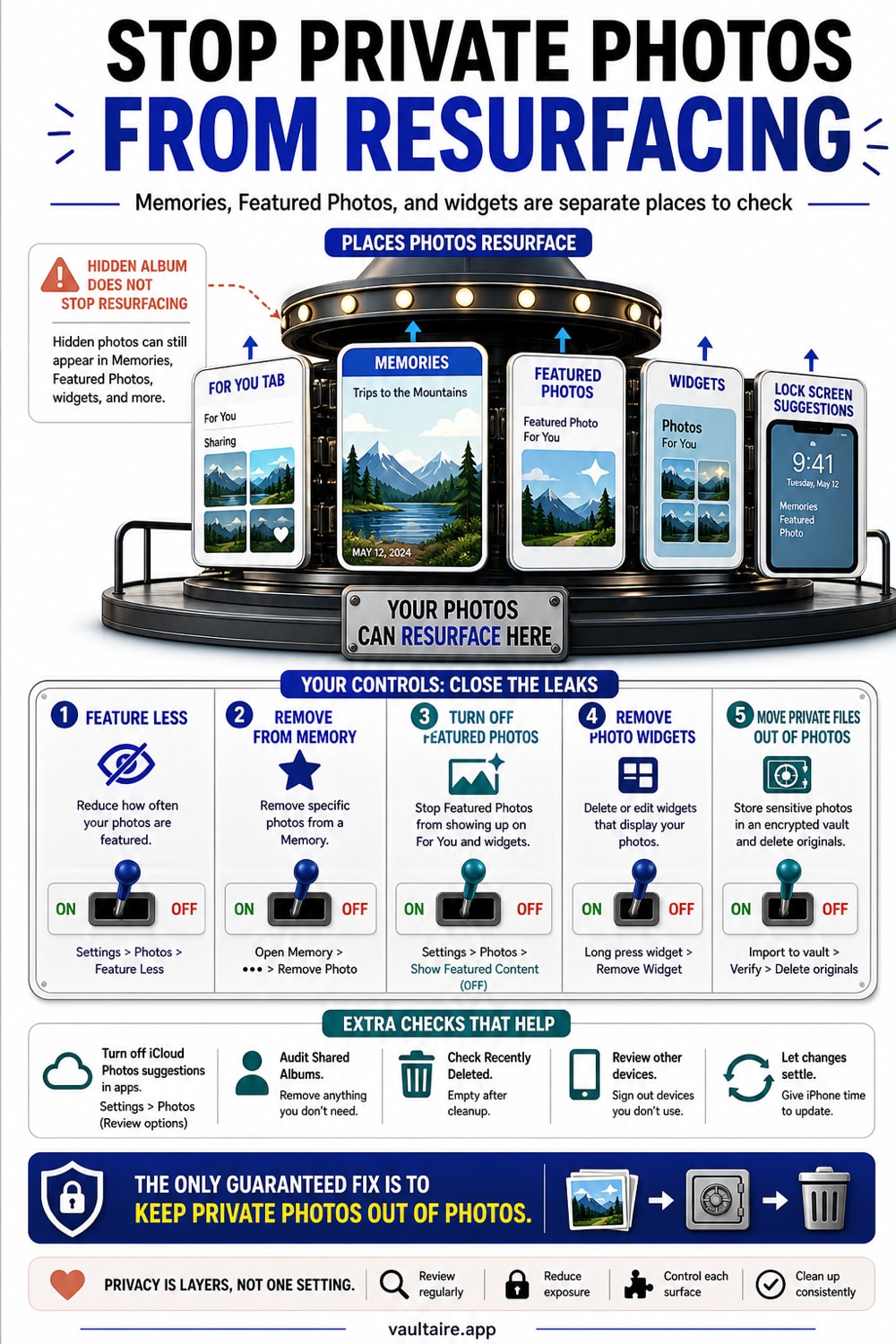
To stop a photo from appearing in Memories, open the memory and feature it less or remove the photo, then turn off Show Featured Content in Settings, Photos to quiet Memories and Featured Photos across the system. These controls limit what surfaces but leave the photo in your library. The only way to guarantee a picture never resurfaces is to move it out of Photos into an encrypted vault.
Where iPhone resurfaces your photos
Your iPhone does not just store photos, it reshows them. The Memories tab builds slideshows from your library, the For You area suggests highlights, the Photos widget rotates pictures on your Home Screen, and Featured Photos can surface images in search and suggestions. None of this asks first, which is why a photo you would rather not see can appear while someone is looking over your shoulder.
All of these surfaces pull from the same place, your main photo library. That is the key point. As long as a picture lives in Photos, the system is free to feature it somewhere, even after you tidy up one slideshow. Controlling Memories is really about controlling each surface, and then deciding which photos should not be in the library at all.
Hide a specific photo or memory
To deal with a single slideshow, open the Memory, tap the three dot menu, and either remove the photo from that memory or choose to feature it less. You can also delete a whole memory you never want to see. For a recurring face, open the People and Pets album, pick the person, and choose Feature This Person Less, which quietly pulls them out of future highlights.
These controls are useful, but understand their limit. They shape what the Memories feature builds, yet the photo itself stays in your library and can still appear in the widget, in search, or in a future memory built on different rules. Per item tuning reduces the odds, it does not remove the photo from circulation.
Turn off Featured Photos and Memories
For a broad fix, open Settings, tap Photos, and turn off Show Featured Content. That single switch stops Featured Photos and Memories from surfacing across For You, the widget, and system suggestions. You can also remove the Memories or Photos widget from your Home Screen and Lock Screen so nothing rotates there.
This is the closest iPhone gets to a master off switch, and it is worth using if surprise photos bother you. Even so, it is a display setting, not a privacy boundary. The photos remain in your library, fully readable by anyone with your passcode and by a computer over a cable. Turning off the feature hides the showcase, not the photos.
Keep private photos out of Memories for good
If a photo must never resurface, the only reliable answer is to take it out of the Photos library entirely. Import it into an encrypted vault, then delete the original from Photos and from Recently Deleted. Once it is gone from the library, no memory, widget, or featured rotation can reach it, because the system has nothing to pull.
Vaultaire is built for this. You draw a pattern on a five by five grid, and PBKDF2 derives the vault key that authenticates the encrypted index and unwraps its random AES-256 master key. Move the sensitive photos in, then remove the originals from Photos and Recently Deleted. There is no identity account, and app-managed CloudKit copies are created only when you enable backup, sync, or sharing. System device backups may still include encrypted local files. The imported copies stay outside Photos and its Memories surfaces, while their contents remain encrypted until an authenticated vault or recovery flow obtains the required keys.
Related reading:
- Do hidden photos show up in iPhone search and widgets
- How the Hidden photos album works
- How to password protect individual photos on iPhone
- Best photo vault app: 7 compared
Sources
- Apple Support: Relive your best moments in Memories
- Apple Support: Change Photos settings on iPhone
- Apple Support: Find photos of people, pets, and places
Frequently asked questions
Why do old photos keep showing up on my iPhone?
The Memories and Featured Photos features automatically surface pictures from your library across the For You area, the Photos widget, search, and sometimes the Lock Screen. They pull from your whole library without asking, which is why old or private photos can appear unexpectedly.
Can I stop one specific photo from appearing in Memories?
Yes. Open the memory, tap the three dot menu, and remove the photo or feature it less, or feature a person less from the People and Pets album. This trims that slideshow, but the photo stays in your library and can still appear in the widget or a future memory.
How do I turn off Memories entirely?
Open Settings, tap Photos, and turn off Show Featured Content. That stops Memories and Featured Photos across the system. Removing the Memories or Photos widget from your Home and Lock Screen stops the rotation there too. It limits the feature but does not delete any photos.
What is the only way to guarantee a photo never resurfaces?
Remove it from the Photos library. As long as a picture lives in Photos, the system can feature it somewhere. Move sensitive photos into an encrypted vault and delete the originals, and there is nothing left for Memories, widgets, or search to surface.