How to Password Protect Individual Photos on iPhone
iPhone does not let you put a password on a single photo, but you have three real ways to lock just the pictures you choose. Here is how each one works and which to reach for.
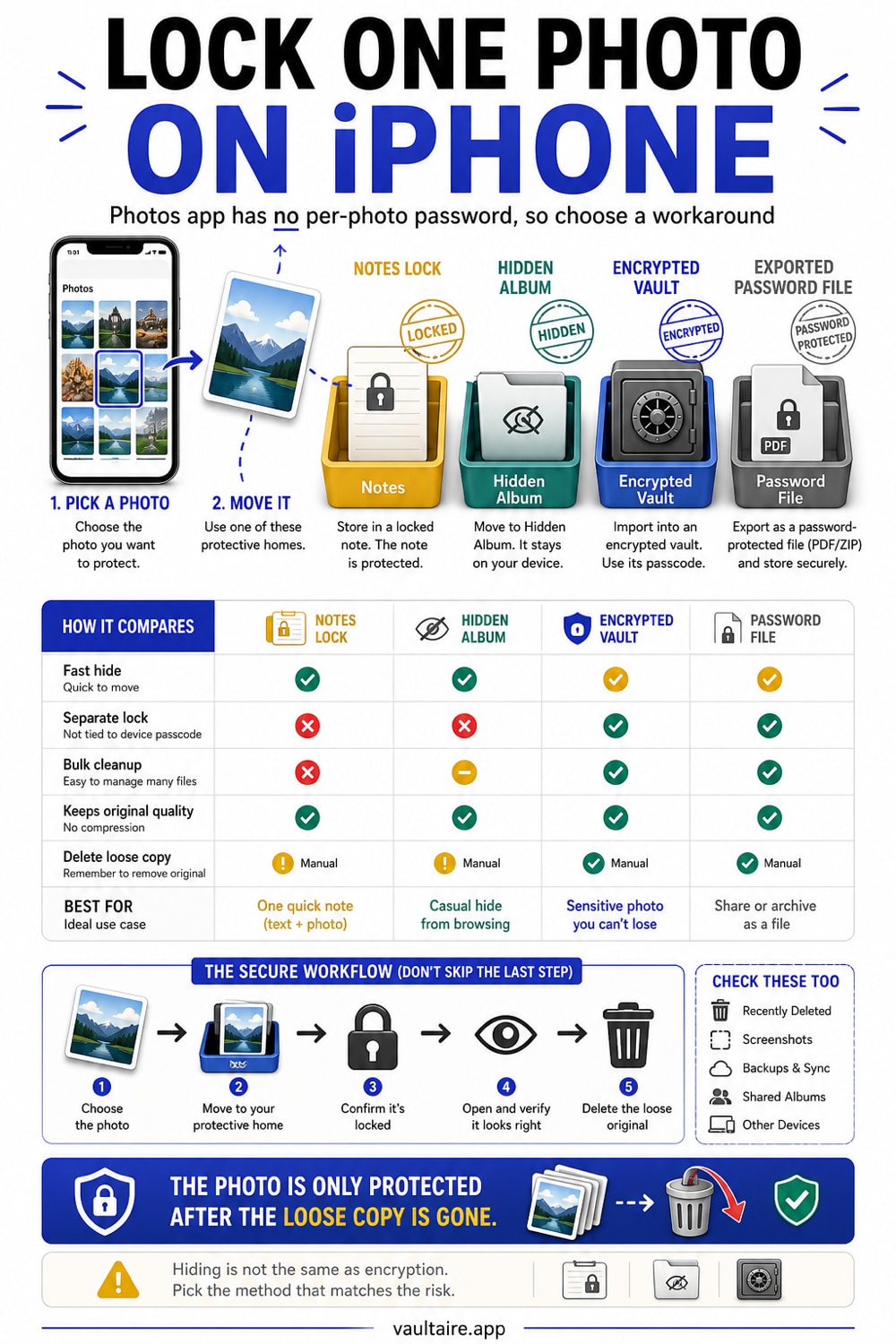
iOS has no built in per photo password. To lock a single photo you can add it to a locked Notes note, move it to the Hidden album (which covers everything at once), or import it into a photo vault app that gives each item its own passcode. Only a vault app truly protects one photo at a time with encryption.
Why iPhone has no per photo password
Open any photo in the Photos app and look for a lock option. There is none. Apple never built a password that applies to a single image. The closest built in tool is the Hidden album, and it is one switch for the whole album rather than a lock you can put on one picture. Recently Deleted is also protected, but that is a holding area for forty days, not a place to store photos you want to keep.
This matters because hiding and locking are not the same thing. The Hidden album keeps a photo out of your main grid, yet anyone who knows your passcode can open it in seconds, and a computer can read it over a cable. If you want one specific photo to stay private even from someone holding your unlocked phone, you need a method that adds a real barrier, not just a different folder.
Lock one photo with the Notes app
The Notes app is the only built in way to put a passcode on a chosen photo. Open Photos, select the picture, tap Share, then Add to Notes and save it to a new note. Open that note in the Notes app, tap the three dot menu, and choose Lock. From then on the note asks for Face ID or your Notes password before it opens, and the photo inside is sealed with it.
Two cautions make or break this method. First, the photo is still in your main library until you delete it, so remove the original from Photos and then clear it from Recently Deleted. Second, a locked note protects the copy inside the note, not the file you imported from, and it leans on your device passcode. It is a solid quick lock for one or two images, but it was never meant to be a photo store.
Use the Hidden album for a fast hide
If your goal is simply to keep a photo out of casual view, the Hidden album is the fastest route. Open the photo, tap the three dot menu, and choose Hide. Then go to Settings, Photos, and turn on Use Face ID so the Hidden album asks for your face or passcode. The photo leaves your main grid and lands in a folder that stays shut until you unlock it.
Keep the limits in mind. The Hidden album is all or nothing, so the lock covers every hidden photo rather than the single one you care about. The photos are hidden, not encrypted, which means they are still readable by anyone with your passcode and by a Mac or PC over a cable. It is a privacy curtain, not a safe.
Lock individual photos with a vault app
When you want true per photo protection, a dedicated photo vault is the right tool. You import the photos you choose, the app encrypts them, and then you delete the originals from the Photos app. Each item lives behind its own locked door rather than in a shared hidden folder, so protecting one picture does not mean exposing the rest of your library.
Vaultaire is built for exactly this. You draw a pattern on a five by five grid, and PBKDF2 derives a vault key that authenticates the encrypted index and unwraps a random AES-256 master key. Add the photos you want, and their contents are encrypted under that master key. There is no identity account or email requirement, and app-managed CloudKit copies are created only when you enable backup, sync, or sharing. System device backups may still include encrypted local files. Someone who opens the app on an unlocked phone still needs an authenticated vault or recovery flow to obtain the required keys.
Related reading:
- How to password protect a folder on iPhone
- iPhone Notes lock versus a photo vault
- How the Hidden photos album works
- Best photo vault for iPhone, tested on device
Sources
- Apple Support: Hide photos on iPhone
- Apple Support: Lock your notes on iPhone
- Apple Support: Set up and use Face ID
Frequently asked questions
Can I put a password on just one photo in the Photos app?
No. The Photos app has no per photo password. The only protected areas are the Hidden album and Recently Deleted, and both cover groups of photos with one lock rather than letting you protect a single image. To lock one specific photo you need the Notes lock or a vault app.
Is the Hidden album encrypted?
No. The Hidden album hides photos from your main grid and can ask for Face ID, but the files are not encrypted. Anyone with your passcode can open the album, and a Mac or PC can read the hidden photos when the iPhone is connected by cable. It is hiding, not encryption.
Does the Notes lock actually protect the photo?
It locks the copy you placed inside the note, using Face ID or your Notes password. For it to mean anything, delete the original from the Photos app and then from Recently Deleted, otherwise an unlocked copy still sits in your library. It is a good quick lock but not a place to store many photos.
What is the most secure way to lock individual photos?
An encrypted photo vault. It protects each photo on its own with strong encryption rather than hiding a whole album behind one switch. Vaultaire uses AES 256 with a pattern you draw on the device, needs no account, and keeps the photos unreadable even to someone holding your unlocked phone.