How to Use Private Browsing in Safari on iPhone (2026)
Private Browsing is the Safari mode that keeps a session out of your history, and most people assume it does more than it really does. This guide shows you how to turn it on, how to lock your private tabs behind Face ID, and where private browsing quietly stops protecting you.
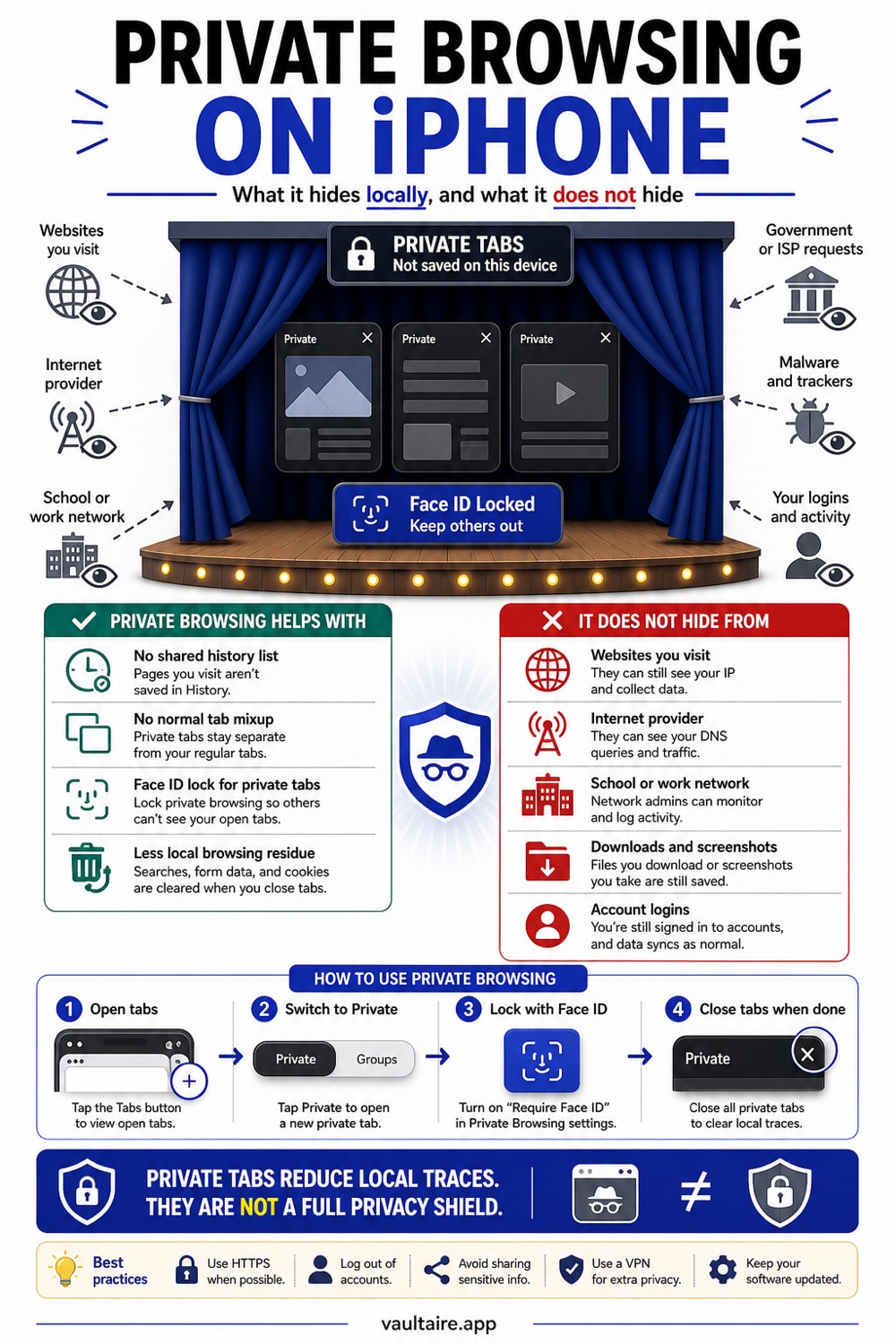
To use Private Browsing in Safari on iPhone, open Safari, tap the Tabs button, swipe to the Private tab group, and tap Done. To lock it, open Settings, tap Apps, tap Safari, and turn on Require Face ID to Unlock Private Browsing. Your private tabs then stay sealed behind Face ID whenever you leave the app or your iPhone locks. Private Browsing hides tabs from your own device, but it does not hide the photos, downloads, or screenshots you save, so keep those in an encrypted vault.
What Private Browsing Actually Does
When you switch Safari into Private Browsing, the app stops recording the pages you visit in your history, stops carrying your normal cookies and logins into the session, and keeps those tabs separate from your regular ones. Each private tab is also isolated for tracking, so a site you open in one tab cannot easily follow you into another. On recent versions of iOS, Safari layers advanced tracking and fingerprinting protection on top, which makes it harder for sites to build a profile of your device.
The effect is local and personal. Private Browsing is built so the next person who picks up your iPhone does not see where you have been, and so a quick search does not bleed into your suggestions and autofill. It is the right tool for booking a surprise, researching something sensitive, or signing into a second account without logging out of your first. What it is not is a cloak of invisibility, and the gap between those two ideas is where most people get caught out.
How to Turn On Private Browsing
Open Safari and tap the Tabs button, the two overlapping squares in the bottom right corner. A row of tab groups appears along the bottom of the screen. Swipe that row to the right until you reach Private, then tap Done to start browsing. The screen shifts to a darker shade to confirm the private session, and any tab you open here stays in this group until you close it.
To leave Private Browsing, tap the Tabs button again, swipe back to your regular tabs or a named tab group, and tap Done. Your private tabs do not vanish when you switch away, which surprises people who assume the mode tidies up after itself. They wait quietly in the Private group until you close them by hand, which is exactly why the next step matters so much.
How to Lock Private Browsing With Face ID
From iOS 17 onward, Safari can lock your private tabs behind biometrics so nobody can swipe into them even while your iPhone is unlocked. Open Settings, tap Apps, then tap Safari and scroll to the Privacy and Security section. Turn on Require Face ID to Unlock Private Browsing, or the Touch ID or passcode version that matches your device. On older versions of iOS the Safari settings live directly in the main Settings list rather than under Apps.
With the lock on, your private tabs blur and seal the instant you leave Safari or your iPhone locks. When you come back, Safari shows an Unlock button and asks for Face ID before it reveals the pages. This closes the most common privacy hole on a shared or borrowed phone, where someone opens Safari, taps the Tabs button, and lands straight in your last private session. It costs nothing and takes about ten seconds to set up.
Where Private Browsing Stops Protecting You
Private Browsing only governs what Safari remembers on your device. It does not hide your activity from the network you are on, so your internet provider, your employer, your school, or a public Wi-Fi operator can still see the sites you reach. It does not make you anonymous to the websites themselves, and it does not encrypt your traffic the way a VPN would. Anything you download still lands in your Files app, and any screenshot you take still saves to your Photos library, both fully visible outside the private session.
That last point is the one that bites. The bank statement you screenshotted, the document you saved, the photo someone sent you in a private chat: none of those are protected just because you viewed them in a private tab. Vaultaire protects imported copies with AES-256-GCM under a random master key, which a pattern-derived vault key unwraps. Private Browsing controls tab history, while a locked vault gives saved files a separate cryptographic access path.
Related reading:
- The iPhone privacy settings worth changing first
- How to keep your screenshots private on iPhone
- How to password protect a folder on iPhone
- How the iPhone Hidden album really works
Sources
- Apple, Turn Private Browsing on or off on your iPhone
- Apple, How to use Locked Private Browsing in Safari
- Vaultaire, Security features
Frequently Asked Questions
Does Private Browsing hide my activity from my internet provider?
No. Private Browsing only stops Safari from saving your history and session data on your iPhone. Your internet provider, a network administrator, or a public Wi-Fi operator can still see the sites you visit. To hide traffic from the network itself you would need a VPN, which is a separate tool.
Can someone open my private tabs if my iPhone is unlocked?
Yes, unless you turn on the lock. By default, anyone holding your unlocked iPhone can open Safari, tap the Tabs button, and swipe into your Private group. Turn on Require Face ID to Unlock Private Browsing in Settings, Apps, Safari so your private tabs stay sealed behind Face ID even when the device itself is unlocked.
Do my private tabs close automatically?
No. Safari keeps your private tabs open in the Private group until you close them by hand, even after you switch back to regular browsing or restart the app. For a clean slate, open the Tabs view in Private and close the tabs yourself, or set Safari to close tabs after a day in its settings.
Are downloads and screenshots private in Private Browsing?
No. Files you download still appear in your Files app and screenshots still save to your Photos library, both outside the private session. Private Browsing protects your browsing history, not the things you save. Keep sensitive downloads and screenshots in an encrypted vault like Vaultaire so they are not visible to anyone who opens those apps.