How to Password-Protect a Folder on iPhone (2026)
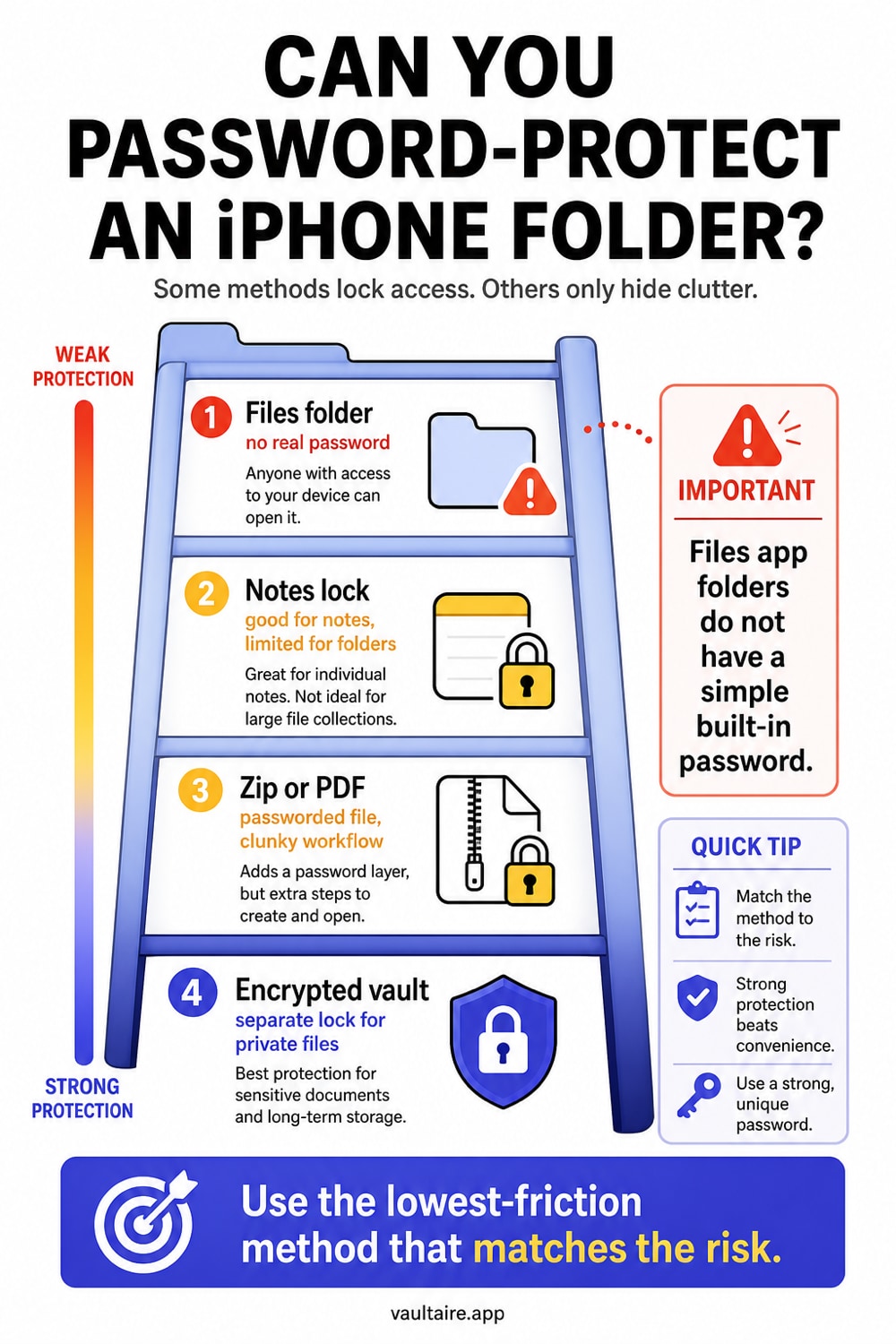
iOS has no native folder password protection.
iOS does not have a native feature for password-protecting folders. There is no setting, no toggle, and no built-in app that lets you put a password on a folder of files the way Samsung's Secure Folder works on Android or a zip password works on a computer.
That is not an oversight. Apple's security model relies on device-level encryption (the entire disk is encrypted when the phone is locked) and per-app authentication (Face ID, Touch ID, or passcode for specific apps). Folder-level protection sits between these two layers, and Apple has not filled that gap.
This guide covers five methods to approximate folder-level password protection on iPhone, ranked from quickest to most secure. Each method has different trade-offs, and the right choice depends on what you are protecting and from whom.
Most secure option: an encrypted vault
iOS has no built-in way to put a separate password on a Files folder, so a dedicated encrypted vault offers a stronger boundary. Vaultaire encrypts every file with AES-256-GCM under a random master key, which keeps stored content unreadable when someone reaches only the ciphertext through a backup or cable. It requires no identity account, keeps its only app-managed cloud copy in an encrypted backup that is on by default and can be turned off, and uses a drawn pattern to derive the vault key that unwraps the master key. System device backups remain a separate path and may include those encrypted files. Free for up to 3 vaults.
The Quick Answer
The closest native equivalent to a password-protected folder on iPhone is a locked note in the Notes app. Create a note, add files to it, and lock the note with a separate password or Face ID. It takes under a minute and requires no additional apps.
For genuine password-protected folders with encryption, you need a third-party app. Encrypted vault apps like Vaultaire create encrypted containers that function like folders. Vaultaire encrypts file data with AES-256-GCM under a random master key, while a pattern-derived vault key authenticates the encrypted index and unwraps that master key.
Method 1: Lock Files in the Notes App
The Notes app is the fastest way to password-protect files on iPhone without installing anything.
Step-by-Step
- Open the Notes app.
- Create a new note (or open an existing one).
- To add files: tap the camera icon to add photos/videos, or use the document scanner to scan pages. You can also paste text, links, and small attachments.
- Tap the three-dot menu (top right) or the share button.
- Tap Lock.
- Choose to lock with Face ID or set a custom password.
- Tap the lock icon in the toolbar (or leave the note -- it locks automatically after a period of inactivity).
What This Protects
- The note contents are hidden behind Face ID or a custom password.
- Individual locked notes can have different passwords (though iOS encourages using your device passcode as the default).
- Locked notes do not appear in previews, widgets, or Spotlight results.
Limitations
- File type restrictions. Notes supports photos, videos (with size limits), PDFs, and scanned documents. Large files and many file formats (zip archives, raw images, application files) cannot be embedded.
- Not a real folder. Each locked note is a single container. There is no folder hierarchy, no subfolder organization, no batch file management.
- iCloud sync. If Notes syncs to iCloud, locked note contents sync to Apple's servers. Apple holds the encryption keys for standard iCloud. The note's lock is access control on top of Apple-managed encryption, not independent user-controlled encryption.
- Share sheet does not import to locked notes. You cannot use the iOS share sheet to send a file directly into a locked note. You must open the note and add files manually.
Protection Level
A locked note gives selected note content an extra access boundary, but it is not a general encrypted-folder format. Its exact protection and recovery path depend on whether you use the device passcode or a separate Notes password and on your Apple account settings. Attachments, exports, screenshots, and copies outside the locked note keep their own protection model.
Method 2: Use the Files App with iCloud Drive
The Files app provides basic folder organization, but iOS does not support password-protecting folders in Files. However, you can achieve partial protection through a combination of the Files app and iCloud Drive.
Step-by-Step
- Open the Files app.
- Navigate to iCloud Drive or On My iPhone.
- Tap and hold in empty space, then tap New Folder.
- Name the folder and add files to it.
The Problem
This creates a standard folder with no password, no lock, and no access restriction. Anyone who opens the Files app on your unlocked phone can see the folder and its contents.
Partial Workaround: Screen Time Restrictions
You can restrict access to the Files app using Screen Time:
- Go to Settings > Screen Time > App Limits.
- Add a limit for the Files app category.
- Set the limit to 1 minute.
- Require your Screen Time passcode to extend the limit.
After one minute of use, the Files app locks behind the Screen Time passcode. This is a blunt instrument -- it locks the entire app, not a specific folder -- but it adds a barrier.
Why this is weak: Screen Time passcodes are 4 digits. They can be reset by anyone who knows your Apple ID password. Screen Time was designed for parental controls, not security. A determined person can bypass it.
Method 3: Create a Password-Protected Zip or PDF
You can create password-protected archives on a Mac or PC and transfer them to your iPhone.
Why the Files app says a password-protected zip is not supported
Two different limits get reported as the same error, and only one of them has a fix inside the Files app.
Creating one. The Files app cannot. Select files, tap Compress, and you get a plain .zip. There is no password field, no option in the share sheet, and no setting anywhere in iOS that adds one. Any guide that tells you otherwise is describing a third-party app.
Opening one. This depends on which cipher made the archive. A zip encrypted with legacy ZipCrypto, which is what zip -er on macOS produces, opens in the Files app: tap it and iOS prompts for the password. A zip encrypted with AES, which is what 7-Zip, WinRAR and Keka produce when you tick their encrypt option, does not. The Files app has no AES-zip support, so it refuses the archive or expands it to something unreadable. The password is not wrong. The format is unsupported.
Three ways out, in order of how much they actually protect:
- Re-create the archive with ZipCrypto on the machine that made it. The Files app will then open it. ZipCrypto is broken as encryption, so this fixes access and not security.
- Install a third-party archiver that implements AES zip. Several exist on the App Store. You are now trusting that app with the plaintext at extraction time.
- Stop moving encrypted archives to the phone. A zip is a static container: you cannot add a file to a password-protected zip on iPhone at all, natively or otherwise, so every edit means a round trip to a computer. If the goal is private files you keep using, an encrypted vault holds them under AES-256-GCM and stays writable on the device.
Step-by-Step (Using a Mac)
- Place the files you want to protect into a folder on your Mac.
- Open Terminal.
- Run:
zip -er protected.zip /path/to/folder/ - Enter a password when prompted.
- AirDrop or transfer the .zip file to your iPhone.
- The file lives in the Files app. When you tap to open it, iOS asks for the password.
Step-by-Step (Using a PDF)
- On your Mac, open the file in Preview.
- Go to File > Export as PDF.
- Check the Encrypt checkbox and set a password.
- Transfer the password-protected PDF to your iPhone.
Limitations
- This works for individual files or small archives, not for an ongoing "folder" you add to regularly.
- Zip encryption (ZipCrypto) is weak by modern standards. The AES-256 zip option is stronger but requires specific tools.
- You cannot add files to a password-protected zip natively on iPhone.
- This is a static protection, not a working folder.
Method 4: Use the Shortcuts App to Build a Protected Folder Flow
The Shortcuts app can create automation that mimics folder protection.
Concept
Build a Shortcut that:
- Prompts for a password (using "Ask for Input").
- If the password matches, opens a specific folder in the Files app.
- If the password does not match, shows an error.
Step-by-Step
- Open the Shortcuts app.
- Tap + to create a new Shortcut.
- Add an Ask for Input action, set it to Text, with the prompt "Enter password."
- Add an If action. Condition: "If [Provided Input] is [your password]."
- In the If block, add an Open App action pointing to the Files app.
- In the Otherwise block, add a Show Alert action with "Incorrect password."
- Save the Shortcut and add it to your Home Screen.
Limitations
- Not real security. The password is stored in plain text inside the Shortcut. Anyone who opens the Shortcuts app can read it.
- The folder itself is unprotected. The Shortcut controls access to the Files app, but someone can open the Files app directly and navigate to the folder without using the Shortcut.
- No encryption. Files remain unencrypted on disk.
This method provides a friction layer, not a security layer. It stops someone from casually accessing files through your Home Screen shortcut. It does not stop someone who knows the Files app exists.
Method 5: Use an Encrypted Vault App
An encrypted vault app creates what iOS does not natively offer: a container where files are encrypted with a key only you control. This is the closest equivalent to a true password-protected folder.
How It Works
Encrypted vault apps like Vaultaire function as encrypted folders:
- You create a vault (equivalent to a folder) by drawing a pattern on a 5x5 grid.
- PBKDF2-HMAC-SHA512 processes the pattern for 600,000 iterations to derive a 256-bit vault key.
- That vault key authenticates the encrypted index and unwraps a separate random 256-bit master key. AES-256-GCM under the master key protects each imported file.
- Metadata, including file names and dates, is protected with AES-256-GCM under the random master key.
- When you close the app, active key state is dropped and another unlock is required. Key bytes necessarily exist in app memory while the vault is open.
Step-by-Step (Using Vaultaire)
- Download Vaultaire from the App Store.
- Draw a pattern on the 5x5 grid to create your first vault.
- Tap the import button to add files: photos, videos, documents, PDFs, or any file type.
- Files are encrypted at the moment of import.
- Delete the unencrypted originals from Photos or Files.
- To access files, open the app and draw the same pattern.
Why This Is Different From Other Methods
| Method | Password/Lock | Encryption | Key Holder | Protects Against Mac Access | Protects Against iCloud Subpoena |
|---|---|---|---|---|---|
| Notes lock | Custom password or Face ID | Apple-managed | Apple | No (syncs to iCloud) | No |
| Files folder (no lock) | None | None beyond device encryption | N/A | No | Depends on iCloud |
| Screen Time restriction | 4-digit code | None | N/A | No | No |
| Password-protected zip | Custom password | ZipCrypto or AES-256 | You | Partial (zip stays encrypted) | Depends on storage |
| Shortcuts automation | Plain-text password | None | N/A | No | No |
| Encrypted vault app | Pattern/password | AES-256-GCM | No provider-held content key | Protects locked app-container contents | Provider receives ciphertext, not content keys |
Vaultaire does not give Apple or the developer a plaintext vault decryption key. The app, iOS, Keychain, device state, recovery credentials, and anyone who can compromise an open vault remain part of the trust model.
Additional Vault Features
Vaultaire adds capabilities beyond simple folder protection:
- Multiple vaults. Each configured pattern derives access to its assigned vault, and the locked interface does not display a vault list. An app-container examiner can still enumerate encrypted index files and estimate the local vault count.
- Pattern-separated access. Vault names, contents, and pattern assignments stay encrypted, but the current one-index-file-per-vault format does not hide the local index count from filesystem inspection.
- Duress mode. A designated pattern opens its assigned vault and removes local non-duress indexes and recovery mappings. It does not erase cloud records, peer-device copies, backups, or every forensic trace.
- Secure sharing. Share an encrypted vault with another person using a sharing phrase. Control expiration, access count, and export permissions.
- Built-in camera. Photos and videos taken with the in-app camera are encrypted directly. No unencrypted copy touches the Photos library.
Does iPhone have a Secure Folder like Samsung?
No, and nothing in iOS is built the same way. Samsung Secure Folder is a separate Knox container with its own encryption keys, held apart from the rest of the phone. Apps inside it cannot see apps outside it, its files are invisible to the normal gallery and file manager, and the folder icon itself can be hidden from the home screen. It sits at Settings > Security and privacy > More security settings > Secure Folder on a Galaxy phone. Apple ships no equivalent partition.
What iOS gives you instead is three partial answers, and only one of them encrypts anything.
| Capability | Samsung Secure Folder | iOS Hidden Album | iOS Notes lock | Encrypted vault app |
|---|---|---|---|---|
| Files encrypted separately from the device | Yes, Knox container keys | No | Yes, per note | Yes, AES-256-GCM per file |
| Holds apps as well as files | Yes | No | No | No |
| Contents hidden from the normal gallery | Yes | Yes, but the Hidden album is still listed | Yes | Yes |
| The container itself can be hidden | Yes | No | No | Varies by app |
| Unlock method | PIN, pattern, password or fingerprint | Face ID or device passcode | Face ID or note password | App credential, independent of the device passcode |
| Survives someone who has your unlocked phone | Yes, separate unlock | No | Yes, until the note is opened | Yes, separate unlock |
The gap most people run into is the third row. The iPhone Hidden Album is not a secure folder: it is a named album that anyone scrolling your Albums list can see, and Face ID guards the view, not the file. The photos stay unencrypted in the library and go into device backups in readable form.
If what you want from Secure Folder is the separate unlock and the encrypted container, an encrypted vault app is the closest iOS gets. It will not hold apps, only files, and no iOS app can hide itself from the App Library the way Secure Folder hides from the Galaxy app drawer.
Which Method Should You Use?
The answer depends on your threat model:
Keeping files organized and out of casual view: Notes lock (Method 1) or Screen Time restriction (Method 2). Quick, free, no app install.
Protecting a few specific documents: Password-protected zip or PDF (Method 3). Works for static files you do not frequently update.
Protecting files from someone who shares your device or knows your passcode: Encrypted vault (Method 5). The only option where a separate key controls access, not the device passcode.
Protecting a locked app container or cloud copy from content disclosure: Use authenticated encryption with no provider-held content key (Method 5). File presence, sizes, index count, CloudKit records, and service metadata may still be observable.
Adding a quick friction layer to the Home Screen: Shortcuts automation (Method 4). Understand that this provides convenience, not security.
Frequently Asked Questions
Why does the iPhone Files app not support my password-protected zip?
Because of the cipher, not the password. The Files app opens zips encrypted with legacy ZipCrypto and prompts you for the password. It has no support for AES-encrypted zips, which is what 7-Zip, WinRAR and Keka create by default when you enable encryption, so those come back as unsupported. The Files app also cannot create a password-protected zip in either format: Compress produces a plain archive with no password option.
Can you password-protect a folder on iPhone natively?
No. iOS does not support folder-level password protection. There is no built-in equivalent to Samsung's Secure Folder or Windows folder encryption. The closest native option is locking a note in the Notes app, which supports photos, videos, and documents but is not a true folder with file management capabilities.
Is there a "Secure Folder" for iPhone like Samsung?
No. Samsung Secure Folder is a Knox container with its own encryption keys, kept apart from normal phone storage. It holds apps as well as files, and its icon can be hidden from the home screen. iOS ships nothing with that shape. The closest iPhone alternatives are: (1) an encrypted vault app, which gives you a separate unlock and real encryption but holds files only, (2) the Notes app lock for small collections of files, and (3) the Hidden Album in Photos, for photos and videos only, with no encryption. See the row-by-row comparison.
Can I lock the Files app on iPhone?
Not directly. The Files app does not support Face ID or password protection. You can use Screen Time app limits to add a friction layer (the app locks behind a Screen Time passcode after a set time limit), but Screen Time was designed for parental controls, not security. The passcode is 4 digits and can be reset through Apple ID.
What is the difference between password protection and encryption?
Password protection (access control) puts a gate in front of data. The data behind the gate remains in its original, readable format. If someone finds another path to the data (through a backup, file system access, or by bypassing the gate), they can read it.
Encryption transforms the data itself. The original file is replaced by data that is mathematically indistinguishable from random noise. Without the decryption key, there is no path to the original content. The "gate" is not in front of the data -- it is the data.
Pattern-based encryption uses something you draw as PBKDF2 input. Vaultaire stores recovery fields inside an AES-GCM-encrypted Keychain database, and pattern security still depends on the gesture's entropy and the cost of each guess.
Will Apple add Secure Folder to iPhone?
Apple has not announced folder-level encryption for iOS. Apple's approach has been to strengthen device-level encryption (full-disk encryption with Secure Enclave) and offer Advanced Data Protection for iCloud. Whether Apple will add a Secure Folder equivalent is unknown. For now, third-party encrypted vault apps fill this gap.
The Bottom Line
iOS does not have password-protected folders. Apple chose a different security architecture: full-disk encryption when the device is locked, per-app authentication, and optional iCloud end-to-end encryption.
For most everyday file organization, the Notes lock is good enough. For files that need stronger protection in a locked app container or cloud copy, authenticated encryption is the answer. Vaultaire protects file contents under a random master key and gives its provider no plaintext copy of that key, while recovery state remains protected on the device.
The question is not "how do I put a password on a folder?" The question is "who am I protecting this folder from?" The answer determines the method.