How to Hide Photos from Spotlight Search on iPhone (2026)
Spotlight is the search you pull down from the Home Screen, and it reaches further than most people expect. Alongside apps and contacts, it can surface your photos, including images the system has scanned for text, places, and objects. That means a private picture can appear in a search preview while someone is simply looking for an email or a setting. The good news is that you decide what Photos shares with search. This guide shows you how to remove your photos from Spotlight, how to hide the sensitive ones completely, and how to lock the images that need real protection rather than just less visibility.
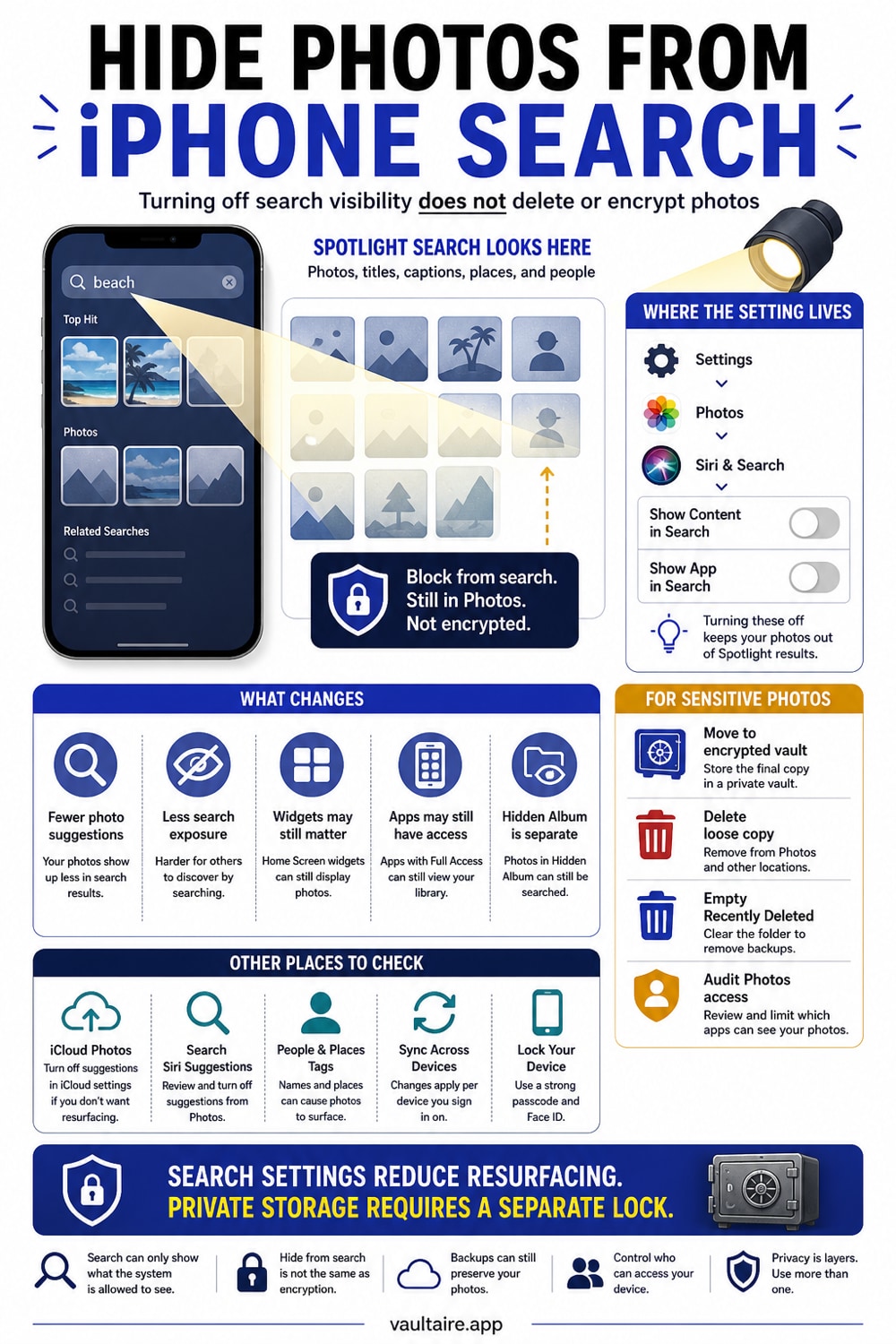
To hide your photos from Spotlight search on iPhone, open Settings, tap Siri & Search, tap Photos, and turn off Show Content in Search. That stops your images from appearing when you search from the Home Screen or Lock Screen. To hide a specific photo everywhere on the device, open it in the Photos app and choose Hide, which moves it to the Hidden album. For photos that must stay private even if your iPhone is unlocked, move them into an encrypted vault so the files cannot be read at all.
Where The Setting Lives
The control that keeps photos out of Spotlight sits in two related places, and it helps to know both. Open Settings, tap Siri & Search, then scroll to Photos near the bottom of the app list. Here you will find Show App in Search and Show Content in Search. Show Content in Search is the switch that matters for your pictures, because it decides whether individual photos, and the things the system has detected inside them, can appear in search results.
You can reach the same controls from the other direction by opening Settings, tapping Photos, and then tapping Siri & Search at the top of that screen. Both paths lead to the same toggles, so use whichever you remember. Turn off Show Content in Search to stop your images from surfacing, and turn off Show App in Search if you would rather the Photos app not appear in Spotlight at all. The change takes effect right away and applies across the whole device.
What Turning It Off Actually Changes
Switching off Show Content in Search tells your iPhone to stop including your photos and their detected contents in Spotlight. After that, searching from the Home Screen or Lock Screen no longer pulls up a picture from your library, and the small photo previews that used to sit next to results disappear. It also quiets the Siri Suggestions that surfaced recent or related images, since those draw from the same index that you just turned off.
What it does not do is move, delete, or protect any photo. Every image stays exactly where it was in the Photos app, fully visible to anyone who opens Photos directly. You have changed how the operating system advertises your photos, not how it stores them. That difference matters, because taking a photo out of search is about tidiness and casual privacy, not about keeping a determined person from finding it later.
Who Can Still See Your Photos
Once your photos are out of Spotlight, think about who still has a path to them. Anyone who can unlock your iPhone can open the Photos app and scroll your entire library, search settings or not. If you use iCloud Photos, the same images sync to every device signed in to your Apple ID, where the Spotlight settings on this iPhone have no effect. A shared album or a Family Sharing setup can widen that circle further still.
Hiding a photo inside the Photos app closes part of this gap. Select the photo, tap the More button, and choose Hide to send it to the Hidden album, which stays out of Spotlight and out of the main grid. Keep that album protected by leaving Use Face ID turned on for it under Settings, Photos. Even then, the Hidden album is a privacy curtain, not a safe, because someone who unlocks your iPhone and passes Face ID can still open it.
Lock The Photos That Truly Matter
If a photo would be a real problem in the wrong hands, give it more than reduced visibility. Vaultaire stores file content and metadata as AES-256-GCM authenticated ciphertext and works without a Vaultaire account. Pattern-derived vault keys and random master keys are processed by the app through CryptoKit, while encrypted recovery state is protected by iOS Keychain and Data Protection. Optional backups go to the user’s private CloudKit database after client-side encryption.
The setup is quick. Install the vault, set a passcode you will remember but others cannot guess, and import the photos you want protected. Confirm each one opens inside the vault, then delete the originals from Photos and empty the Recently Deleted album so no readable copy survives anywhere on the device. Photos kept this way never reach the Spotlight index in the first place, because the system can no longer read them. That is the difference between hiding a photo and actually securing it.
Related reading:
- Do hidden photos show up in iPhone search?
- How to hide photos from iPhone Memories
- How the iPhone Hidden album actually works
- How to hide photos on iPhone, step by step
Sources
Frequently Asked Questions
Why do my photos show up in iPhone search?
Your iPhone indexes your Photos library so Spotlight can find images by date, place, or detected content like text and objects. When Show Content in Search is on, those results, and the preview thumbnails next to them, can appear whenever you search from the Home Screen or Lock Screen. Turning the setting off removes your photos from that index.
Does turning off Show Content in Search delete my photos?
No. It only stops your photos from appearing in Spotlight search and Siri Suggestions. Every image stays in the Photos app exactly where it was, and you can turn the setting back on at any time. To take a photo out of view more completely, hide it in the Photos app or move it into an encrypted vault.
Do hidden photos appear in Spotlight search?
No. Photos you move to the Hidden album are kept out of Spotlight, Memories, and the main library grid. The Hidden album can be locked with Face ID, but anyone who unlocks your iPhone and passes Face ID can still open it. For stronger privacy, store the photo in an encrypted vault instead.
What is the safest way to keep a photo off iPhone search?
Move it into an encrypted vault that stores the file on your device behind your own key, such as one using AES-256. The system cannot read or index an encrypted file, so it never reaches Spotlight, and the photo stays private even if your iPhone is unlocked or lost. Delete the readable original afterward.