iPhone Clipboard Privacy: Control Which Apps Can Read It (2026)
Whatever you last copied on your iPhone, a password, a one-time code, a crypto seed phrase, sits on the clipboard where the next app you open can read it without asking. This guide shows you how to see which apps do it, how to control paste access app by app, how to clear the clipboard, and where clipboard hygiene quietly stops protecting you.
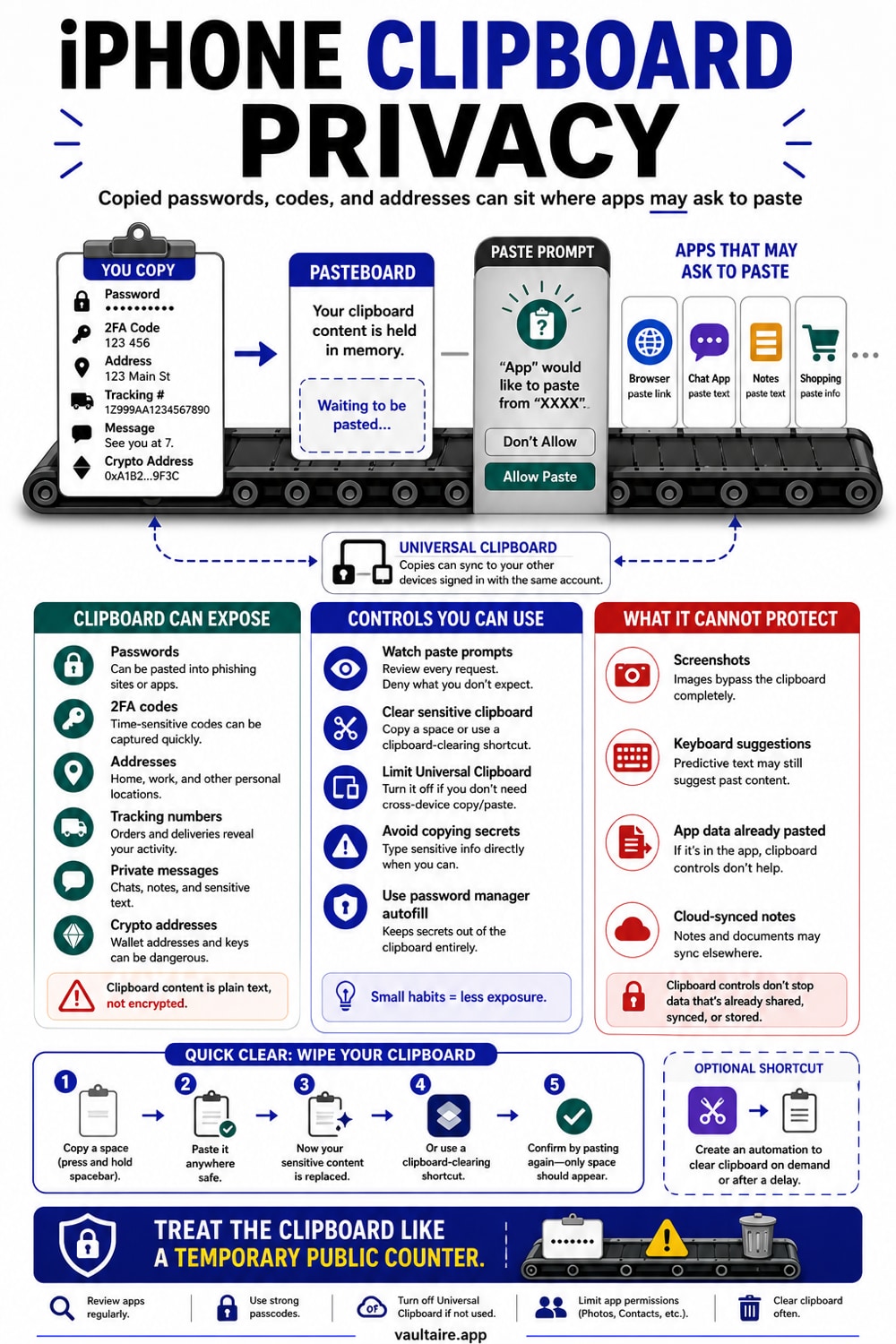
To protect your iPhone clipboard, watch for the brief banner that says one app pasted from another, which appears whenever an app reads what you copied. To control it, open Settings, scroll to an app, tap Paste from Other Apps, and set it to Ask or Deny so the app cannot silently read your clipboard. There is no clear button, so to wipe the clipboard you copy a single blank space in Notes, use a Shortcut, or restart the iPhone. Turn off Handoff under Settings, General, AirPlay and Handoff to stop copied content syncing to your other Apple devices. None of this hides the screenshots, codes, and documents already on your iPhone, so keep anything truly sensitive in an encrypted vault.
What Your iPhone Clipboard Actually Exposes
Your clipboard holds the last thing you copied until you copy something else, and any app you open can read it silently, with no permission prompt. This is deliberate. It is how a browser can offer to open a link you just copied, or a maps app can recognise an address from your messages. The catch is that the clipboard does not know whether you copied a street name or the password and one-time code you just pulled from your password manager, and every app you open afterwards sees the same thing.
Universal Clipboard widens the exposure. When Handoff is on, the content you copy on your iPhone is sent to your nearby Mac, iPad, or other Apple devices over iCloud and Bluetooth, so a password copied on your phone can quietly appear on a shared family Mac. Since iOS 14, your iPhone shows a brief Pasted from banner whenever an app reads the clipboard, and that banner is exactly what exposed how many popular apps were quietly reading copied data the moment they launched.
See and Control Which Apps Read Your Clipboard
Start by watching the banner. When you open an app and a small message reading one app pasted from another flashes at the top of the screen, that app just read your clipboard. Open your usual apps and pay attention to which ones do it on launch, before you have pasted anything. An app that reads your clipboard every single time it opens is the one to rein in.
From iOS 16 onward you can shut that off per app. Open Settings, scroll down to the app, and tap Paste from Other Apps. Set it to Deny to block the app from reading the clipboard, or Ask to be prompted each time. With Ask, the first time the app tries to paste content from another app, iOS shows an Allow Paste prompt, and choosing Don't Allow stops it cold. Reserve Allow for the few apps you genuinely want to paste into automatically.
Clear the Clipboard and Limit Universal Clipboard
iOS gives you no Clear Clipboard button, so the simplest way to wipe it is to overwrite it. Open Notes or Messages, type or select a single blank space, and copy it, which replaces whatever was on the clipboard with nothing useful. If you do this often, build a one-tap Shortcut that sets the clipboard to an empty value, and remember that restarting your iPhone clears the clipboard as well. A good password manager also clears the clipboard automatically about a minute after you copy a password.
To stop your copied content from travelling to your other Apple devices, turn off Universal Clipboard. Open Settings, tap General, tap AirPlay and Handoff, and switch off Handoff. That disables the cross-device clipboard along with app handoff, so a code you copy on your iPhone no longer lands on a shared Mac. You can turn Handoff back on whenever you actually want to copy on one device and paste on another.
What Clipboard Settings Cannot Protect
Controlling the clipboard limits what you copy, not what already lives on your iPhone. Clearing the clipboard does nothing for the screenshot of a recovery code, the photo of your passport, or the saved PDF that anyone who unlocks your iPhone can open, and that any app you have granted Photos or Files access can read. Clipboard hygiene is about the few seconds a secret spends in transit, not about the copies of it sitting in your library.
For the material you genuinely need to keep private, store it where authenticated encryption is the point. Vaultaire protects photos, screenshots, and documents under a random AES-256-GCM master key. A drawn pattern derives the separate vault key that authenticates the index and unwraps that master key. Good clipboard habits shrink the window a secret is exposed, and a locked vault adds a credential separate from the iPhone passcode.
Related reading:
- The iPhone privacy settings worth changing first
- How AirDrop privacy actually works on iPhone
- How to store a crypto seed phrase safely on iPhone
- How to keep your iPhone screenshots private
Sources
- Apple, Use Universal Clipboard to copy and paste between your Apple devices
- Schneier on Security, iPhone Apps Stealing Clipboard Data
- Vaultaire, Security features
Frequently Asked Questions
Can apps read my iPhone clipboard without asking?
Yes. By design, any app you open can read whatever you last copied without a permission prompt, which is how apps recognise a copied link or address. Since iOS 14 your iPhone flashes a Pasted from banner when this happens, and from iOS 16 you can set Paste from Other Apps to Ask or Deny in each app's settings to stop it.
How do I clear the clipboard on my iPhone?
iOS has no dedicated clear button. Open Notes or Messages, copy a single blank space to overwrite what was there, and the old content is gone. You can also build a Shortcut that empties the clipboard in one tap, and restarting your iPhone clears the clipboard too.
Does my iPhone warn me when an app reads my clipboard?
Yes. Starting with iOS 14, your iPhone shows a brief banner at the top of the screen reading one app pasted from another whenever an app reads the clipboard. Watching for that banner is the easiest way to catch apps that quietly read your copied data the moment they open.
Is Universal Clipboard a privacy risk?
It can be. Universal Clipboard sends what you copy to your other nearby Apple devices over iCloud and Bluetooth, which is convenient on your own devices but a leak on a shared one. If a family Mac is signed in to your Apple Account, turn off Handoff under Settings, General, AirPlay and Handoff to keep copied content on your iPhone only.