iPhone AirDrop Privacy: What It Shares and How to Lock It Down
AirDrop is fast and convenient. It is also a small advertising beacon for your iPhone. This guide shows what it reveals and the settings that keep it useful without making you findable.
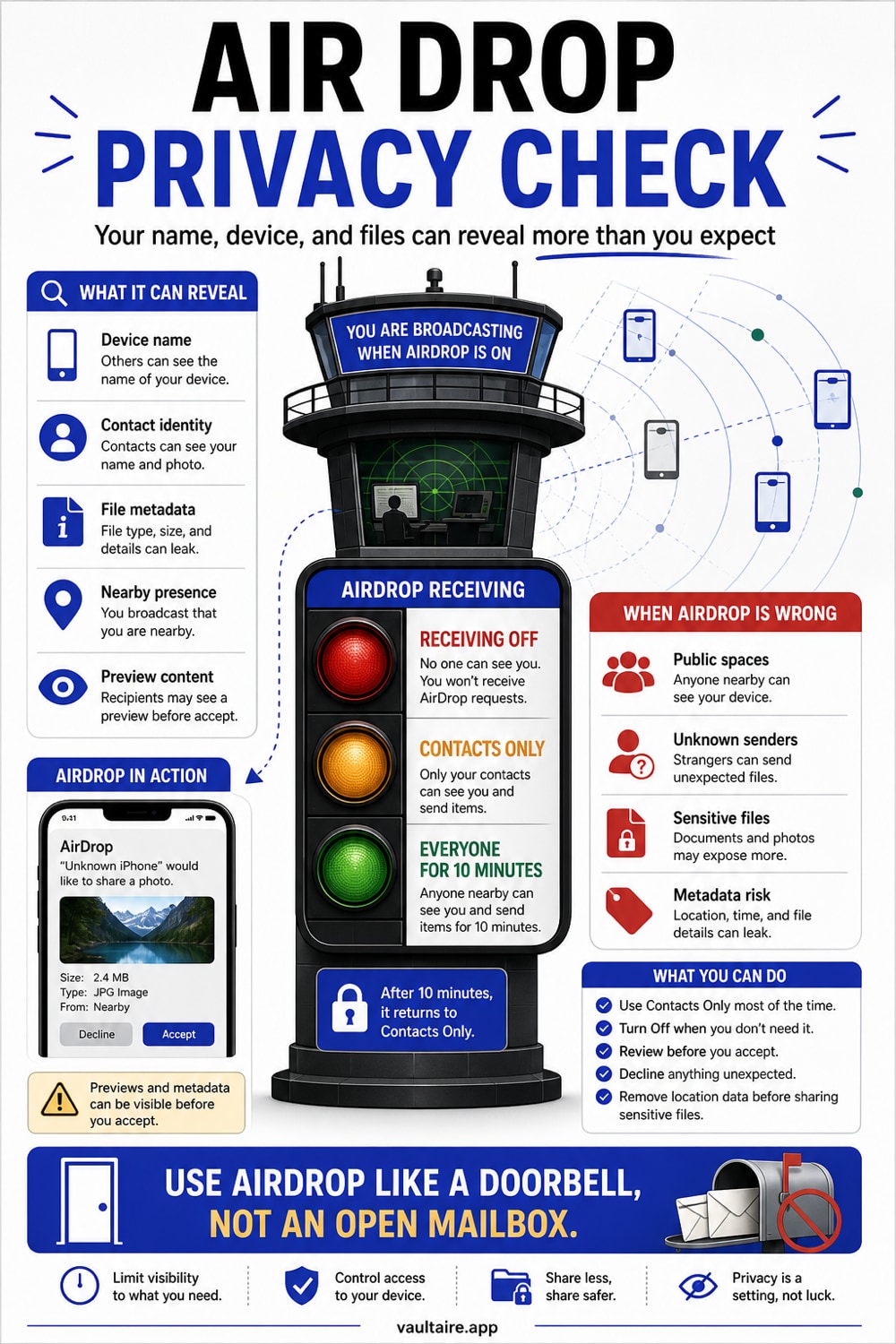
Keep AirDrop on Contacts Only as your everyday default. Switch it to Receiving Off in trains, cafés, airports, and crowded events. Use Everyone for 10 Minutes only when you actively need to receive a file from a stranger you trust in front of you.
The three AirDrop modes and what each one means
AirDrop has three settings: Receiving Off, Contacts Only, and Everyone for 10 Minutes. Receiving Off makes your iPhone invisible to AirDrop senders. Contacts Only lets people in your contacts find you. Everyone for 10 Minutes lets any nearby iPhone find you for a short window.
Apple changed the Everyone option to time-limit itself in iOS 16.2 to reduce cyberflashing and to slow protest-related abuse in some regions. After 10 minutes, you drop back to Contacts Only automatically.
What AirDrop reveals about your iPhone
When AirDrop is discoverable, your iPhone broadcasts a hashed identifier derived from your phone number and email, the device name (often your full name by default), and a small bitmap thumbnail of your contact card photo if you have one set.
Researchers have shown that the hash AirDrop sends can be reversed in seconds with off-the-shelf hardware in dense areas, leaking the phone number to anyone listening. The risk is small in everyday use, but it exists, and it is worth knowing about.
The simplest fix is to rename your device. Open Settings, General, About, then tap Name. Change it from your full name to something neutral like iPhone or a single first name.
Cyberflashing and unwanted AirDrops
If AirDrop is set to Everyone, any nearby iPhone can attempt to send you a file. The preview thumbnail appears before you accept or decline. This is how cyberflashing works on iPhones: a stranger sends an explicit image and the preview is visible in the prompt.
Apple now blurs nudity in AirDrop previews on recent iOS versions through Sensitive Content Warning, but the protection is opt-in and not universal. Keeping AirDrop off Everyone is still the strongest defense.
Receiving a file: what the metadata carries
When someone sends you a photo or video over AirDrop, the file arrives with its original EXIF metadata. That includes the camera model, timestamp, and the location where the photo was taken if the sender did not strip it.
If you import an AirDropped photo into Photos and then share it again later, the location can ride along. Strip it before re-sharing: open the photo, tap the info button, tap the location, and choose Adjust or No Location.
Sending a file: what the recipient learns about you
When you send a file, the recipient sees your device name and your contact card thumbnail if they accept. For photos and videos, they receive the original file with its metadata, including location data if you have not stripped it.
Before AirDropping a sensitive image, ask whether you want the recipient to know the camera model, the exact timestamp, and where the photo was taken. For tax documents, IDs, or private moments, removing the location first is good practice.
Settings that match how you actually use AirDrop
Set your default to Contacts Only. Keep your contacts list clean, since anyone in there can find you. If you share files often with co-workers or family, make sure their Apple ID email is saved correctly in their contact card or AirDrop will not recognize them.
In public spaces, use Receiving Off. Cafés, public transit, airports, conferences, and protests are all places where Everyone mode is a liability. Turn it on only for the moment you need to receive a file.
Rename your device. The default name is often your first and last name, which shows up to anyone who can see your AirDrop. A neutral name does not break anything and removes a small but real signal.
When AirDrop is the wrong tool
AirDrop is great for one-off transfers between trusted devices. It is not a private storage system. If you are moving a passport scan, tax document, or recovery code from one device to another, AirDrop leaves a copy in Photos or Files on the receiving device, with all of its metadata intact.
For files that should not sit loose in Photos or Files, use an encrypted container. Vaultaire stores files behind a pattern-derived key, separate from your camera roll, so a sensitive scan does not end up next to last week's coffee photos.
Related reading:
- Keep screenshots private on iPhone
- Which apps can see your iPhone photos
- iPhone privacy settings
- Remove location metadata from iPhone photos
- Pattern encryption
Sources
FAQ
Can someone AirDrop me a file without my permission?
Not without your tap. Every AirDrop transfer needs you to accept the prompt. The risk is that the preview thumbnail is visible before you accept, which is how cyberflashing happens. Setting AirDrop to Contacts Only or Receiving Off prevents the prompt from ever appearing.
Does AirDrop show my real name?
Yes, if your device name uses your full name. iOS sets the device name from your iCloud account during setup. Change it under Settings, General, About, Name. A neutral name like iPhone or a single first name reduces what you reveal to anyone in AirDrop range.
Is AirDrop encrypted?
Yes. AirDrop uses TLS over a peer-to-peer Wi-Fi link with Bluetooth signaling. The transfer itself is encrypted in flight. The privacy concerns are not about interception, they are about discoverability, identity disclosure, and the metadata inside the files you accept.