Put iPhone photos in a password-protected zip folder
You want to put vacation photos, ID photos or private pictures from your iPhone in a zip folder that only opens for someone who knows the password. The Files app compresses photos with one tap, but it never asks for a password. This guide shows three ways to a real zip with a password, how to open it again on your iPhone and where its limits are.
Short answer
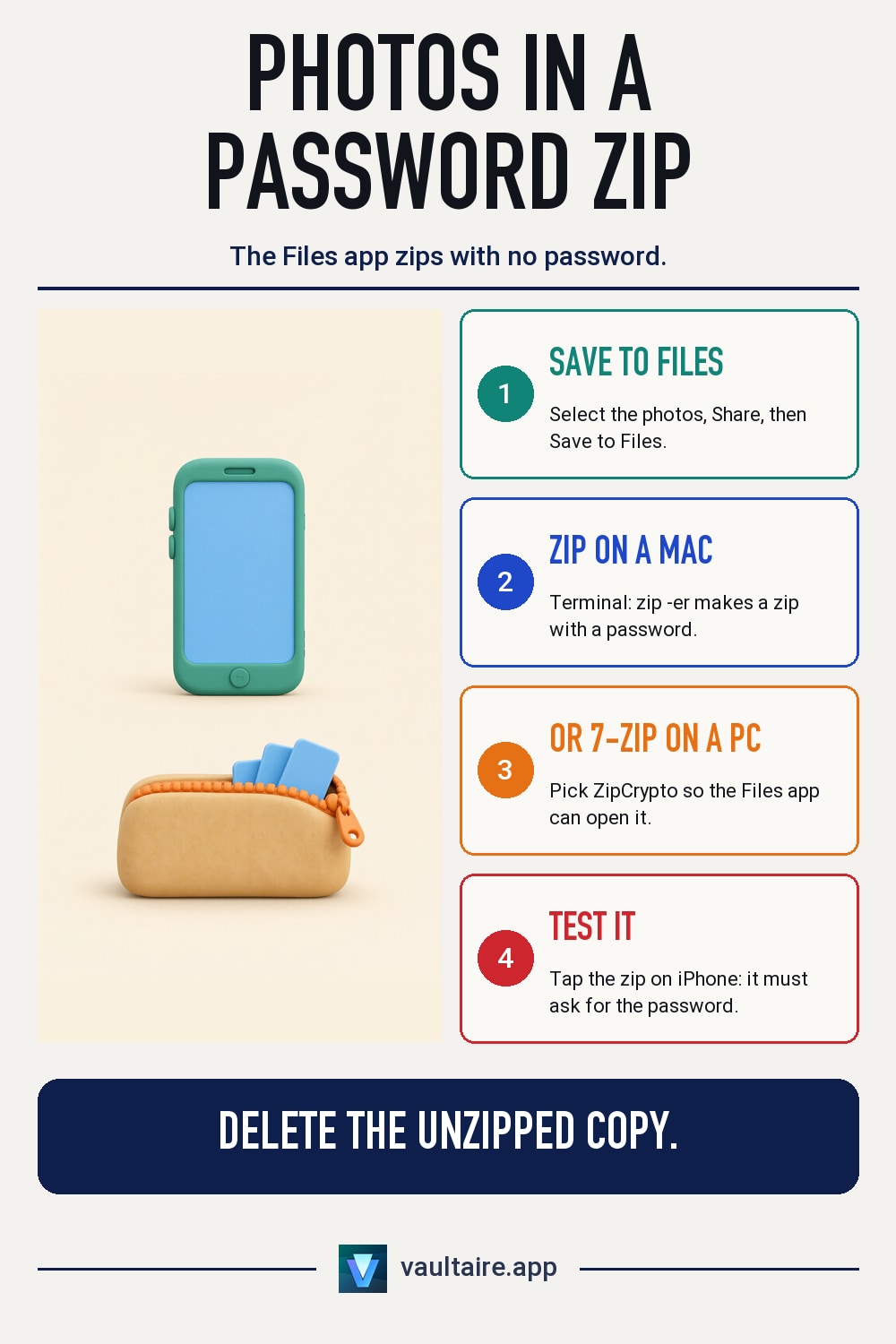
The Files app on the iPhone only makes a zip without a password with “Compress”. For a password-protected zip folder, save the photos to the Files app and create the archive on a Mac with zip -er, on a PC with 7-Zip and ZipCrypto, or with a zip app from the App Store.
Why the iPhone does not create a zip with a password
The Files app can create and extract zips. You select files, tap the three dots and then “Compress”, and a file named Archive.zip appears next to them. There is no password field, not in the menu and not in the iOS settings.
You cannot compress photos from the Photos app directly. They live in the library, not as separate files in the Files app. So every method below starts with the same step: select the photos in the Photos app, tap Share and choose “Save to Files”. A dedicated folder under “On My iPhone” keeps the selection together.
Method 1: Create a zip with a password on a Mac
Send the folder to your Mac with AirDrop. In Finder, “Compress” offers no password either, but Terminal can do it. Open Terminal, use cd to move into the folder that contains your photos, and type zip -er Photos.zip Vacation, where Vacation is the name of your photo folder. Terminal asks for the password twice.
This archive uses the old ZipCrypto method. The Files app on the iPhone opens it: when you tap the zip, iOS asks for the password and then extracts the photos into the same folder. ZipCrypto is considered weak and can be cracked with the right tools. It keeps curious eyes out, but it does not protect against a targeted attack.
Method 2: Create a zip with a password on Windows with 7-Zip
Copy the folder to your PC with a USB cable or through iCloud Drive. Right-click it and choose “Add to archive” in 7-Zip. Set the archive format to zip, enter a password twice and choose ZipCrypto or AES-256 as the encryption method.
This choice decides where the zip will open. The Files app opens a ZipCrypto zip with a password prompt. An AES-256 zip has much stronger encryption, but the Files app reports it as not supported. To open that archive on the iPhone, you need a zip app that supports AES.
Method 3: A zip app from the App Store, and the limits of a zip
Several zip apps in the App Store create password-protected archives directly on the iPhone, often with AES. Test each archive before you rely on it: open it in another app or on a computer and check that it really asks for a password. When you extract, you also trust the app with your photos unencrypted.
A zip only protects the copy inside the archive. The photos stay in the Photos app until you delete them there, and for 30 more days after that in the “Recently Deleted” album. The file names in the zip are readable even without the password. On the iPhone, you cannot add new photos to an existing zip with a password. For a collection that grows, an encrypted photo vault like Vaultaire fits better: it encrypts each photo with AES-256-GCM, opens with a pattern and can delete the originals after import, which then go to “Recently Deleted”.
Files app zip, zip with a password and Vaultaire compared
| Question | Zip from the Files app | Zip with a password (Mac, PC or app) | Vaultaire |
|---|---|---|---|
| Password protection | No, “Compress” has no password field | Yes, one password per archive | Yes, a pattern on a 5x5 grid |
| Encryption | None | ZipCrypto (weak) or AES-256 | AES-256-GCM for each file |
| Opens in the Files app | Yes, with no prompt | ZipCrypto yes, AES-256 only with a zip app | No, only in the Vaultaire app |
| Add new photos on the iPhone | Only by making a new zip | Only by making a new zip | Yes, directly from the Photos app |
| Originals in the Photos app | Stay until you delete them | Stay until you delete them | The app offers to delete them; they go to “Recently Deleted” |
Related guides
- Password protect a folder on iPhone
- Password protect individual photos on iPhone
- Password protect a PDF on iPhone
- Hidden album or photo vault on iPhone
Sources
Frequently asked questions
Can I create a zip with a password on the iPhone?
Not with the Files app. “Compress” always makes a zip without a password. You create a zip with a password with a zip app from the App Store or on a Mac or PC.
Why does the Files app say my password-protected zip is not supported?
The archive is most likely encrypted with AES. The Files app only opens zips with ZipCrypto and then asks for the password. For an AES zip, you need a zip app that supports AES, or you create the archive again with ZipCrypto.
How safe is a zip with a password for private photos?
That depends on the method and the password. ZipCrypto can be cracked and only stops casual snoopers. AES-256 with a long password is strong, but the file names in the archive stay readable, and the originals remain in the Photos app until you delete them.
Can I send a zip with a password through WhatsApp or email?
Yes. The zip is a normal file that you send from the Share menu in the Files app. Send the password another way, for example in a phone call, and not in the same message as the archive.