How to Store Tax Documents on iPhone Safely
Store W-2s, 1099s, receipts, SSN scans, and tax PDFs on iPhone without leaving sensitive files loose in Photos or Files.
Store tax documents on iPhone in an encrypted vault or trusted tax archive, not loose in Photos, Files, email downloads, or screenshots. Scan the document, move the final copy to secure storage, then remove temporary copies from Recents, Downloads, Photos, and Recently Deleted.
Most secure option: an encrypted vault
Tax documents carry your SSN, address, and income, so a working copy belongs in authenticated encrypted storage rather than an ordinary Photos or Files folder. Vaultaire protects file contents with AES-256-GCM under a random master key and requires no identity account. Copied, locked vault data is ciphertext, but credentials, an unlocked device, recovery records, exports, and system backups still matter. Free for up to 3 vaults. Keep the authoritative filing record with your tax preparer or official archive.
Tax files are identity files
Tax documents often include your Social Security number, address, employer, income, bank data, dependents, signatures, or IRS case details. Treat them like identity documents, not paperwork clutter.
| Document | Risk if exposed | Suggested storage |
|---|---|---|
| W-2 or 1099 | SSN, employer, income | Encrypted vault plus official tax archive |
| Receipt | Purchase history, address | Receipt vault or accounting app |
| IRS letter | Tax ID and case details | Encrypted document vault |
| Driver license scan | Identity theft | Encrypted vault, limited copies |
| Bank statement | Account data | Bank portal plus encrypted working copy |
This guide is about privacy workflow, not tax retention rules. Keep records for the period your tax professional recommends.
Scan tax documents on iPhone
Use the built-in document scanner when possible:
- Open Files or Notes.
- Use Scan Documents.
- Crop and save the scan.
- Rename it with a clear date and document type.
- Move the final copy to your secure storage.
Avoid taking normal camera photos of tax forms. Those images land in Photos, sync to iCloud Photos if enabled, and show up in Recents.
Where not to leave tax files
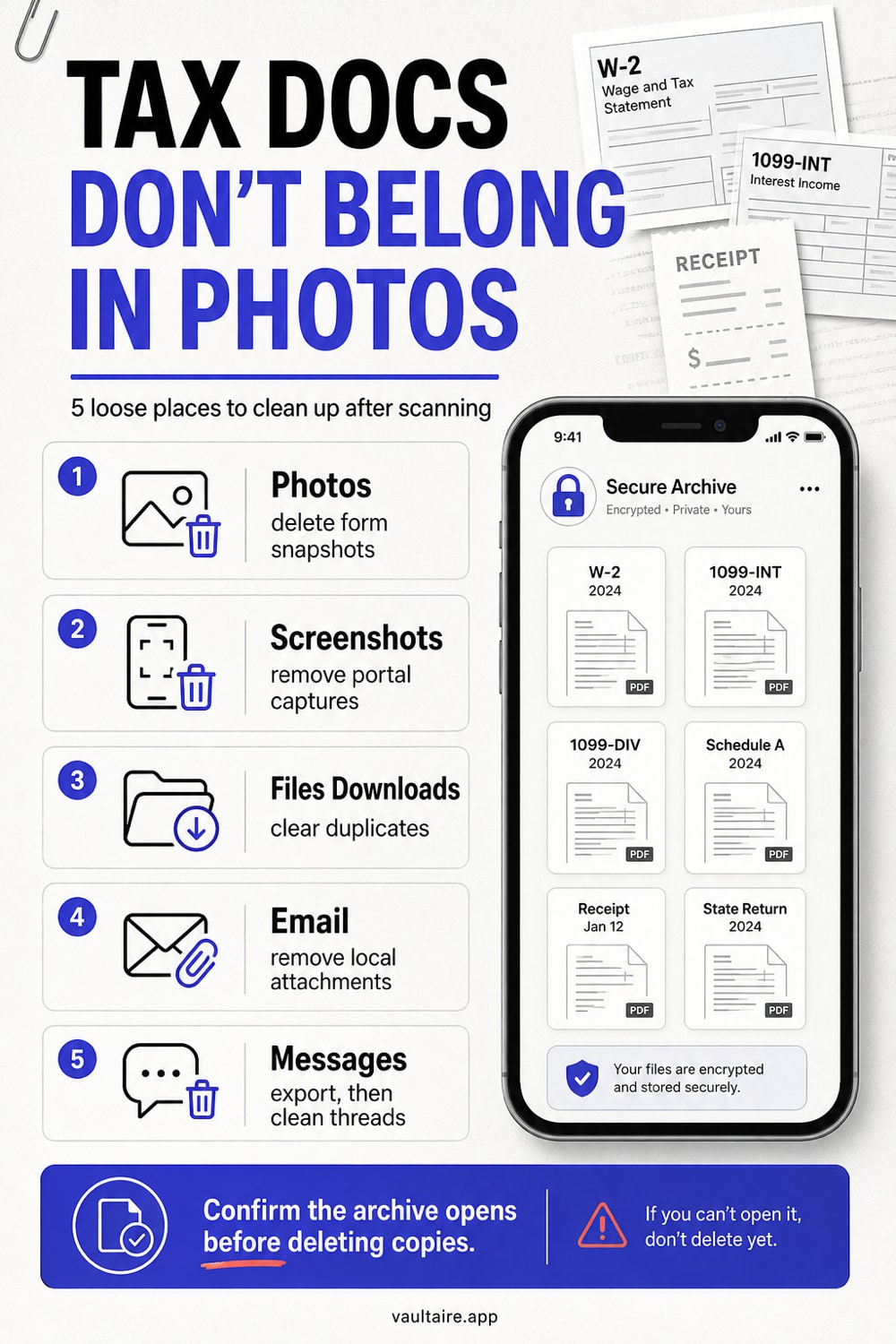
Do not leave W-2s, 1099s, SSN scans, IRS letters, or bank statements loose in:
- Photos
- Screenshots
- Files > Downloads
- Email attachments
- Messages threads
- Shared cloud folders
- Notes without a separate lock
Temporary copies are the usual problem. You scan a form, send it to an accountant, and forget the first draft in Downloads.
A safer folder structure
Keep the structure simple:
Taxes / 2026 / IncomeTaxes / 2026 / ReceiptsTaxes / 2026 / IRSTaxes / 2026 / Identity
Use Vaultaire for working copies that should stay off the normal file surface. Use your tax preparer's portal or official archive for filing records.
Cleanup after scanning
After you store the final copy:
- Delete normal photo captures from Photos.
- Empty Recently Deleted if you truly do not need the loose copy.
- Remove duplicates from Files > Downloads.
- Delete email attachments you downloaded locally.
- Remove screenshots of portals, refund pages, or payment confirmations.
Open Vaultaire or your secure archive and confirm the final document opens before deleting temporary copies.
Separate filing records from working copies
A tax archive and a phone working copy are different things. Your archive is the place you rely on if you are audited, refinancing, applying for benefits, or changing accountants. Your phone copy is for scanning, reviewing, sending, and temporary access.
Keep the archive boring and complete. Use your accountant's portal, a trusted encrypted drive, or whatever record system your tax professional recommends. Use the iPhone copy for convenience, then clean up the leftovers after the task ends.
Name files so future you can find them
Use plain names: 2026-w2-employer-name.pdf, 2026-1099-bank-name.pdf, 2026-property-tax-receipt.pdf. Avoid names like scan_0412_final_final.pdf. You should not need to open six files to find one form.
If the file contains an SSN, account number, or identity document, treat the name as sensitive too. Do not put a full SSN or account number in the filename. The file can stay encrypted; the filename may still be visible in some apps and backups.
Related reading:
- Store sensitive documents on iPhone
- Password protect a folder on iPhone
- iPhone photo storage
- Encrypted iCloud backup
- AES-256 encryption explained
Sources
- Apple Support: How to scan documents on your iPhone or iPad
- Apple Support: Control access to information in apps on iPhone
FAQ
Is Photos a safe place for tax document scans?
No. Photos is built for browsing, syncing, search, and sharing. Tax scans should live in encrypted document storage or a trusted tax archive.
Should I keep tax documents only on my iPhone?
No. Keep a reliable archive according to your tax professional's rules. Use the iPhone copy as a working copy, not the only record.
Can I send tax documents through email?
Use your tax preparer's secure portal when available. If you must use email, remove local downloads and attachments from your phone after the final copy is stored.