iPhone Photo Storage: Local, iCloud, and Encrypted Options Compared
Compare iPhone photo storage options: local, iCloud, Google Photos, and encrypted vaults.
An iPhone with 128 GB of storage holds approximately 35,000 photos at the default HEIF format. A 256 GB model holds roughly 70,000. These numbers sound generous until you factor in apps, the operating system, videos (a one-minute 4K video at 60fps consumes approximately 400 MB), and years of accumulated content. The average American smartphone user has over 2,000 photos on their device, and that number grows by about 20% annually.
Storage is a capacity problem. It is also a privacy problem. Where your photos are stored determines who can access them, under what conditions, and with what legal authority. These two dimensions, space and security, are rarely discussed together. This guide covers both.
The Three Storage Tiers
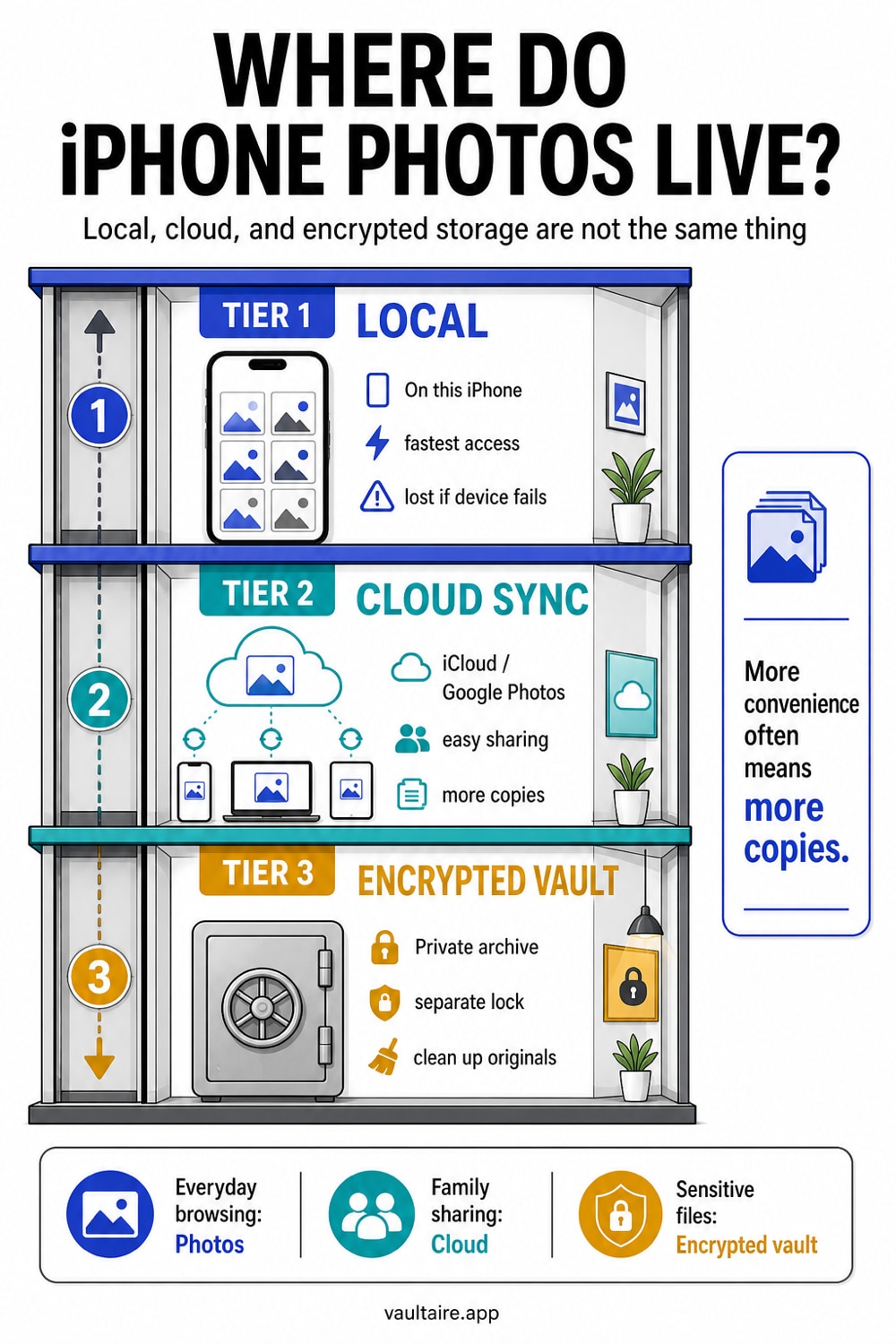
Every photo on your iPhone exists in one of three storage models. Each makes different trade-offs between convenience, capacity, and privacy.
| Tier | Where Photos Live | Who Holds the Key | Example |
|---|---|---|---|
| Local only | On the device | You (via device passcode) | Photos app with iCloud disabled |
| Cloud-synced | Device + provider servers | You + the cloud provider | iCloud Photos, Google Photos |
| Encrypted vault | On device (encrypted), plus an encrypted iCloud backup that is on by default | No provider-held plaintext content key | Vaultaire, encrypted containers |
Understanding these tiers matters because most people use at least two of them without realizing it. iCloud Photos is enabled by default on most iPhones. That means your photos already live on Apple's servers under Apple's encryption keys, in addition to your device.
Tier 1: Local-Only Storage
Local-only storage means the working copy stays on your iPhone instead of using a photo-sync service. That outcome is not automatic: iCloud Backup or a Finder/iTunes device backup may still copy app data unless the app excludes it or you configure the backup path accordingly. Previously synced, shared, or backed-up copies also remain separate.
How to Set It Up
To ensure photos stay local only:
- Go to Settings > [Your Name] > iCloud > Photos and turn off iCloud Photos.
- Go to Settings > [Your Name] > iCloud > iCloud Backup and either disable it or verify that Photos is not included.
- Avoid sharing photos to cloud services (Google Photos, Dropbox, OneDrive) through their apps.
What You Get
- Full control. Photos exist only on the physical device.
- No third-party access. No cloud provider holds a copy. No legal request can compel a provider to hand over data they do not have.
- Speed. No upload or download latency. Photos are always available immediately.
What You Give Up
- No backup. If the phone is lost, damaged, or stolen, the photos are gone. No recovery path.
- No cross-device access. Photos are not available on your Mac, iPad, or through iCloud.com.
- Storage ceiling. You are limited to the physical capacity of the device minus the operating system and apps. On a 128 GB iPhone, expect roughly 100-110 GB of usable space.
Storage Capacity by iPhone Model
| Model | Storage Options | Usable Photo Storage (approx.) |
|---|---|---|
| iPhone 16 | 128 GB, 256 GB, 512 GB | 100 GB - 480 GB |
| iPhone 16 Pro | 256 GB, 512 GB, 1 TB | 225 GB - 960 GB |
| iPhone 15 | 128 GB, 256 GB, 512 GB | 100 GB - 480 GB |
| iPhone SE (4th gen) | 128 GB, 256 GB | 100 GB - 225 GB |
A single photo in HEIF format averages 2-3 MB. A 4K video at 30fps consumes roughly 170 MB per minute. At 60fps, approximately 400 MB per minute.
Who This Is For
Users who prioritize control over convenience and have a separate backup strategy (encrypted local backups to a Mac, for example). Also users in jurisdictions where cloud storage creates legal exposure they want to avoid.
Tier 2: Cloud-Synced Storage
Cloud-synced storage replicates your photo library to a provider's servers. The most common options for iPhone users are iCloud Photos, Google Photos, and Amazon Photos.
iCloud Photos
iCloud Photos is Apple's native cloud photo service. When enabled, every photo and video on the device syncs to Apple's servers. The library is accessible across all Apple devices signed into the same Apple ID.
How it works:
- Photos upload over Wi-Fi (or cellular, if enabled) to Apple's data centers.
- The device can offload full-resolution originals to iCloud and keep smaller thumbnails locally to save space ("Optimize iPhone Storage" setting).
- Hidden Album contents sync to iCloud along with all other photos.
Pricing:
| Plan | Storage | Monthly Cost |
|---|---|---|
| Free | 5 GB (shared across all iCloud data) | $0 |
| iCloud+ 50 GB | 50 GB | $0.99 |
| iCloud+ 200 GB | 200 GB | $1.99 |
| iCloud+ 2 TB | 2 TB | $9.99 |
| iCloud+ 6 TB | 6 TB | $29.99 |
| iCloud+ 12 TB | 12 TB | $59.99 |
The 5 GB free tier is functionally useless for photo storage. It fills within weeks for most users. The 200 GB plan at $1.99/month is the practical minimum.
Encryption model: Apple encrypts iCloud Photos data in transit (TLS) and at rest on their servers. But Apple holds the decryption keys. This means:
- Apple can access your photos if compelled by a valid legal request.
- In the event of an Apple data breach, the encryption keys could be compromised.
- An attacker who compromises your Apple ID gains access to all synced photos through iCloud.com or a new device.
Advanced Data Protection (ADP) changes this equation. With ADP enabled, iCloud Photos uses end-to-end encryption where only your devices hold the keys. Apple cannot decrypt the data, even if legally compelled. ADP is opt-in (Settings > [Your Name] > iCloud > Advanced Data Protection) and requires all devices on the account to run recent software.
| Feature | Standard iCloud | iCloud with ADP |
|---|---|---|
| Encryption at rest | Yes (Apple holds service keys) | Yes (keys available to trusted devices and recovery paths) |
| Apple can decrypt protected photo content | Yes under standard protection | No plaintext key for ADP-protected personal-library content |
| Recovery if you lose all trusted devices | Apple account recovery can restore standard-protection data | Requires the configured ADP recovery method |
| Requires recent iOS/macOS | No | Yes |
| Enabled by default | Yes | No |
Google Photos
Google Photos offers 15 GB free storage (shared with Gmail and Drive). Paid plans start at $1.99/month for 100 GB through Google One.
Privacy considerations:
- Google's privacy policy permits using your data to improve services. Google Photos content has historically been used for machine learning training (with varying opt-out mechanisms over time).
- Google holds encryption keys for data at rest.
- Google complies with legal requests from law enforcement in applicable jurisdictions.
- Google Photos performs on-device and server-side analysis for features like face recognition, object detection, and search.
Unique features: Powerful search (by objects, locations, faces), Magic Eraser, and shared libraries.
Amazon Photos
Amazon Prime members get unlimited full-resolution photo storage and 5 GB for video. Non-Prime users get 5 GB total.
Privacy considerations: Amazon holds encryption keys. Amazon's privacy policy permits data processing for service improvement and advertising. Photos are analyzed for features and search.
Dropbox, OneDrive, and Others
Most third-party cloud storage services follow the same model: your data is encrypted at rest with provider-held keys, the provider complies with legal requests, and you trade privacy for convenience and capacity.
Cloud Storage Privacy Comparison
| Provider | Free Storage | Encryption at Rest | Who Holds Keys | Legal Compliance | Photo Analysis |
|---|---|---|---|---|---|
| iCloud (standard) | 5 GB | Yes | Apple | Yes | On-device primarily |
| iCloud (ADP) | 5 GB | Yes (E2E) | Only user | Cannot comply | On-device only |
| Google Photos | 15 GB | Yes | Yes | Server-side + on-device | |
| Amazon Photos | Unlimited (Prime) | Yes | Amazon | Yes | Server-side |
| Dropbox | 2 GB | Yes | Dropbox | Yes | Limited |
| OneDrive | 5 GB | Yes | Microsoft | Yes | Server-side |
Tier 3: Encrypted Storage
Encrypted storage transforms photo files into data that is unreadable without a key that only you control. The storage medium (local flash, iCloud, etc.) becomes irrelevant because the encrypted data is indistinguishable from random noise regardless of where it physically resides.
How Encrypted Vault Apps Work
An encrypted vault app like Vaultaire operates on the principle of client-side encryption:
- You create a vault by drawing a pattern on a 5x5 grid.
- The pattern and a device salt feed into PBKDF2 key derivation (600,000 iterations with HMAC-SHA512) to produce a 256-bit local vault key.
- The vault key unwraps a separate random 256-bit master key. Every imported photo is encrypted with AES-256-GCM using that master key and a fresh nonce.
- Metadata, including file names, dates, dimensions, indexes, and thumbnails, is also protected with AES-256-GCM.
- When the app locks or closes, it drops active vault and master-key state and requires a fresh unlock. Key bytes exist in app memory while the vault is open.
The result: encrypted files on your device's storage. With encrypted iCloud backup, which is on by default and can be turned off, those files are uploaded to iCloud already encrypted. Apple stores a blob of data they cannot read.
What You Get
- Cryptographic privacy. Without a correct key, AES-GCM authentication fails and the stored ciphertext does not reveal the file contents. Security still depends on pattern entropy, key handling, the app, and the device.
- Provider-key separation. Vaultaire does not operate a content server or receive the keys needed to decrypt vault data. Apple can still hold CloudKit account and service metadata, and the app, iOS, and an unlocked device remain in the trust boundary.
- Separated vault access. Each configured pattern opens its own vault. The app does not show a vault list, but each real vault has its own storage directory, so an examiner with app-container access can count your vaults.
- Selective protection. You choose which photos need encryption rather than encrypting everything.
What You Give Up
- Friction. Accessing encrypted photos requires opening the vault app and entering your pattern. This takes a few seconds each time.
- No native integration. Encrypted photos do not appear in the Photos app, widgets, Memories, or share suggestions.
- Storage overhead. Encryption adds a small overhead to file sizes (typically 1-5%), and the storage format adds some space of its own.
- Recovery risk. If you lose your pattern and recovery phrase, you cannot decrypt the data again. That is by design, but it means the stakes of forgetting are higher.
Encrypted Storage Pricing
| App | Free Tier | Paid Options |
|---|---|---|
| Vaultaire | 3 vaults, 100 photos + 10 videos | $1.99/wk, $5.99/mo, $19.99/yr with a 7-day free trial, $39.99 lifetime; family: $49.99/yr or $99.99 once |
The encrypted storage tier is not a replacement for all photo storage. It is a complement. Keep everyday photos in the standard Photos library (with or without iCloud). Move sensitive photos to an encrypted vault.
The Privacy-Storage Matrix
This matrix maps storage methods against common privacy scenarios:
| Scenario | Local Only | Standard iCloud | iCloud + ADP | Google Photos | Encrypted Vault |
|---|---|---|---|---|---|
| Phone lost or stolen | Photos lost | Photos safe in iCloud | Photos safe (need recovery key) | Photos safe | Encrypted files on device unreadable |
| Apple legal request | N/A (no cloud) | Apple can comply | Apple cannot comply | N/A | Apple can produce only encrypted backup data |
| Google legal request | N/A | N/A | N/A | Google can comply | N/A |
| Someone with your passcode | Full access to Photos | Full access | Full access | Full access (if app installed) | Cannot access vault without pattern |
| Device forensic analysis | Photos extractable | Photos extractable | Photos extractable from device | App cache extractable | Encrypted content; vault count visible, pattern guesses testable offline |
| Cloud data breach | N/A | Photos potentially exposed | Photos protected | Photos potentially exposed | Encrypted backup data; pattern guesses testable offline |
| Partner/family monitoring | Photos visible if phone accessed | Photos visible on shared devices | Photos visible on shared devices | Photos visible if account shared | Vault requires separate key |
How to Optimize iPhone Photo Storage
Step 1: Assess Your Current Usage
Go to Settings > General > iPhone Storage. Look at the Photos line. This shows how much space photos and videos consume on your device.
If Photos is using more than 50% of your device storage, you have three options: upgrade the iCloud plan and enable "Optimize iPhone Storage," delete content you no longer need, or move content to an external storage solution.
Step 2: Enable Optimize iPhone Storage (If Using iCloud)
Settings > [Your Name] > iCloud > Photos > Optimize iPhone Storage. This keeps thumbnails on the device and stores full-resolution originals in iCloud. When you open a photo, the full resolution downloads on demand. This can recover significant space -- reducing local photo storage from 50+ GB to under 5 GB is common.
Step 3: Clean Up Duplicates and Large Files
iOS 16+ includes a built-in duplicate detection feature. Open Photos > Albums > Utilities > Duplicates and merge identified duplicates. Also check the Recently Deleted album, which retains deleted photos for 30 days.
Some of what remains does not need to be full size. Screenshots, scanned receipts, and photos of documents are the usual offenders: they are stored at full camera resolution but only ever read on a screen. The free image compressor reduces JPEG, PNG, and WebP file sizes in your browser, lets you set a size ceiling, and shows the result next to the original so you can judge per file whether the quality loss is worth the space. Keep the original for anything you may want to print or crop later.
Step 4: Move Sensitive Photos to an Encrypted Vault
For photos that need privacy beyond what the Photos app provides:
- Import the photos into an encrypted vault app.
- Delete the originals from Photos.
- Empty Recently Deleted.
- If iCloud is enabled, verify the deletion has synced.
Step 5: Consider Advanced Data Protection
If you use iCloud and want Apple to not hold your encryption keys, enable ADP: Settings > [Your Name] > iCloud > Advanced Data Protection. Ensure all devices on the account are updated and set a recovery key or recovery contact.
Frequently Asked Questions
How much photo storage do I get free on iPhone?
The device itself comes with whatever storage you purchased (128 GB to 1 TB). iCloud provides 5 GB free, shared across all iCloud services including mail, backups, and documents. The 5 GB fills quickly; practically, iCloud photo storage requires a paid plan.
Should I use iCloud or Google Photos for iPhone storage?
iCloud integrates natively with iOS: automatic sync, Live Photos, ProRAW support, and "Optimize iPhone Storage" to save space. Google Photos offers more free storage (15 GB vs 5 GB), better search, and cross-platform access. Privacy trade-offs differ: Apple (with ADP) can offer end-to-end encryption. Google holds keys and uses data for service improvement.
Does "Optimize iPhone Storage" delete my photos?
No. It replaces full-resolution local copies with smaller thumbnails. The originals remain in iCloud at full quality. When you tap a photo, the full resolution downloads. The trade-off: viewing photos requires a data connection if the full version is not cached locally.
How do I check how much photo storage I have left?
Device storage: Settings > General > iPhone Storage. The bar graph shows usage by category. iCloud storage: Settings > [Your Name] > iCloud. The storage bar shows total and available space.
Can I store photos on an external drive from my iPhone?
Yes, with limitations. Using a Lightning-to-USB or USB-C adapter and the Files app, you can export photos to an external drive. However, this is a manual process (no automatic sync), and the drive must be formatted in a compatible file system (APFS, exFAT, FAT32). This is a backup strategy, not a daily storage solution.
What is the most private way to store photos on iPhone?
An encrypted vault with client-side key control means the photos are encrypted on your device and the provider does not receive a plaintext decryption key. Vaultaire uses AES-256-GCM under a random master key, with a pattern-derived vault key protecting access to that master key. It requires no identity account, while encrypted recovery state remains in Keychain. App analytics and crash diagnostics are enabled by default and can be turned off with “Share errors anonymously” in Settings. The encrypted backup (on by default, can be turned off), sync and sharing add the other metadata flows described in the privacy policy.
For iCloud users who want Apple-level privacy improvement without a third-party app, Advanced Data Protection is the most impactful single setting to enable.
The Bottom Line
iPhone photo storage is a spectrum from fully local (maximum control, no backup) to fully cloud-synced (maximum convenience, provider holds keys) to fully encrypted (maximum privacy, access friction).
Most users should combine at least two tiers:
- iCloud Photos with ADP enabled for everyday photos -- convenience plus meaningful encryption.
- An encrypted vault for photos that need protection beyond what any cloud provider offers, regardless of their encryption policies.
The storage capacity question is straightforward: buy the iCloud plan that fits your library, or manage local storage manually. The privacy question requires understanding who holds the keys to your data. If the answer is "someone other than me," that is a choice you should make deliberately, not by default.