

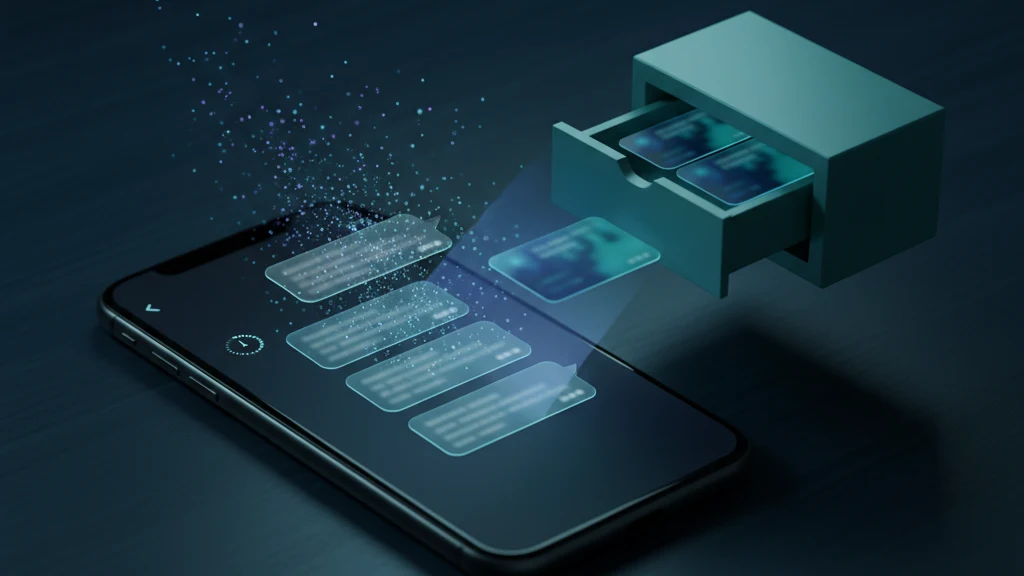
Mensagens efémeras no Signal no iPhone: como utilizar
As mensagens efémeras são a forma do Signal fazer uma conversa limpar-se sozinha: define um temporizador e cada mensagem é apagada dos dois telemóveis quando esse prazo expira. É uma das melhorias de privacidade mais simples num iPhone, porque reduz a quantidade de histórico sensível que fica numa conversa à espera de ser lido pela pessoa errada. O problema é que o temporizador só controla as mensagens dentro do Signal. No momento em que um dos dois tira uma captura de ecrã ou guarda uma fotografia, essa cópia escapa do temporizador, cai nas Fotografias e sincroniza com o iCloud com a sua conta Apple real — exatamente o rasto que as mensagens efémeras deveriam evitar.
Para utilizar as mensagens efémeras do Signal no iPhone, abra uma conversa, toque no nome, toque em Mensagens que Desaparecem, escolha um temporizador de 30 segundos a 4 semanas e toque em Definir; para automatizar, configure um temporizador predefinido em Definições, Privacidade, Temporizador predefinido para novas conversas. O temporizador elimina as mensagens de ambos os dispositivos, mas não consegue bloquear capturas de ecrã, fotografias guardadas ou qualquer coisa que já tenha sido copiada para fora da conversa — guarde isso num cofre encriptado em vez do Rolo da Câmara.
O que as mensagens efémeras realmente fazem
O Signal já encripta todas as mensagens de ponta a ponta, pelo que só o próprio e a pessoa com quem fala as conseguem ler. As mensagens efémeras acrescentam uma segunda camada: um temporizador por conversa que elimina cada mensagem de ambos os dispositivos um tempo definido depois de ser lida. Não se trata de esconder mensagens da rede, que já não as consegue ler; trata-se de limitar por quanto tempo existe uma cópia legível nos próprios telemóveis.
O objetivo é reduzir a sua janela de exposição. Uma conversa que se limpa sozinha após um dia tem muito menos conteúdo para alguém que pegue num telemóvel desbloqueado, e muito menos com que se preocupar se o dispositivo for perdido, apreendido ou entregue para reparação. Pense nisso como limpeza automática para conversas que não precisa de conservar, em vez de um cofre para as que quer manter.
Como ativar para uma conversa específica
Abra a conversa no Signal e toque no nome do contacto ou grupo no topo para aceder às definições. Toque em Mensagens que Desaparecem e escolha durante quanto tempo uma mensagem deve existir depois de ser lida. No iPhone, confirma tocando em Definir. Ambos os lados veem uma pequena nota na conversa a indicar que o temporizador foi ativado ou alterado — sem surpresas silenciosas.
Definir o temporizador numa conversa afeta apenas essa conversa, que normalmente é o que quer. Uma conversa com o seu médico, o seu advogado ou uma fonte pode desaparecer num prazo curto enquanto os seus grupos do dia a dia ficam normais. Qualquer pessoa na conversa pode alterar o temporizador, e a alteração aplica-se às mensagens enviadas a partir desse momento.
Faça todas as novas conversas desaparecer por predefinição
Se preferir não ter de se lembrar de ativar cada vez, o Signal pode aplicar um temporizador automaticamente a cada nova conversa. Aceda a Definições, depois Privacidade, depois Temporizador predefinido para novas conversas, escolha uma duração e toque em Definir. A partir daí, qualquer nova conversa começa com esse temporizador já ativo.
A predefinição não altera retroativamente as conversas que já tem; as conversas mais antigas mantêm a definição que tinham, ou nenhuma. Se quiser protegê-las também, abra cada uma e configure o temporizador manualmente. Uma configuração comum é uma predefinição suave de uma semana para tudo, com temporizadores mais curtos para as poucas conversas genuinamente sensíveis.
Escolher um temporizador adequado
O Signal oferece 30 segundos, 5 minutos, 1 hora, 8 horas, 1 dia, 1 semana e 4 semanas, mais um valor personalizado até quatro semanas. Para uma mensagem recebida, a contagem decrescente começa depois de a ter lido; para uma mensagem enviada, começa quando a envia. Essa diferença importa: um temporizador de 30 segundos pode apagar uma mensagem antes de uma pessoa ocupada abrir a conversa.
Escolha o temporizador mais longo com que se sinta confortável, em vez do mais curto. Temporizadores muito curtos parecem seguros, mas sobretudo criam fricção e mensagens perdidas, o que leva as pessoas a tirar capturas de ecrã para não perder o conteúdo — exatamente o comportamento que derrota o propósito. Para a maioria das conversas sensíveis, um dia ou uma semana é um equilíbrio razoável entre privacidade e conseguir reler o que foi dito.
O que as mensagens efémeras não fazem
Um temporizador controla as mensagens dentro do Signal e mais nada. Não consegue impedir a outra pessoa de tirar capturas de ecrã da conversa, fotografar o ecrã com outro dispositivo ou guardar uma fotografia que enviou. Não remove retroativamente nada que já tenha sido copiado, reencaminhado ou incluído numa cópia de segurança antes de desaparecer. E não oferece qualquer proteção quando alguém segura o seu telemóvel desbloqueado enquanto as mensagens ainda estão no ecrã.
O Signal é honesto quanto a isto: as mensagens efémeras são uma forma de manter uma conversa organizada com pessoas em quem já confia, não uma garantia de que o conteúdo não pode ser conservado. Se a outra pessoa quiser uma cópia permanente, pode fazê-la, e nenhuma definição em qualquer aplicação de mensagens pode impedir isso. Trate o temporizador como uma redução da exposição acidental, não como uma forma de impor sigilo à outra pessoa.
O problema das capturas de ecrã no iPhone
A maior fuga é a que o próprio utilizador cria. Quando tira uma captura de ecrã de uma conversa efémera — para guardar uma morada, uma citação ou prova do que alguém disse — essa imagem deixa de ser governada pelo temporizador do Signal. É uma fotografia normal no seu Rolo da Câmara, e vai diretamente para o iCloud com a sua conta Apple real, onde pode ficar anos. A conversa desaparece conforme planeado; a sua captura de ecrã dela, não.
No iPhone, o Signal não consegue bloquear capturas de ecrã como consegue em alguns dispositivos Android. A definição de Segurança do Ecrã do Signal apenas oculta a conversa na pré-visualização do alternador de aplicações do iOS; não impede ninguém de tirar uma captura de ecrã real. Por isso, no iPhone, o momento de risco não é a própria mensagem efémera, mas as cópias que são guardadas a partir dela e se acumulam silenciosamente nas Fotografias.
Mantenha privadas as cópias que conserva
Às vezes precisa genuinamente de guardar algo de uma conversa sensível: uma captura de ecrã de assédio para uma denúncia, a fotografia de um documento, uma morada com a qual tem de agir. Eliminar não é a resposta, mas deixar no Rolo da Câmara desfaz a privacidade que configurou no Signal. A solução é mover essas cópias para um local separado das Fotografias e do iCloud.
Guarde as capturas de ecrã e fotografias de que precisa das conversas efémeras num cofre encriptado como o Vaultaire, onde ficam protegidas pela sua própria chave, fora do Rolo da Câmara e fora da sincronização do iCloud. Depois elimine o original das Fotografias e esvazie Eliminados recentemente. O Signal mantém a conversa efémera; o cofre mantém as poucas cópias que escolheu guardar privadas no dispositivo, para que as duas metades realmente coincidam.
Multimédia de visualização única e anexos guardados
O Signal também tem fotografias e vídeos de visualização única, que só podem ser abertos uma vez antes de desaparecerem. São úteis para uma imagem de uma só vez, mas têm a mesma ressalva das mensagens efémeras: o destinatário pode tirar uma captura de ecrã ou fotografar o ecrã, e no iPhone nada impede isso. Trate a visualização única como uma conveniência, não como um cadeado.
Seja igualmente cuidadoso com os anexos que guarda. Tocar em guardar numa fotografia ou vídeo que alguém enviou copia-o permanentemente para o Rolo da Câmara, completamente fora de qualquer temporizador. Se um anexo é suficientemente sensível para estar numa conversa efémera, é suficientemente sensível para ir para um cofre em vez das Fotografias. Guarde com critério e direcione tudo o que for privado para armazenamento encriptado.
Leituras relacionadas:
- Manter capturas de ecrã privadas no iPhone
- Definições de privacidade do iPhone
- Que aplicações podem ver as suas fotografias no iPhone
- Quando as mensagens efémeras deixam capturas de ecrã para trás
- Encriptação por padrão
Fontes
- Suporte Signal: Configurar e gerir mensagens que desaparecem
- Blogue Signal: Mensagens efémeras por predefinição
- EFF Surveillance Self-Defense: Como utilizar o Signal
Perguntas frequentes
As mensagens efémeras do Signal também são eliminadas do telemóvel da outra pessoa?
Sim. O temporizador remove cada mensagem tanto do seu dispositivo como do da outra pessoa, não apenas do seu. Cada cópia desaparece depois de essa pessoa a ter visto e o temporizador expirar, pelo que a conversa se limpa nos dois telemóveis, não apenas no seu.
Alguém pode tirar uma captura de ecrã de uma mensagem efémera do Signal no iPhone?
Sim. O Signal não consegue bloquear capturas de ecrã no iOS; a definição de Segurança do Ecrã apenas oculta a conversa na pré-visualização do alternador de aplicações. A outra pessoa pode sempre tirar uma captura de ecrã, fotografar o ecrã com outro dispositivo ou guardar uma fotografia enviada — por isso nunca assuma que uma mensagem efémera não pode ser conservada.
As mensagens efémeras removem capturas de ecrã da minha cópia de segurança do iCloud?
Não. O temporizador afeta apenas as mensagens dentro do Signal, que no iPhone de qualquer forma não são armazenadas no iCloud. Qualquer captura de ecrã ou fotografia que guardou de uma conversa é um item normal do Rolo da Câmara que continua a sincronizar com o iCloud até o eliminar. Mova-os para um cofre encriptado e limpe os originais para os manter fora da sua cópia de segurança.