How to Hide Photos on iPhone With a Shortcut
A shortcut can make hiding photos faster, but no shortcut on its own locks them away. The built-in Hide action tucks photos into the Hidden album, and the Shortcuts app can automate repetitive moves. Here is how each works, and where their limits start.
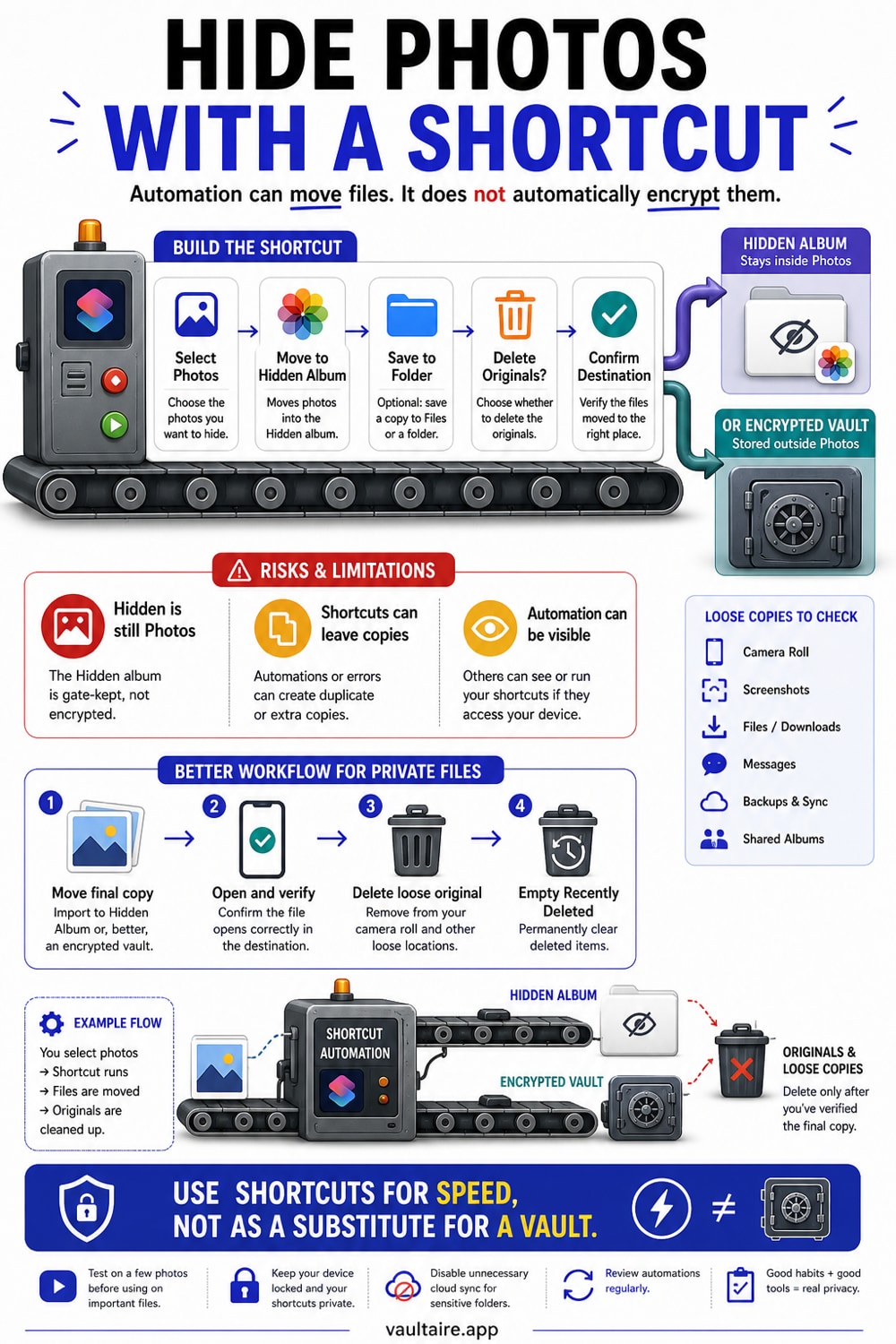
There is no single tap shortcut that truly locks your photos. The fastest built-in option is the Hide action in the Photos share sheet, which moves a photo into the Hidden album that Face ID protects. The Shortcuts app can automate moving or archiving photos and run from the Share Sheet, but it does not encrypt them, and albums stay browsable. For photos you need to keep genuinely private, move them into an encrypted vault and delete the originals.
What a hide photos shortcut really means
When people search for a hide photos shortcut, they usually mean one of two things. The first is the Hide action that Apple already builds into the Photos app, which you reach by selecting a photo and tapping the share button or by holding down on the image. The second is a custom automation you build or install in the Shortcuts app, which can move, copy, or archive photos in a single tap. They sound similar, but they do different jobs.
The distinction matters because only one of them is about privacy at all. The built-in Hide action moves a photo into the Hidden album, which your iPhone keeps behind Face ID. A Shortcuts automation, by contrast, is about saving you taps. It can gather selected photos and file them away, but it has no power to lock or encrypt anything. Knowing which one you actually want saves you from trusting a tool that was never built to protect a photo.
The fastest built-in route: the Hide action
If you simply want a photo out of your main library in a couple of taps, the Hide action is the quickest path. Open the photo, tap the share button, scroll down, and choose Hide, or press and hold the image and pick Hide from the menu. The photo moves into the Hidden album, disappears from your main grid and from Memories, and stays in your library where you can find it again later.
Since iOS 16, the Hidden album is locked behind Face ID or your passcode by default, so a casual snooper cannot open it. You can confirm this in Settings under Photos, where the option to require Face ID for the Hidden album lives. This is genuinely useful for everyday privacy, but treat it as a soft lock. Anyone who knows your passcode can still open the album, and the photo stays unencrypted on the device.
Building a real shortcut in the Shortcuts app
To save taps when you hide photos often, open the Shortcuts app and create a new shortcut with a Select Photos action followed by an action that files them somewhere, such as Add to Album or Save File. Turn on Show in Share Sheet in the shortcut settings, and from then on you can select photos in the Photos app, tap share, and run your shortcut without opening anything else. Some shortcuts go further and archive the photos to the Files app before deleting them from your library.
Be clear about the limits before you rely on one. A shortcut that moves photos into a custom album does not hide them, because custom albums stay visible to anyone scrolling your library. A shortcut that deletes photos sends them to Recently Deleted, where they sit for thirty days unless you clear them. And a shortcut that archives to Files leaves those files browsable in the Files app. Shortcuts are about speed and organization, not protection.
When a shortcut is not enough
A shortcut can tidy your library, and the Hidden album can keep a photo out of plain sight, but neither encrypts anything. If someone is holding your unlocked phone, knows your passcode, or restores a backup, photos hidden this way can still be opened. For pictures that would cause real harm if seen, a passport scan, an intimate photo, or a medical record, you want a tool that locks the file itself rather than just moving it.
An encrypted vault is that tool. In Vaultaire you draw a pattern on a five by five grid, and PBKDF2 derives the vault key that authenticates the encrypted index and unwraps a random AES-256 master key. Move your private photos in, then delete the originals from Photos and Recently Deleted. There is no identity account and no app-managed CloudKit copy unless you enable a cloud feature. System device backups may still carry the encrypted app container. A locked vault protects stored file contents, while a compromised device or already-open vault remains part of the threat model.
Related reading:
- Where hidden photos go on iPhone
- How to hide photos on iPhone
- How to lock photos on iPhone
- Best photo vault for iPhone, tested on device
Sources
- Apple Support: Hide photos on iPhone
- Apple Support: Intro to Shortcuts on iPhone
- Apple Support: Run a shortcut from the Share Sheet
Frequently asked questions
Is there a built-in shortcut to hide photos on iPhone?
Yes, in a sense. The Photos app has a Hide action you reach from the share button or by holding down a photo. It moves the image into the Hidden album, which Face ID protects by default. It is the closest thing to a one tap hide that Apple ships, though it does not encrypt the photo.
Can the Shortcuts app hide photos automatically?
The Shortcuts app can move, copy, or archive selected photos and run from the Share Sheet, so it can speed up the work of hiding them. It has no native action that locks a photo, though, so anything it files into an album or the Files app stays browsable to someone with access to your phone.
Are photos hidden with a shortcut actually private?
Not strongly. A shortcut that moves photos into an album or saves them to Files leaves them unencrypted and findable. Even the Hidden album is only a soft lock, since anyone with your passcode can open it. For real privacy you need a tool that encrypts the file, not one that only relocates it.
What is the most secure way to hide photos on iPhone?
Move the photos into Vaultaire, confirm import, then delete the Photos originals and empty Recently Deleted. Vaultaire protects file contents under a random master key and uses a drawn pattern to derive the vault key. It requires no identity account and creates no app-managed CloudKit copy unless you enable backup, sync, or sharing. System device backups remain a separate path.