How to Stop WhatsApp Photos Saving to Your iPhone Camera Roll
WhatsApp writes every photo and video you receive straight into the same camera roll that holds your own pictures, and by the time you notice, group chat memes are sitting between your family album and your screenshots. Two settings stop that. The cleanup afterwards, and the copies WhatsApp keeps regardless, take a little more thought.
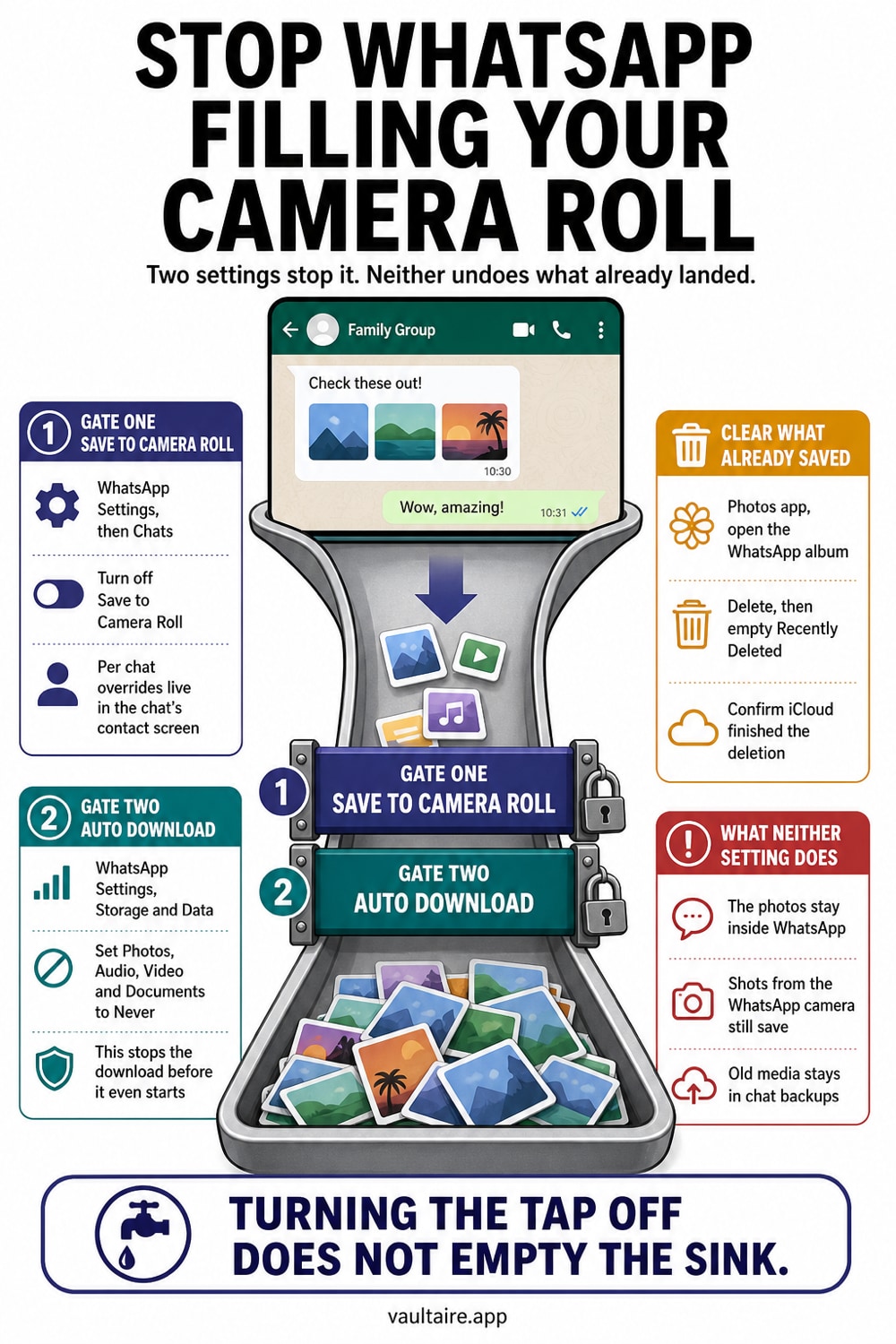
Open WhatsApp, tap Settings, tap Chats, and turn off Save to Camera Roll. Then go to Settings, Storage and Data, and set every entry under Media Auto-Download to Never. New photos and videos stay inside the chat and never reach your Photos app. Two things this does not do: it leaves every WhatsApp image already in your library untouched, and it removes nothing from WhatsApp itself, where the same photos stay one tap from the top of the conversation for anyone holding your unlocked phone.
Turn off Save to Camera Roll
Open WhatsApp, tap Settings in the bottom right, tap Chats, and switch Save to Camera Roll off. That single toggle governs every one to one chat and every group at the same time, so there is no per contact setup to work through. From that point on an incoming photo stays in the thread where it arrived, and your Photos library stops collecting it. Nothing you actually want is lost, because you can still save any individual image deliberately by opening it and tapping the share button.
The same toggle covers pictures you take with WhatsApp's own camera, which is the part most people miss. With it on, a photo shot inside WhatsApp to send to one person is written permanently into your library as well as into the chat, which is how a camera roll fills up with images you never meant to keep. With it off, that shot exists only in the conversation. If you want a copy of something you sent, save it on purpose rather than letting the app decide for you.
Stop the download before it starts
Save to Camera Roll controls what reaches Photos. Media Auto-Download controls what reaches your phone at all, and it is the setting worth changing second. Open Settings, tap Storage and Data, and under Media Auto-Download set Photos, Audio, Video and Documents to Never. WhatsApp then leaves the file undownloaded in the chat, showing only a download arrow, and fetches it when you tap that, which keeps images you did not ask for off the device entirely and takes a noticeable bite out of your storage at the same time.
You can override the behaviour for a single conversation when you want to. Open the chat, tap the contact or group name at the top, tap Save to Camera Roll, and choose Always, Default or Never. Default follows the global toggle you just set. Use Always for the one thread where you genuinely want everything kept, such as a shared stream of photos with a partner, and leave every other chat on Default so the global setting keeps doing the work without you thinking about it.
Clear the photos WhatsApp already saved
Turning the setting off changes nothing about the past. On iPhone there is no WhatsApp album to delete in one go, because WhatsApp writes straight into your main library rather than into a folder of its own the way it does on Android. The saved images sit in Recents mixed in with your own camera shots, which is why a backlog built up over months is tedious to unpick. Working through Recents around the dates of your busiest chats is usually faster than scrolling the whole library from the top.
Deleting them is a two step job. Anything you remove goes to Recently Deleted and stays fully readable there for up to 30 days, so empty that album afterwards if the point was to get the pictures off the phone. If iCloud Photos is on, the deletions propagate to every device signed into your Apple Account and the uploaded copies go too, which is what you want here but is also worth knowing before you start. Moving an image into the Hidden album is not the same as removing it.
The photos are still inside WhatsApp
Stopping the auto save fixes the camera roll and leaves the harder problem exactly where it was. Every photo anyone sent you is still in the chat, still one tap from the top of the conversation under Media, Links and Docs, and still visible to whoever picks up your unlocked phone. If WhatsApp chat backup to iCloud is on, those images sit in the backup too, and that backup is only end to end encrypted if you turned encrypted backup on yourself under Settings, Chats, Chat Backup. Locking WhatsApp behind Face ID from the Home Screen icon stops a casual look and does nothing about either of those copies.
For the images that would actually cost you something, remove every loose copy instead of shuffling it between albums. A Vaultaire import is outside the camera roll, system photo picker, and WhatsApp thread and is protected with AES-256-GCM under a random master key. Vaultaire's encrypted CloudKit backup is on by default and can be turned off, and iOS or computer device backups remain a separate system-level copy path. Free for up to 3 vaults.
Related guides
- What the iPhone Hidden album actually hides
- Which apps can see your iPhone photos
- How to keep photos off social media
- Vault app for iPhone: which ones actually encrypt
Sources
Frequently Asked Questions
Does turning off Save to Camera Roll delete the WhatsApp photos already in my library?
No. The setting only affects media that arrives after you change it. Everything WhatsApp saved before that point stays in your Photos library and, if iCloud Photos is on, in iCloud as well. You have to delete those manually and then empty Recently Deleted, because items sit there fully readable for up to 30 days.
Can I keep saving photos from one chat and stop every other one?
Yes. Turn the global Save to Camera Roll toggle off, then open the chat you want to keep saving, tap the contact or group name at the top, tap Save to Camera Roll, and choose Always. Every other conversation stays on Default and follows the global setting.
Why are WhatsApp photos still appearing in Photos after I turned the setting off?
There are two usual causes. Either you saved the image yourself with the share button, which the setting never blocks, or that thread has a per chat override set to Always from an earlier change. Open the chat info screen for the conversation and check. A photo you forwarded into another app can also come back through that app's own save behaviour.
Do photos I take with the WhatsApp camera still go to my camera roll?
Not once Save to Camera Roll is off. While it is on, a shot you take inside WhatsApp to send to one person is written into your library as well as the chat. With it off, that image exists only in the conversation, and you can still keep a copy on purpose by opening it and using the share button.