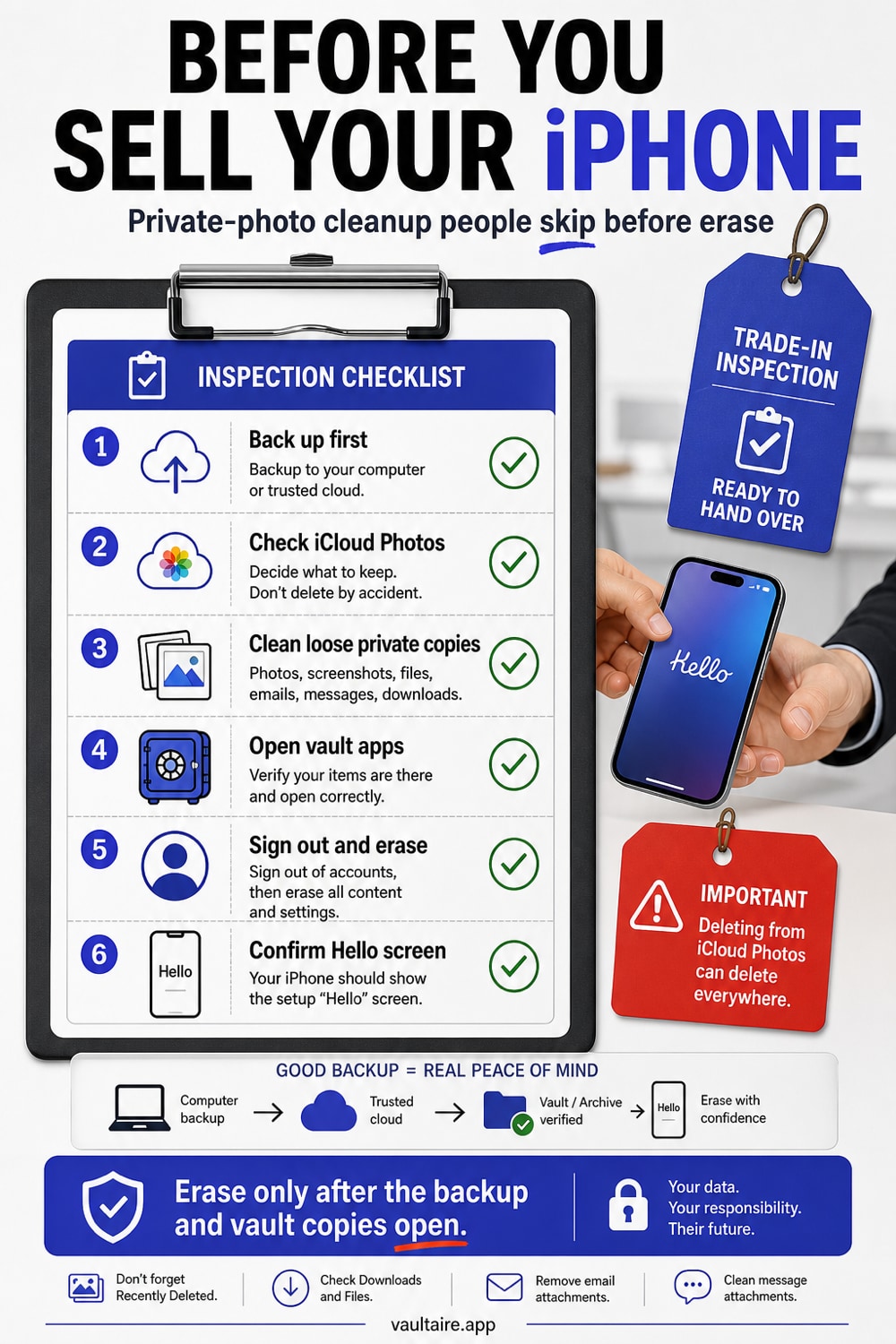
Before Selling Your iPhone: Private Photo Cleanup Checklist
Clean private photos, documents, Recently Deleted, iCloud, Files, Notes, and app vaults before selling, trading, or giving away an iPhone.
Before selling or trading an iPhone, back it up, sign out of your Apple Account, unpair accessories, and use Settings > General > Transfer or Reset iPhone > Erase All Content and Settings. Do not hand off the phone until the erase finishes and the setup screen appears.
What to check before you erase
Apple's erase flow is the final step. A privacy review before that step helps you avoid deleting the wrong cloud copy or losing files you meant to keep.
| Place to check | Why it matters | Action |
|---|---|---|
| Photos | Main library and Hidden Album | Export what you keep, then erase device |
| Recently Deleted | Deleted photos can remain recoverable for days | Empty only after backup decisions |
| Files | PDFs, scans, downloads | Remove local copies or rely on full device erase |
| Notes | Locked notes, scans, pasted images | Review sensitive notes |
| Messages | Attachments and saved images | Delete threads or attachments if needed |
| Vault apps | App data may vanish after erase | Confirm backup and recovery phrase |
Back up first
Make one clean backup before you remove anything. If you use iCloud Backup, wait for it to finish. If you use a Mac, make an encrypted local backup so Health data, saved passwords, and other protected data can transfer.
Open the files you care about on another device or in the backup target. A backup you have not tested is only a hope.
Be careful with iCloud Photos
If iCloud Photos is on, deleting a photo on your iPhone can delete it from iCloud and your other Apple devices. Do not manually delete your whole library just because you plan to sell the phone.
Use Apple's sign-out and erase workflow for the device handoff. Only delete photos from iCloud when you intend to delete those photos everywhere.
Clean up private loose copies
Search the places where private files tend to linger:
- Photos > Albums > Hidden
- Photos > Recently Deleted
- Files > On My iPhone
- Files > Downloads
- Notes, including locked notes and scanned documents
- Messages attachments
- Third-party cloud drives
- Any photo vault app you used
If a file belongs in your long-term private archive, move it to the archive first. Then remove the loose copy.
Check vault apps before erase
Vault apps vary. Some sync encrypted backups. Some store data only on the device. Some use a recovery phrase. Some cannot recover anything after deletion.
Open your vault, confirm the files are where you expect, and confirm how recovery works on your next device. With Vaultaire, make sure you know the pattern or recovery material for each vault you intend to keep using.
Trade-in day checklist
- Unpair Apple Watch if you have one.
- Transfer your eSIM if needed.
- Sign out of your Apple Account.
- Erase all content and settings.
- Remove the device from your Apple Account device list if it still appears.
- Remove the SIM card if your model uses one.
- Hand off only after the Hello setup screen appears.
Related reading:
- iPhone repair passcode privacy
- Stolen iPhone with known passcode
- Hidden photos on iPhone
- iPhone photo storage
- Secret phrase
What to do if the phone is already gone
If you mailed the phone or handed it to a buyer before erasing it, act from your Apple Account. Use Find My to mark the device lost or erase it if the device still appears online. Then change your Apple Account password if you think someone else had your passcode or could read your messages.
Also review accounts that lived on the phone. Remove saved payment cards where needed, sign out of sensitive apps from their web dashboards, and revoke trusted-device access for banking, email, cloud storage, and password managers. A device erase protects the phone. Account cleanup protects everything the phone could reach.
Trade-in privacy checks people skip
Apple's erase flow matters, but it is not the only handoff step. Check your eSIM transfer, Apple Watch pairing, Wallet cards, Find My status, and the Apple Account device list. These are boring checks, which is why people skip them.
Do not use a factory reset as your file-organization plan. Put tax scans, legal photos, recovery codes, and family records where they belong before the reset. Then the erase step becomes simple: remove the device, not your only copy.
Sources
- Apple Support: What to do before you sell, give away, or trade in your iPhone or iPad
- Apple Support: How to recover deleted photos
FAQ
Is Erase All Content and Settings enough before selling an iPhone?
Yes, if you run it after backing up and signing out. Wait until the setup screen appears before you hand off the device.
Should I delete all photos manually before trade-in?
Usually no. If iCloud Photos is on, manual deletion can delete cloud copies too. Back up first, then erase the device.
What if I forgot to erase the iPhone before mailing it?
Use Find My to erase it remotely if the device is online. Also remove it from your Apple Account when the erase completes.
I am selling my iPhone. How do I make sure no private photos are left behind?
A factory reset (Settings, General, Transfer or Reset iPhone, Erase All Content and Settings) wipes everything when done correctly, so the safest path is to back up what you want to keep, sign out of iCloud, then erase. The mistake people make is selling before erasing, or assuming deleted photos are gone when they still sit in Recently Deleted or an iCloud backup. Going forward, keep private photos in an encrypted vault so they were never in the camera roll to begin with.