What Is EXIF Data in iPhone Photos? How to View and Remove It
Every photo your iPhone takes is more than the picture. Tucked inside the file is EXIF metadata: a record of where you were, when you pressed the shutter, and exactly which device you used. Most of the time it is harmless and even useful. The problem is that this data follows your photo when you share it, so a single image can quietly hand a stranger your home coordinates. Knowing what EXIF carries, and how to read and remove it, is the difference between sharing a photo and sharing your location.
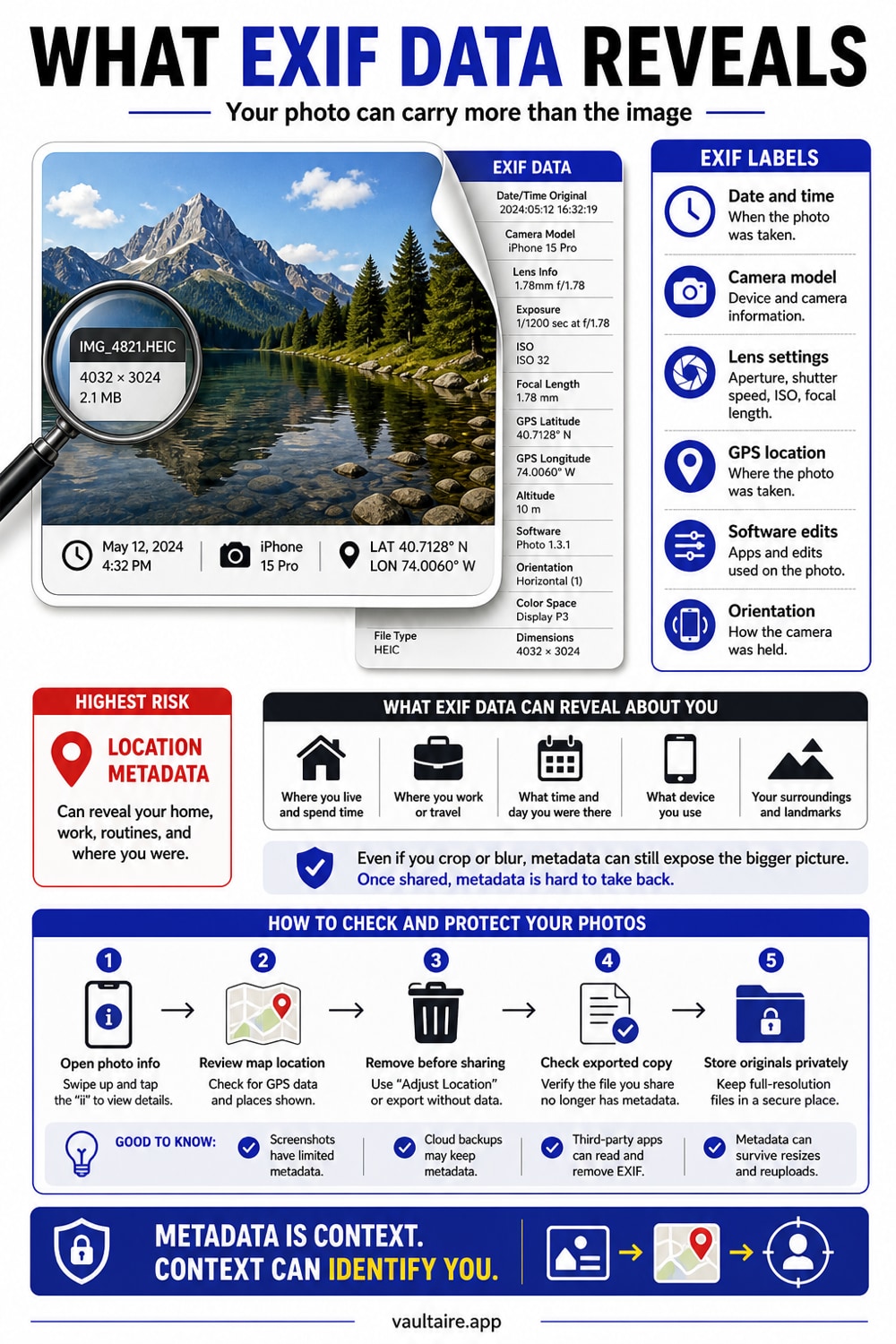
EXIF (Exchangeable Image File Format) is hidden metadata embedded in every iPhone photo. It records the GPS coordinates where the shot was taken, the date and time, your iPhone model and lens, and camera settings like ISO and shutter speed. The most sensitive part is location, because it can pin a photo to your home or routine. To view it, open a photo in Photos and tap the info button. To remove location on a single share, tap Share, then Options, and turn Location off. To stop future tagging, set Settings, Privacy and Security, Location Services, Camera to Never. For a complete strip of every field, use an app that clears metadata on device, and keep your originals in an encrypted vault so only cleaned copies ever leave the phone.
What EXIF metadata actually records
EXIF stands for Exchangeable Image File Format, and it is the standard set of tags cameras write into a photo file. On an iPhone, that includes the date and time down to the second, the model of phone, the specific lens used, and technical settings such as aperture, ISO, focal length, and shutter speed. If Location Services are on for the Camera, it also writes the GPS coordinates of the spot where you took the shot, often accurate to a few meters.
Some of this is genuinely useful. It is how Photos sorts your library by date, builds the Places map, and groups memories by trip. The catch is that the same data is invisible in normal use and travels with the file. You see a picture of your dog in the yard, but the file also says the yard is at a precise latitude and longitude, photographed at 4:12 on a Tuesday afternoon, on the iPhone registered to you.
Why location metadata is the real risk
Of all the EXIF fields, GPS location is the one worth caring about. A photo posted from home, a regular running route, or a child's school can reveal exactly where those places are to anyone who reads the metadata. Selling an item online, swapping pictures with someone you just met, or posting to a forum can all leak a precise address you never meant to share, because the coordinates are baked into the file rather than shown on screen.
There is a common myth that uploading a photo always scrubs this for you. Big social networks usually do strip EXIF on upload, but messaging apps, email, cloud links, and direct file transfers frequently keep it intact. The only safe assumption is that any photo you hand someone as a file still carries its full metadata unless you removed it yourself. That is why stripping before sharing beats hoping the other end cleans up after you.
How to view and remove EXIF on iPhone
To read the basics, open a photo in the Photos app and tap the info button, the small i in a circle, or swipe up on the image. You will see the date, the device and lens, the file details, and a map for any photo with location. For the full tag list, including serial numbers and exposure data, a dedicated EXIF viewer app shows fifty or more fields at a glance. Either way, viewing first tells you which photos are carrying coordinates and which are clean.
To remove location for a one off share, tap Share, then Options at the top of the sheet, and turn Location off before you send. To prevent future tagging, set Settings, Privacy and Security, Location Services, Camera to Never. For a complete clean, where device, timestamp, and camera fields are wiped too, use the free photo metadata remover and EXIF viewer. It processes supported images in the browser, saves a cleaned copy, and leaves your original untouched.
Keep the originals where metadata cannot leak
Stripping metadata is a per file chore, and it is easy to forget on the one photo that matters most. A more durable approach is to change where your sensitive originals live. If the untouched, fully tagged version of a photo never sits in the camera roll that you share from, AirDrop from, or back up to a service, there is nothing to leak by accident. You share a cleaned copy on purpose, and the original with its coordinates stays sealed away.
That is the role a vault can play. Vaultaire imports your photos, encrypts the vault copies and their metadata on the iPhone with AES-256-GCM, and keeps those copies out of the camera roll and iCloud Photos. Its encrypted CloudKit backup (on by default, can be turned off), any sync or share you set up, and system device backups remain separate copy paths. Exporting can create a new readable copy with metadata, so inspect what you share. Use Share sheet options and a metadata cleaner for everyday photos, and a vault for photos whose location needs another access boundary.
Related guides
- Remove Location Metadata from iPhone Photos
- How to Share Photos Securely
- Which Apps Can See Your iPhone Photos
- Photo vault apps for iPhone, tested
- Hide photos from social media apps
- How to find out where a photo was taken
- How to remove photo metadata on an iPhone
Sources
- Apple Support: View and edit a photo's date, time, and location on iPhone
- EFF Surveillance Self-Defense: Why Metadata Matters
- Apple Support: Control the location information you share on iPhone
Frequently Asked Questions
What is EXIF data on an iPhone photo?
EXIF (Exchangeable Image File Format) is hidden metadata stored inside every photo file. On an iPhone it records the date and time, your iPhone model and lens, camera settings like ISO and shutter speed, and, if Location Services are on for the Camera, the GPS coordinates of where the photo was taken. It is invisible when you look at the picture but travels with the file when you share it.
Does my iPhone add my location to photos?
Yes, if Camera access to Location Services is on. Each photo then stores the GPS coordinates of where you took it. You can check or change this in Settings, Privacy and Security, Location Services, Camera. Setting it to Never stops new photos from being tagged, though it does not remove location from photos you already took.
How do I see the EXIF data of a photo?
Open the photo in the Photos app and tap the info button (a small i in a circle) or swipe up on the image. You will see the date, the camera and lens, the file size, and a map if the photo has a location. For a deeper view of every tag, including serial numbers and exposure values, install a dedicated EXIF viewer app from the App Store.
Does sharing a photo remove its EXIF data?
Not reliably. Most large social networks strip EXIF when you upload, but messaging apps, email, cloud links, and AirDrop often keep it. Treat any photo you send as a file as if it still carries full metadata, including location, unless you removed it yourself with the Share sheet Options or a metadata cleaning app.
How do I remove all metadata, not just location?
The Share sheet Options toggle only removes location. To wipe device details, timestamps, and camera settings as well, use an app built to strip all EXIF fields, ideally one that works on the device instead of uploading your photo. Many of these save a cleaned copy and leave the original in place, so check the result in the info view before you share.
Is a vault safer than just stripping metadata?
A vault reduces accidental sharing because its encrypted copy stays outside the camera roll. Vaultaire keeps vault copies out of iCloud Photos and encrypts their file data and metadata with AES-256-GCM. Its encrypted CloudKit backup (on by default, can be turned off), any sync or share you set up, and system device backups are separate copy paths, so use a vault alongside a metadata cleaner and review every backup or export.