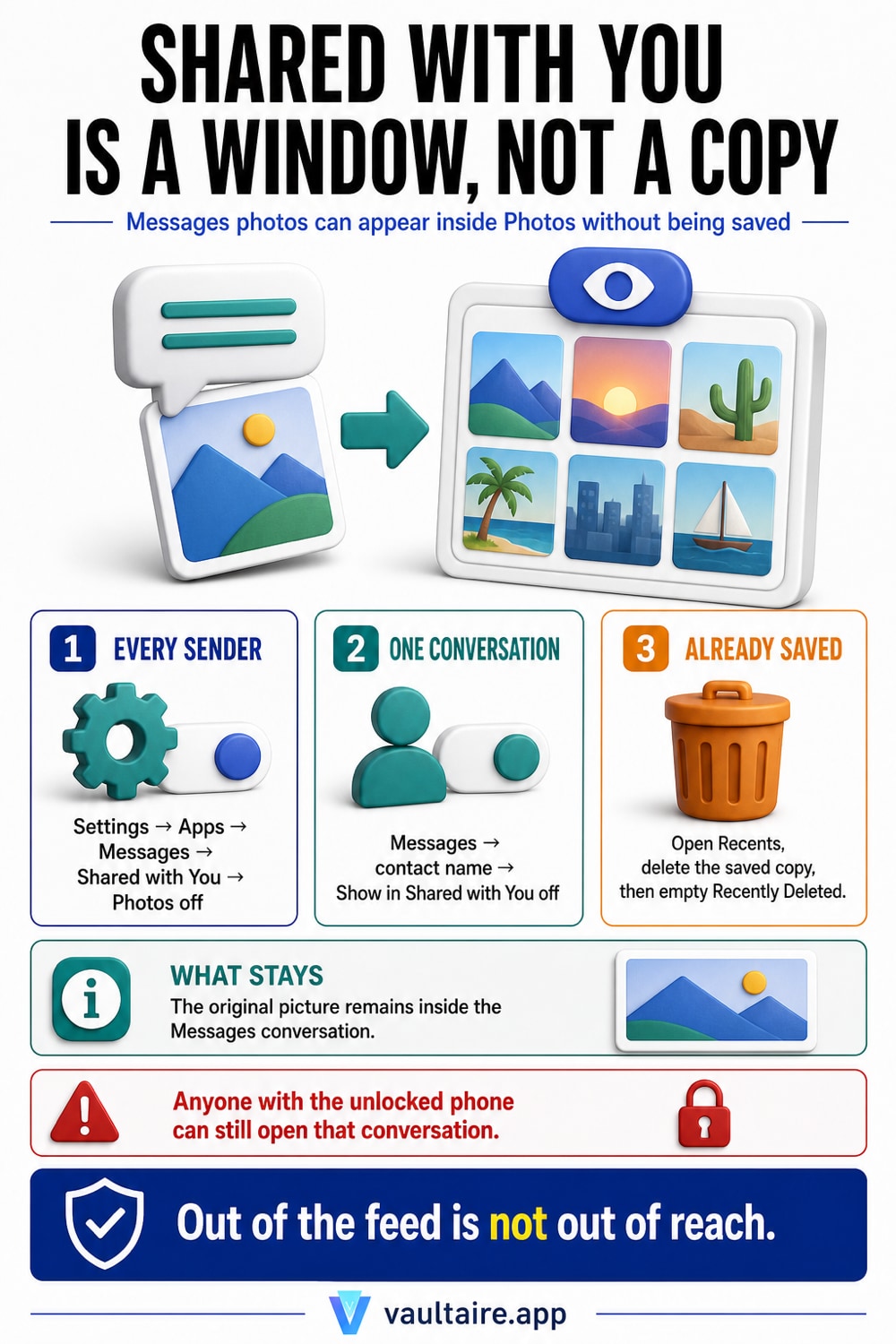
Hide Shared with You Photos on iPhone
You open Photos to find a receipt and the first thing on screen is a picture somebody texted you last week. Sometimes it is a meme, sometimes it is a screenshot of a group argument, and sometimes it is a photo of a person you would rather not explain to whoever is looking over your shoulder. Nothing you did put it there. Shared with You did, and it has been quietly collecting content out of your Messages threads since you set the phone up, because it is on by default. The feature is easy to switch off, in three different sizes: everywhere, in the Photos app alone, or for one conversation. The part that catches people out is what happens to the pictures afterwards.
Open Settings, tap Apps, tap Messages, then tap Shared with You, and turn off the switch beside Photos. That is the whole fix for the Photos app: pictures people send you stay in the Messages conversation, and they stop appearing in your library. If you want the feature gone from Safari, Music, TV, News and Podcasts as well, turn off Automatic Sharing at the top of the same screen and every supported app goes quiet at once. If the problem is one person rather than the feature, leave the setting alone and open that thread in Messages instead: tap the contact name or the group icon at the top, then turn off Show in Shared with You. Everything from that conversation disappears from every supported app, and your other threads keep working. Two things the switch does not do. It does not remove a picture you already tapped Save on, because that photo is now a normal item in your library and has to be deleted by hand. And it does not hide anything from a person holding your unlocked phone, since Photos and the Hidden album are both still there. Encrypted vault storage outside the Photos app is the answer to that second problem.
What Shared with You is actually doing
Shared with You is a Messages feature that reaches sideways into other apps. When somebody sends you a link, a song, a news story or a photo in a conversation, iOS files a reference to it inside the matching app: Safari, Music, News, Podcasts, Apple TV, and Photos. Apple describes the point of it as making shared content easy to find later without scrolling back through a thread. In practice that means the Photos app grows a Shared with You section fed by every group chat you are in, sorted by nothing you control, and it is enabled from the moment you finish setup. Most people meet the feature the first time it puts something unexpected in front of them.
The important detail is that this is a view, not a copy. A picture in Shared with You is still living in the Messages conversation. It has not been added to your library, it is not counted against your iCloud storage, and it is not in your camera roll unless you deliberately tapped Save on it. That is why switching the feature off is usually enough to clear the whole section in one move, and it is also why the switch does nothing at all for a photo you saved months ago. If your worry is the reverse direction, pictures from a chat app landing in the camera roll for real, that is a different mechanism covered in stopping WhatsApp photos saving to your camera roll.
The one switch that turns it off for Photos
Open Settings, tap Apps, tap Messages, then tap Shared with You. You get a list of the supported apps with a switch each, and Automatic Sharing at the top. Turn off Photos and the section vanishes from the Photos app while Safari links and shared songs keep arriving as before. Turn off Automatic Sharing and the whole feature stops for every app at once. Older iOS releases put this screen at Settings, Messages, Shared with You, without the Apps level in between, so if you are following an older walkthrough and cannot find it, that is why.
Both switches are reversible and neither one touches your conversations. Nothing is deleted from Messages, nobody is told, and turning the feature back on later repopulates the section from the threads it can still read. Treat it as a display preference rather than a privacy control, because that is what it is. It changes what the Photos app shows you. It changes nothing about what is stored, what syncs, or what another person could find by picking up your phone and opening the same app themselves.
Hiding one conversation instead of the feature
Turning the whole thing off is a blunt fix for a problem that is usually one thread. Apple puts a per conversation control in Messages for exactly this. Open the conversation, tap the contact name or the group icon along the top, and turn off Show in Shared with You. From then on nothing from that thread appears in Photos, Safari, Music, News, Podcasts or TV, and every other conversation carries on unchanged. Apple documents the same steps in its Personal Safety guide, which is a useful signal about who the setting is really for: people who need one particular sender to stop surfacing on their screen.
This is the setting worth knowing if you share a phone, hand it to a child, or work somewhere people read your screen over your shoulder. It is also the least disruptive option, because you keep a feature that is genuinely useful for the group chats you do not mind seeing. If the concern runs wider than Messages, the shared album system has its own separate exposures and permissions, and what iCloud Shared Albums expose covers that side of it.
Out of the feed is not the same as private
It is worth being blunt about the limit of everything above. These switches make the Photos app quieter for you. They do not make a single picture harder for anyone else to reach. The photos are still in the Messages threads, searchable by contact, and anyone with your unlocked phone can open the conversation and scroll. Anything you saved is in your library, in Recents, in search results, and in Memories. Even the Hidden album is not a barrier, since it is a folder in the same app that opens with a tap and a Face ID prompt, which is a distinction what the Hidden album really hides goes through in detail.
So decide which problem you have. If you just want your own library to stop showing you other people's pictures, the switches above finish the job and you are done. If there are photos that must not be seen by whoever borrows the phone next, they need to be somewhere the Photos app cannot open, and the honest comparison of the options is in choosing an app to hide photos. Vaultaire keeps them encrypted on the device behind its own pattern lock, outside the Photos library entirely, which puts them outside iCloud Photos sync, outside Memories, and outside anything a guest finds by opening Photos and scrolling. Vaultaire's own iCloud backup stores only encrypted copies; it is on by default and you can turn it off in Settings.
Related guides
- What the Hidden album really hides
- Choosing an app to hide photos
- What iCloud Shared Albums expose
- Stop WhatsApp photos saving to your camera roll
Sources
Frequently Asked Questions
Does turning off Shared with You delete the photos?
No. Every picture stays exactly where it was sent, inside the Messages conversation, and you can still scroll the thread or open its photo grid to find it. The switch controls one thing only: whether iOS surfaces that content inside other apps. Nobody is notified, nothing leaves your device, and turning the feature back on later refills the section from the same threads. If a picture is genuinely gone from Photos after you flipped the switch, it was never in your library to begin with. It was a reference to the message, which is what Shared with You shows.
Where is the Shared with You setting on current iOS?
Settings, then Apps, then Messages, then Shared with You. Apple moved per app settings under an Apps section, so guides written before that change send you to Settings, Messages, Shared with You and the path looks broken. It is the same screen. Inside it you get Automatic Sharing at the top, which governs the whole feature, and one switch each for Photos, Safari, Music, TV, News and Podcasts underneath. Turning off Automatic Sharing greys the individual switches out because there is nothing left for them to control.
Why are photos from Messages still in my library after I turned it off?
Because those ones were saved rather than surfaced. Shared with You only displays a reference to a picture that lives in a conversation, but tapping Save on a photo copies it into your library as a normal item, and from that moment it behaves like anything you shot yourself. It appears in Recents, syncs through iCloud Photos, and can turn up in Memories. No Messages setting removes it. Open Photos, find it, delete it, then empty Recently Deleted, since deletions stay viewable there for 30 days before they go.
Can I stop my photos appearing in someone else's Shared with You?
Not from your phone. Shared with You is controlled entirely on the receiving device, so the person you sent a picture to decides whether it surfaces in their Photos app, and they can also pin it to make it more prominent. You cannot switch that off remotely and you cannot tell whether they saved a copy. Once a photo has left in a message, the only real control you have left is not sending it in the first place. That is the practical argument for keeping sensitive pictures in encrypted storage and sharing a look at them in person instead.