iPhone Photo Backup Encryption: What Is Actually Protected
You can back up every photo on your iPhone and still not know whether those pictures are truly private. Whether a backup is encrypted, and whether you or Apple holds the key, depends on which backup you use and a couple of settings most people never open. This guide explains, in plain terms, how iPhone photo backup encryption actually works so you can decide what protection your library really needs.
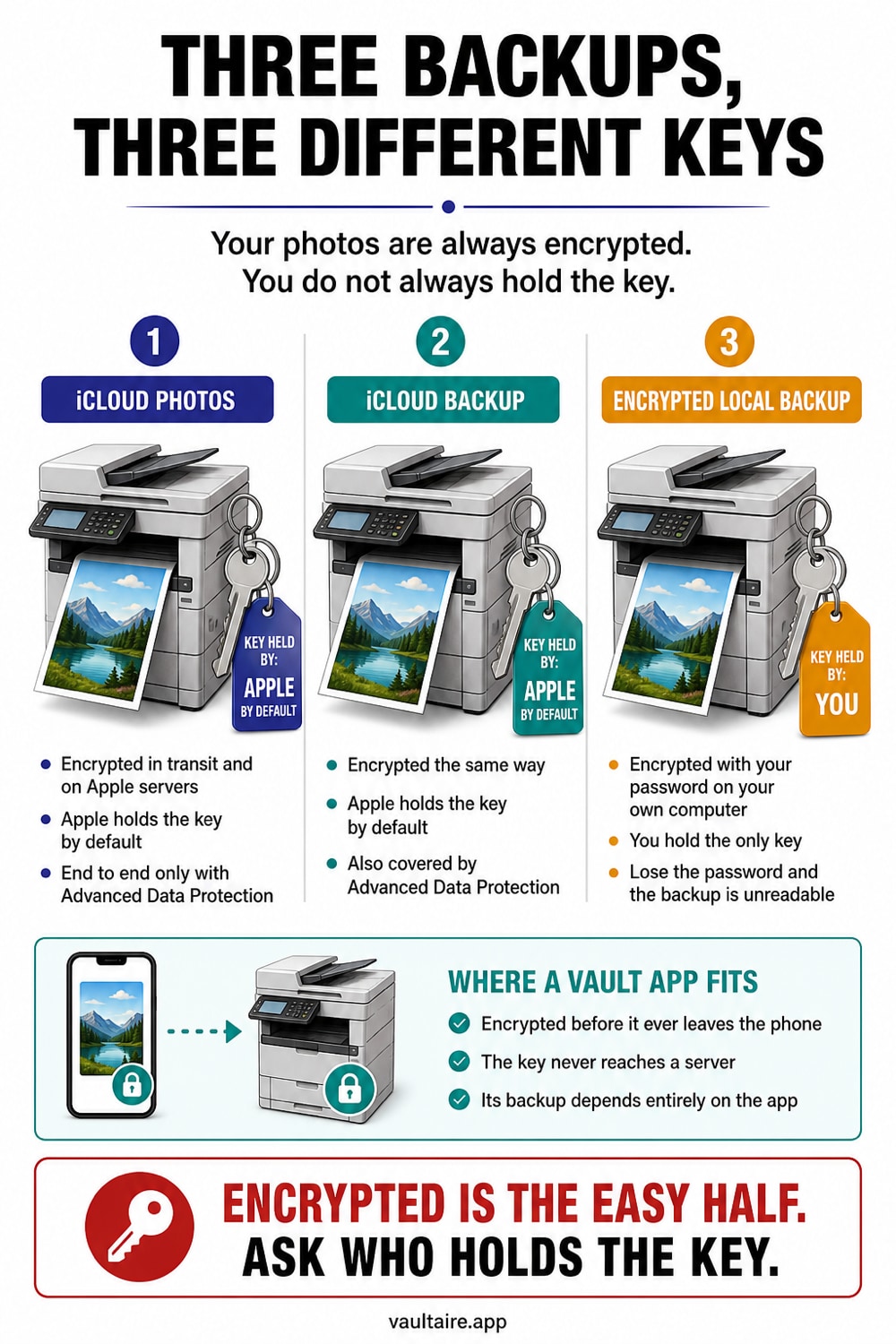
iPhone photo backups are always encrypted in transit and at rest, but that does not mean only you can read them. Under standard iCloud settings Apple holds the keys to iCloud Photos and iCloud Backup, so it can recover or disclose your pictures. Turning on Advanced Data Protection makes those backups end to end encrypted, so only your devices hold the keys. A local computer backup is encrypted only if you tick Encrypt local backup, and a photo vault app adds a separate encrypted store for your most sensitive images.
The three places your iPhone photos get backed up
When people say they have a backup of their photos, they usually mean one of three different systems, and each protects the pictures in a different way. The first is iCloud Photos, which keeps a synced copy of your whole library in Apple data centers and mirrors it to every device signed in to your Apple Account. The second is iCloud Backup, a snapshot of the phone that can include data stored only on the device. The third is a local backup made through Finder on a Mac or Apple Devices on Windows, which writes a copy of the phone to your computer. A photo vault can add its own encrypted backup as a fourth logical store, but its local app container may also travel inside an iCloud or computer device backup unless excluded.
The reason this matters is that backed up and encrypted are not the same promise. Every one of these systems encrypts your photos while they travel over the network and while they sit on a disk, so a stranger sniffing your Wi-Fi cannot read them. The real question is who holds the key that unlocks that encryption. For some backups the key is yours alone, and for others Apple keeps a copy so it can help you recover the data or hand it over when legally compelled. Knowing which is which is the whole point of this guide.
What encryption each backup actually uses
iCloud Photos and iCloud Backup both use strong encryption at rest by default, but under standard data protection Apple retains the keys for most categories, including your photo library and the device backup. That design lets Apple reset your access if you are locked out, and it also means the photos are readable by Apple under a valid legal request. In practice your pictures are safe from casual attackers and from anyone who steals a drive out of a data center, but they are not private from Apple itself. This is a deliberate tradeoff that favors recoverability over absolute secrecy.
A local backup is different because it lives on your own computer. By default a Finder or iTunes backup is not encrypted at all, which surprises many people, so anyone with access to that computer can browse the backed up photos. The fix is a single checkbox labeled Encrypt local backup. Turning it on wraps the entire backup in AES encryption tied to a password you choose, and only that password can open it. Apple never sees the password, so if you forget it the backup is unrecoverable, which is exactly the property you want from real encryption.
Advanced Data Protection turns on end to end encryption
Advanced Data Protection is the setting that upgrades iCloud Photos and iCloud Backup from Apple-held keys to end to end encryption. Once you switch it on, the keys that unlock your photos live only on your trusted devices, and Apple can no longer read the library or the backup even if it wanted to. This closes the gap left by standard data protection and puts iCloud on the same footing as a good local encrypted backup, with the convenience of automatic cloud sync. You will find it under your name in Settings, then iCloud, then Advanced Data Protection.
The threat model it defends against is broad: a breach of Apple servers, an insider with database access, or a subpoena that demands your library all fail to produce readable photos. There are limits worth understanding. You must set up at least one recovery contact or a recovery key first, because if you lose your devices there is no back door to restore from. A small amount of data such as iCloud Mail, Contacts, and Calendar stays outside end to end encryption for compatibility, and some metadata about your files can still exist. For the photos themselves, though, it is the strongest option Apple offers.
Where a photo vault app fits your backup plan
Even with Advanced Data Protection on, every photo in your main library remains inside the Photos access model, which includes someone who can unlock the relevant album and any app you authorize to read those photos. A photo vault narrows that exposure by holding sensitive pictures in a separate encrypted container behind its own credential, so the vault copies do not appear in the camera roll, shared albums, or ordinary photo pickers. A sound key hierarchy encrypts files under a random content key and wraps that key under an unlock key derived from the vault credential.
A well-built vault can also make its own encrypted backup, so private photos survive a lost phone without entering iCloud Photos in readable form. When you evaluate one, look for on-device authenticated encryption, a documented key hierarchy, and a recovery design that does not give the developer a decryption key. Vaultaire encrypts vault data under a random master key and protects private CloudKit backup records with a separate backup key. Backup is on by default and can be turned off; sync and sharing run only when you set them up. App analytics and crash diagnostics are enabled by default and can be turned off with “Share errors anonymously” in Settings. Vaultaire’s current local vault files are not marked as excluded from system device backups, so iCloud Backup or a computer backup may still carry encrypted copies independently of Vaultaire’s CloudKit option.
Related guides
- How iCloud Photos encryption works
- End to end encryption for photos, explained
- Cloud photo storage and privacy, compared
- What AES-256 encryption actually means
Sources
Frequently asked questions
Is iCloud Backup encrypted?
Yes. iCloud Backup is always encrypted in transit and at rest. Under standard data protection Apple keeps a copy of the key, so it can help you recover the backup and can disclose it under a valid legal request. Turn on Advanced Data Protection to make the backup end to end encrypted so only your devices can unlock it.
Are my photos end to end encrypted on iCloud?
Only if Advanced Data Protection is switched on. By default iCloud Photos uses standard data protection, which encrypts the library but lets Apple hold the keys. With Advanced Data Protection enabled, the keys live only on your trusted devices and Apple can no longer read your photos.
How do I make an encrypted local backup of my iPhone photos?
Connect the phone to a Mac or PC, open Finder or iTunes, and select Encrypt local backup, then choose a password. The whole backup, including photos that live only on the device, is wrapped in AES encryption that only your password can open. Keep the password safe, because there is no way to recover the backup without it.
Does a photo vault app back up my photos?
A photo vault can offer its own client-side encrypted backup, separate from iCloud Photos. A sound design encrypts a random content key under an unlock or backup key derived from your credential, so the provider does not receive a readable content key. System iCloud and computer backups are separate paths and may also copy the app's local container.