Is iCloud Photos Encrypted? How to End-to-End Encrypt iPhone Photos
Your iCloud photos are encrypted, so the simple answer to whether they are protected is yes. The harder question is who holds the key. By default Apple does, which means your photos are safe from a casual breach but not from Apple, a court order, or anyone who compromises your account. Advanced Data Protection changes that by moving the keys to your devices alone. Knowing the difference is the difference between assuming your photos are private and actually making them so.
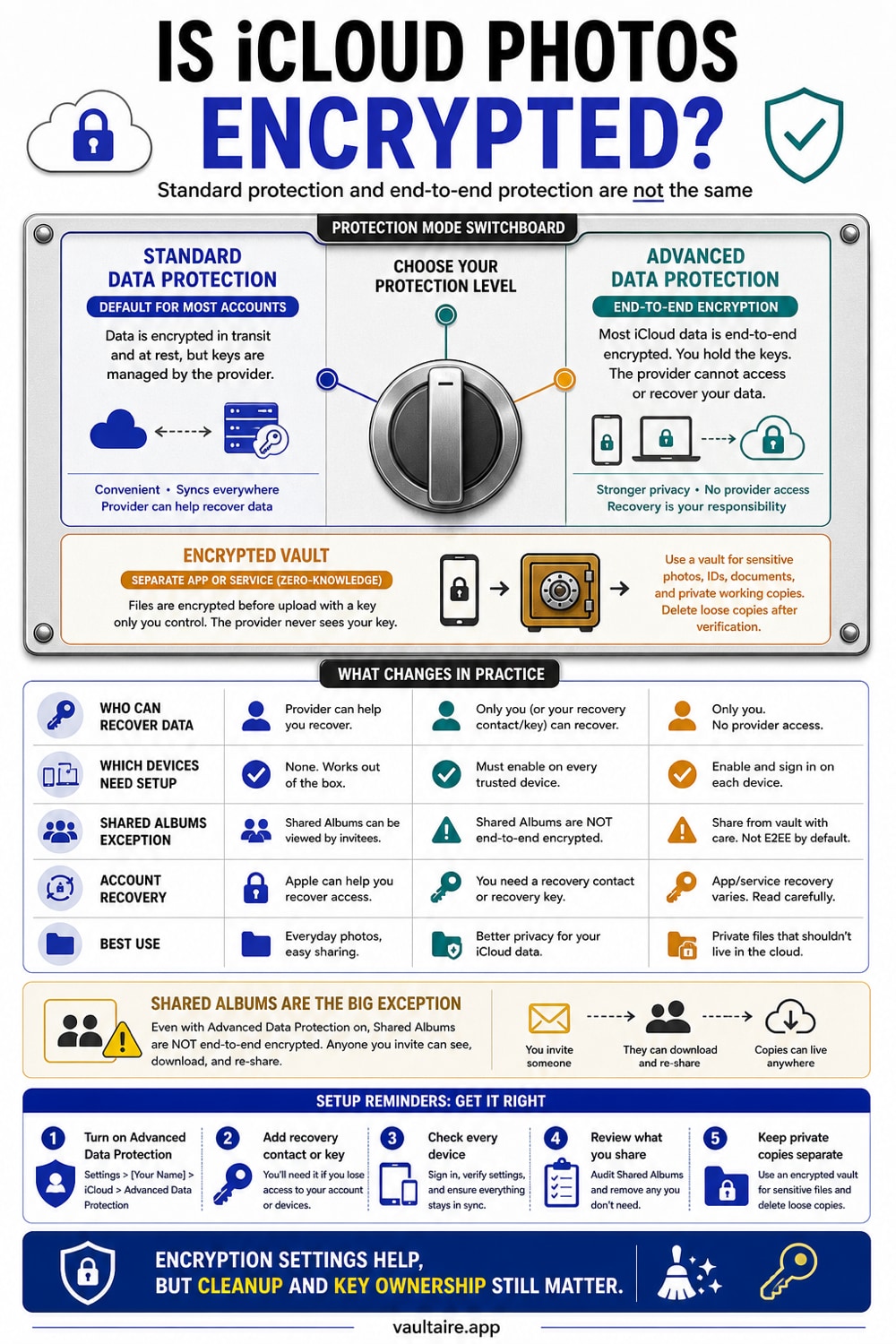
Yes, iCloud Photos are encrypted in transit and on Apple's servers, but under standard protection Apple holds service keys and can access the library, including when responding to a valid legal request. Advanced Data Protection adds end-to-end encryption for eligible categories after you configure recovery and update compatible devices. Shared Albums and some metadata remain outside that protection. For more sensitive photos, a client-side encrypted vault can keep its working copies out of iCloud Photos; app-managed CloudKit features and system device backups must still be considered separately.
What encrypted actually means for iCloud Photos
Apple encrypts iCloud Photos both while they travel to its servers and while they sit there at rest, which stops an outsider who intercepts the connection or breaks into a data center from reading your library. That is real protection, and it is on for everyone by default. The catch is the key. Under standard data protection, the keys that unlock your photos are stored in Apple's data centers so Apple can decrypt your library on your behalf, such as when you sign in on a new device or recover a forgotten password.
That convenience is also the limit. If Apple can decrypt your photos to help you, then Apple can also decrypt them in response to a valid legal request, and an attacker who takes over your Apple Account could potentially reach them too. So encrypted does not automatically mean private from everyone. It means private from the wrong people, with Apple still holding a master copy of the key on your behalf.
Standard protection versus Advanced Data Protection
Apple end-to-end encrypts some categories for everyone by default, such as your iCloud Keychain passwords and Health data, where the keys never leave your devices. Photos are not in that default group. Advanced Data Protection is the optional setting that extends end-to-end encryption to the majority of your iCloud data, including iCloud Backup, Notes, and Photos. With it on, the number of protected categories rises and Apple no longer holds keys it could use to read those items.
The practical effect for photos is simple. With it off, your library is encrypted but Apple can open it. With it on, only your trusted devices can, and that protection applies to photos you already uploaded, not just new ones. The price is that you take full responsibility for recovery, which is why Apple forces you to set up a recovery contact or recovery key before it will let you switch the feature on.
How to turn on Advanced Data Protection
Open Settings, tap your name, then iCloud, and scroll to Advanced Data Protection. You will be guided to set up account recovery first, then prompted to enable the feature. Turning it on for one device enables it across your whole account, so every iPhone, iPad, and Mac you use needs to be updated to a supported version: iOS 16.3, iPadOS 16.3, or macOS 13.2 or later. A single outdated device will block the switch until you update or remove it.
Once it is on, your photos in iCloud are sealed with keys only your devices hold. Keep your recovery key somewhere genuinely safe, like a password manager or a printed copy in a secure place, and make sure your recovery contact is someone you trust and can reach. The whole point of end-to-end encryption is that no one can hand you a copy of your data, so your recovery method is now the only door back in.
When a vault beats relying on iCloud settings
Advanced Data Protection is a strong upgrade, but it is account-wide, easy to forget you turned off, and it leaves gaps like Shared Albums on standard protection. It also does nothing about the photos sitting in your camera roll on a device someone else can pick up, glance at, or sync. For the handful of photos you most want kept private, the safer model is to never put them in the synced library at all.
That is the approach Vaultaire takes for the Photos boundary. It imports your photos, encrypts the vault copies on the iPhone with AES-256-GCM, and keeps those copies out of the camera roll, iCloud Photos, widgets, and Photos search. Its own CloudKit backup is on by default and can be turned off, sync and sharing run only when you set them up, and all three are client-side encrypted. System iCloud or computer backups may still include encrypted local app data. Use Advanced Data Protection to harden eligible iCloud categories, and use a separate vault credential for the files that need another access boundary.
Related guides
- Cloud Photo Storage Privacy Compared
- End-to-End Encryption for Photos Explained
- What Zero-Knowledge Encryption Means
- Free and paid iPhone vault apps compared
- Can anyone see your hidden photos on iCloud
Sources
- Apple Support: iCloud data security overview
- Apple Support: How to turn on Advanced Data Protection for iCloud
- Apple Newsroom: Apple advances user security with powerful new data protections
Frequently Asked Questions
Are iCloud Photos encrypted by default?
Yes. iCloud Photos are encrypted in transit and at rest on Apple's servers for every user. However, under the default standard protection, Apple holds the encryption keys, so Apple can decrypt your photos, for example to help recover your account or to comply with a legal request. They are not end-to-end encrypted unless you turn on Advanced Data Protection.
What does Advanced Data Protection actually change?
It moves the encryption keys for most of your iCloud data, including Photos, Backup, and Notes, onto your trusted devices alone. After you enable it, not even Apple can read those items. The protection applies to photos already uploaded as well as new ones. In exchange, Apple can no longer help you recover that data if you lose access.
Will I lose my photos if I turn it on?
No, your photos stay exactly where they are and remain accessible on your devices. What changes is recovery: because Apple no longer holds the keys, you must set up a recovery contact or recovery key before enabling the feature. If you ever lose all your devices and your recovery method, the data cannot be recovered, so store your recovery key carefully.
Does Advanced Data Protection cover Shared Albums?
No. Shared Albums stay on standard protection even with Advanced Data Protection on, because they can be viewed on the web and shared with people outside your devices. Anything you add to a Shared Album leaves the end-to-end encrypted bubble, so treat shared content as not private and keep sensitive photos out of it.
Is an encrypted vault safer than iCloud encryption?
Vaultaire keeps imported copies outside iCloud Photos and encrypts them under a random master key. Local vault use works offline. App analytics and crash diagnostics are enabled by default and can be turned off with “Share errors anonymously” in Settings. iCloud backup, on by default, plus sync and sharing use separate client-side encrypted CloudKit records, so Apple may still observe service metadata. Use it alongside account protections, not as a substitute for them.
How do I check if Advanced Data Protection is on?
Open Settings, tap your name, then iCloud, and scroll to Advanced Data Protection. The screen shows whether it is on or off and lets you change it. If it is off and you want end-to-end encryption for your photos, set up account recovery, update all your devices, then turn it on from that same screen.