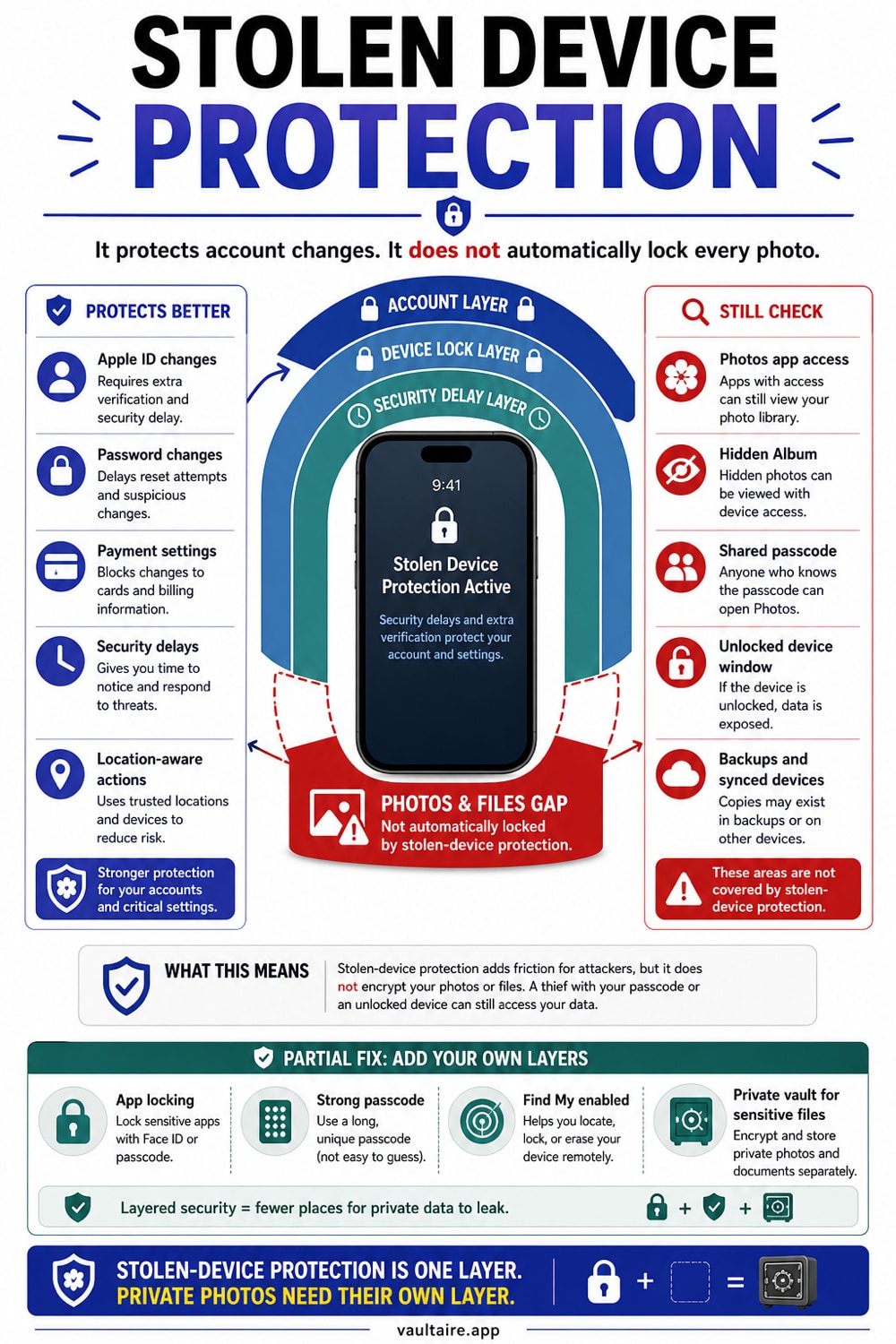
Stolen Device Protection: What It Doesn't Protect
Stolen Device Protection blocks account takeover by a thief who has your passcode. It does not protect your photo library by default. Someone with your passcode can open Photos, scroll your library, and open the Hidden album - SDP will not stop them unless you take additional steps.
Stolen Device Protection protects your Apple ID, saved passwords, and payment methods from a thief who knows your passcode. Your photo library and Hidden album are not included in that protection by default. If you lock the Photos app using iOS 18 app locking and set SDP's security delay to Always, the combination strips the passcode fallback even at home. Without those extra steps, anyone with your passcode can access your photos regardless of whether SDP is on.
What Stolen Device Protection actually does
Apple introduced Stolen Device Protection in iOS 17.3, released January 2024. The feature targets a specific attack: a thief who watched you enter your passcode in public, then stole your phone. Before SDP, that person could use your passcode to change your Apple ID password, disable Find My, drain Apple Cash, and lock you out of your account permanently within minutes.
SDP closes that window. When your iPhone is away from familiar locations - home, work, places you visit regularly - certain sensitive actions require Face ID or Touch ID with no passcode fallback. Even knowing your passcode is not enough for: viewing saved passwords and passkeys from iCloud Keychain, using saved payment methods in Safari, deactivating Lost Mode, erasing all content and settings, accessing Apple Card and Apple Cash details, and setting up a new device via Quick Start.
A second tier adds a one-hour security delay. For the most critical changes - changing your Apple Account password, signing out of your Apple Account, changing your device passcode, adding or removing Face ID or Touch ID, resetting all iPhone settings, enrolling in Mobile Device Management, and turning Stolen Device Protection off - your iPhone requires a successful biometric scan, then a one-hour wait, then a second successful scan. The delay exists specifically to make coercion impractical for those actions: a mugger who forces your thumb to the sensor once cannot chain that into account takeover.
According to MacRumors, a February 2026 developer beta of iOS 26.4 was reported to enable SDP by default for all iPhones, which would end the need to manually turn it on. The public release timing of that change was not confirmed by an Apple primary source at time of writing.
The gap: SDP and your photos
The protections above are scoped to Apple Account security and credentials. The Photos app is not on that list.
By default, your photo library is accessible to anyone who unlocks your iPhone with the passcode. SDP does not change this. If someone knows your passcode, they can open Photos, browse every album, and view every photo. The feature was designed to stop account takeover by a stranger, not to protect what is already on the device from someone who already has access.
The Hidden album has its own lock, introduced in iOS 16. It requires Face ID, Touch ID, or your passcode to open. That last part is the problem: the passcode still works as a fallback for the Hidden album. SDP does not change this. The Hidden album lock is a control inside the Photos app, not an SDP-governed action. Someone with your passcode can open the Hidden album regardless of whether SDP is on.
This is not an oversight. It is the boundary of what SDP was designed for. The feature targets the stranger-plus-observed-passcode scenario. It was not designed for the situation where the person who has your passcode is someone you know, or someone with time and proximity.
The partial fix: iOS 18 app locking combined with SDP
iOS 18 added app locking: you can require Face ID or Touch ID to open any specific app, including Photos. With SDP on and the Photos app locked, Apple removes the passcode fallback for that app when your iPhone is away from familiar locations. The combination is stronger than either feature alone.
To lock the Photos app, touch and hold the Photos icon until the quick actions menu appears, then tap Require Face ID.
This matters, but it has two limits you should know. First, familiar locations: when your iPhone is at a familiar location such as home or work, SDP's extra requirements do not apply. At home, someone who knows your passcode can use it to open a locked Photos app even with SDP on. The security delay and biometric-only requirements apply only in unfamiliar environments - unless you switch SDP to the Always setting.
Second, the Hidden album inside a locked Photos app: if you lock the Photos app at the app level, the whole app requires Face ID to open, which means the Hidden album is also behind that gate. But if you have only the Hidden album's own Photos-internal lock active, the passcode still works as a fallback even with SDP on and away from a familiar location. The app-level lock is what SDP governs. The Photos-internal Hidden album lock is not governed by SDP.
The Hidden album specifically
The Hidden album is a folder inside the Photos app. Starting in iOS 16, it is locked by default and requires Face ID, Touch ID, or your passcode to open. The design is intended to prevent casual browsing.
The passcode fallback is the key issue. Someone who knows your passcode can open the Hidden album with it. Stolen Device Protection does not change this behavior. The Hidden album's authentication is a Photos-internal UI feature. It is not a SDP-governed action. The result: Hidden album contents are accessible to anyone with your passcode, whether SDP is on or off.
The only way to bring the Hidden album under SDP's protection is to lock the Photos app at the app level using iOS 18 app locking, and to set SDP to Always so the biometric requirement applies even at familiar locations. That combination closes the passcode-fallback gap for the Hidden album. Neither the Hidden album's own lock alone, nor SDP alone, accomplishes this.
How to enable Stolen Device Protection
Prerequisites before you start: two-factor authentication on your Apple Account, a device passcode set, Face ID or Touch ID enrolled, Find My turned on, and Location Services with Significant Locations enabled.
Step 1: Open Settings. Step 2: Tap Face ID and Passcode. Step 3: Enter your device passcode. Step 4: Tap Stolen Device Protection. Step 5: Turn Stolen Device Protection on. Step 6: Under Require Security Delay, choose Always if you want the biometric-only requirements to apply at home as well as at unfamiliar locations. The default is Away from Familiar Locations.
Locking the Photos app is a separate action: hold the Photos app icon until the quick actions menu appears, then select Require Face ID. This must be done independently of the SDP settings screen.
One note on disabling SDP: if your iPhone is away from a familiar location, you cannot turn off Stolen Device Protection without waiting one hour. That is intentional - the delay prevents a thief from disabling the feature immediately after taking your phone.
The threat model SDP was not built for
SDP's design thesis is: stranger, observed passcode, stolen device. It is a well-targeted feature for that threat, and it handles it well.
But the photo library and the Hidden album face different threats for different people. A partner or ex who knows your passcode. A family member who shares the phone. A border crossing where an official demands you unlock your device. A situation where you are compelled by someone who has time, knows your code, and is not going anywhere.
SDP's location-based model assumes the threat is a stranger acting fast in an unfamiliar place. At home, with your passcode, at a familiar location: the default SDP configuration adds nothing for the photos on your device.
The Always setting is a partial answer. Enabling it means SDP applies everywhere, so locking the Photos app at the app level strips the passcode fallback even at home. But the device passcode still unlocks the phone itself. If someone has the passcode, they have the device. SDP plus app locking raises the bar. It does not remove the passcode as a root credential.
Where Vaultaire fits
Vaultaire addresses the gap SDP does not cover: the person who has your passcode, is with you, and has time.
The architecture is different from app locking or the Hidden album. PBKDF2 combines a pattern drawn on a 5x5 grid with a device-wide Keychain salt to derive the local vault key. That key authenticates the encrypted index and unwraps a separate random master key for AES-256-GCM file encryption. Recovery material, including the pattern, is stored inside an AES-GCM-encrypted Keychain database. The pattern remains separate from the iPhone passcode, so knowing one does not directly reveal the other.
There is no Vaultaire identity account or email login, and Vaultaire does not operate a content server or hold a provider decryption key. Files inside Vaultaire are authenticated ciphertext and are absent from the Photos library after you remove the originals. A copied, locked app container does not expose their contents without the required keys, although Vaultaire, Apple, and the device can still hold account, service, or structural metadata.
Duress mode is built for the coercion scenario: a designated pattern opens its assigned vault while removing local indexes and recovery mappings for other vaults. It does not erase cloud copies, peer devices, shared encrypted blobs, or every forensic trace. That is not something iOS's Hidden album or SDP can model, but the feature should still be treated as a best-effort local response rather than guaranteed destruction.
None of this makes Vaultaire a replacement for SDP. Enable SDP. Lock your Photos app. Set the security delay to Always. These steps are free, meaningful, and address the stranger-theft scenario well. What they do not address is the narrower problem of someone who already belongs in your phone.
Related reading:
- Where the iPhone Hidden album really keeps your photos
- What iOS photo vault apps actually do with your data
- Are photo vault apps safe?
- How duress mode protects you under coercion
- Pattern-based encryption: how the key hierarchy works
- Signs someone went through your phone
Sources
- Apple Support: About Stolen Device Protection for iPhone
- Apple Support: Use Stolen Device Protection on iPhone (iPhone User Guide)
- Apple Support: Use locked apps with Stolen Device Protection
- Apple Support: Use Stolen Device Protection on your iPhone (Personal Safety guide)
- MacRumors: iOS 26.4 Enables Stolen Device Protection by Default for All iPhones
- Washington Post: How to use Apple's Stolen Device Protection on iOS 17.3
Frequently Asked Questions
Does Stolen Device Protection protect my photos?
Not by default. SDP protects account and credential access - passwords, payment methods, Apple ID changes - from someone who has your passcode but not your Face ID. The Photos app is not in SDP's protected action list. If you also lock the Photos app using iOS 18 app locking, SDP then strips the passcode fallback for Photos when you are away from familiar locations.
What does Stolen Device Protection actually do?
It requires Face ID or Touch ID, with no passcode fallback, for a specific list of sensitive actions when your iPhone is away from familiar locations. For the most critical changes - Apple ID password, device passcode, turning off SDP - it also adds a one-hour wait between two biometric confirmations. It was designed to stop thieves who observed your passcode and then stole your device.
How do I turn on Stolen Device Protection?
Go to Settings, tap Face ID and Passcode, enter your passcode, then tap Stolen Device Protection and turn it on. For full coverage, choose Always under Require Security Delay so protections apply even at home. Then separately hold the Photos app icon and select Require Face ID to lock it. Requirements: two-factor authentication, device passcode, Face ID or Touch ID, Find My on, Significant Locations enabled.
Does Stolen Device Protection stop someone who knows my passcode?
For the actions it governs, yes - the passcode is not accepted as a fallback when away from familiar locations. For everything outside that scope, no. Knowing your passcode still grants full access to unlocked apps, the main photo library, and the Hidden album. The Hidden album falls back to the passcode regardless of whether SDP is on, because its lock is a Photos-internal feature, not an SDP-governed action.
What is the difference between locking the Photos app and Stolen Device Protection?
SDP governs a list of account-level actions and adds biometric requirements when away from familiar locations. App locking is a separate iOS 18 feature that requires Face ID to open a specific app. When both are active, SDP removes the passcode fallback for the locked app away from home. Together they are stronger than either alone. At a familiar location, the combination only works if SDP is set to Always.
Does the Hidden album protect photos if someone knows my passcode?
No. The Hidden album requires Face ID, Touch ID, or your passcode to open. Because the passcode is a valid fallback, someone who knows your passcode can open it. Stolen Device Protection does not change this. The Hidden album's lock is a Photos-internal UI control, not an SDP-governed action. It prevents casual browsing; it does not protect against someone with your passcode.
What is the one-hour security delay in Stolen Device Protection?
When you try to perform a critical action - changing your Apple ID password, changing your device passcode, or turning off SDP - your iPhone requires a successful Face ID or Touch ID scan, then waits one hour, then requires a second biometric scan. The delay makes it impractical for a thief to force one authentication and then take over your account before you can respond or intervene.