How to Hide Apps with Screen Time on iPhone
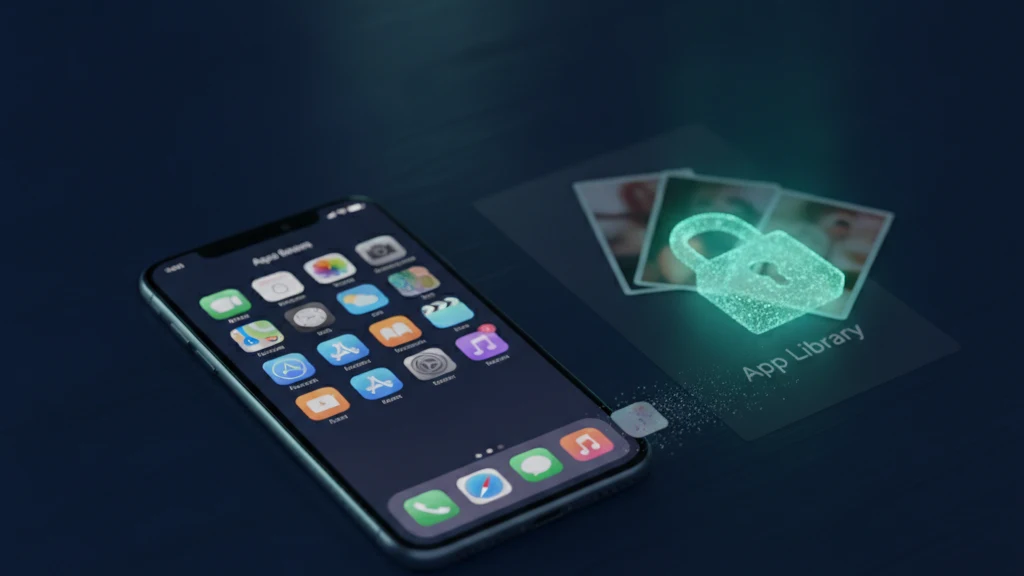
You can hide apps on iPhone with Screen Time and the App Library, which is great for tidying your Home Screen or keeping an app out of view. Here is how to do it, and the one thing hiding an icon does not do.
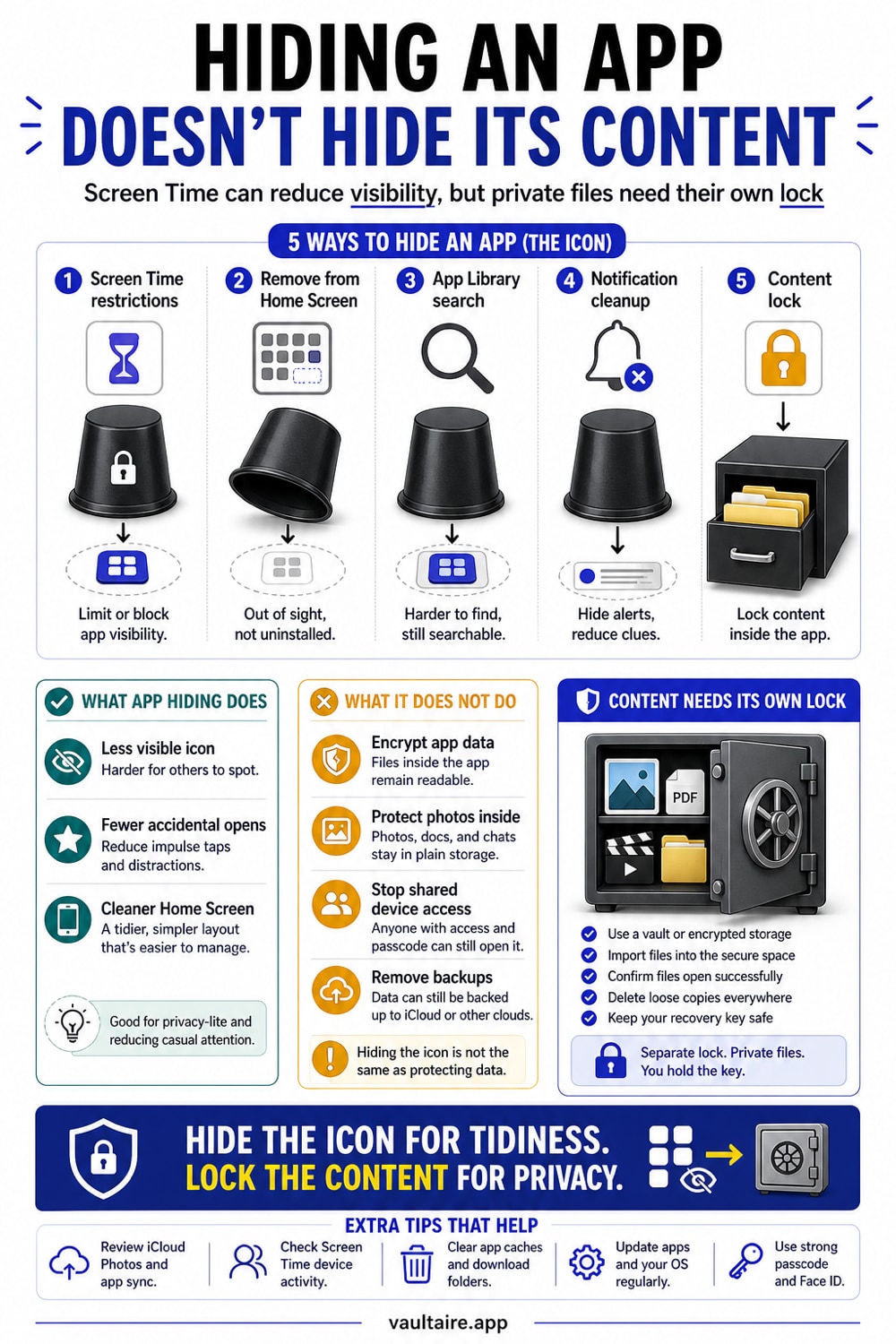
To hide an app, touch and hold it and choose Remove from Home Screen, which keeps it in the App Library. To hide built-in apps and block changes, open Settings, Screen Time, Content and Privacy Restrictions, turn off the apps under Allowed Apps, and set a separate Screen Time passcode. This hides the icon, but the photos and files inside an app are not protected. For sensitive content, use an encrypted vault so the data itself is locked.
The ways to hide an app on iPhone
iPhone gives you a few ways to make an app disappear from view. The quickest is to remove it from the Home Screen, which leaves it in the App Library where you can still find it on purpose. You can also tuck a whole page of apps away by hiding the Home Screen page, and you can use a Focus mode to swap to a cleaner Home Screen layout at certain times.
For tighter control, Screen Time can hide many of the built-in apps and lock the setting behind its own passcode. Each method hides the app to a different degree, from a casual tidy up to a setting that resists being changed back. Knowing which one you are using matters, because they protect very different amounts.
Hide apps with Screen Time restrictions
Open Settings, tap Screen Time, then Content and Privacy Restrictions, and turn that switch on. Under Allowed Apps you can turn off built-in apps like Safari, Camera, or others, and they vanish from the Home Screen and from search until you turn them back on. This is the firmest built-in way to hide an app, because the change is a restriction rather than a layout tweak.
To stop someone from simply reversing it, set a Screen Time passcode under the Screen Time settings, and make it different from your device unlock code. Without that passcode, the restrictions cannot be changed. Keep in mind that third party apps cannot be hidden this way, only removed from the Home Screen into the App Library.
What hiding an app does and does not do
Hiding an app changes where the icon lives, not what is inside it. The app is still installed, its account is still signed in, and every photo, message, or file it holds is exactly where it was. Anyone who opens the App Library, pulls down to search, or knows the Screen Time passcode can bring the app right back and open it.
That is the gap people miss. If you hide an app because it holds private photos, the photos are not any safer, they are just one tap less obvious. A determined person who has your phone and your passcode will find the app and its contents. Hiding the icon raises the effort for a casual glance and nothing more.
Lock the content, not just the icon
If the goal is to protect what an app holds rather than where its icon sits, you need the content itself to be encrypted. An encrypted vault stores each photo or file as scrambled data that is unreadable without your key, so finding the app does an intruder no good. The protection lives in the data, not in the position of an icon.
Vaultaire works this way. You draw a pattern on a five by five grid, and PBKDF2 derives a vault key that authenticates the encrypted index and unwraps a random AES-256 master key. Move the sensitive photos and files in, then delete the originals. There is no identity account, and app-managed CloudKit copies are created only when you enable backup, sync, or sharing. System device backups may still include encrypted local files. Unhiding the app does not decrypt a locked vault, though a compromised device or already-open vault remains outside that protection.
Related reading:
- Apps to hide photos on iPhone
- How to make a secret folder on iPhone
- How to hide photos on iPhone
- Vault app for iPhone: which ones actually encrypt
Sources
- Apple Support: Remove or delete apps on iPhone
- Apple Support: Use Screen Time on iPhone
- Apple Support: Find your apps in App Library
Frequently asked questions
How do I hide an app on iPhone?
Touch and hold the app, choose Remove App, then Remove from Home Screen to keep it in the App Library. For built-in apps, open Settings, Screen Time, Content and Privacy Restrictions, and turn them off under Allowed Apps. Set a Screen Time passcode to stop the change being reversed.
Can I completely hide a third-party app?
Not entirely. You can remove a third party app from the Home Screen so only the App Library and search can find it, but Screen Time cannot fully hide third party apps the way it hides built-in ones. The app stays installed and reachable through search.
Does hiding an app hide the photos inside it?
No. Hiding an app only moves or removes its icon. The app is still installed and every photo and file inside it is unchanged and readable once the app is opened. To protect the contents you need the data itself encrypted, not just the icon hidden.
How do I keep the contents of an app private?
Use an encrypted vault. Move sensitive photos and files into it and delete the originals, so the content is stored as encrypted data. Vaultaire uses AES 256 with a pattern you draw on the device, so the files stay unreadable even to someone holding your unlocked phone.