How to Hide Someone From the People Album on iPhone
The People and Pets album is helpful right up to the moment someone scrolls past a face you would rather not explain. Photos groups every picture of that person into one tile, and the tile sits near the top of Collections where anyone borrowing your phone can find it.
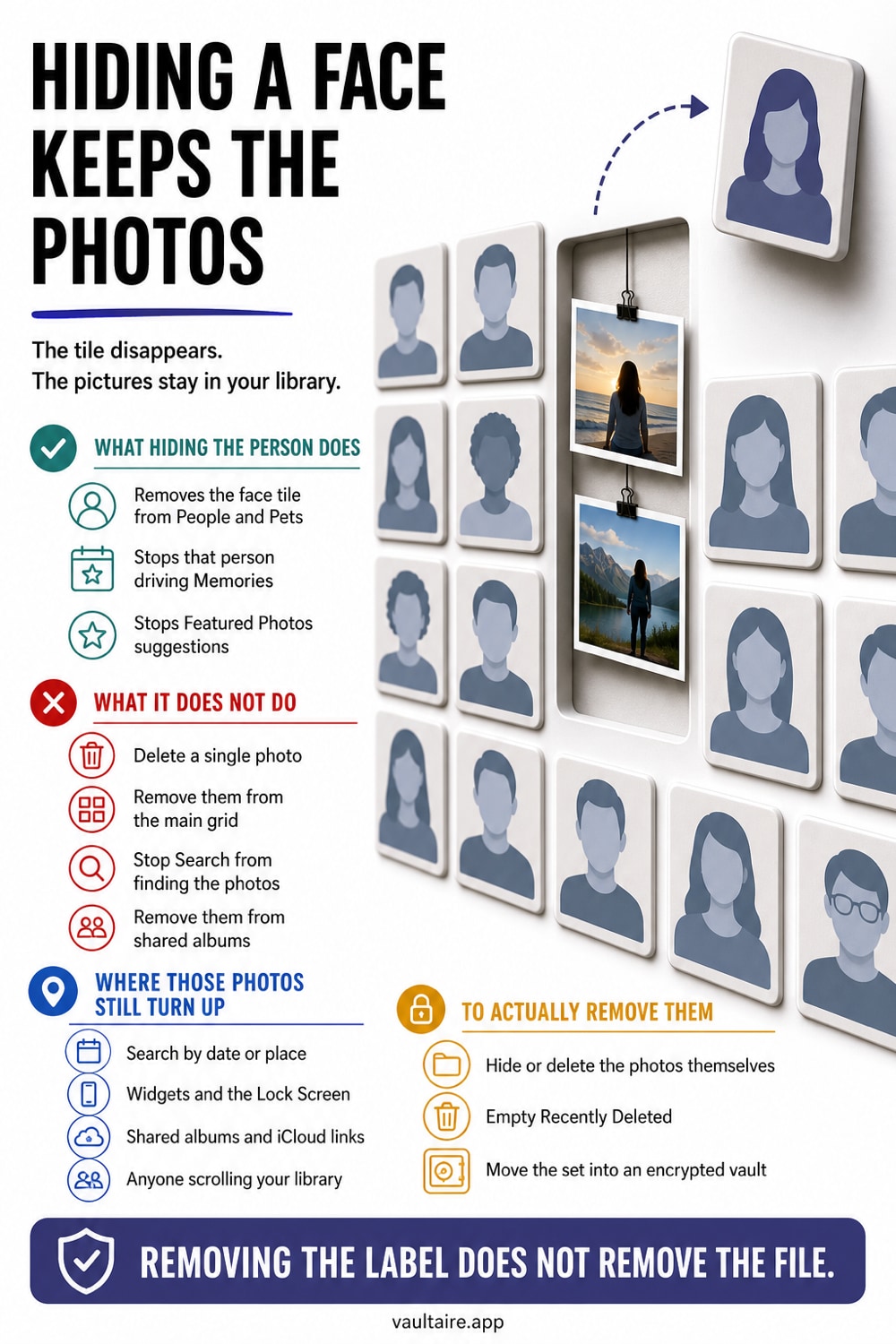
Open Photos, tap Collections, scroll to People and Pets, tap the person, tap the More button, then tap Hide and confirm. The face tile disappears from that album on every device signed into your account. Be clear about what this does: it removes one grouping, not the pictures. The photos stay in your library, still surface in Search, Memories, and the Photos widget, and still sit in any shared album you added them to. If the point is that nobody stumbles on them, hide the photos themselves into the Hidden album, and move the ones that would really hurt into a vault app with a lock of its own.
Hide the person, and know what that changes
Open Photos and tap Collections, then scroll down to People and Pets. Tap the face tile for the person you want removed, which opens their album, then tap the More button in the top corner. The menu includes Hide followed by their name, and Photos asks you to confirm before it hides them from the People and Pets album. The tile is gone within a second, and because face grouping syncs with your library, it goes on your iPad and your Mac too if they are signed into the same account.
What you have changed is one view. Photos still recognizes that face, still groups those pictures internally, and still has every one of them sitting in your library exactly where it was. Nothing was deleted, nothing was locked, and nothing moved. If the reason you hid the person was that you did not want a tile with their face staring out of Collections, you are done. If the reason was that you do not want anyone finding the photos, you have only cleared the shortcut to them.
Hide the photos, not just the face tile
The real fix for the pictures is the Hidden album. Go to your library, or open the person's album before you hide them, tap Select, choose the photos, then tap More and Hide. Photos moves them into the Hidden album, and from there they stop appearing in the main library grid, in Search, in Memories, in the Photos widget on your Home Screen, and in the People and Pets album as well. That last part matters: a photo you hide is pulled out of face grouping automatically, so hiding the pictures does much of the work of hiding the person.
Then close the door behind you. In Settings, open Photos and turn off Show Hidden Album, which removes the Hidden entry from the Utilities list so there is nothing obvious to tap. On iOS 16 and later the album also asks for Face ID or Touch ID before it opens, which stops a casual swipe cold. The limit is worth stating plainly. That lock falls back to your device passcode, so anyone who knows the code you type in front of them every day can open the Hidden album whenever they are holding your unlocked phone.
Where those photos still turn up
People assume one hide covers everything, and then a picture surfaces somewhere they forgot about. Search is the usual one: type a name, a place, or even a word like beach, and Photos returns matches from the whole library. Memories builds slideshows out of the same pool and pushes them into the For You tab without being asked. The Photos widget rotates library images onto your Home Screen where anyone glancing at the phone can see them, and Lock Screen photo shuffle does the same on the screen you hand over most often.
Sharing leaks in a different direction. A photo you added to a shared album stays visible to everyone in that album no matter what you hide on your own device, and the same is true of iCloud Shared Photo Library, where a family member sees the shared copy from their own phone. Messages threads keep their own copies too. Hiding a person in People and Pets touches none of this, which is why the fix has to match the actual worry: one tidies a view, the other has to remove the photo from the places other people can reach.
When hiding is not enough
Everything above is built on the same trust boundary. The Hidden album, the People and Pets album, Memories, and Search all sit inside Photos, and Photos opens for whoever unlocks the phone. If the person you are hiding pictures from is someone who watches you type your passcode, a partner, a family member, a colleague who borrows your phone for directions, then hiding inside Photos is a speed bump rather than a wall. You need the sensitive photos held behind a second secret that the device passcode does not open.
That is what a vault app is for. Vaultaire encrypts imported photos under a random master key and derives the vault key from a drawn pattern separate from the iPhone passcode. It requires no identity account, and its only CloudKit copies are its encrypted backup (on by default, can be turned off in Settings) and any sync or share you set up; system device backups remain a separate path. Import the photos you care about. Once they arrive, Vaultaire offers to delete the originals from your library; accept it, then empty Recently Deleted. Once those originals are out of Photos, its Search, Memories, and face grouping no longer process the vault copies.
Related guides
- Stop Memories from resurfacing private photos
- How to hide photos on iPhone
- Hide photos from Spotlight search
- 7 photo vault apps ranked by encryption
Sources
Frequently Asked Questions
Does hiding someone from People and Pets delete their photos?
No. It removes the face tile from that album and nothing else. Every photo stays in your library at full size, still appears in Search and Memories, and still sits in any shared album you added it to. Hiding a person is a change to one view, not to your library.
How do I unhide a person in the Photos app?
Open any photo of that person, tap the info button, then tap the small face thumbnail at the bottom of the info panel and add the name back. The person returns to People and Pets with their pictures grouped again, because Photos never stopped recognizing the face.
Do hidden photos still show up in the People and Pets album?
No. A photo moved into the Hidden album is pulled out of face grouping along with the library grid, Search, Memories, and the Photos widget. That is why hiding the photos themselves is more thorough than hiding the person, which only clears one tile.
Can someone else still find those photos on my iPhone?
Yes, if they know your device passcode. The Hidden album asks for Face ID, but it falls back to the passcode, so anyone who has watched you unlock the phone can open it. Photos that must stay private belong in a vault app with a separate lock of its own.