Can Family See Your Hidden Photos in iCloud Shared Library?
The Hidden album feels like a private drawer, so most people assume it stays private no matter who they share iCloud with. That assumption holds for Family Sharing, and it breaks for iCloud Shared Photo Library. The difference decides whether a family member can open the photos you thought you had tucked away.
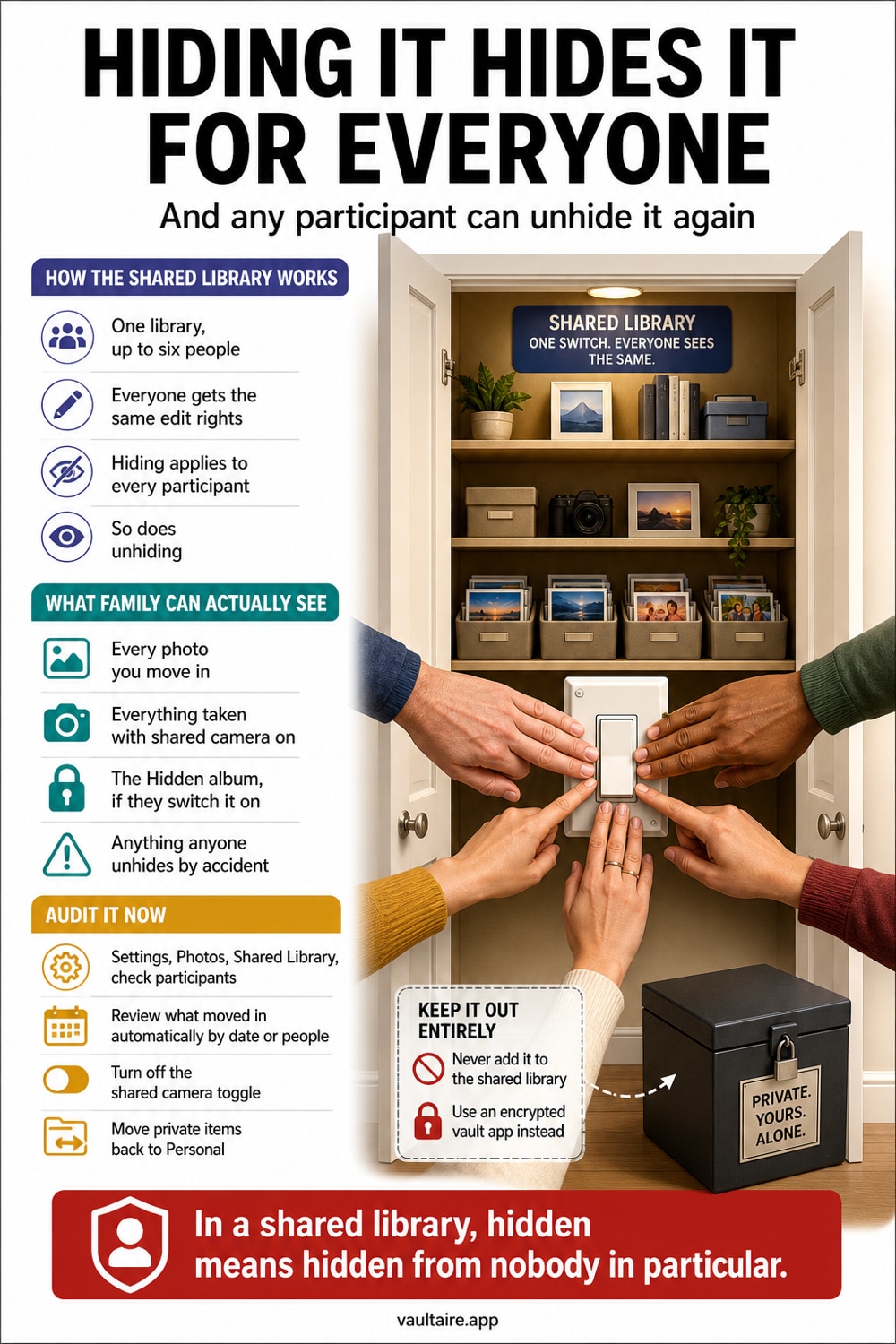
In most setups, no. Family Sharing on its own never exposes your photo library, and the Hidden album in your Personal Library stays yours. There is one exception that catches people out. If a photo sits inside an iCloud Shared Photo Library and you hide it there, it moves to the Hidden album for every participant, and any of them can view it or unhide it. Hiding is not a wall inside a shared library, it is a shared shelf.
Where To Find Your Shared Library Settings
Start by working out whether you are in a Shared Photo Library at all, because most people who worry about this are not. Open Settings, tap Apps, tap Photos, then tap Shared Library. If the screen lists participants, you are in a shared library with those people. If it offers to set one up instead, no one else has access to your photos through Photos, and your Hidden album is visible only to you and to anyone who can unlock your iPhone. That single screen answers the question faster than any amount of scrolling through albums.
If you are in one, it matters how photos got there. When a Shared Photo Library is created, the setup flow offers to move existing photos across in bulk, either everything, or everything after a chosen start date, or everything containing certain people. Those rules run once, quietly, over your whole library. There is also a Camera toggle that can send new shots straight to the shared library when participants are nearby. So the contents are rarely a deliberate, photo by photo choice, which is exactly why an audit is worth five minutes.
What Hiding A Photo Actually Does In A Shared Library
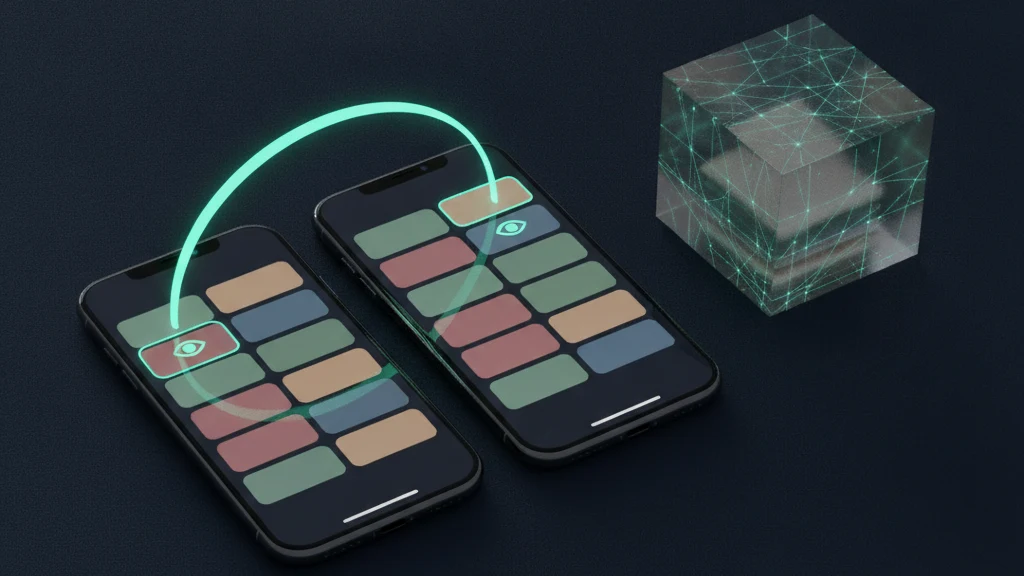
Here is the behavior that surprises people, and it comes straight from Apple's own documentation. If you hide a photo that lives in your iCloud Shared Photo Library, the photo moves to the Hidden album for all participants, where they can view it or stop hiding it. The Hidden album is not a personal overlay on shared content. It is part of the shared state, so hiding travels with the photo to everyone else's device. A family member who taps into their own Hidden album sees your photo sitting there, and can unhide it with one tap.
It is worth remembering that the Hidden album was never built as a security feature, even in your Personal Library. It is an organizing tool that keeps clutter out of your main grid. The album can be switched off from view entirely under Settings, and while it is locked behind Face ID or Touch ID by default on modern iOS, that lock falls away for anyone who knows your passcode, since the passcode can unlock the album directly. Hiding solves tidiness. It has never solved privacy, and inside a shared library it does not even solve tidiness privately.
Who Can Still See Your Photos
Everyone in a Shared Photo Library has equal rights over its contents. Participants can view, edit, favorite, and delete anything in the library, and a deletion by one person removes the photo for all of them. There is no owner tier that outranks the others once photos are in, and no per photo permission you can set. This is a deliberate design choice, because Apple built the feature for a household that genuinely wants one pooled library of shared memories. It is a poor fit for anything you would not hand to any participant directly.
Three Apple features get blurred together here, and the distinction is the whole answer. Family Sharing pools purchases, subscriptions, iCloud storage, and optionally location, but it does not share your photo library, so a family member on Family Sharing cannot browse your camera roll. A Shared Album is a curated set you explicitly add photos to, and nothing lands in it by accident. An iCloud Shared Photo Library is a genuine second library that can absorb photos automatically by rule, which is why it is the one that catches people out. Our guide on whether Family Sharing can see your iPhone photos covers the shared Apple ID case in more detail.
How To Keep Private Photos Out Of The Shared Library
Audit first, then decide. In Photos, switch the view to Shared Library so you see only what participants can open, and scan it properly rather than trusting memory. Anything private can be selected and sent back with Move to Personal Library. If the whole arrangement was a mistake, you can leave: Settings, then Apps, then Photos, then Shared Library, then Leave Shared Library. Note the timing rule, because it decides what you keep. If you have been in the library more than seven days, everything in it is copied to your Personal Library when you leave. If it has been less than seven days, only the photos you contributed come back with you.
Moving a photo back to your Personal Library fixes the sharing, but it still leaves the photo in the Photos app, one stray tap or one future bulk rule away from being shared again. For the handful of photos that genuinely need to stay private, the durable answer is to take them out of Photos altogether. An encrypted vault such as Vaultaire keeps them behind a separate lock, in storage the Photos app cannot reach and no sharing rule can sweep up. The checklist is short: audit the shared view, move private photos back, vault the sensitive ones, then empty Recently Deleted so the originals do not linger for thirty days. Our roundups of the best photo vault apps for iPhone and the mechanics of hidden photos on iPhone are good next reads, and if you would rather stay with Apple's tools, see how to password protect a folder on iPhone.
Related reading:
- Can Family Sharing see your iPhone photos?
- Photo vault apps for iPhone, tested
- How hidden photos work on iPhone
- How to password protect a folder on iPhone
- Can anyone see your hidden photos on iCloud
Sources
Frequently Asked Questions
Can my hidden photos be seen by another member of my iCloud family?
Only if the photo is inside an iCloud Shared Photo Library. Hidden photos in your Personal Library are not visible to family members, and Family Sharing on its own does not give anyone access to your photo library. But if you hide a photo that lives in a Shared Photo Library, it moves to the Hidden album for every participant, and any of them can view it or unhide it.
What's the difference between shared album and shared library?
A Shared Album is a curated collection you explicitly add photos to, and nothing enters it unless you put it there. An iCloud Shared Photo Library is a full second library that participants share equally, and it can pull photos in automatically based on rules you set at setup, such as a start date or the people in a photo. That automatic movement is why photos end up in a Shared Library that you never meant to share.
What is the disadvantage of Apple Family Sharing?
For photo privacy specifically, Family Sharing is not the risk people assume it is, since it pools purchases, subscriptions, storage, and optionally location rather than your photo library. The real disadvantages are financial and administrative visibility, such as shared payment methods and purchase history. Photo exposure comes from a separate decision: sharing an Apple ID, sharing a device, or joining an iCloud Shared Photo Library.
Will family members see each other's photos in family iCloud?
Not through shared iCloud storage. Sharing an iCloud storage plan through Family Sharing pools the space only, and each person's photos stay in their own account and remain private. Family members see each other's photos only when they join a Shared Photo Library, subscribe to a Shared Album, or sign in to the same Apple ID, which merges the libraries entirely.