What Shows Up in iPhone Photo Memories (and Who Can See It)
The Memories feature is designed to delight you with a slideshow of your own past, but it decides what to show on its own, and it shows it in places other people can glance at. Before you can trust it, it helps to know exactly which photos it can reach and where those photos surface.
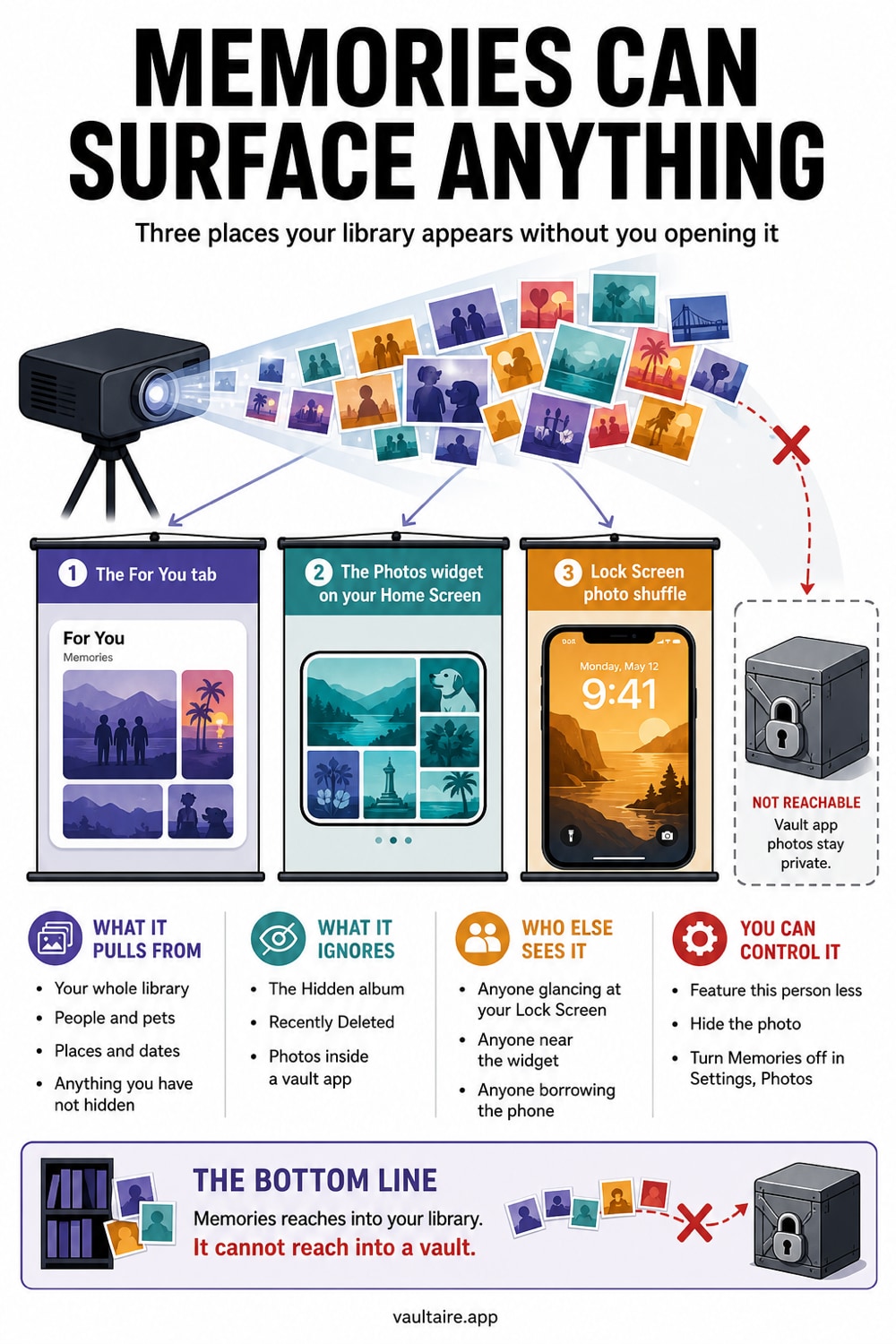
iPhone Memories can pull from every photo in your Personal Library, including old shots, screenshots, and pictures of specific people, then surface them automatically in the For You tab, the Memories tab, Apple Photos search, and the Photos widget on your Home Screen and Lock Screen. Nothing is off limits by default, and the widget rotates on its own, so a photo you forgot about can appear where a family member, a coworker, or anyone glancing at your phone can see it. You control it in two ways: tell Photos to feature certain people, places, and dates less often, and move anything genuinely private out of the Photos app altogether.
Where iPhone Memories Actually Show Up
Memories are not confined to one screen, which is why they catch people off guard. They appear in the For You tab inside Photos, in the dedicated Memories tab, and inside Apple Photos search when you look up a person, a place, or a date. They also feed the Photos widget, which you can add to both the Home Screen and the Lock Screen, and that widget rotates through featured shots on its own schedule. On a Mac or an iPad signed in to the same Apple ID, the same memories surface there too, so the reach is wider than the single iPhone in your hand.
The controls live in one place. Open Settings, tap Apps, tap Photos, then scroll to the Memories and Featured Photos section. There you will find Show Featured Content, the master toggle that governs whether featured photos appear in the For You tab and the widget. This is also where a lot of people first realize the feature was on the whole time, quietly assembling slideshows from a library they never curated for an audience. Knowing where the switch is turns a vague worry into a two minute fix.
What Memories Pulls From, And What It Ignores
The selection is automatic and broad. The algorithm scans your entire Personal Library and builds memories around dates, trips, and the people it recognizes through on device face grouping, then picks hero images and even sets them to music. It does not ask permission for each photo, and it does not skip a picture just because it is old or awkward. Screenshots, saved images, and photos from years ago are all fair game, which is how a memory can resurface something you would never have chosen to feature yourself.
There are limits worth knowing. Photos in your Hidden album are excluded from Memories, Featured Photos, and the widget, and so are photos you have marked to feature certain people or places less often. If you use an iCloud Shared Photo Library, memories can be built from the shared side as well, so a shared memory can appear for every participant. The one category the algorithm can never touch is a photo that has left the Photos app entirely, which is the principle behind moving sensitive images into a separate encrypted vault app.
Who Else Can See Your Memories
The real exposure with Memories is not a remote attacker, it is a bystander. Because featured photos rotate through the Home Screen and Lock Screen widget, anyone who can see your screen can see whatever the widget is showing at that moment, with no unlock required for the Lock Screen version. Hand your phone to a child to watch a video, mirror it to a television or a car display, or set it face up on a table, and the Memories rotation keeps running for whoever happens to be looking.
The same glanceability applies inside the Photos app. If someone is scrolling your library with your blessing to find one picture, the For You and Memories tabs can put an old, private moment one tap away. Hidden photos stay out of these surfaces, but the Hidden album itself is a weak lock, since anyone with your passcode can open it. If you want the full picture of which surfaces expose hidden photos, our guide on whether hidden photos show up in search and widgets walks through each one.
How To Control What Memories Shows You
Start with the master switch. In Settings, Apps, Photos, turn off Show Featured Content to stop featured photos from filling the For You tab and the widget. Then teach the algorithm what to avoid: open a memory or a person, tap the more button, and choose to feature that person, place, or date less often, or never. If the Photos widget sits on your Home Screen or Lock Screen, remove it, or swap it for a widget that does not pull from your library. Each step narrows what the feature is allowed to surface.
These controls tame the algorithm, but every photo still lives in the Photos app, one setting change or one iOS update away from being eligible again. For the handful of images that must never appear in a slideshow, the durable fix is to take them out of Photos and into an encrypted vault such as Vaultaire. Vaultaire offers to delete the originals after the import; accept it, then empty Recently Deleted so nothing lingers. If your goal is specifically to pull existing pictures out of the rotation, our step by step on how to hide photos from iPhone Memories covers the removal side in detail.
Related reading:
- How to hide photos from iPhone Memories
- Do hidden photos show up in search and widgets?
- 7 photo vault apps ranked by encryption
- How hidden photos work on iPhone
Sources
Frequently Asked Questions
What shows up in iPhone Memories?
Memories can pull from every photo in your Personal Library, then surface a curated selection in the For You tab, the Memories tab, Apple Photos search, and the Photos widget. It builds slideshows around dates, trips, and recognized people, and it can feature old photos, screenshots, and images you never chose to highlight. Photos in your Hidden album are excluded.
Can someone else see my iPhone Memories?
Yes, more easily than most people expect. The Photos widget rotates featured images on your Home Screen and Lock Screen, so anyone who glances at your phone, watches it mirrored to a television or car display, or borrows it for a moment can see whatever is showing. Memories are personal to your device, but they are not hidden from a bystander.
How do I stop certain photos from showing in Memories?
Open the photo, person, or memory in Photos, tap the more button, and choose to feature that person, place, or date less often, or never. To stop featured photos entirely, turn off Show Featured Content in Settings, Apps, Photos. For a permanent guarantee, move the photos out of the Photos app and into an encrypted vault.
Do hidden photos show up in Memories or the Photos widget?
No. Photos in the Hidden album are excluded from Memories, Featured Photos, and the Photos widget. The catch is that the Hidden album is easy to open for anyone who knows your passcode, so it keeps photos from the algorithm but not from a person holding your unlocked phone. A separate encrypted vault closes that gap.