Does Deleting a Photo Vault App Delete Your Photos?
Photo vault apps keep private images in their own storage, separate from your Camera Roll. That separation is the point, but it also means removing the app can take your photos with it. Here is exactly what happens when you delete a vault app, what you can still get back, and how to remove one without losing a single image.
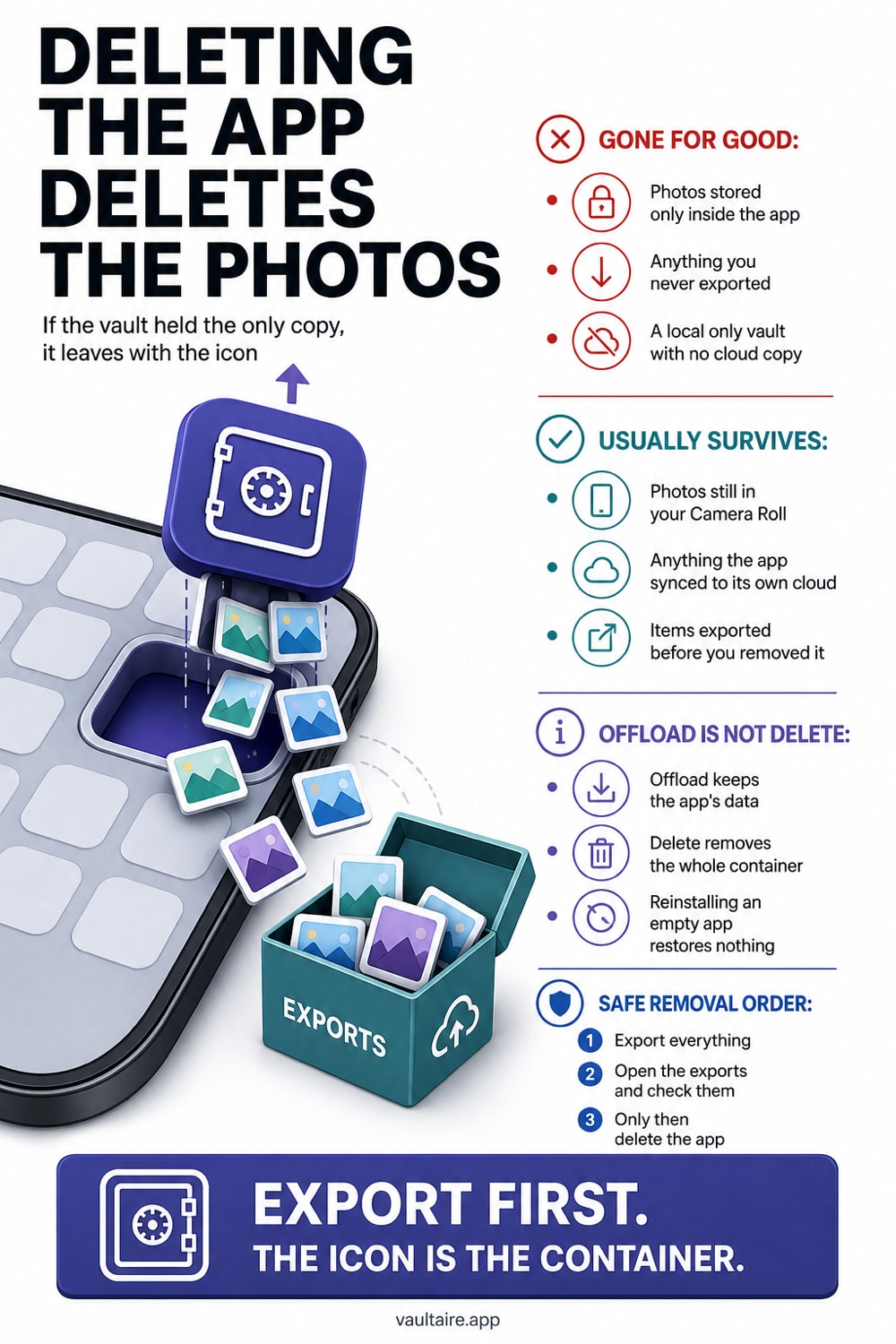
Deleting a photo vault app removes the app and its private storage, so any photo stored only inside that app is erased along with it. Photos survive only if they were also left in your Camera Roll, synced to a cloud account, or included in a device backup made before you deleted the app. Local-only vaults with no account leave nothing to restore once the app is gone.
What happens to your photos when you delete a vault app
A photo vault app stores your hidden images inside its own private storage area, called a sandbox container. When you import a photo, the app usually copies the file into that container and then asks whether to remove the original from the Photos app. If you agree, the only full copy left on your iPhone lives inside the vault. That design keeps the images out of the Camera Roll and out of most apps, which is exactly what you want day to day.
Deleting the app is a very different action from deleting a photo inside the app. When you remove a vault app from the Home Screen, iOS deletes its entire container in one step, including every photo, video, and setting it held. There is no separate trash for a removed app, and the Photos app never sees those files, so it cannot rescue them. If the vault held the only copy, that copy goes away the moment the app does.
What you can get back and what is gone for good
Recovery depends entirely on whether a second copy exists somewhere. If the vault app backs up to its own cloud service or to iCloud and you still have the account, you can reinstall the app, sign in, and pull the photos down again. The same is true if you left the originals in your Camera Roll or synced them to iCloud Photos, since those copies are untouched by removing the vault. A full device backup made before the deletion can also contain the vault data, so restoring the whole iPhone from that backup may bring the photos back.
A local-only vault with no account is the hard case. These apps keep everything on the device by design, which is great for privacy but means there is nothing in the cloud to restore from. Once you delete that app, the photos it held are gone for practical purposes. Everyday recovery tools cannot read a removed app's container, and there is no reliable way for a normal user to bring those files back. Treat deletion of a local-only vault as permanent.
How to remove a vault app without losing photos
The safe path is simple: make sure a second copy exists before the app leaves the device. Open the vault and export or save every photo you want to keep back to your Camera Roll or to another location you control, such as a computer or a trusted cloud drive. Do this while the app is still installed and you can still open your photos.
Then verify before you delete. Confirm the exported images actually appear in the Photos app at full resolution, not as thumbnails or previews. If the vault offers its own cloud backup, sign in and check that the backup is current. Only after the photos are safely in a second place should you remove the app. At that point you can delete it with confidence, or choose Offload instead if you only want to free up space.
Offload versus delete, and iOS backups
iOS gives you two ways to remove an app, and they are not the same. Offload App removes the program but keeps its documents and data, so reinstalling the app later brings your photos straight back. Delete App removes the program and its data together, which is what erases the vault. If your goal is simply to reclaim storage, Offload is the safe choice because it never touches the container.
Device backups add one more layer. An iCloud Backup or an encrypted computer backup made while the vault was installed usually includes the app's data, so a full restore from that backup can recover the photos. This is a heavy step that rewrites the whole device, and it only works if the backup predates the deletion. It is a fallback, not a plan. The reliable approach is still to keep a second copy of anything you cannot afford to lose.
Related reading:
- How to recover photos after you delete them on iPhone
- Forgot your photo vault password? What you can do
- Best photo vault apps for iPhone
- How to transfer a photo vault to a new iPhone
Sources
Frequently asked questions
Does deleting a photo vault app delete the photos inside it?
Yes, if those photos live only inside that app. Deleting the app removes its private storage container and everything in it, and the Photos app never had access to those files. A photo survives only when a second copy exists in your Camera Roll, in a cloud account, or in a device backup made before you deleted the app.
Can I recover photos after I already deleted the vault app?
Sometimes. If the app backed up to a cloud account you still control, reinstall it and sign in to restore. If you have an iCloud or computer backup from before the deletion, a full device restore may bring the data back. A local-only vault with no account and no backup leaves nothing to recover, because iOS keeps no trash for a removed app.
Is offloading a vault app the same as deleting it?
No. Offload App removes the program but keeps its documents and data, so the photos return when you reinstall. Delete App removes the data too. If you only want to free up space, choose Offload so the vault container stays intact on the device.
Will reinstalling the same vault app bring my photos back?
Only if the app restores from a cloud account or a device backup that included its data. A reinstalled local vault opens empty, because the files were stored on the device and left with the app. Reinstalling by itself does not rebuild photos that had no second copy.