How to Transfer a Photo Vault to a New iPhone
Getting a new iPhone should feel clean, but the photos locked inside a vault app do not always follow you. Some vaults keep everything on the device with no backup, so a wipe or a failed transfer can erase them for good. Others leave full copies sitting on the old phone for the next owner to find. This guide shows how to move your hidden photos to a new iPhone safely, verify that every image arrived, and clear the old device.
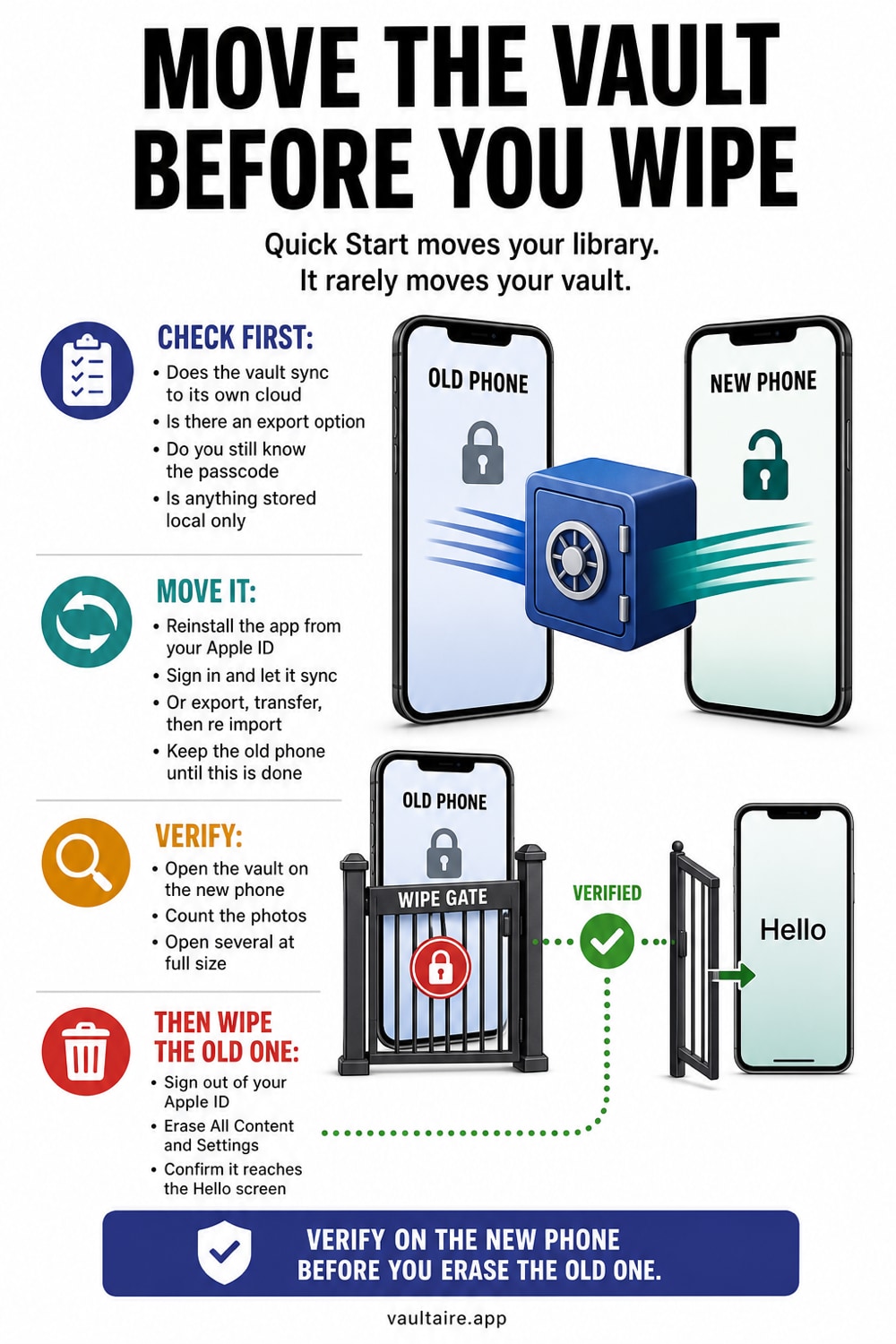
To transfer a photo vault to a new iPhone, first back up the old device or export the vault, then set up the new iPhone with Quick Start or an iCloud restore. Reopen the vault app, unlock it with your existing password, confirm that every hidden photo arrived, and only then erase the old iPhone. A vault with end to end encrypted sync restores this way automatically; a local only vault needs a manual export first.
When moving a photo vault actually goes wrong
Most people assume a new iPhone will carry over everything, including the private album inside a vault app. That is only true when the app stores its data in a way a backup or a device to device transfer can reach. A vault that keeps photos in a local, app only container with no cloud copy is invisible to iCloud Backup, so a restore brings back the empty app while the photos stay behind on the old phone.
The risk runs in two directions. If you wipe the old iPhone before checking, offline only photos are gone with no way to get them back. If you sell or hand over the old iPhone without wiping it, full resolution copies of your most private images travel with the device. Knowing which of these two failures your vault is prone to is the first real step, and it depends entirely on how the app stores and syncs your library.
Before you start: check how your vault stores photos
Open your current vault app and identify its exact backup and recovery path before moving devices. Vaultaire does not restore through a Vaultaire account or the same local pattern alone. Keep its client-side encrypted CloudKit backup on (it is on by default), retain the recovery phrase (a generated nine-word phrase or a custom one of at least six words), and verify that the matching encrypted records exist. On the new device, the phrase derives a recovery key for the encrypted manifest, which restores the vault and backup keys needed to decrypt those records.
If your vault is local only, export the protected photos before you switch. Most vaults offer an export or share option that writes the images out so you can move them yourself, either through an encrypted backup or a direct transfer. Make an encrypted backup of the whole iPhone first, because an unencrypted backup can skip some app data, while an encrypted one preserves saved passwords and Health data along with more complete app contents.
How to move your hidden photos to the new iPhone
Start the new iPhone and, when prompted, hold it next to the old one to use Quick Start, or choose to restore from your iCloud or computer backup. A Quick Start transfer copies apps and their data directly between the two iPhones over a local connection, which is the most complete option when both phones are in hand. If you restore from a backup instead, sign in with the same Apple Account so encrypted app data and Keychain items come back with it.
Once setup finishes, open your vault app on the new iPhone and unlock it. With an encrypted sync vault the photos repopulate after you enter your password or recovery key. With a local vault, import the copies you exported earlier. Do not delete anything on the old iPhone yet. Treat the old device as your safety copy until the new one is fully confirmed, because a rushed wipe is the most common way people lose a private library during a switch.
After the transfer: verify, then wipe the old iPhone
Go through the vault on the new iPhone and confirm the count of photos and videos matches what you had before. Open a few of the oldest and newest items to be sure they are full resolution and not broken thumbnails. Check that albums, favorites, and any notes inside the vault came across too. Only when everything is present should you move on to clearing the old device, and never the other way around.
To clear the old iPhone, go to Settings, then General, then Transfer or Reset iPhone, then Erase All Content and Settings. On a modern iPhone this instantly destroys the encryption keys, so the stored photos become unrecoverable even to someone with forensic tools. Sign out of your Apple Account first if you plan to give the phone away. With the new device holding your encrypted vault and the old one wiped, no stray copies of your private photos are left behind.
Related guides
- Best photo vault apps for iPhone
- Offline photo vault with no account
- Cloud photo storage and privacy
- Can family sharing see your photos?
- Forgot your photo vault password
Sources
Frequently asked questions
Will my hidden photos transfer automatically to a new iPhone?
Only if your vault app syncs through an account with end to end encryption. Apps like Vaultaire that back up through Apple CloudKit can restore your hidden photos on the new iPhone with the recovery phrase. A local only vault keeps its photos on the old device, so an automatic transfer brings back an empty app unless you export and move the images yourself.
Do I need my vault password on the new iPhone?
Yes. A properly encrypted vault protects your photos with a password or recovery key that never leaves your control, so the app will ask for it again on the new iPhone. Keep that password or recovery key somewhere safe before you switch. If the vault has no way to recover a forgotten password, losing it means losing access even after the photos transfer.
Is it safe to sell my old iPhone after moving the vault?
It is safe once you have confirmed every photo is on the new iPhone and then run Erase All Content and Settings on the old one. That reset destroys the encryption keys on the device, which makes the stored data unrecoverable. Do not sell or trade in the old iPhone until you have both verified the new vault and wiped the old phone.
What if my vault app has no backup or export option?
A vault with no backup or export is the riskiest kind to move, because the photos exist in only one place. Before you switch, save each protected photo out to an encrypted backup or transfer it to the new device manually. Going forward, consider a vault that offers end to end encrypted sync so future device changes do not put your library at risk.