How to Get Photos Out of a Vault App on iPhone
Photos go into a vault app easily. Getting them back out is where people get stuck, usually at the worst moment: a new phone, a forgotten passcode, or an app that stopped opening after an update.
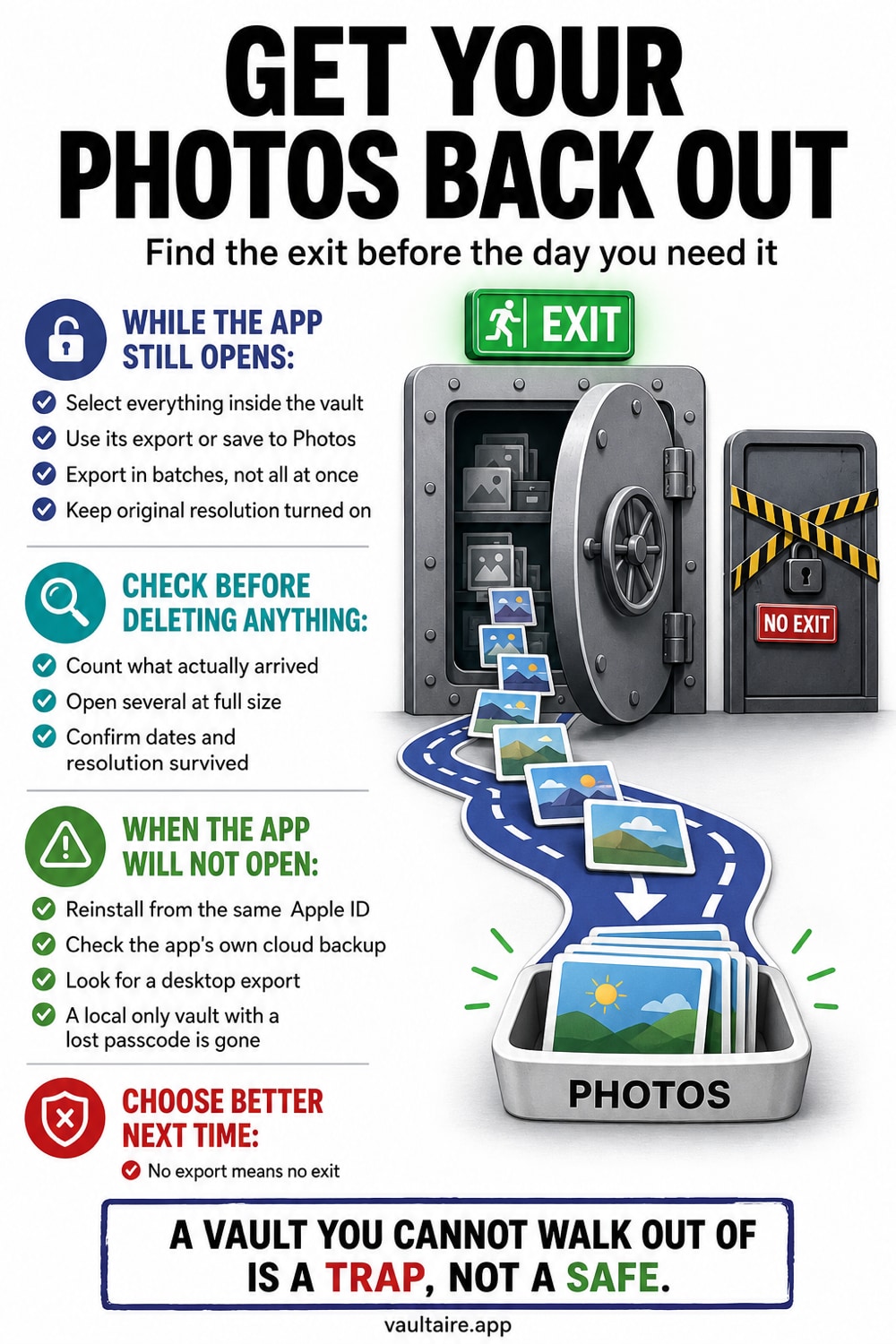
If the vault app still opens, the way out is inside it. Unlock the vault, select the photos, and use its Export, Save to Photos, or share command to write copies back into your camera roll. Check the resolution and the date of what comes back before you delete anything, because exported photos usually land on the day they were taken rather than at the end of your library. If the app no longer opens, your options narrow fast. A vault that truly encrypts its contents cannot be unlocked by support or by recovery software, so the realistic paths are a device backup that included the app, or the vault app's own cloud copy if you turned it on.
Start inside the app, while it still opens
Every vault app that still launches has an exit built into it, though almost none of them call it the same thing. Unlock the vault, tap Select, choose the photos you want, and then hunt for the command: Export, Save to Photos, Save to Camera Roll, Unhide, or the plain share icon in a corner of the screen. Some apps hide it behind a long press. Some only let you export one album at a time. If nothing obvious appears, open the app's own settings, because a few vaults park a bulk export tool there rather than in the photo grid.
Do this before you do anything else to the phone. Not before you erase it, not before you delete the app, not before you hand it to a trade-in counter. An app you can still unlock is an app you can still empty, and that is the easiest position you will ever be in. If you are moving to a new iPhone, export first and re-import on the other side rather than trusting that the vault's data will survive the transfer untouched.
Check what came back before you delete anything
Two things go wrong quietly. The first is the date. Most exports restore the photo's original creation date, so a picture from two years ago reappears two years back in your library, not at the bottom of the grid where you are looking for it. Sort by date and go to the week the photo was taken, or open the Recents album and use the search field, before you decide the export failed and start over.
The second is quality. Some vaults compress images on import to save space, and once that has happened the export gives you the compressed copy, not the original. Tap a returned photo, open the info panel, and compare the pixel dimensions and file size against an untouched photo from the same camera. If they do not match, the loss happened on the way in and there is nothing left to recover from. That is a good reason to test a vault with five photos before you trust it with five thousand.
When the app will not open, or is gone
If you forgot the passcode and the vault genuinely encrypts what it stores, there is no reset link and no support team that can help. The key is derived from your code, so without the code the files are noise. Apps that merely hide photos behind a lock screen are a different story, and that difference is exactly why recovery advice online contradicts itself so often. Recovery tools that scan for deleted camera roll photos are also looking in the wrong place, because vault contents sit in the app's own storage container and never touch the Photos library or Recently Deleted.
If the app itself disappeared, try reinstalling it from your App Store purchase history before you assume the worst, and never delete the app to install a fresh copy. Deleting it removes the container and everything in it. Two other paths sometimes work: restoring an iPhone backup made while the app was installed, if that app allowed its data into the backup, and the vault's own cloud sync if you had switched it on. Many privacy focused vaults deliberately exclude themselves from backups, which protects you every day except the one day you need it.
Choose a vault you can walk out of
Treat the exit as a feature you check before you commit. Import five photos, export them straight back, and look at what returns. Do you get full resolution files? Does the app export a whole album in one action, or make you tap through them one at a time? Can you get everything out in a single pass if you decide to switch apps next year? A vault that makes leaving painful is telling you something about how it plans to keep you.
Vaultaire is built for that round trip. Photos are encrypted on the device under a random master key, while your drawn pattern derives the vault key that authenticates the index and unwraps that master key. Wraxle holds no plaintext decryption key, and you can export files back into Photos when you want them there. Import quality is set to Optimized by default, which can convert or downscale some photos and videos; choose Original in Settings to keep every file exactly as imported. No account and no forced cloud dependency are required to retrieve your own pictures.
Related guides
- How to move photos into a vault app
- Forgot your photo vault password?
- Does deleting a vault app delete your photos?
- Best vault app for iPhone
Sources
Frequently Asked Questions
Where do photo vault apps actually store my photos?
Inside the app's own storage container on the iPhone, usually encrypted or at least renamed so the files are unreadable from outside. They are not in your Photos library, so the Photos app, Recently Deleted, and camera roll recovery tools cannot see them at all.
Can I recover photos from a vault app if I forgot the passcode?
Not if the app encrypts properly. The key comes from your passcode, so there is no reset and no support override. Your remaining chances are an iPhone backup taken while the app was installed and allowed to back up, or the app's own cloud copy if you enabled it.
Do exported photos keep their original quality?
Only if the vault stored the original. Apps that compress on import can hand back only the compressed version. Check the pixel dimensions and file size in the Photos info panel right after your first export, while you still have the original to compare against.
Will deleting the vault app delete the photos inside it?
Yes, in almost every case. Removing an app removes its storage container, and anything held only in that container goes with it. Export everything you want to keep before you delete the app, wipe the phone, or trade it in.