How to Move Photos to a Vault App on iPhone
Moving photos into a vault app is only half the job. If you import them but leave the originals in your Camera Roll, or forget the copies sitting in Recently Deleted and iCloud, your private pictures are still one swipe away. This guide walks through the full move, so nothing gets left behind.
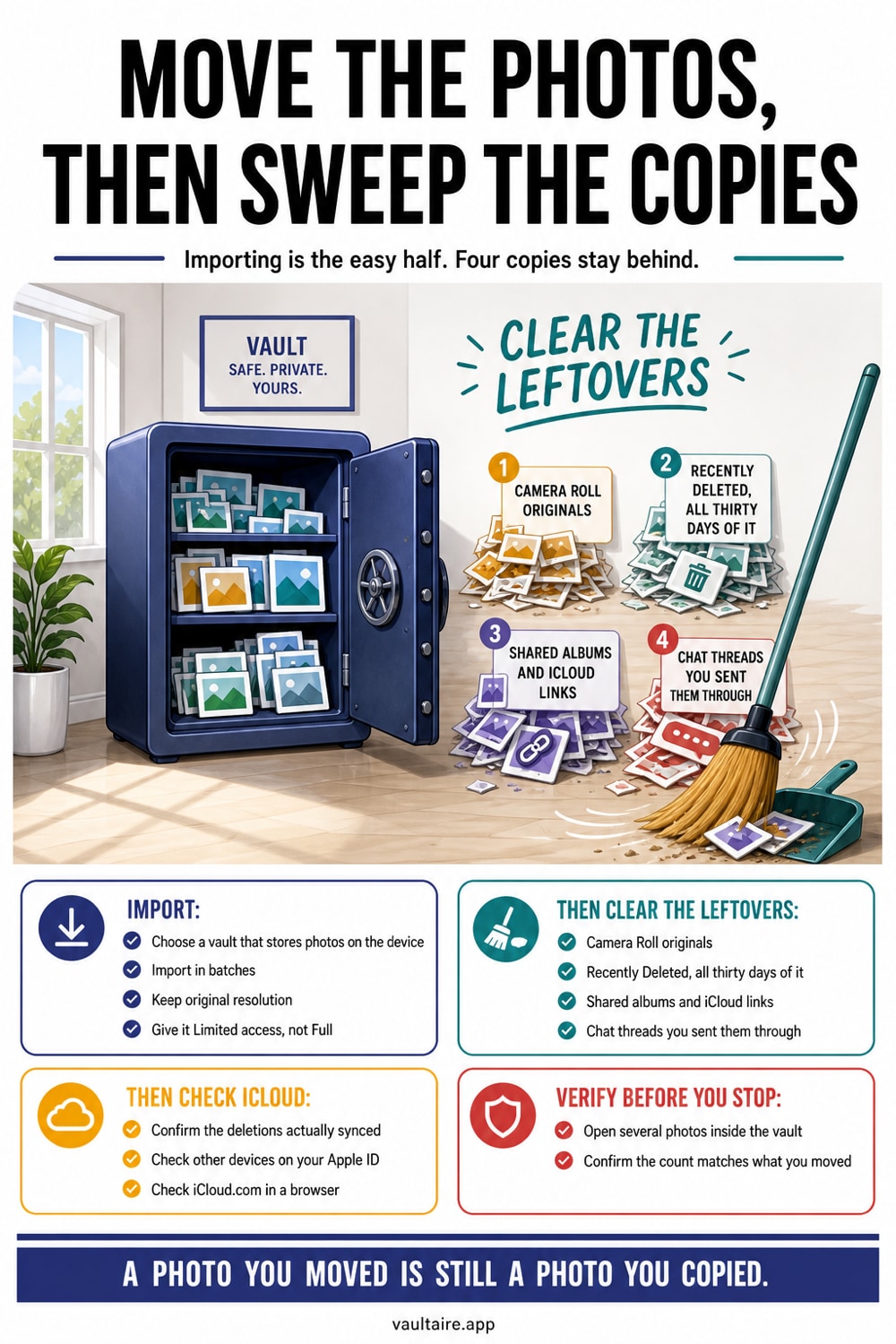
To move photos to a vault app on iPhone, install a local vault such as Vaultaire, import the pictures you want to protect, confirm they opened correctly inside the vault, then delete the originals from your Camera Roll. The step most people miss is the cleanup afterward: deleted photos sit in the Recently Deleted album for up to 30 days, and previously synced or shared copies can remain elsewhere. Empty Recently Deleted, check your iCloud library and shared albums, and review device backups. The goal is to leave the vault copy as the only intended working copy, not to assume every historical or backup copy vanished.
Choose a vault that stores photos on your iPhone
Not every vault app protects your photos the same way. Some upload pictures to company servers, while others upload only client-side encrypted records. A local vault keeps the working files encrypted on the device and needs no app-managed upload. iCloud Backup or a computer device backup may still copy the app container unless it is excluded. Before you move anything, check whether the app works offline, whether it needs an identity account, what its backup defaults are, and who can decrypt any remote copy.
Vaultaire is built around this local-first approach: photos you import are encrypted on the device, and only encrypted backup records reach your iCloud. If you want a wider comparison before you commit, look at how the popular options handle storage, encryption, and recovery so you know where each one actually keeps your pictures. Pick the vault first, install it, and open it once to set its unlock code or pattern before you start importing, so the pictures land somewhere protected from the very first move.
Import your photos into the vault
Open the vault and look for an import or add button, usually shown as a plus icon or an Add Photos option on the main screen. The app will ask for access to your photo library. You can grant access to selected photos only rather than your entire library, which is the safer choice: tap Select Photos, choose the pictures you want to move, and the app only ever sees those. Confirm the selection and let the import finish before you close the app.
Once the import completes, open each batch inside the vault and confirm the photos actually landed there and open at full quality. In Vaultaire, Import Quality is set to Optimized by default, which can convert or downscale some photos and videos; choose Original before importing if the vault copy must match the file exactly. This matters because the next step deletes the originals, and you do not want to remove a photo from your Camera Roll before you are certain the protected copy is intact. If the vault supports albums or folders, this is a good moment to organize the imported pictures, since everything after this point assumes the vault copy is the one you are keeping.
Delete the originals from Camera Roll and Recently Deleted
With the photos safely inside the vault, go back to the Photos app and delete the originals from your Camera Roll. Select the same pictures you just imported, tap the trash icon, and confirm. This is the step that actually makes them private, because a photo that exists in both the vault and the Camera Roll is not hidden at all. Delete them in the same session so you do not lose track of which ones have already been moved.
Deleting from the Camera Roll does not remove the photo right away. iPhone keeps it in the Recently Deleted album for up to 30 days as a safety net, and that album is easy for anyone holding your phone to open. Go to Albums, scroll down to Recently Deleted, unlock it with Face ID, and permanently delete the pictures you moved. Only after you empty Recently Deleted is the original gone from the local photo library for good.
Check iCloud and shared albums for stray copies
If iCloud Photos is turned on, your Camera Roll is mirrored to iCloud, and deleting on the phone also removes the iCloud copy. That deletion still syncs through Recently Deleted first, so the picture can linger on iCloud.com and on your other Apple devices until the 30 day window clears or you empty Recently Deleted everywhere. After the cleanup above, sign in to iCloud.com or open Photos on another device and confirm the moved pictures are gone from the shared library, not just from the one phone.
Shared albums and old backups are the other common leak. A photo you added to a shared album stays visible to everyone in that album even after you delete it from your Camera Roll, so remove it from the shared album separately. If you keep device backups, remember that an older backup may still contain the original until it rotates out. Once the vault holds the only copy and iCloud, shared albums, and Recently Deleted are clear, the move is genuinely complete.
Related reading:
- Best photo vault app: 7 compared
- Do photo vault apps back up to iCloud?
- Stop iCloud Photos syncing to other devices
- Transfer a photo vault to a new iPhone
- Secure Camera
Sources
Frequently asked questions
Does moving photos to a vault delete them from iCloud?
Not by itself. Importing a photo into a vault only copies it; the original stays in your Camera Roll and, if iCloud Photos is on, in iCloud. You have to delete the original and empty Recently Deleted before the iCloud copy is removed across your devices.
Will the photos still show in Recently Deleted?
Yes, until you clear it. iPhone holds deleted pictures in Recently Deleted for up to 30 days so you can undo a mistake. Open that album, unlock it with Face ID, and permanently delete the moved photos so no recoverable copy stays on the phone.
Can I move photos without giving the app my whole library?
Yes. When the vault asks for photo access, choose Select Photos instead of Allow All. The app then sees only the pictures you pick for import and has no view of the rest of your Camera Roll, which is the safer way to grant access.
What happens to my photos if I delete the vault app?
Deleting a local vault app usually deletes the encrypted photos stored inside it, and those are no longer in your Camera Roll, so they can be lost for good. Export or back up anything important before you remove the app, and keep a secure copy of your vault password.