Free business card QR code, no subscription
A QR code on a business card lets people save your details in one move. Yet the word free hides two different products: a code that contains your details and works forever, and a code that points to a company's server and can stop working when the free plan ends. This guide shows how to create the first kind, what to put in it, and what every person who holds your card can read.
Short answer
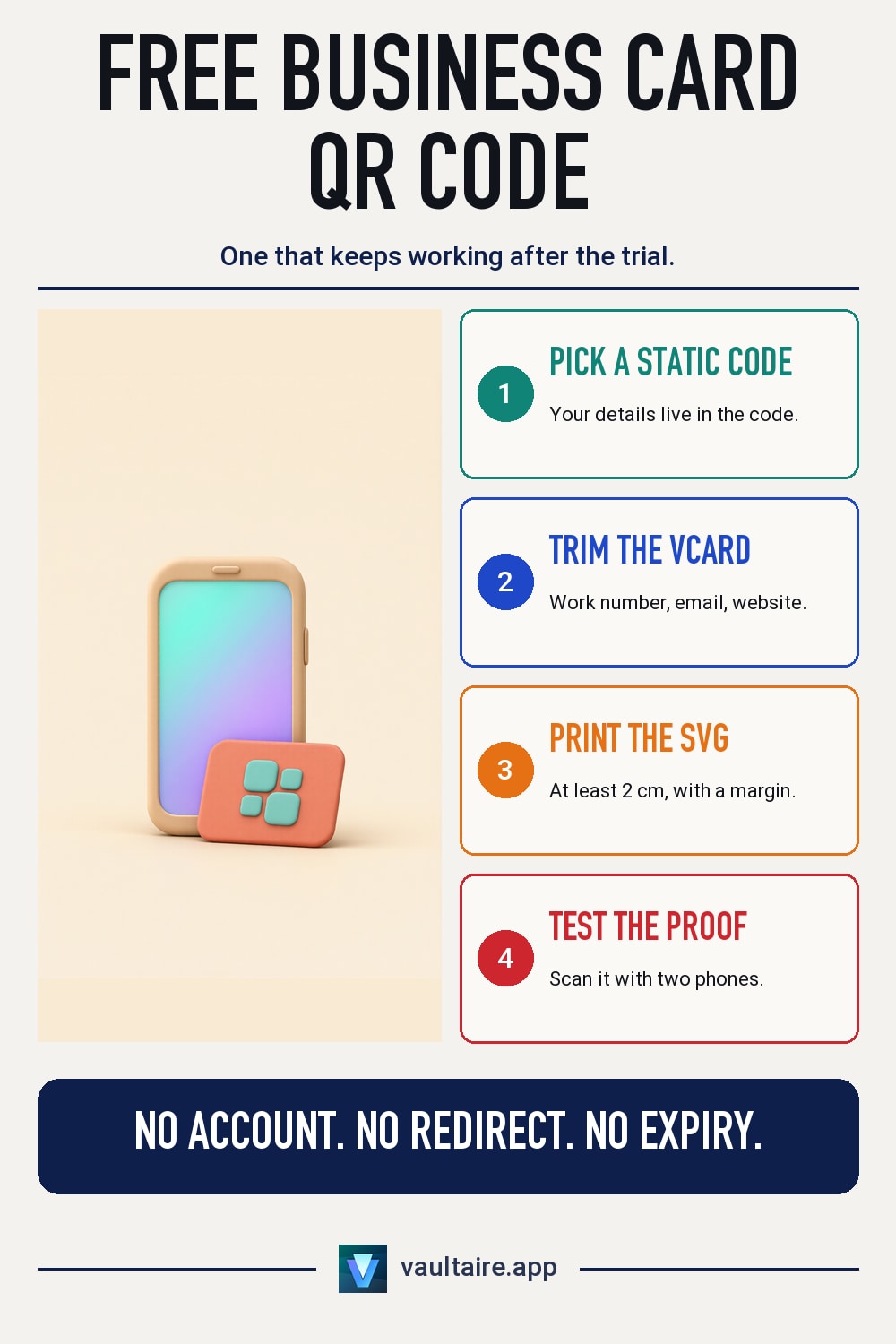
For a business card QR code that stays free for good, create a static code that contains a vCard, for example with Vaultaire's free QR code generator, which works in the browser with no account and no redirect. Avoid the dynamic codes on free plans: they go through the provider's server and can stop working if the subscription is not paid.
What free means for a QR code
A static QR code directly contains the text it carries: for a business card, a contact card in vCard format. The phone that scans it reads that text and offers to add the contact, with no network and no one in between. Nothing can stop it, because nothing sits behind it. It has no expiry date.
A dynamic QR code contains only a short address that belongs to the provider. Each scan goes through its server, which forwards to your details, counts the scan and can change the destination. Many generators sold as free create this kind of code by default, then limit the number of codes or scans, or ask for a subscription at the end of a trial period. The code printed on 500 cards then depends on an account you must keep active. The page do QR codes expire explains these failures in detail.
Create a free vCard QR code with no account
Open Vaultaire's business card QR code generator and choose the Contact content. Enter the name, then only the useful fields: company, job title, phone, email, website. The generator writes a vCard 4.0, shows you the exact text before it draws the code, then creates a PNG and an SVG in the browser. What you enter is not sent to Vaultaire, and the code goes through no redirect.
Before it unlocks the download, the browser reads the PNG and the SVG again with a separate decoder and checks that they give exactly the card you checked. Send the SVG to the printer: it stays sharp at any size. Keep at least 2 cm per side on the card, leave the white margin around the code, and prefer dark modules on a light, matte background. If the code gets too dense, remove a field rather than shrink the square.
What your card gives every person who scans it
Anyone who holds the card can read a vCard, as can anyone who photographs it on a trade show table. That is the point of a business card, but it decides what to put on it. A work number, a work email address and the company website are enough. Your personal mobile number, your home address or your date of birth have no place in a code you hand out to strangers.
With a dynamic code, the provider also sees every scan: the time, often the city and the type of phone. That helps a sales team measuring a trade show, less so a freelancer who only wants to hand out a number. On iPhone, there is also a paperless option: NameDrop swaps contact cards when two iPhones almost touch, and shares only your name, the number or email you choose and your Contact Poster.
The cards you receive, and their photos
Scanning is also the cleanest way to keep other people's cards. The iPhone Camera recognizes a vCard QR code and offers to add it to Contacts, so the details go to the right place instead of staying in a photo. A card with no QR code often ends up photographed in the camera roll, with someone else's name, number and email among your holiday photos, visible to anyone you lend the phone to.
For those photos, and for the files of your own cards before printing, Vaultaire is a free iPhone app that stores the photos you choose in an encrypted vault that opens with a pattern you draw. There is no Vaultaire account. Vaultaire can delete the originals after import, and those photos go to Recently Deleted, which you then empty.
Static code, free dynamic code or NameDrop
| Question | Static vCard code | Dynamic code from a free plan | NameDrop on iPhone |
|---|---|---|---|
| Cost after printing | None, the code depends on no account | May require a subscription to stay active | None, nothing is printed |
| Works with no network | Yes | No, every scan goes through a server | Yes, between two nearby Apple devices |
| Who sees the scans | No one | The code provider | Only the two people |
| Details editable after printing | No, you must reprint | Yes, as long as the account stays active | Yes, from your card in the Contacts app |
Read next:
- Share photos securely
- Keep screenshots private on iPhone
- Where hidden photos go on iPhone
- Create a secret folder on iPhone
Sources
Frequently asked questions
Does a free business card QR code expire?
A static code never expires, because it contains your details. A dynamic code contains the provider's address and can stop working if the trial ends, if the account is not paid or if the service shuts down. Scan the code: if the device offers to open a short link rather than add a contact, it is dynamic.
Does Vaultaire help create a free business card QR code?
Yes, on the website. Vaultaire's free QR code generator creates a static vCard code in the browser, with no account and no redirect, and provides an SVG for printing. The Vaultaire app for iPhone, for its part, stores the photos you choose in an encrypted vault that opens with your pattern.
What information should go in a business card QR code?
The name, company, job title, a work number, a work email and the website are enough. Anyone who holds the card can read the vCard, so leave out your personal mobile, home address and date of birth. Fewer fields also give a less dense code that is easier to scan.
Do you need an app to scan a business card QR code?
No. On iPhone, the Camera recognizes the QR code and shows a notification to add the contact. Most recent Android phones do the same with the camera or Google Lens. Still, test the printed proof with two phones before you start the print run.