How to Hide Photos from Apple Watch and Stop the Sync
The watch is the one screen you never think of as a screen. It sits on your wrist in meetings, at the gym, across a dinner table, and it shows whatever your iPhone decided to send it. Most people never picked that album. The default is Favorites, and on top of that the watch pulls Memories and Featured Photos, which nobody picks by hand at all. So the useful question is almost never how to delete one picture from the watch. It is how to stop the phone feeding it, which feeds you can close separately, and what stays on the wrist after you close them.
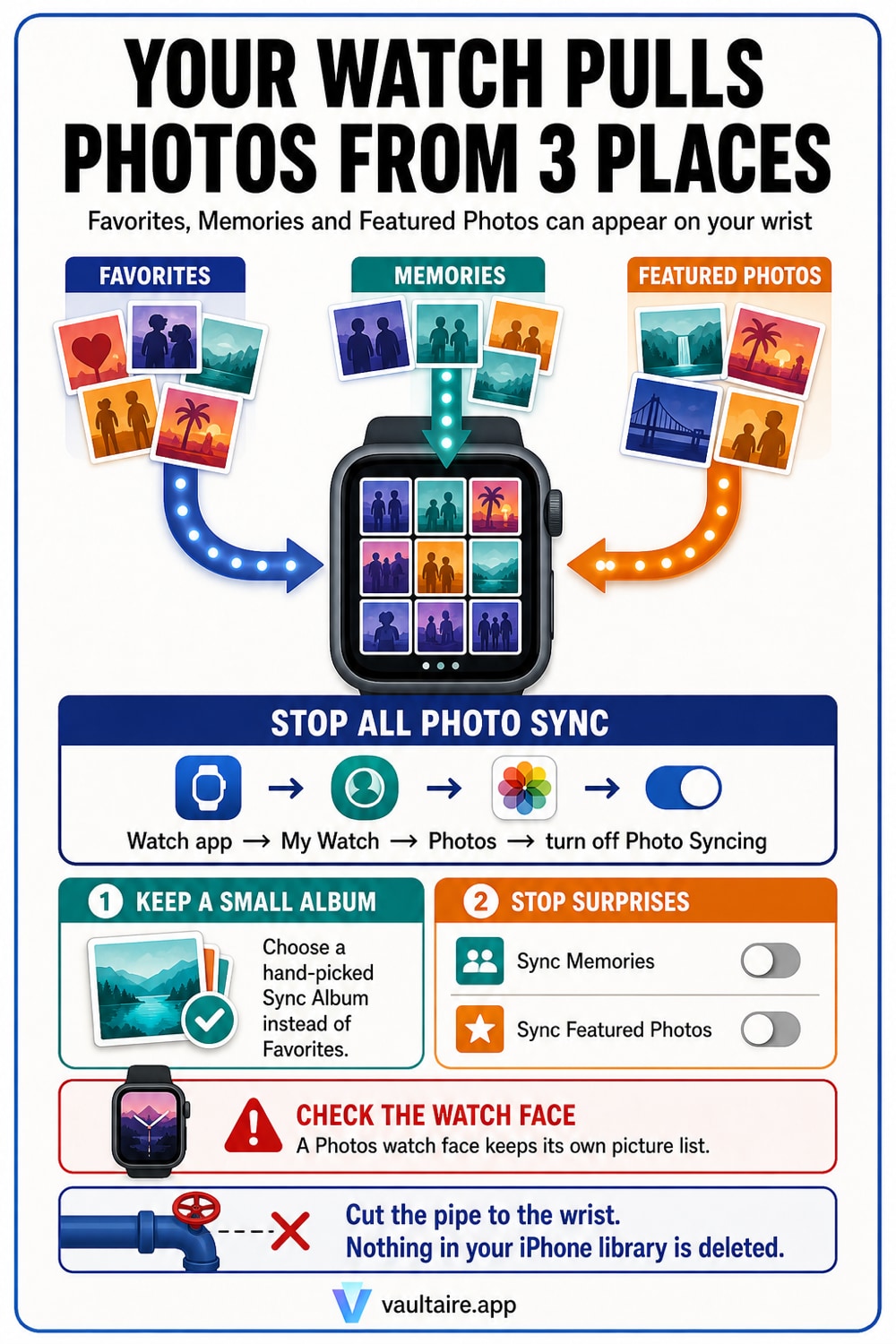
Open the Apple Watch app on your iPhone, tap My Watch, tap Photos, and turn off Photo Syncing. Apple describes that single switch as the one that stops your iPhone syncing Memories, featured photos, and photos from the album you chose, so it closes all three sources at once. If you want some photos on the watch but not those photos, leave the switch on and narrow it instead: tap Sync Album and point it at an album you built yourself rather than Favorites, then turn off Sync Memories and Sync Featured Photos so the Photos app stops choosing pictures for you. Photos Limit caps how many the watch keeps in storage. Two things this does not do. It does not rewrite a Photos watch face that already has its own picture list loaded, so rebuild that face on its own. And it is not a privacy control for the phone: the watch album picker does not offer the iPhone Hidden album, but anyone holding your unlocked iPhone still reaches your whole library in two taps. If a picture should not appear on any screen you might hand over, it belongs in an encrypted vault app rather than merely off your wrist.
Where the pictures on your wrist actually come from
Apple describes the watch Photos app as showing a memory, Featured Photos, or an album you have synced to your Apple Watch. Read that as three separate feeds arriving in one place. Only the third one involves a choice you made, and even that choice defaults to Favorites, an album most people fill by tapping a heart as a bookmark rather than as a decision about what a colleague can glance at. Memories and Featured Photos involve no choice whatsoever. The Photos app assembles both out of your entire library, refreshes them on its own schedule, and hands the result to the watch. That is why the honest answer to why is this picture on my watch is usually that nobody put it there.
The Photos watch face is a fourth path, and it is the one that survives most attempts to clean up. Apple's own steps for it are to tap Shuffle then Collection and choose an album, or tap Shuffle then Featured or People, or tap Choose Photos and select up to 24 pictures by hand. A shuffling face automatically selects sixteen photos to display each day, drawn fresh from whichever source it was pointed at. So a face you set up a year ago carries its own instructions, keeps reaching for new pictures, and pays no attention to the sync screen you are about to change.
The one switch that closes all three feeds
Open the Apple Watch app on your iPhone, tap My Watch, then tap Photos, and turn off Photo Syncing. Apple states plainly that this stops your iPhone syncing Memories, featured photos, or photos from an album you have chosen. One control, all three sources, no per album cleanup. Your iPhone library is untouched: nothing is deleted, nothing is hidden, nothing moves. You have cut a delivery route, not edited a collection, and you can turn it back on later with the same tap.
Two things stay behind, and neither is obvious from the settings screen. The pictures already copied into the watch's own storage do not evaporate the moment you flip the switch, so check the watch itself under Settings, General, then About or Storage to see the photo count come down. And a Photos watch face keeps the list it was built with. If you turn syncing off and a familiar picture is still staring back at you the next morning, the face is where it lives, and the fix for that is in the next section rather than in the Watch app's Photos screen.
Keep the watch useful, just narrow it
Turning everything off is the blunt version, and plenty of people actually want a photo on the wrist. The controlled version takes about a minute. On the iPhone open Photos, go to Albums, tap the plus button, make a new album, and put in only pictures you would happily show a stranger holding your arm. Then in the Watch app tap My Watch, Photos, Sync Album, and choose that album. Now set the two algorithmic feeds to off: Sync Memories and Sync Featured Photos. What reaches the watch is exactly the list you typed, and it changes only when you change it. Photos Limit sits in the same screen and caps how many pictures the watch stores, which is worth lowering as well since it bounds how much history the wrist can hold.
Then rebuild the face on purpose. Press and hold the watch face, swipe to the Photos face, tap Edit, and use Choose Photos rather than Shuffle, so the face holds a fixed hand picked set instead of pulling sixteen new ones a day. If Memories and Featured Photos are resurfacing pictures across your other Apple devices too, the same algorithm is behind it and it has its own controls on the phone, covered in how to hide photos from Memories on iPhone. If the pictures are arriving on an iPad as well, the sync switch there is a different one again, and stopping iCloud Photos syncing to other devices is the wider version of this same job.
What the sync switch is not
Everything above is a display control. It decides which pictures travel to a small screen, and that is genuinely useful, because the wrist is the screen you show people without meaning to. It is not protection. The album picker in the Watch app does not offer the iPhone Hidden album, so hidden pictures do not ride along to the watch, but the Hidden album was never a lock in the first place. It is a folder that sits inside the Photos app, and anyone already holding your unlocked iPhone reaches it in about two taps. That gap is the subject of what the iPhone hidden album really does, and it matters here because a clean watch can leave you feeling protected on a phone that is not.
The dividing line is simple. If the worry is a coworker reading your wrist during a stand up, the sync settings solve it completely and you are finished. If the worry is somebody scrolling your unlocked phone, no watch setting reaches that far, because the pictures are still sitting in the Photos app in plain form. Pictures at that level need to be somewhere that stays encrypted and asks for a separate credential, which is what a vault app is for. Vaultaire keeps them in an encrypted store on the device with its own pattern lock, so they are absent from the Photos app entirely, which also means absent from Memories, absent from Featured Photos, and absent from anything the watch could ever be pointed at.
Related guides
- How to hide photos from Memories on iPhone
- What the iPhone hidden album really protects
- How to hide photos on iPad
- Stop iCloud Photos syncing to your other devices
Sources
Frequently Asked Questions
Does turning off Photo Syncing delete the photos already on my Apple Watch?
It stops new ones arriving rather than wiping the watch the instant you tap it. The pictures already copied into the watch's storage are cleared as the watch catches up with the new setting, so give it time on the charger and connected to the iPhone. To watch it happen, open Settings on the watch, tap General, then About or Storage, and look at the photo count. Nothing in your iPhone library is deleted at any point. Photo Syncing controls delivery to the watch, not the contents of the Photos app.
Do hidden photos from my iPhone show up on the Apple Watch?
No. The Hidden album is not offered in the list of albums you can sync to the watch, and the algorithmic feeds skip hidden pictures too, so they do not appear in the watch Photos app or on a Photos watch face. Treat that as a limit of the watch rather than as security on the phone. The Hidden album is still a plain folder inside the Photos app on the iPhone, reachable by anyone who is already holding the phone unlocked. Photos that must not be seen at all belong in an encrypted vault with its own credential.
Why does my watch keep showing pictures I never added to any album?
Because two of the three feeds do not use your albums. Memories and Featured Photos are built by the Photos app out of your whole library, refreshed on a schedule you do not control, and sent to the watch alongside the album you picked. That is how a photo from four years ago that lives in no album at all turns up on your wrist. Open the Apple Watch app, tap My Watch, tap Photos, and turn off Sync Memories and Sync Featured Photos. After that the only pictures that reach the watch are the ones in the album named in Sync Album.
I turned syncing off and an old photo is still on my watch face. Why?
A Photos watch face carries its own picture list, set when you built the face, and it does not read the Photo Syncing setting. Press and hold the current face, swipe to the Photos face, and tap Edit. If it is set to Shuffle it keeps pulling a fresh set of about sixteen photos each day from an album or from Featured, which is why it outlives every other change. Switch it to Choose Photos and pick the images by hand, or delete the face entirely by pressing and holding it and swiping up.