How to Stop iCloud Photos Syncing to Your Other Devices (2026)
iCloud Photos keeps one shared library in sync across every device on your Apple ID. That is convenient until a private photo lands on a shared iPad or a family Mac. Here is how to stop the sync cleanly.
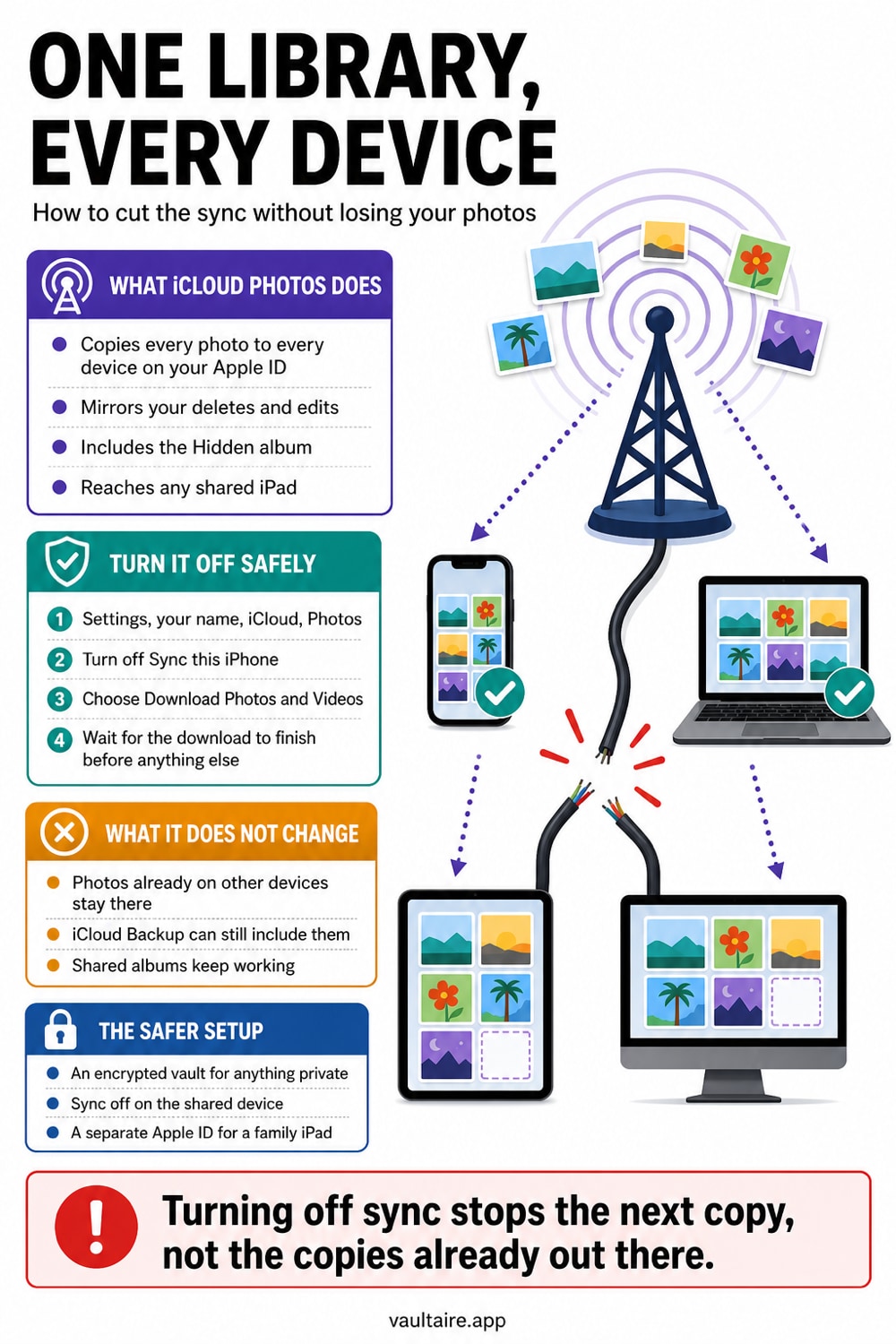
To stop iCloud Photos syncing, open Settings, tap your name, then iCloud, then Photos, and turn off Sync this iPhone. Choose Download Photos and Videos so your full-resolution originals stay on the device, then repeat the check on every other iPad and Mac signed in to the same Apple ID.
What iCloud Photos actually does across your devices
iCloud Photos is not a backup in the usual sense. It keeps a single library in sync, so every photo, edit, album, and deletion you make on one device is pushed to every other device signed in to the same Apple ID. Add a screenshot on your iPhone and it shows up on your iPad within seconds. Delete it in one place and it disappears everywhere.
That shared library is why a private photo can surface where you did not expect it. A child using a hand-me-down iPad, a partner on a shared Mac, or an old device still signed in to your account all pull from the same stream. Turning off the sync breaks that link, so new photos stay on the device where you took them.
How to turn off iCloud Photos sync on your iPhone
Open Settings and tap your name at the very top to reach your Apple ID. Tap iCloud, then tap Photos. Turn off the switch labelled Sync this iPhone. On older versions of iOS the same switch is named iCloud Photos. Once it is off, your iPhone stops uploading new photos and stops downloading changes made on other devices.
iOS then asks what to do with photos that live only in iCloud. Choose Download Photos and Videos to pull full-resolution copies back onto the iPhone before the link is cut, which protects you from losing anything. Choose Remove only if you are certain the originals are safe somewhere else. Downloading a large library can take a while, so stay on Wi-Fi and keep the device charged.
What turning off sync does and does not change
Turning off the sync stops future copying, but it does not empty iCloud or wipe your other devices. Photos you already uploaded stay in iCloud until you delete them, and any device that already synced keeps its downloaded copies. To fully clear a photo you have to remove it from iCloud and from each device that received it.
Shared Albums and Family Sharing work separately from the main sync. A photo you dropped into a Shared Album stays visible to its members even after you disable iCloud Photos. If photos reach a relative because their device is signed in to your Apple ID, the real fix is to sign that device in to its own account rather than toggling settings on yours.
A safer setup for the photos you never want synced
Even with sync switched off, your camera roll is not private. Anyone who knows your passcode, or who picks up an unlocked phone, can open Photos and scroll. The Hidden album only moves photos, it does not encrypt them, and it opens with the same Face ID that unlocks the phone. Sensitive photos need a stronger boundary than an off switch.
Move photos you do not want in iCloud Photos into an encrypted on-device vault, then delete them from the main library and Recently Deleted. Vaultaire protects its copies with AES-256-GCM under a random master key and uses a separate drawn pattern for unlock. They do not enter iCloud Photos or Shared Library. Vaultaire's encrypted backup (on by default, can be turned off in Settings) and any sync or share you set up do put separate client-side encrypted records in CloudKit.
Related reading:
- Cloud photo storage and privacy
- Can Family Sharing see your photos?
- Offline photo vault with no account
- Best free photo vault app, and the paid ones worth buying
- Device Sync
Sources
Frequently asked questions
Does turning off iCloud Photos delete my photos?
No. Turning off the sync only stops copying. Photos already uploaded stay in iCloud, and copies already downloaded to other devices stay on those devices until you delete them there.
Will my photos still be on my other iPhone or iPad?
Yes. Any device that already synced keeps the copies it downloaded. To clear them you have to turn off iCloud Photos and delete the library on each device one at a time.
How do I stop photos syncing to a family member's device?
Photos do not travel through Family Sharing on their own. They appear because the device is signed in to the same Apple ID. Sign that device in to its own Apple ID, or turn off iCloud Photos on it directly.
Can I keep only some photos off iCloud?
Yes. Move the specific photos you want to keep private into an encrypted vault app and delete them from the main library. They stay out of iCloud Photos, while the rest of your library keeps syncing.