Does iPhone Have A Guest Mode? What To Use Instead
Apple has never shipped a guest account for iPhone. Here is the closest thing you can build in a few minutes, exactly where each piece stops working, and what to do about the part it leaves open.
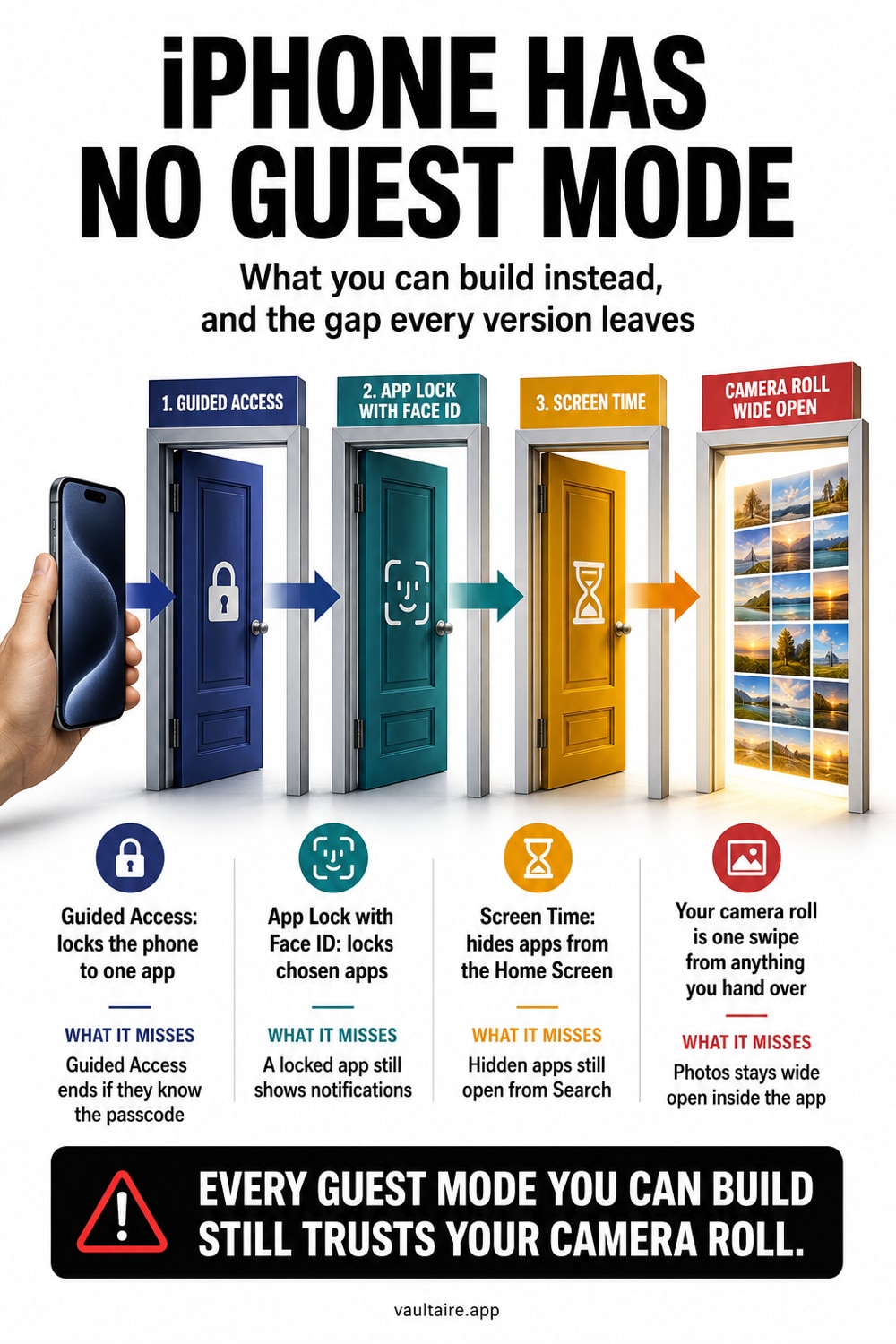
Short answer: no, iPhone has no guest mode and no second user account. iPadOS has Shared iPad for schools and Apple Vision Pro has Guest User, but iPhone has neither. What you can assemble instead is three separate features: Guided Access pins the iPhone to one app behind its own passcode, Require Face ID locks or hides individual apps, and Screen Time restrictions switch built in apps off. That combination handles a phone call or a game. It does not handle someone who knows your device passcode, because every one of those locks accepts that passcode as the answer. For anything you genuinely cannot afford to have opened, use a vault with a lock your iPhone does not share.
Does iPhone Have A Guest Mode?
No. There is no guest account, no second user profile, and no visitor mode on iPhone, and there never has been. Android has had multi user support for years, iPadOS offers Shared iPad in education and business deployments, and Apple Vision Pro has a Guest User flow. iPhone was designed as a single user device and Apple has kept it that way. Anyone who tells you to enable guest mode in Settings is describing a feature that does not exist. What does exist is a set of separate tools that were each built for a different purpose, and that together get you most of the way there.
That distinction matters because of what a real guest mode would do. A guest account gives the other person a separate space with its own files, so your data is not merely hidden from them, it is not there at all. Nothing on iPhone works that way. Every workaround below still runs inside your account, on your library, with your files one authentication prompt away. The prompts are real and they stop a casual look. They do not stop someone who watched you type your passcode at dinner last week, and it is worth being clear about that before you rely on any of them.
How To Build A Guest Mode On iPhone
Start with Guided Access, which is the closest single feature to what you want. Open Settings, tap Accessibility, tap Guided Access and switch it on, then open Passcode Settings and set a Guided Access passcode. Make it different from your device passcode, because that difference is the entire point. Now open the app you actually want to share, triple click the side button, and tap Start. The iPhone is locked into that one app. You can circle areas of the screen to disable them, turn off the keyboard or the volume buttons, and set a time limit that ends the session on its own.
Then layer on two more things before you hand the device over. Touch and hold any app icon and tap Require Face ID to lock it, or Hide and Require Face ID to pull it off the Home Screen entirely into the locked folder at the bottom of App Library. Do that for Photos, Messages, Mail, and your banking apps. Next, open Settings, Screen Time, Content and Privacy Restrictions, and use Allowed Apps to switch off built in apps you do not want reachable, with a Screen Time passcode that is not your device passcode. Finally set Show Previews to Never under Settings, Notifications, so a message that lands mid handover stays unreadable on the screen.
Common Mistakes To Avoid
The first mistake is pinning the wrong app. Guided Access restricts which app can run, not what that app contains. Pin Photos so someone can look at one holiday picture and you have handed them the entire library, every album, and the search field. Pin Safari and you have handed them your tabs, your history, and any site you are still signed into. Pin only apps whose full contents you are comfortable with, and if you just want to show one image, open it first and use the screen area controls to disable the parts that would let them swipe onward.
The second mistake is reusing your device passcode for the Guided Access or Screen Time passcode. If they match, the lock is decorative. The third is assuming Guided Access survives everything: a forced restart ends the session, and someone who knows your device passcode is back at your normal Home Screen a few seconds later. The fourth is trusting the Hidden album as part of this setup. It is a visibility setting on ordinary library files, it syncs through iCloud Photos to every device on your Apple Account, and its Face ID lock falls back to the same passcode as everything else.
What Most People Get Wrong
Every lock described so far shares one secret, and that secret is your device passcode. Face ID on a locked app falls back to it. The Hidden album falls back to it. A restart out of Guided Access lands on a Lock Screen that opens with it. So the honest way to read this setup is that it raises the effort required from a curious guest to somewhere above idle curiosity, and it does nothing at all against a partner, a family member, or a colleague who already watched you unlock the phone. That is not a flaw in how you configured it. It is what a single user operating system means.
So split the problem. Use Guided Access and locked apps when a friend borrows your iPhone or a child plays a game. For files that need a separate cryptographic boundary, Vaultaire encrypts contents under a random AES-256-GCM master key and uses a drawn pattern separate from the device passcode. It requires no account or cloud feature. A locked vault resists casual access from a borrower, while a compromised device or already-open vault remains outside that protection.
Related reading:
- How to show one photo without swiping
- How to lock apps with Face ID on iPhone
- Where hidden photos actually go on iPhone
- Best vault app for iPhone
- Signs someone went through your phone
Sources
Frequently Asked Questions
Does iPhone have a guest mode?
No. iPhone has no guest account and no second user profile, and Apple has never shipped one. iPadOS supports Shared iPad in education and business deployments and Apple Vision Pro has a Guest User flow, but neither is available on iPhone. The closest equivalent is Guided Access combined with locked apps and Screen Time restrictions.
Is Guided Access the same as a guest mode?
Not quite. Guided Access pins the iPhone to a single app and can require its own passcode to exit, which covers handing someone your phone for one task. It does not create a separate account or hide your data. Everything inside the pinned app stays fully available, so it matters a great deal which app you pin.
Can someone get out of Guided Access?
Yes, in two ways. Triple clicking the side button and entering the Guided Access passcode ends the session, so keep that passcode different from your device passcode. A forced restart also ends it, and the iPhone then returns to the Lock Screen, where your device passcode unlocks everything as normal.
How do I let someone use my iPhone without seeing my photos?
Lock the Photos app with Require Face ID, start Guided Access in whichever app they need, and set Show Previews to Never. That stops a casual look. It does not stop anyone who knows your device passcode, so move genuinely private photos into an encrypted vault with its own separate lock first.