How to Lock Apps on iPhone with Face ID
Since iOS 18, an iPhone can require Face ID before opening an app. This helps when you hand an unlocked phone to another person. This guide explains how to lock or hide an app and what this feature does not protect.
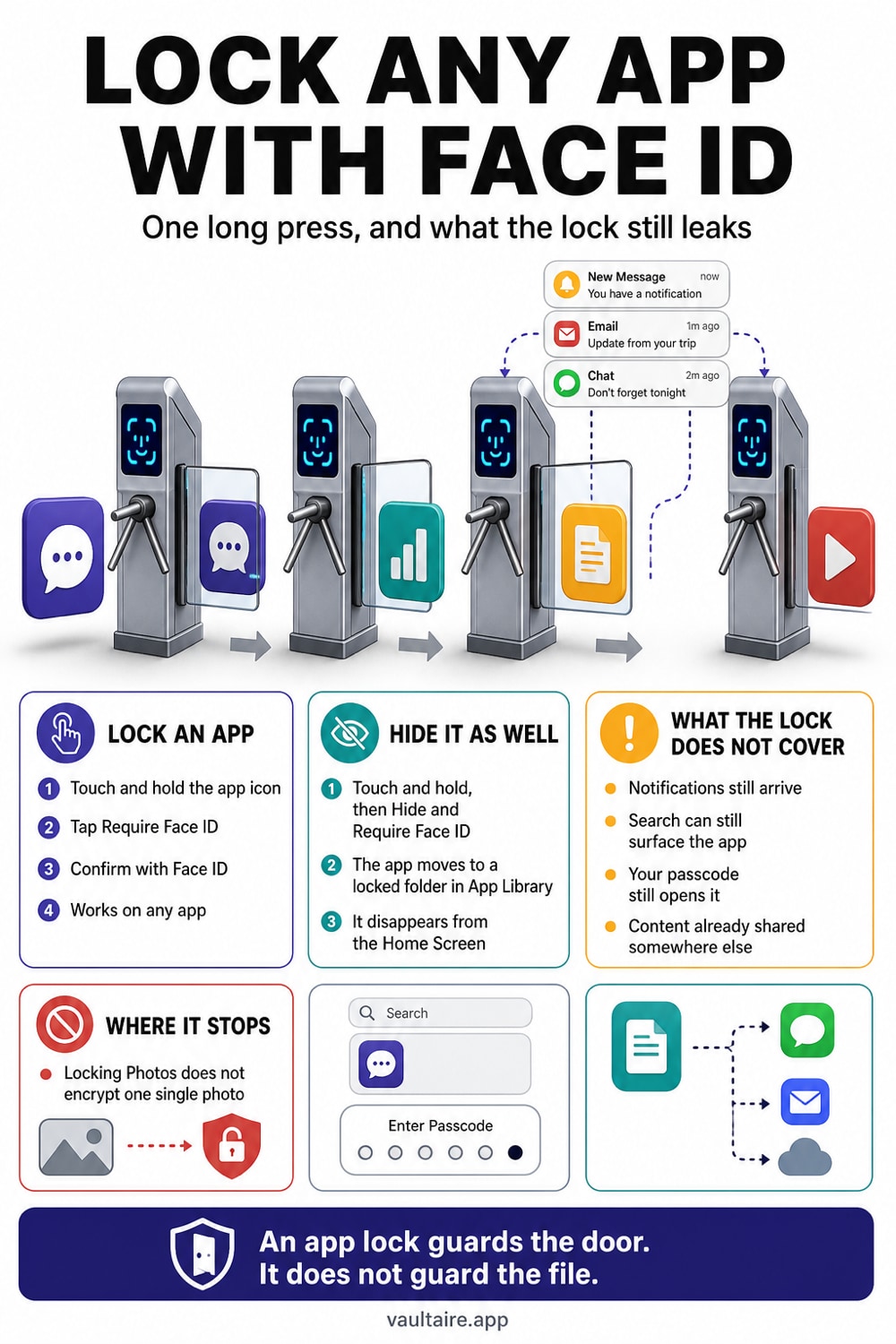
On iOS 18 or later, touch and hold the app icon. In the menu, tap the item that mentions Face ID, then authenticate. The app requires authentication each time it opens. To hide a downloaded app too, open the same menu and choose the hide option. The app moves to the locked Hidden folder in the App Library.
What the Face ID app lock protects
Opening a locked app requires Face ID, Touch ID, or the device passcode. You can turn off this requirement later. The app lock uses the same authentication that unlocks the iPhone, so it does not create a separate password.
Information from a locked app no longer appears in notification previews, Search, or Siri suggestions. The app icon remains visible on the Home Screen and in the App Library. Apple states that an app is locked only on the device where you enabled the lock. The locked status does not sync through iCloud.
How to lock an app on iPhone
Touch and hold the app icon until its menu opens. Tap the option that mentions Face ID. If the iPhone uses Touch ID or a passcode instead, the menu uses that name. Use Face ID, Touch ID, or the device passcode to confirm. To stop requiring authentication later, open the same menu and turn off this requirement.
App locking requires iOS 18 or later. Some Apple apps that come with iOS cannot use this feature. If the option is missing, update iOS and check whether this feature supports that app.
How to hide a downloaded app
Open the same menu, choose the authentication option, then choose the option to hide the app. Authenticate again. iOS removes the app from the Home Screen and moves it to the locked Hidden folder at the bottom of the App Library. Its notification previews, alerts, and badges no longer appear.
Apps included with iOS cannot be hidden. Apple also prevents the default web browser and default app marketplace from being hidden. A hidden app can still appear in Screen Time, battery usage, and App Store purchase history. Hiding an app does not delete or encrypt its data.
What the app lock does not protect
An app lock controls access, but it is not encryption. Anyone who knows the iPhone passcode can authenticate and open the app. Locking Photos does not remove photos from the library, stop iCloud synchronization, or change access on another device signed in to the same Apple Account.
For stronger separation, move sensitive photos and documents to an encrypted vault with an independent credential. Vaultaire encrypts file contents under a random master key and uses a drawn pattern to derive the vault key that unwraps it. The iPhone passcode alone does not perform that vault unlock.
Related guides
- Hide apps with Screen Time on iPhone
- How to lock photos on iPhone
- Best free photo vault app, and the paid ones worth buying
- Can you bypass the Hidden album Face ID lock?
- Signs someone went through your phone
Sources
Frequently asked questions
Which apps can I lock with Face ID on iPhone?
You can lock most apps downloaded from the App Store and many apps included with iOS. Some system apps cannot be locked. The feature requires iOS 18 or later.
Does locking an app hide its notifications?
A locked app does not show its information in notification previews, Search, or Siri suggestions. Hiding a downloaded app also stops its alerts and badges while it remains in the locked Hidden folder.
Can someone open a locked app if they know my passcode?
Yes. The app lock accepts the same Face ID, Touch ID, or device passcode that unlocks the iPhone. It stops casual access, but it is not a separate secret.
Is locking Photos enough to keep photos private?
Locking Photos blocks casual access on that iPhone. The photos remain in the library and may still synchronize through iCloud to other devices. Use an encrypted vault with a separate code for stronger protection.