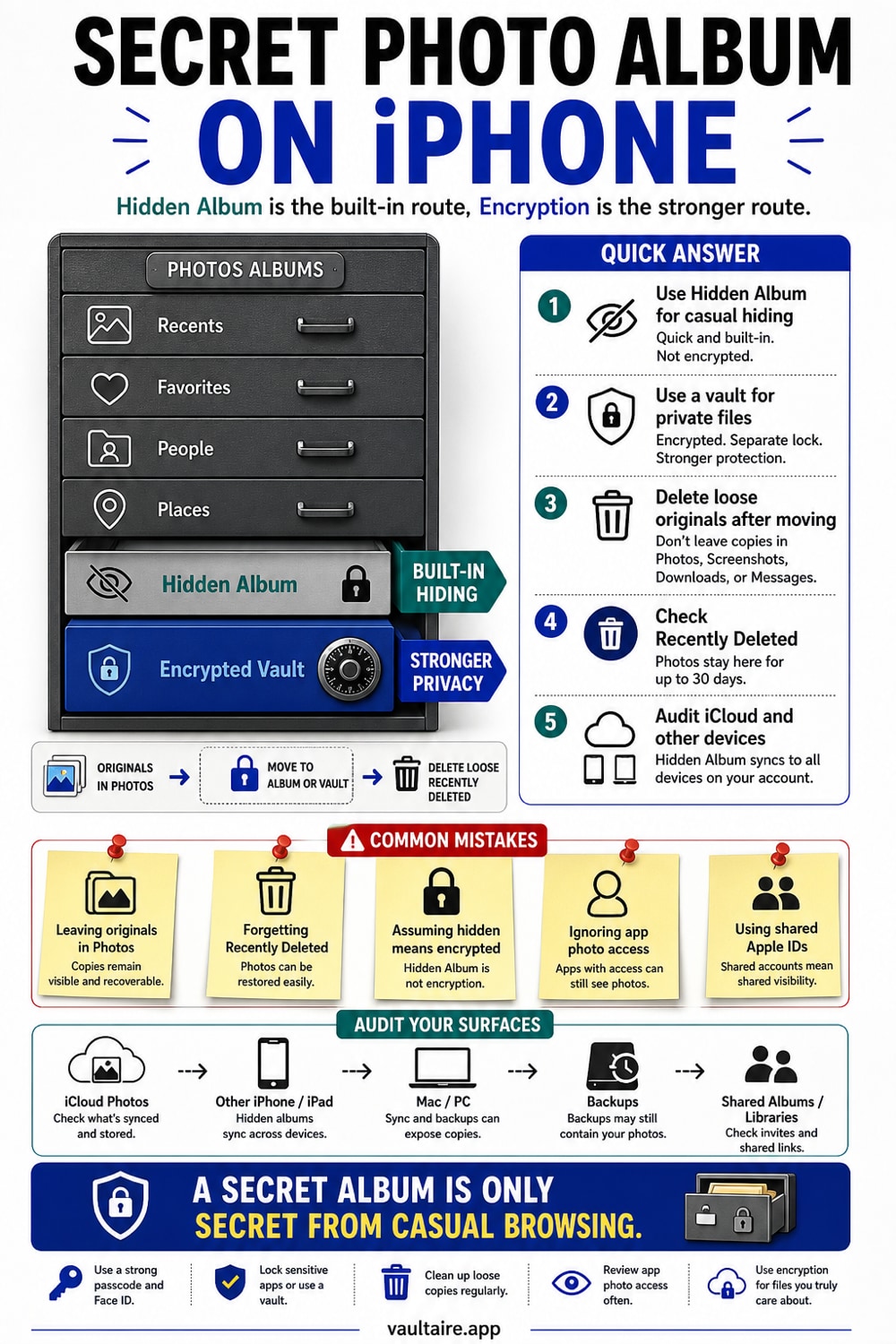
How to Make a Secret Photo Album on iPhone (2026)
A secret photo album on iPhone starts with the built in Hidden album, but that album was never meant to be truly private. Here is how to lock it down and when to go further.
To make a secret photo album on iPhone, move the photos into the Hidden album, lock it with Face ID under Settings then Photos, and turn off Show Hidden Album so it disappears from view. That keeps casual snoopers out, but the Hidden album is a single, unencrypted album that still syncs to iCloud and copies to every device on your Apple ID. For photos that must stay private even from your own backups, keep them in a dedicated encrypted vault like Vaultaire instead.
Secret Photo Album iPhone: The Quick Answer
The fastest way to get a secret photo album on iPhone uses a feature you already have. Inside the Photos app you can hide any photo or video, and everything you hide collects in one place called the Hidden album. Since iOS 16 that album is locked behind Face ID or Touch ID by default, so it does not open from a casual swipe. It is the closest thing Apple ships to a private album, and for everyday privacy it is often enough.
It helps to separate three ideas. A regular album is only an organizing container, and iOS gives you no way to put a passcode on one. The Hidden album is a single, special album that holds whatever you choose to hide, and you can lock it or remove it from view. An encrypted vault is a separate app that stores photos behind their own lock and real encryption, which is what you want when hiding alone is not enough to keep an image private.
How To: Step by Step
Start by hiding the photos. Open Photos, select the images you want out of sight, tap the more button or the share button, then choose Hide and confirm. They leave Recents and your main grid and move into the Hidden album under the Utilities section of the Albums tab. Next, lock that album: open Settings, tap Photos, and turn on Use Face ID. From now on the Hidden album and Recently Deleted stay sealed until you authenticate with your face or passcode.
To make the album disappear completely, stay in Settings under Photos and turn off Show Hidden Album. The album vanishes from the Utilities list, so nothing on screen hints that hidden photos exist. For images that must never sit readable in your iCloud backup or show up on another device signed into your Apple ID, take the last step: import them into an encrypted vault like Vaultaire, then delete the originals from both Photos and Recently Deleted so only the encrypted copy remains.
Common Mistakes To Avoid
The biggest mistake is treating hidden as private. Hiding a photo changes where it shows up, not who can reach it. If iCloud Photos is on, every hidden photo still syncs to Apple servers and lands on your iPad, your Mac, and any new iPhone you set up. Anyone who can unlock your phone and open the Hidden album, or who is signed into your Apple ID elsewhere, can still view those images at full resolution.
Smaller mistakes trip people up too. You cannot password protect an ordinary album you create, and there is no setting to add a second Hidden album, so any plan that depends on either will not work. People also forget that a hidden photo leaves a copy in Recently Deleted for 30 days, where it is easy to find. And if you leave Show Hidden Album turned on, the album sits one scroll away for anyone holding your phone.
What Most People Get Wrong
The deeper misunderstanding is the gap between hiding and encrypting. The Hidden album moves photos out of view and, when locked, asks for Face ID. But the files themselves are not encrypted by the album, and they stay part of your photo library and your Apple ID. The people who can still reach them include anyone with your unlocked passcode, anyone sharing your Apple ID, and your own cloud backups whenever syncing is switched on.
If a photo is sensitive enough that you want a separate encrypted container, Vaultaire protects the imported copy under a random AES-256-GCM master key and requires no identity account. Local vault use works offline. App analytics and crash diagnostics are enabled by default and can be turned off with “Share errors anonymously” in Settings. A copied, locked app container contains ciphertext, but an already-open or compromised device remains part of the threat model. Confirm the import, delete the Photos original, and empty Recently Deleted if you want the vault copy outside the Photos access model.
Related reading:
- How to make a secret folder on iPhone
- Photo vault apps for iPhone, tested
- How the iPhone Hidden album really works
- How to hide photos on iPhone
Sources
Frequently Asked Questions
Does hidden folder in photos in iPhone mean that some photos are hidden?
Yes. The Hidden album is where any photo or video you choose to hide is collected. The originals leave Recents and your main grid, but they are still on the device and still in iCloud Photos if syncing is on. Hiding changes visibility, not security.
Can you put iPhone photos in a private folder?
iOS does not let you give an ordinary Photos album its own password. For a separate encrypted container, Vaultaire uses AES-256-GCM file protection and a drawn pattern rather than a Vaultaire passcode or Face ID unlock.
Where can I find my hidden photo album on my iPhone?
Open Photos, tap the Albums tab, and scroll to the Utilities section near the bottom. The Hidden album sits there next to Recently Deleted. If you do not see it, open Settings, tap Photos, and turn on Show Hidden Album.
Can you have two hidden folders on an iPhone?
No. iOS gives you exactly one Hidden album, and there is no way to create a second one or to nest separate hidden albums inside it. If you need more than one private collection, use separate albums inside an encrypted vault app instead.