How to Turn Off Photo Location Sharing on iPhone
Your iPhone quietly records where each photo was taken and can hand that location to anyone you share with. Here is how to switch it off for good and control it every time you share.
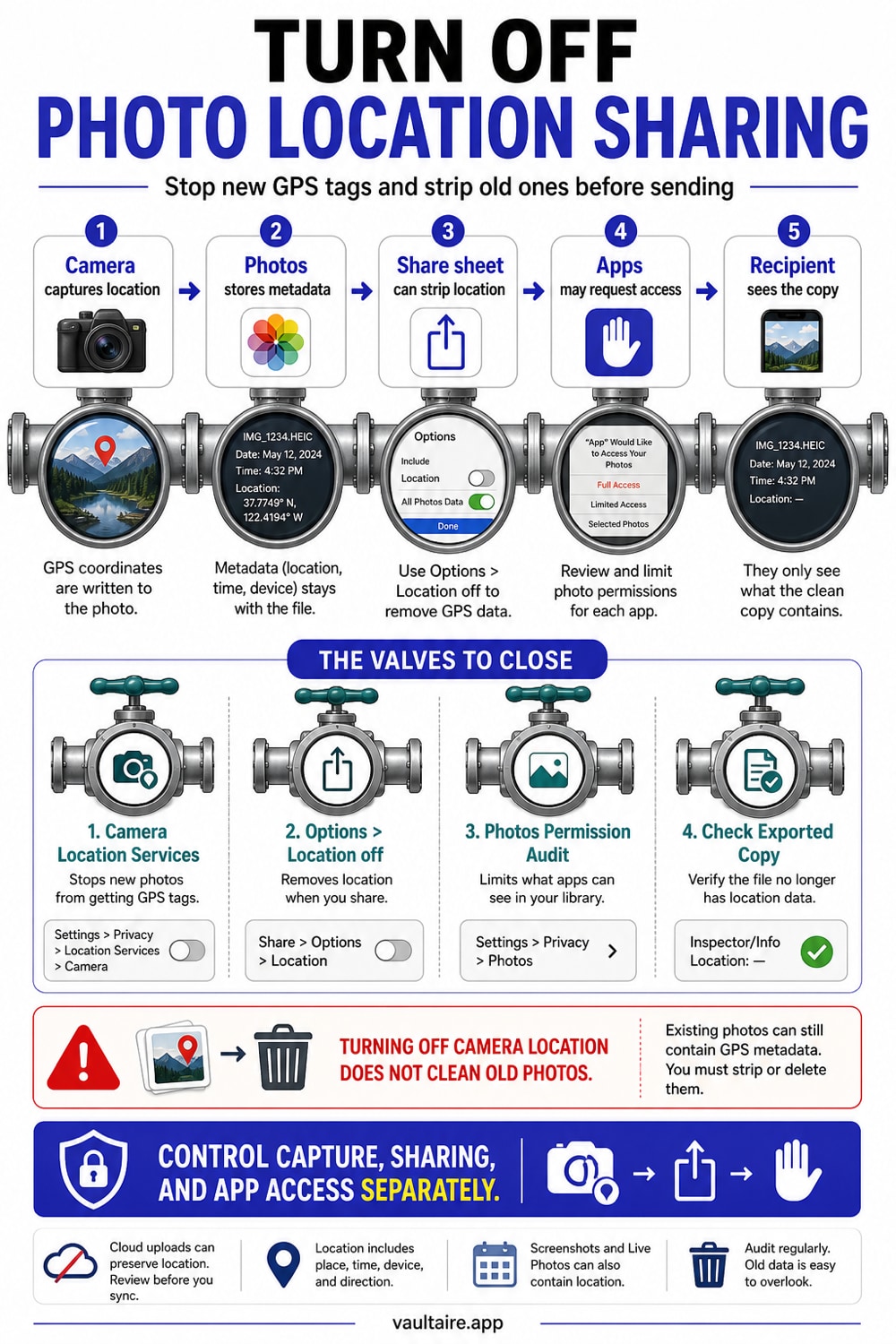
To turn off photo location sharing on iPhone, go to Settings, Privacy and Security, Location Services, Camera, and choose Never so new photos stop recording GPS coordinates. When you share older photos that still carry a location, tap Share, then Options, and turn off Location before sending. On iOS 18.2 and later you can also stop individual apps from reading photo location under Settings, Privacy and Security, Photos. Turning off capture protects future photos, but it does not strip location from pictures you already took, so clean those separately.
What your iPhone records when you take a photo
When Location Services is on for the Camera app, your iPhone writes the exact latitude and longitude of every photo and video into the file itself. That is what lets Photos group your library into Places on a map and show where a trip happened. It is convenient, but the same coordinates travel with the picture when you send it, post it, or back it up, and they can reveal your home, your workplace, or a place you would rather keep private.
The location lives in the file as metadata, alongside the date, time, and the camera that took the shot. Anyone who receives the original photo can read it with free tools, and many platforms expose it directly. Turning location sharing off is really two jobs: stop your iPhone from recording the coordinates in the first place, and stop the coordinates that already exist from leaving with the photo.
To check what one of your existing photos still holds, drop it into the free photo metadata viewer and remover. It lists the GPS, EXIF, and editing fields in your browser and can save a cleaned copy without uploading the file.
Stop your iPhone from recording location
Open Settings, tap Privacy and Security, then Location Services, scroll to Camera, and tap it. Choose Never to stop the camera from saving any location data. From that point on, new photos and videos carry no GPS coordinates at all. The trade off is that Photos can no longer sort your pictures by place or show them on a map, which most people never miss.
If you like the map view but want less precision, leave Camera set to While Using the App and turn off Precise Location at the bottom of that same screen. Your iPhone then records a rough neighborhood rather than your exact spot. This is a good middle ground for casual photos while still keeping your true position out of the file.
Strip location each time you share
Photos you took before you changed the setting still hold their original coordinates, so the share sheet gives you a per share switch. Open Photos, select one or more items, tap Share, then tap Options at the top of the share sheet. Turn off Location and tap Done, then choose how you want to send the pictures. The copy you share drops the location while the version on your device keeps it.
The catch is that iPhone does not remember this choice. You have to flip the Location switch every time, and there is no single global setting that removes location from every share at once. If you see Location Included next to Options, location is currently attached, so tap in and switch it off before you send anything sensitive.
Control which apps can read photo location
On iOS 18.2 and later, you can stop specific apps from pulling location out of your library. Go to Settings, Privacy and Security, Photos, and tap an app that has access. Under Options, turn off Location so anything that app uploads has the GPS tag removed automatically. You repeat this for each app, but once set it works without you thinking about it, which is far safer than relying on the share sheet every time.
For the strongest control, keep genuinely private photos out of the shared library entirely. Vaultaire stores them in an encrypted vault with its own key, separate from Photos and iCloud, so they never sync to other devices and never pass through an app that could leak their location. That way the only photos with location risk are the ones you actually meant to share.
Related reading:
- How to remove location metadata from iPhone photos
- Which apps can see your iPhone photos
- How to hide photos on iPhone
- Best photo vault for iPhone, tested on device
- Hide photos from social media apps
Sources
- Apple Personal Safety: Manage location metadata in Photos
- Apple Support: Control the location information you share on iPhone
- EFF Surveillance Self-Defense: Why Metadata Matters
Frequently asked questions
Does turning off Location Services for Camera remove location from old photos?
No. Choosing Never only affects photos you take afterward. Pictures you already shot keep their original GPS coordinates, so you need to remove location from those separately, either with the Adjust and Remove Location option on each photo or by stripping it at share time.
Can I remove location from a photo I already took?
Yes. Open the photo, swipe up or tap the info button, tap Adjust next to the map, then tap Remove Location. On a Mac you can select photos in the Photos app and choose Image, then Location, then Hide Location. Our remove location metadata guide walks through the full process.
Is there a single setting that strips location from every photo I share?
Not in standard iOS. The share sheet Location switch is per share and is not remembered, so you must turn it off each time. The closest thing to automatic is the per app Location control under Settings, Privacy and Security, Photos on iOS 18.2 and later.
Will turning off photo location break Memories or the Map?
Photos will no longer place new pictures on the map or build place based groupings for them, and Memories may rely less on location. Existing photos keep whatever location they already had. If you want the map without the exact point, turn off Precise Location instead of choosing Never.