How to Opt Out of iPhone Analytics Sharing (2026)
By default your iPhone sends Apple a steady stream of analytics about how you use it, and almost nobody is asked to agree to it twice. This guide shows you how to opt out of every analytics toggle, explains what each one actually shares, and points out where opting out quietly stops protecting your privacy.
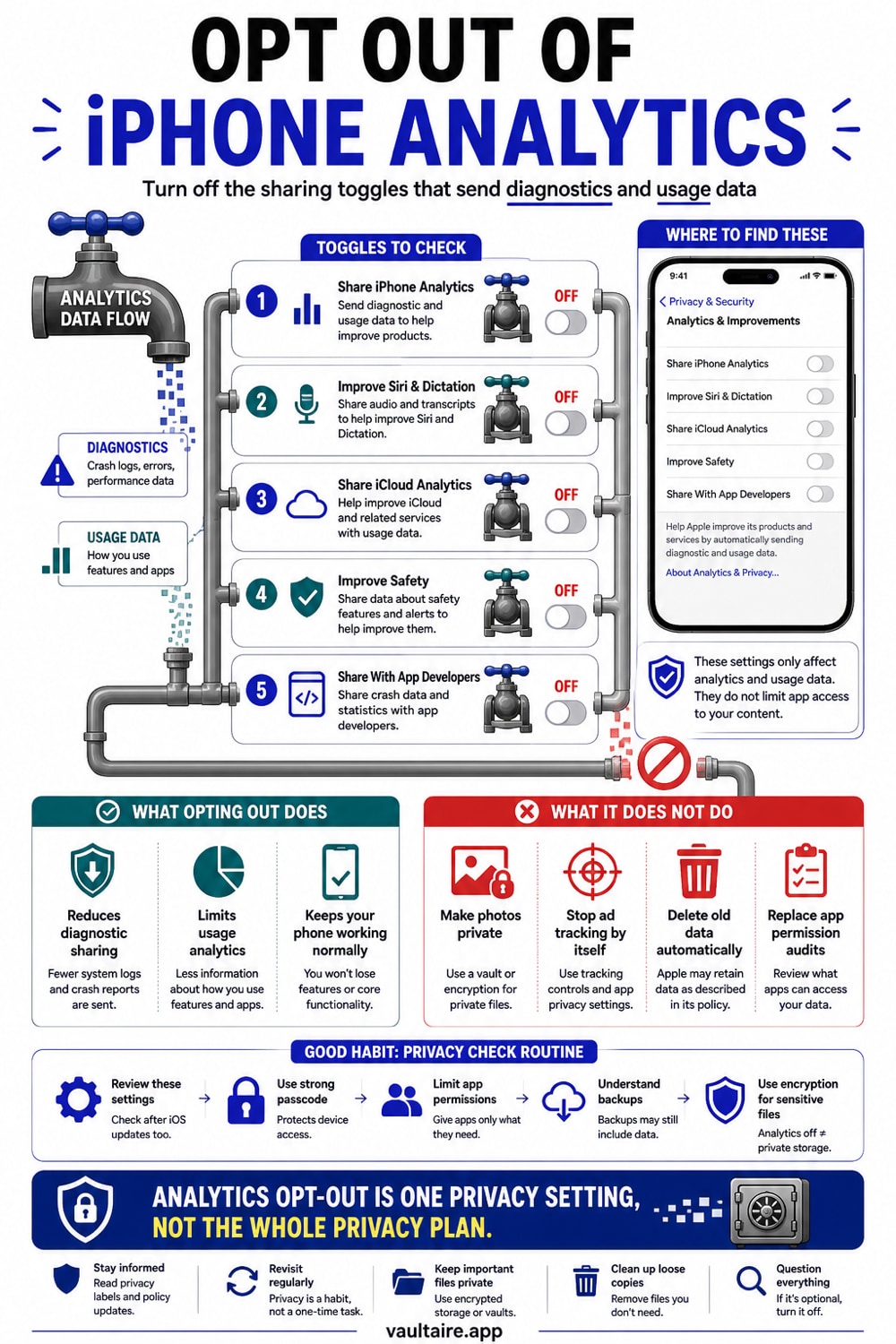
To opt out of iPhone analytics, open Settings, tap Privacy and Security, then tap Analytics and Improvements. Turn off Share iPhone Analytics, and while you are there turn off Share iCloud Analytics, Improve Siri and Dictation, Improve Assistive Voice Features, Improve AR Location Accuracy, and Share With App Developers. Your iPhone keeps working exactly the same, it just stops sending daily reports to Apple. Opting out controls telemetry, not access, so it does not hide the photos, screenshots, or documents that anyone who unlocks your iPhone can still open.
What iPhone Analytics Actually Shares
When Share iPhone Analytics is on, your iPhone sends Apple daily reports about itself. Those reports can include hardware and operating system details, performance statistics like how often an app launches or crashes, and data about how you use your device and its features. Apple says this information does not identify you personally, that some of it is protected with privacy-preserving techniques such as differential privacy, and that identifying details are stripped before reports leave your iPhone. It is genuinely diagnostic data, not a log of your messages or your photos, but it is still a stream you never have to send.
The important thing to understand is that this is not one switch but several. Apple splits analytics into separate toggles: Share iPhone Analytics, Share iCloud Analytics, Improve Siri and Dictation, Improve Assistive Voice Features, Improve AR Location Accuracy, and Share With App Developers. Each governs a different stream of data, and each is on by default. Turning off the headline toggle leaves the others sending, which is why a proper opt out means walking down the whole list rather than flipping a single switch and assuming you are done.
How to Turn Off Share iPhone Analytics
Open Settings and tap Privacy and Security, then scroll down and tap Analytics and Improvements. The first toggle is Share iPhone Analytics, or Share iPhone and Watch Analytics if you have an Apple Watch paired. Turn it off. From that moment your iPhone stops sending its daily diagnostic and usage reports to Apple. Nothing about your apps, your storage, or your battery changes for the worse, and if anything your iPhone sends a little less data in the background, which costs a touch less power.
There is one more analytics switch that lives elsewhere. To stop location-based analytics, go to Settings, tap Privacy and Security, tap Location Services, scroll to System Services at the bottom, and turn off iPhone Analytics there. On older versions of iOS the wording and the exact path can differ slightly, but the Analytics and Improvements screen is always the main place to look. It is safe to turn every one of these off, and you can turn any of them back on later if you change your mind.
The Other Analytics Toggles Worth Turning Off
Back on the Analytics and Improvements screen, work down the rest of the list. Share iCloud Analytics sends Apple data tied to your iCloud account. Improve Siri and Dictation lets Apple keep and review audio of your requests to train its systems, and Improve Assistive Voice Features does the same for accessibility voice tools. Improve AR Location Accuracy shares location and sensor data from augmented reality use. For the highest level of privacy, and to keep your voice and usage out of model training, turn every one of these off.
The last toggle, Share With App Developers, is a separate promise to a separate audience. With it on, Apple passes crash data and statistics about how you use apps to the third-party developers who made them. Turning it off keeps that data on your device. Note that this is distinct from App Tracking Transparency, the Allow Apps to Request to Track setting that controls cross-app advertising. Analytics and ad tracking are two different systems, so opting out of one does not opt you out of the other.
What Opting Out Does Not Cover
Opting out of analytics is worth doing, but it is easy to overestimate what it buys you. It stops future telemetry, yet it does not reach back and delete reports Apple already received. It does not turn off iCloud sync, it does not encrypt your photo library, and it does not change which apps can see your content once you have granted them Photos access. Analytics opt out is about the diagnostic data your iPhone sends, not about who can open your gallery or read the files on your device.
The exposure that actually matters for most people sits in plain sight: sensitive photos, screenshots, and documents stored in Photos and Files. Anyone with the required device access may be able to open them, and apps with granted library access can read them, no analytics involved. Vaultaire protects imported copies with AES-256-GCM under a random master key and uses a drawn pattern to derive the vault key that unwraps it. Switching off analytics controls telemetry; a locked encrypted vault creates a separate file-access boundary.
Related reading:
- The iPhone privacy settings worth changing first
- Which apps can see your iPhone photos
- How private your cloud photo storage really is
- How the iPhone Hidden album really works
Sources
- Apple, Share analytics, diagnostics, and usage information with Apple
- Apple, Device Analytics and Privacy
- Vaultaire, Security features
Frequently Asked Questions
Does turning off iPhone Analytics delete the data Apple already has?
No. Turning off the analytics toggles stops your iPhone from sending new reports, but it does not retroactively delete reports Apple has already received. Those reports are aggregated and stripped of identifying details, so there is no per-user delete button for them. Opting out is about stopping the flow going forward, not erasing the past.
Will my iPhone still work normally if I turn off analytics?
Yes. Analytics sharing is purely diagnostic, so turning it off has no effect on your apps, system stability, or features. Your iPhone simply stops sending background reports to Apple. If anything you save a small amount of background data and battery, since the device no longer prepares and uploads those daily reports.
Is iPhone Analytics the same as ad tracking?
No. iPhone Analytics is Apple's own diagnostic and usage data, controlled under Settings, Privacy and Security, Analytics and Improvements. Ad tracking is a separate system called App Tracking Transparency, controlled under Settings, Privacy and Security, Tracking. They are independent, so opting out of analytics does not stop apps from asking to track you across other apps.
Does opting out of analytics make my photos private?
No. Analytics controls telemetry, not file access. Vaultaire can protect imported files with AES-256-GCM under a random master key and uses a drawn pattern separate from the iPhone passcode. It does not use Face ID for vault unlock.