

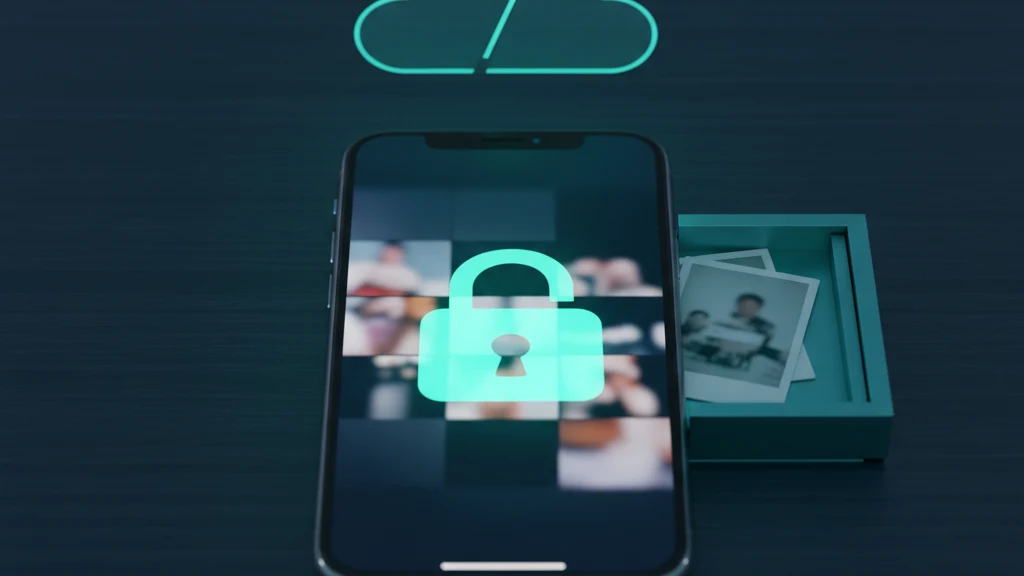
Cofre de fotografias offline para iPhone: sem conta necessária
Algumas fotografias nunca devem entrar numa conta de uma app nem num serviço automático de sincronização de fotografias. Um cofre de fotografias offline mantém a sua cópia de trabalho no dispositivo, encriptada, sem início de sessão e sem envios geridos pela app. As cópias de segurança do iPhone são um caminho separado, pelo que guardar tudo num só dispositivo exige ainda verificar essas definições.
Um cofre de fotografias offline guarda fotografias privadas localmente no seu iPhone, encripta-as no dispositivo e não precisa de conta de identidade nem de envios geridos pela app. Isso retira a conta e o servidor de conteúdo do fornecedor do cofre da utilização local normal. Não impede automaticamente que a cópia de segurança do iCloud ou a cópia de segurança do dispositivo no Finder/iTunes copiem os dados encriptados da app. Para configurar um, verifique as definições das Fotografias em iCloud e da cópia de segurança do dispositivo, escolha um cofre que funcione em Modo de Avião sem início de sessão, mova as suas fotografias, dê ao cofre uma credencial própria, elimine os originais e esvazie o álbum Apagado.
Porque é que offline e sem conta fazem mesmo diferença
A maioria das aplicações de fotografias assume que quer as suas imagens em todo o lado. Sincronizam com a nuvem, copiam para todos os dispositivos da sua conta e guardam uma cópia de segurança nalgum sítio que nunca consulta. Isso é conveniente para fotografias de viagem e terrível para fotografias privadas. No momento em que uma fotografia sai do seu telemóvel, perde o controlo de onde estão as cópias e quem pode aceder a elas.
Um cofre offline elimina a necessidade da sua própria conta de identidade, e-mail de redefinição de palavra-passe ou servidor de conteúdo de programador que contém os ficheiros. O limite restante ainda inclui a aplicação, iOS, Keychain, o dispositivo desbloqueado, análise de aplicações e diagnóstico de falhas, a menos que os desative nas Definições e qualquer cópia de segurança do sistema que copie o contentor da aplicação. O ganho de privacidade é mais restrito e útil do que uma afirmação absoluta: menos sistemas remotos recebem dados do cofre durante a utilização local normal.
Porque é que o álbum Ocultos e os cofres na nuvem não bastam
O álbum Ocultos do iPhone parece um cofre, mas não é um contentor encriptado à parte. As fotografias continuam na biblioteca de Fotografias, seguem as definições de iCloud e de cópia de segurança dessa biblioteca e podem recorrer ao código do dispositivo quando a autenticação biométrica não está disponível. A Apple continua a aplicar a proteção de dados do dispositivo e do iCloud, mas o álbum Ocultos não cria uma chave de conteúdo nem uma credencial distinta fora do modelo de acesso do telemóvel.
As apps de cofre baseadas na nuvem acrescentam armazenamento remoto e uma fronteira de conta. Dependendo do seu design, o fornecedor pode guardar chaves de conteúdo legíveis ou receber apenas registos encriptados do lado do cliente, mantendo na mesma os metadados da conta e do serviço. Um cofre offline local elimina esse caminho na nuvem gerido pela app. Para manter os seus ficheiros encriptados num só dispositivo, também tem de impedir que as cópias de segurança do sistema copiem o contentor da app.
O que procurar num cofre local
Teste em Modo de Avião. Desligue o Wi-Fi e os dados móveis, depois adicione e abra uma fotografia. Se tudo ainda funcionar, o cofre é genuinamente local. Se parar ou pedir para iniciar sessão, depende de um servidor. Um cofre offline verdadeiro nunca precisa de rede para armazenar ou mostrar as suas fotografias.
Depois, verifique três coisas: se encripta os ficheiros no dispositivo em vez de apenas os ocultar, se utiliza uma credencial separada da palavra-passe do telemóvel e se não solicita o e-mail ou a conta de identidade. O Vaultaire encripta cada fotografia com AES-256-GCM sob uma chave mestra aleatória e abre com o seu próprio padrão desenhado. A utilização do cofre local funciona sem ligação de rede. A análise de aplicações e o diagnóstico de avarias estão ativados por defeito e podem ser desativados com “Partilhar erros anonimamente” em Definições; a cópia de segurança iCloud está ativada por predefinição e pode ser desativada; a sincronização e a partilha são opcionais, e todas utilizam registos CloudKit encriptados do lado do cliente.
Como configurar da forma correta
A ordem importa. Antes de mover qualquer coisa, decida o que fazer com o iCloud Fotografias, porque uma fotografia que já foi sincronizada tem cópias noutro lado. Desativar a sincronização impede novas cópias, mas não revoga as que já existem. Trate tudo o que foi sincronizado anteriormente como já exposto e planeie em conformidade.
Depois de o cofre ter as suas fotografias e confirmar que abrem offline, conclua o trabalho apagando o rasto. Elimine os originais de Fotografias, o que o Vaultaire se oferece para fazer depois da importação, e depois esvazie o álbum Apagado, onde as fotografias eliminadas ficam durante 30 dias. Saltar esse último passo deixa os originais a um toque de qualquer pessoa que pegue no seu telemóvel, o que anula o propósito de os ter movido.
Guias relacionados
- Melhores aplicações de cofre de fotografias para iPhone
- As aplicações de cofre de fotografias são seguras?
- Armazenamento de fotografias na nuvem e privacidade
Fontes
- Suporte da Apple: Manter as suas fotografias e vídeos no iCloud Fotografias
- Suporte da Apple: Ocultar fotografias no iPhone, iPad e Mac
- Suporte da Apple: Recuperar fotografias e vídeos eliminados
Perguntas frequentes
O que é um cofre de fotografias offline?
É uma app que guarda fotografias privadas diretamente no seu iPhone, encripta-as no dispositivo e funciona sem conta de identidade nem ligação à Internet. Não precisa de envios geridos pela app, mas a cópia de segurança do iCloud ou uma cópia de segurança no computador pode ainda copiar os seus dados locais, a menos que esse caminho seja excluído ou desativado.
Realmente não preciso de uma conta?
Com um verdadeiro cofre offline, não. Deve abrir com uma credencial definida no dispositivo e funcionar sem e-mail nem início de sessão. Exigir uma conta acrescenta um serviço de identidade remoto, embora isso, por si só, não prove que o fornecedor envia ficheiros legíveis do cofre.
Um cofre offline é mais seguro do que o iCloud ou um cofre na nuvem?
Retira a conta e o serviço de armazenamento do fornecedor do cofre do fluxo de trabalho local normal, o que reduz a superfície de ataque remoto. Não é automaticamente mais seguro contra o acesso ao dispositivo, credenciais fracas, falhas de implementação ou cópias de segurança do sistema, e sacrifica a recuperação fora do dispositivo, a menos que crie uma cópia de segurança protegida.
As minhas fotografias vão sincronizar ou fazer cópia de segurança no iCloud a partir do cofre?
Um cofre offline pode ficar fora das Fotografias em iCloud e evitar ter a sua própria sincronização na nuvem. Isso não exclui automaticamente o contentor da app da cópia de segurança do iCloud nem da cópia de segurança do dispositivo no Finder/iTunes. A cópia de segurança CloudKit do próprio Vaultaire vem ativada por predefinição e pode ser desativada nas Definições, enquanto as cópias de segurança do sistema seguem um caminho de cópia separado.
O que acontece às fotografias do cofre se perder o telemóvel?
Se nenhuma cópia de segurança da app ou do sistema contiver o cofre, perder o telemóvel significa perder a única cópia. Uma cópia de segurança do dispositivo pode conter dados encriptados do cofre local, e o Vaultaire também cria, por predefinição, uma cópia de segurança CloudKit encriptada do lado do cliente. Guarde o material de recuperação que o caminho escolhido exigir.
Como movo fotografias sem deixar cópias?
Importe as fotografias para o cofre, confirme que abrem offline, depois elimine os originais de Fotografias e esvazie o álbum Apagado. Esse último passo é importante: as fotografias eliminadas ficam no álbum Apagado durante 30 dias, pelo que até esvaziar, os originais ainda estão no telemóvel.