Brighten an Image Online Without Uploading It
You can brighten an image online in under a minute, but most free brighteners start by uploading the photo to their servers. That matters little for a sunset and a lot for a screenshot of a document, a photo of your child or a picture you would not post. This guide shows how to tell where the file goes, how to lighten a dark picture without an upload, and how to keep the original safe.
Short answer
To brighten an image online without uploading it, use a browser tool that processes the photo on your own device, such as Vaultaire's free image brightener, or the Adjust controls in the iPhone Photos app. Check the tool's privacy note before you choose a file, and work on a copy so the original stays untouched.
Where Your Photo Goes When You Brighten It Online
Most of the free brighteners at the top of a search ask you to upload the photo before they show a result. The file goes to the company's server, the server changes the pixels, and you download the brighter copy. Many of these services also ask you to sign in before you can download, and their terms decide how long they keep the upload and what they may do with it.
Some tools work differently. They load in the browser and change the pixels on your own phone or computer, so the image never leaves the device. Vaultaire's image brightener is one of these: it brightens a JPEG, PNG or WebP of up to 20 MB inside the browser, with no account and no watermark. The tool's own page states whether it uploads, and you can check that claim yourself in a few seconds.
How To Brighten an Image Without Uploading It
On an iPhone, the private route is already on the phone. Open the photo in Photos, tap the edit button, choose Adjust and move Exposure, Brightness or Shadows until the dark parts show detail, then tap Done. Photos keeps the original, so Revert brings it back later. On a Mac, the Photos app has the same Light controls, and Preview offers an exposure slider under Tools and Adjust Color.
In a browser, open a local tool, choose the photo and compare the result before you save it. Vaultaire's brightener offers three looks: Natural for a dim photo, Shadow lift when dark areas hide detail, and Backlit when a person stands dark against a bright window or sky. It checks the new file before it lets you download it, and it does not copy EXIF or GPS data into the result. If you are weighing a free AI dark to bright tool against these looks, see how to lighten dark photos for free without letting AI redraw them.
Common Mistakes To Avoid
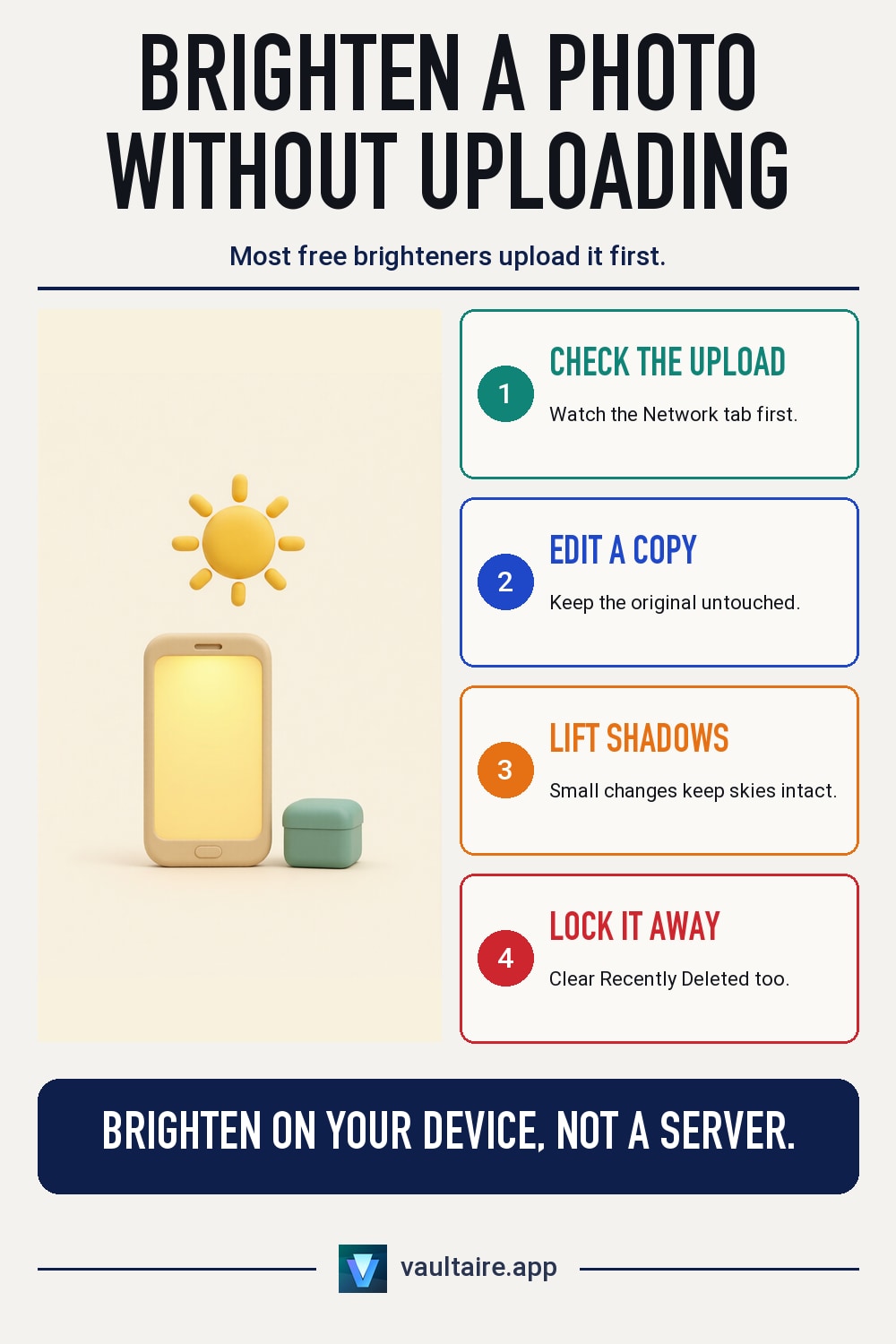
The first mistake is trusting the word free. A free tool still needs a server if it uploads, and someone pays for that server, often with sign-ups, ads or rights to the upload written into the terms. Before you choose a private photo, open the browser's developer tools, watch the Network tab and pick the file. If a large request leaves the page right then, the image went with it.
The second mistake is pushing the brightness too far. A brighter photo cannot recover detail the camera never captured, and a strong change turns skies and windows flat white while dark areas fill with grain. Raise the shadows first and the overall exposure second. The third mistake is saving over the original. Keep the untouched file, because a later edit made from an edit loses quality each time it is saved as JPEG. A photo that looks too bright only on some screens is often an HDR file, and an HDR to SDR photo converter fixes that without touching the brightness.
Keeping the Original and the Edit Private
A photo you did not want to upload is usually a photo you also do not want sitting in the camera roll, where anyone who borrows the phone can scroll to it. A short checklist covers both: brighten it on the device, keep the original, move both copies somewhere locked, and delete the loose copies from Photos and from Recently Deleted, which otherwise keeps them for 30 days.
Vaultaire is a free iPhone app for that last step. It is not a photo editor; it stores the photos you choose in an encrypted vault that opens with a pattern you draw. Files are encrypted with a random key that your pattern unlocks, and there is no Vaultaire account to sign in to. Vaultaire can delete the originals after an import, and those photos go to Recently Deleted, so empty that album too.
Upload editor, local browser tool or iPhone Photos
| Question | Online editor that uploads | Browser tool that runs locally | iPhone Photos app |
|---|---|---|---|
| Where the photo is processed | On the company's server | In your browser, on your device | On your iPhone |
| Account needed | Often, to download | No, for Vaultaire's brightener | No |
| What happens to the original | A copy stays on the service until it is deleted | Unchanged on your device | Kept; Revert restores it |
| Works offline | No | Needs a connection to open the page | Yes |
Related reading:
- Where hidden photos go on iPhone
- The best photo vault apps for iPhone
- How to make a secret folder on iPhone
- Calculator vault apps compared
Sources
Frequently Asked Questions
Is brighten image online safe?
Not always. A tool that uploads the photo hands a copy to its server, and its terms decide how long the copy stays. A tool that processes the image in your browser keeps it on your device. Read the privacy note and watch the browser's Network tab when you choose the file to see which kind you have.
Does Vaultaire help with brighten image online?
Yes, on the website. Vaultaire's free image brightener runs in your browser, works on one JPEG, PNG or WebP at a time and does not upload the image. The Vaultaire iPhone app is not an editor: it keeps the photos you choose in an encrypted vault that opens with your pattern.
What is the most private way to brighten image online?
Edit the photo on the device that already holds it. On iPhone, use Adjust in the Photos app, or a browser tool that processes the file locally. Then keep the original, move private copies into an encrypted vault and empty Recently Deleted so no loose copy is left behind.
How is this different from the iPhone Hidden album?
Brightening changes how a photo looks; the Hidden album changes where it shows. The Hidden album removes a photo from the main library view, and anyone who opens the album with Face ID or the passcode sees it. An encrypted vault such as Vaultaire keeps photos in a separate app that opens only with its own pattern.