Lighten Dark Photos Online Free: AI or a Simple Fix?
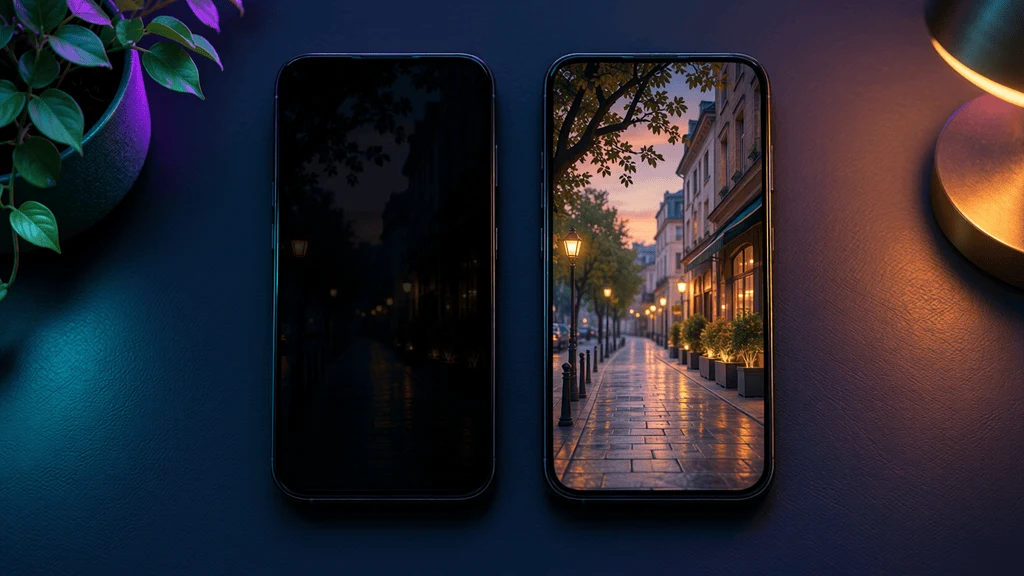
Free tools that lighten a dark photo work in one of two ways. A tone curve lifts the brightness the camera already recorded. An AI enhancer, the kind sold as "dark photo to bright", rebuilds the picture and can redraw a face, a texture or a sign. This guide helps you pick the right one for the photo you have, brighten a dark face without turning the sky behind it white, and keep the original.
Short answer
To lighten a dark photo for free, raise Shadows and Exposure in the iPhone Photos app, or use a browser tool that brightens the file on your device without an upload. Use an AI dark to bright enhancer only when a curve leaves the photo grey and noisy, and check faces afterward, because AI can redraw detail the camera never captured.
Lighten Dark Photos Online Free: The Quick Answer
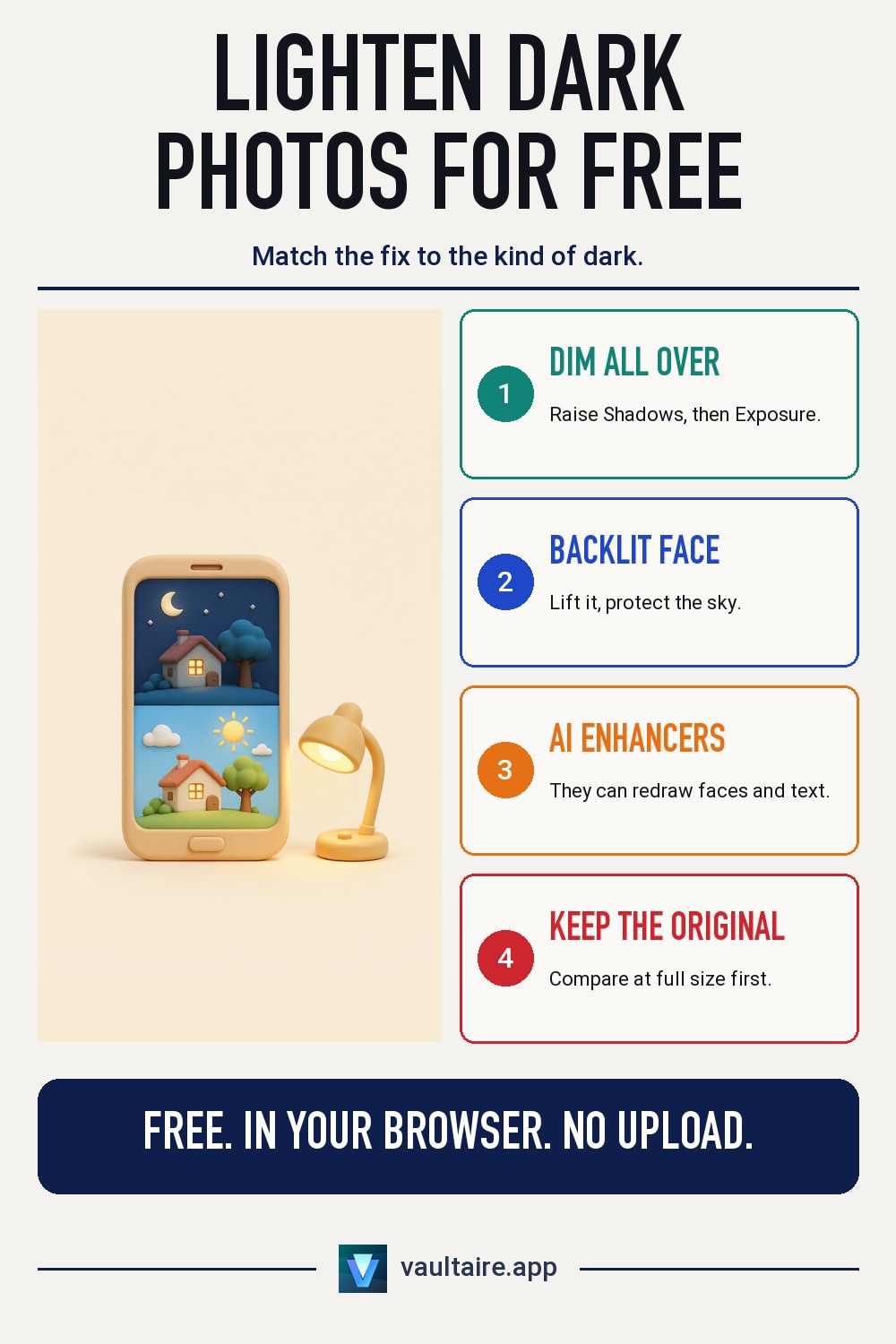
Start by asking why the photo is dark. An evenly dim shot from a dark room still holds detail in its shadows, and a tone curve brings it back: raise Shadows or Exposure and the hidden shapes appear. A backlit photo is different. The window or sky behind the person is exposed correctly and the face is too dark, so lifting the whole picture turns the background white before the face looks right. The third kind is crushed to black, where the dark areas are one flat value with nothing left to lift.
Free online tools split along the same line. Curve tools, such as the Adjust controls in iPhone Photos and Vaultaire's free image brightener, only stretch the values already in the file. The result is true to the scene, but it cannot show a face the camera did not record. AI enhancers sold as "dark photo to bright AI" pass the picture through a trained model that predicts what the scene should look like. They can rescue a photo a curve cannot, and they can also change skin, eyes, text and textures. Many of them run on the company's servers, so the photo is uploaded first.
How To: Step by Step
On an iPhone, open the photo in Photos, tap the edit button and choose Adjust. Try Auto first, then move Shadows to the right to open dark areas, and Exposure or Brightness when the whole frame is dim. Brilliance lifts dark areas and pulls back bright ones with one slider, which helps a backlit shot. Watch the sky or window as you go and stop before it turns flat white. Tap Done. Photos keeps the original, and Revert brings it back later.
In a browser, Vaultaire's image brightener takes one JPEG, PNG or WebP of up to 20 MB and processes it on your device without an upload. It shows three previews: Natural for an evenly dim photo, Shadow lift when the darkest areas hide detail, and Backlit for a dark face against a bright sky, window or screen. Backlit is the closest a free curve tool comes to brightening a face, because it lifts the darker subject and protects the bright background. The tool does not detect faces or use an AI model, so it changes how bright a face is, never what it looks like. If you are not sure which kind of dark you have, read the guide to the three kinds of dark photo.
Common Mistakes To Avoid
The most common mistake is pushing one slider too far. Brightening stretches the values the camera recorded, so a strong lift turns sensor noise into grey grain, flattens contrast and clips the bright areas. Raise Shadows before Exposure, add a little Contrast or Black Point back if the photo looks washed out, and compare the result with the original at full size. If the dark area stays one flat block of grey, it was crushed to black and no curve will bring it back.
The second mistake is trusting an AI result without zooming in. A low light enhancer can sharpen eyelashes that were a blur, smooth skin, straighten lettering or add texture to a wall, and at phone size the result looks convincing. That is fine for a party snapshot and wrong for a photo you need as a record, such as a receipt, a damaged car or a document. The third mistake is uploading a private photo to a free AI site without reading its terms, which decide how long the upload stays on its servers and what the company may do with it. To check where a file goes before you choose it, see how to brighten an image online without uploading it.
What Most People Get Wrong
Many people assume AI brightening is always better because it is newer. For an evenly dim or backlit photo, a curve gives a result that stays true to the scene and leaves faces as they were, with no upload, sign in or watermark. Save AI for the photos a curve cannot fix, such as a night shot where faces are lost in noise, and treat its output as a picture of the moment rather than a record of it. Next time, Night mode on a recent iPhone gives you more to work with, because it captures over a longer time in a dark room.
People also forget the original. A dark photo you did not want to upload is often one you would rather not leave in the camera roll either, where anyone who borrows the phone can scroll to it. Keep the untouched original and the edit together somewhere locked. Vaultaire is a free iPhone app for that step. It is not a photo editor; it stores the photos you choose in an encrypted vault that opens with a pattern you draw, and there is no Vaultaire account to sign in to. Vaultaire can delete the originals after an import, and those photos go to Recently Deleted, so empty that album too.
Tone curve, Backlit look or AI enhancer
| Question | Tone curve or Shadows slider | Vaultaire Backlit look | AI dark to bright enhancer |
|---|---|---|---|
| Best for | An evenly dim photo with readable shadows | A dark face against a bright sky, window or screen | A night shot lost in noise that a curve leaves grey |
| Can change faces or text | No, it changes brightness only | No, it uses fixed tone curves and no AI model | Yes, the model redraws detail |
| Where the photo is processed | On your iPhone in Photos | In your browser, on your device | Often on the company's server after an upload |
| Areas crushed to black | Turn grey and noisy | Turn grey and noisy | Get detail the model predicts, not what was there |
Related reading:
- How to hide photos on iPhone
- Where hidden photos go on iPhone
- The best photo vault apps for iPhone
- How to make a secret folder on iPhone
Sources
Frequently Asked Questions
Is lighten dark photos online free safe?
It depends on where the tool processes the photo. A site that uploads it keeps a copy on its server for as long as its terms allow, and some free AI tools ask you to sign in before you can download. A browser tool that works on your device, or the Photos app on your iPhone, keeps the photo with you.
Does Vaultaire help with lighten dark photos online free?
Yes, on the website. Vaultaire's free image brightener lightens one JPEG, PNG or WebP in your browser with three looks, Natural, Shadow lift and Backlit, and does not upload the image or use an AI model. The Vaultaire iPhone app is not an editor: it keeps the photos you choose in an encrypted vault that opens with your pattern.
What is the most private way to lighten dark photos online free?
Edit the photo on the device that already holds it. Use Adjust in the iPhone Photos app or a browser tool that processes the file locally, and skip AI sites that need an upload. Then keep the original, move private copies into an encrypted vault and empty Recently Deleted.
How is this different from the iPhone Hidden album?
Lightening changes how a photo looks; the Hidden album changes where it shows. The Hidden album removes a photo from the main library view, and anyone who opens the album with Face ID or the passcode can see it. An encrypted vault such as Vaultaire keeps photos in a separate app that opens only with its own pattern.