Where do you change the Hidden album password? The lock that actually works on iPhone
You can search Settings for as long as you like and never find an item for changing the Hidden album password. It is not under Photos, and it is not under "Face ID & Passcode". It is missing not because the setting sits deep in a menu, but because a password for the Hidden album never existed. This guide covers which lock is actually doing the work, where you change it, and the weak spot that stays after you change it.
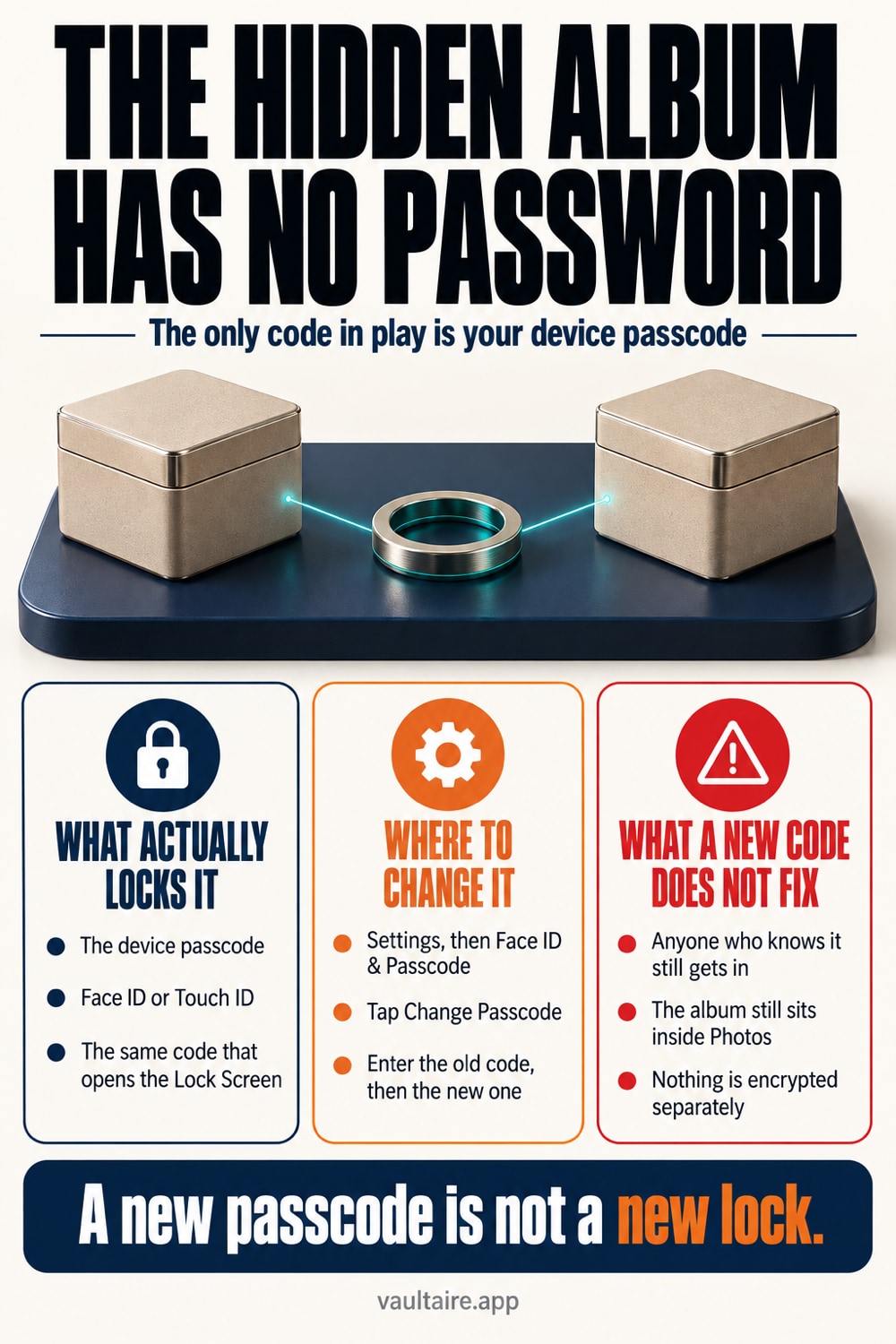
The Hidden album has no password of its own. Since iOS 16 the Hidden album and Recently Deleted are locked by default, but that lock checks Face ID, Touch ID, and your device passcode. So "changing the Hidden album password" is the same job as changing the device passcode. The steps: open Settings, tap "Face ID & Passcode", enter the passcode you use now, choose "Change Passcode", enter the old passcode again, then enter the new passcode twice. Tap "Passcode Options" on the same screen to switch to a 4-digit numeric code, a custom numeric code, or a custom alphanumeric code. To remove the lock itself, turn off "Use Face ID" under Settings > Photos. Keep in mind that this change applies to the Lock Screen in the same way. You cannot protect the Hidden album with a separate number, and anyone who knows your device passcode can open it. If you need a code separate from the Photos app, the only option is to move the photos into a vault that encrypts them and opens with a different key.
There is no password for the Hidden album alone
Open Photos, tap Collections at the bottom of the screen, and scroll down. Hidden sits inside Utilities. Since iOS 16 this album and Recently Deleted carry a lock icon from the start, and opening either one takes Face ID, Touch ID, or your device passcode. Most people know that much. The trouble starts on the next step, when you go looking for the screen that changes that code and no such screen exists.
It does not exist because the Hidden album has no code of its own. Settings > Photos holds a single on and off switch called "Use Face ID", with no field for a code. When Face ID cannot read your face, the fallback is not an album code either; it is the same device passcode that opens your Lock Screen. So there is exactly one code you can change: the device passcode.
How to change the device passcode
Open Settings, tap "Face ID & Passcode", and enter the passcode you use now. Scroll down to "Change Passcode" and select it. You are asked for the old passcode once more; enter it, then enter the new passcode twice and you are done. The new passcode takes effect at once, and the next time you open the Hidden album it asks for that same code.
On the screen where you type the new passcode there is a small line of text that reads "Passcode Options". It lets you switch to a 4-digit numeric code, a custom numeric code where you set the length, or a custom alphanumeric code that mixes letters and symbols. The standard six digits are fine, but this is a code you type in front of family and coworkers, so a format that is hard to memorize over your shoulder works better in practice. Note that what you change here is only the device passcode. Your Apple Account password is a separate thing, and changing it does not affect how the Hidden album opens.
The weak spot a new passcode does not remove
The new passcode works the same way on the Lock Screen and on the Hidden album. Turn that around and it means anyone you gave the device passcode to also has the Hidden album. You told a child the number so they could borrow the phone, you gave it out at a repair shop, you share it with family: in every one of those cases the Hidden album is open to them. Changing the number resets nothing if you then tell the same people the new one. How far Face ID on the Hidden album really protects you is covered in a separate guide.
The other easy thing to miss is "Set Up an Alternate Appearance" under "Face ID & Passcode". If a face other than yours is registered there, that person can open the Hidden album with their face alone, without knowing the passcode. If you do not recognize it, use "Reset Face ID" and enroll again. On a model with Touch ID, delete any fingerprint you do not recognize. On top of that, turning off "Use Face ID" under Settings > Photos removes the lock itself, and the Hidden album then opens straight through no matter how long your passcode is.
Protect them with a code separate from the Photos app
Put all of this together and the Hidden album is a feature for hiding, not a feature for applying a second lock. The code is shared with the device, the photos themselves are not encrypted, and they stay right where they were in your photo library. So if you have photos you genuinely want out of sight, changing the passcode any number of times does not change who can reach them. What you need is a place that opens with a code other than the device passcode.
An encrypted vault differs on that point. A photo is turned into unreadable data the moment it goes in, and getting it back takes the vault's own code. Someone who knows your device passcode can go through every corner of the Photos app and the vault contents never show up. The routine is simple: move the photos into the vault, delete the originals in Photos, and clear them from Recently Deleted as well. Reading the difference between the Hidden album and a vault app first makes it easier to decide what belongs where.
Related guides
- Can Face ID on the Hidden album be bypassed
- The Hidden album versus a photo vault app
- Check whether someone opened your Hidden album
- When you forget your vault password
Sources
Frequently asked questions
Can I set a separate password on the Hidden album only?
No. iOS has no feature for setting a code that applies only to the Hidden album, and Settings > Photos offers just the on and off switch called "Use Face ID". The fallback when Face ID cannot read your face is the same device passcode as the Lock Screen. If you want protection with a number separate from the Photos app, you need a container that carries its own code, such as an encrypted vault app.
Where do I change the Hidden album password?
In Settings > "Face ID & Passcode". Enter the passcode you use now, choose "Change Passcode", enter the old passcode again, then enter the new passcode twice. The number you set there becomes the number for the Hidden album. On the same screen, "Passcode Options" lets you change the format to a 4-digit numeric code or a custom alphanumeric code.
Do hidden photos disappear when I change the passcode?
They do not. Changing the passcode swaps the number that opens the device and leaves your photo library alone. The hidden marking stays too, so after the change the photos are still in the Hidden album under Utilities. Do keep in mind that forgetting the new passcode locks you out of the device itself, with erasing it as the only way back, so pick a format you can remember.
How do I remove the lock on the Hidden album?
Open Settings, tap Photos, and turn off "Use Face ID". The Hidden album and Recently Deleted then open with no authentication. Turning off "Show Hidden Album" on the same screen removes the row itself from the album list. That only hides the row while the photos stay, so anyone can see them again by turning the setting back on.