Google Photos Locked Folder Not Syncing? How to Fix It
You hid photos in the Google Photos Locked Folder on one phone, then opened Google Photos on another phone or on the web and found the folder empty. This is how Locked Folder works by default: items that are not backed up stay on the device where you locked them. This guide shows how to turn on Locked Folder backup, where to open the folder on each device, and what to check before you reset or replace a phone.
Short answer
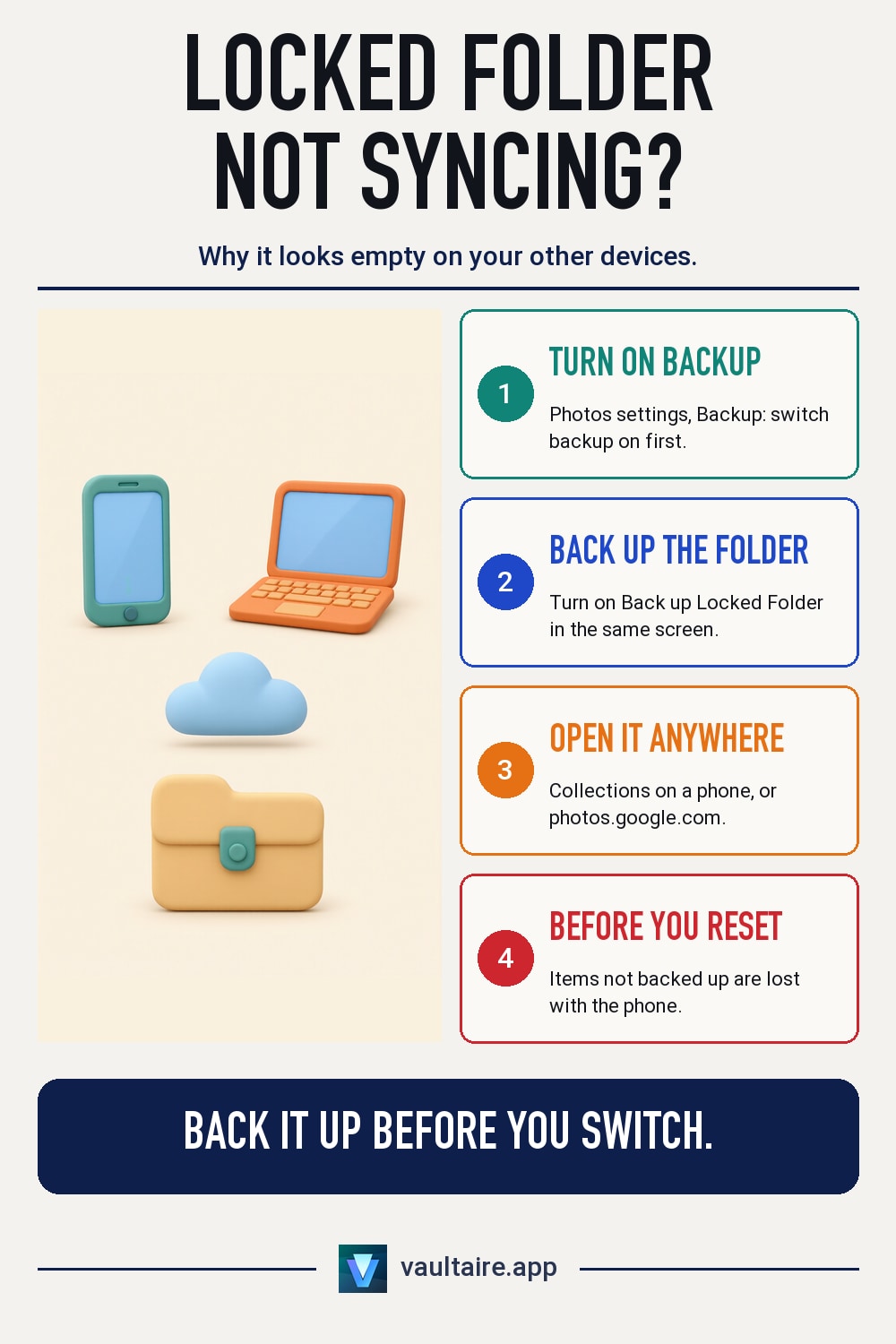
Google Photos Locked Folder only syncs across devices after you turn on Back up Locked Folder in Photos settings, under Backup. Items that are not backed up stay on the phone where you locked them and do not show on your other devices or at photos.google.com.
Why Locked Folder looks empty on your other devices
Locked Folder started as an on-device feature. When backup for the folder is off, Google Photos keeps each locked item only on the phone where you moved it. Google's help page says these items cannot be seen from your other signed-in devices, so a second phone, a tablet or photos.google.com shows an empty folder or no folder at all.
Since 2023, Google lets you back up Locked Folder to your Google Account. Once an item is backed up, it appears in Locked Folder on every device signed in to that account, including iPhone, Android and the web. Items you lock before you turn on backup do not sync on their own until backup picks them up or you back them up by hand.
How to turn on Locked Folder backup
Open Google Photos, tap your profile picture, then Photos settings, then Backup. Turn on backup for the account first, because Google only backs up Locked Folder automatically when the rest of your photos back up too. Then turn on Back up Locked Folder and confirm with your screen lock.
If you do not want your whole library in the cloud, leave account backup off. Open Locked Folder, select the items you want on your other devices, and back up those items one by one. Backed up Locked Folder items count toward your Google Account storage quota, so check that you have space before a large backup.
Where to open Locked Folder on iPhone, Android and the web
On iPhone and Android, open Google Photos, go to Collections, and tap Locked Folder. The iPhone app asks for Face ID, Touch ID or your device passcode, and Android asks for your screen lock. Google lists Locked Folder for Android 6 and later and iOS 15 and later.
On a computer, go to photos.google.com and click Locked Folder. On the web, the Locked Folder password is your Google Account password, so anyone who knows that password can open the folder. If you set up Locked Folder on a phone without backup, you will not find those items on the web.
Check backup before you reset or replace a phone
Google warns that Locked Folder items that are not backed up are deleted if you factory reset the device, clear the Photos app data or delete the app. They are also left out of USB and cloud transfers to a new phone. Before you switch phones, open Locked Folder and confirm that each item you want to keep is backed up.
Locked Folder keeps photos out of your grid, search, albums and memories, but backed up items sit in your Google Account under Google's service protection. If you want private photos on iPhone that sync and stay encrypted with keys you control, Vaultaire stores them in an encrypted vault that you open with a pattern, apart from the Photos library. Its encrypted iCloud backup is on by default, and Vaultaire Pro syncs vaults between devices on the same Apple ID.
Locked Folder backup off, on, and Vaultaire
| Question | Locked Folder, backup off | Locked Folder, backup on | Vaultaire on iPhone |
|---|---|---|---|
| Where items are stored | Only on the phone where you locked them | On the phone and in your Google Account | In an encrypted vault on the iPhone, with an encrypted iCloud backup on by default |
| Shows on your other devices | No | Yes, on devices signed in to the same Google Account and at photos.google.com | With Vaultaire Pro, on devices that use the same Apple ID |
| How you open it | Device screen lock | Device screen lock on a phone, Google Account password on the web | A pattern of at least 6 dots on a 5x5 grid |
| After a reset or a deleted app | Items are lost | Items come back when you sign in again | V3 pattern restore works only on the device that made the backup and still holds its enrollment key. That key never leaves the device. The recovery phrase restores on any device with the matching encrypted backup records. |
Related guides
- How to Hide Photos in Google Photos
- Cloud Photo Storage Privacy
- End-to-End Encryption for Photos
- How to Set Up a Second iPhone Without Your Photos
Sources
Frequently asked questions
Why is my Google Photos Locked Folder empty on my new phone?
Locked Folder items that were not backed up stay on the old phone. Turn on Back up Locked Folder on the old phone, wait for the backup to finish, then open Locked Folder on the new phone with the same Google Account.
Can I see the Locked Folder on photos.google.com?
Yes, if the items are backed up. Go to photos.google.com, click Locked Folder, and enter your Google Account password. Items you locked on a phone without backup do not appear on the web.
Does Locked Folder work on iPhone?
Yes. Google Photos for iPhone has Locked Folder on iOS 15 and later. You open it from Collections and unlock it with Face ID, Touch ID or your device passcode.
Do backed up Locked Folder items use my Google storage?
Yes. Google says backed up Locked Folder items count toward your storage quota, the same as other backed up photos and videos.