How to Set Up a Second iPhone Without Your Photos
A second iPhone is often meant to carry less: a work phone, a travel phone, a spare you lend out, or an old phone you hand to a child. Set it up the quick way and it carries your whole photo library instead. Quick Start copies your data across, and iCloud Photos downloads every picture to any iPhone signed in to your Apple Account. This guide shows the two ways to set up a second iPhone with no access to your photos, the settings that leak photos onto it later, and how to check that it holds nothing you did not put there.
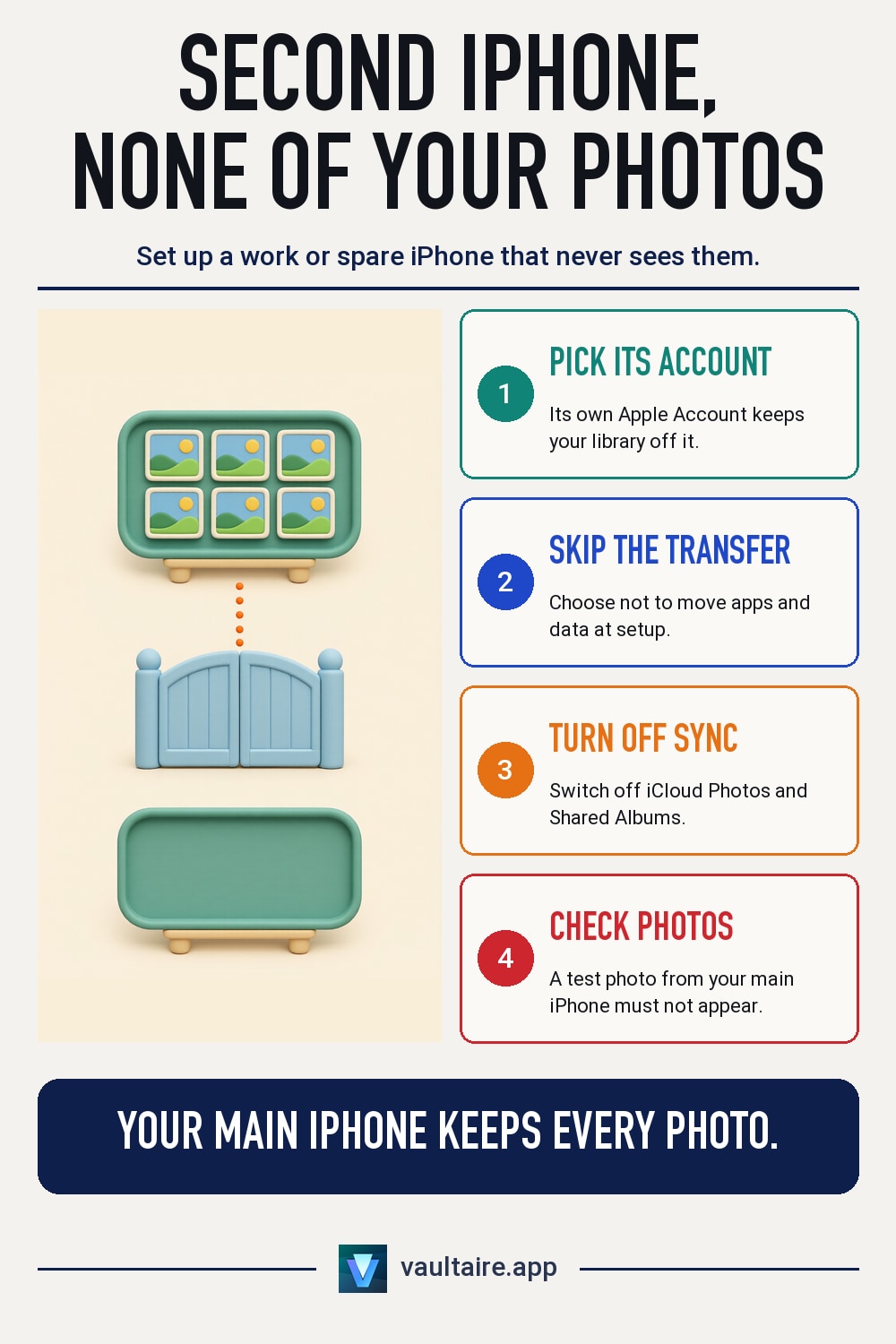
The cleanest way is to give the second iPhone its own Apple Account, so iCloud Photos, Shared Albums and Messages have nothing of yours to download. If it must use your Apple Account, skip the data transfer during setup, then go to Settings, tap your name, tap iCloud, tap Photos and turn off Sync this iPhone. Turn off Shared Albums and Messages in iCloud as well. Turning off iCloud Photos on the second phone does not delete anything from your main iPhone or from iCloud.
Why a second iPhone fills up with your photos
Three paths put your pictures on a new iPhone. The first is setup itself. Quick Start offers to move your data from your current iPhone, or to download it from an iCloud backup, and both bring the photos stored on that phone. The second is iCloud Photos. Apple describes it as keeping every photo and video in iCloud so you can reach your library from any device, and it switches on for any iPhone that signs in to the same Apple Account with Sync this iPhone turned on.
The third path is everything around the library. Shared Albums you created or joined appear on every device signed in to your account. Messages in iCloud brings your conversations, with every photo sent in them, and those photos can then show up in Shared with You. An iCloud Shared Library rides on iCloud Photos, so it follows the same switch. A second iPhone that skips only one of these paths still ends up with some of your pictures.
Option 1: give the second iPhone its own Apple Account
A separate Apple Account is the only setup that keeps your library off the phone by design rather than by settings. Create the account during setup, or before it at account.apple.com, with an email address or phone number you do not already use for an Apple Account. Choose Set Up Without Another Device instead of Quick Start, and Don't Transfer Apps and Data when the transfer screen appears. The phone starts empty, and iCloud has none of your photos to send it.
This is the right choice for a work phone, a phone you lend, and a child's phone. A child can have an Apple Account inside your Family Sharing group, which also lets the two accounts share purchased apps and subscriptions without sharing a photo library. Keep two exceptions in mind: do not join the second account to your iCloud Shared Library, and do not invite it to the Family shared album, because both put your photos on its screen.
Option 2: use your Apple Account with photo sync turned off
Sometimes the second phone has to use your own account, for your contacts, your apps or your phone number. Set it up without transferring apps and data, sign in, and before you open Photos go to Settings, tap your name, tap iCloud, then Photos, and turn off Sync this iPhone. Apple notes that once sync is off, new photos, edits and deletions stop moving between that device and your others. If the phone already downloaded part of your library, choose Remove from iPhone to clear the copies on that phone only.
Then close the side paths. Turn off Shared Albums in the Photos settings, which sit under Settings, then Apps, then Photos on recent versions of iOS. Back on the iCloud screen, turn off sync for Messages if you do not want your chat photos there. If you ever erase and set up the second phone again, do not restore it from your main phone's backup. Contacts, Notes and other iCloud data keep syncing unless you turn each one off, so switch off anything else the phone should not carry.
Check the phone, and keep private photos out of the library
Test the setup before you hand the phone over or carry it abroad. Open Photos on the second iPhone and look at the Library, the Albums tab and the Shared Albums section. Take a photo on your main phone and wait a few minutes: if it appears on the second one, iCloud Photos is still on. Repeat the check after each iOS update and after any time someone signs the phone in to iCloud again, because a fresh sign in can turn sync back on.
Settings protect the second phone, not the pictures on your main one. Anyone who can sign in to your Apple Account on a new device can turn iCloud Photos back on there. Photos you keep in Vaultaire sit in an encrypted vault that you open with a pattern, apart from the Photos library, so iCloud Photos never copies them to another phone. Vaultaire's own multi-device sync is a Pro feature that works only between devices on the same Apple ID, so a second iPhone with its own Apple Account cannot sync your vaults.
Related guides
- How to Stop iCloud Photos Syncing to Other Devices
- iCloud Family Sharing Photo Privacy: 5 Settings to Check
- Can Family See Your Hidden Photos in iCloud Shared Library?
- iPhone Burner Phone Setup: A Private, Step-by-Step Guide
Sources
Frequently asked questions
Will a second iPhone on my Apple Account get all my photos?
Yes, if iCloud Photos is on for it. With Sync this iPhone turned off, it holds only photos taken on it, plus Shared Albums and message photos unless you turn those off too.
Can two iPhones use the same Apple Account without sharing photos?
Yes. On the phone that should not see your library, turn off Sync this iPhone under iCloud Photos and turn off Shared Albums. Other iCloud data still syncs unless you turn it off.
Does turning off iCloud Photos on the second iPhone delete my photos?
No. It only stops that phone from syncing. Remove from iPhone deletes the downloaded copies on that phone, and your main iPhone and iCloud keep everything.
Can a second iPhone see the photos I keep in Vaultaire?
Not through iCloud Photos, because Vaultaire keeps its photos in an encrypted vault outside the Photos library. Its sync works only between devices on the same Apple ID.