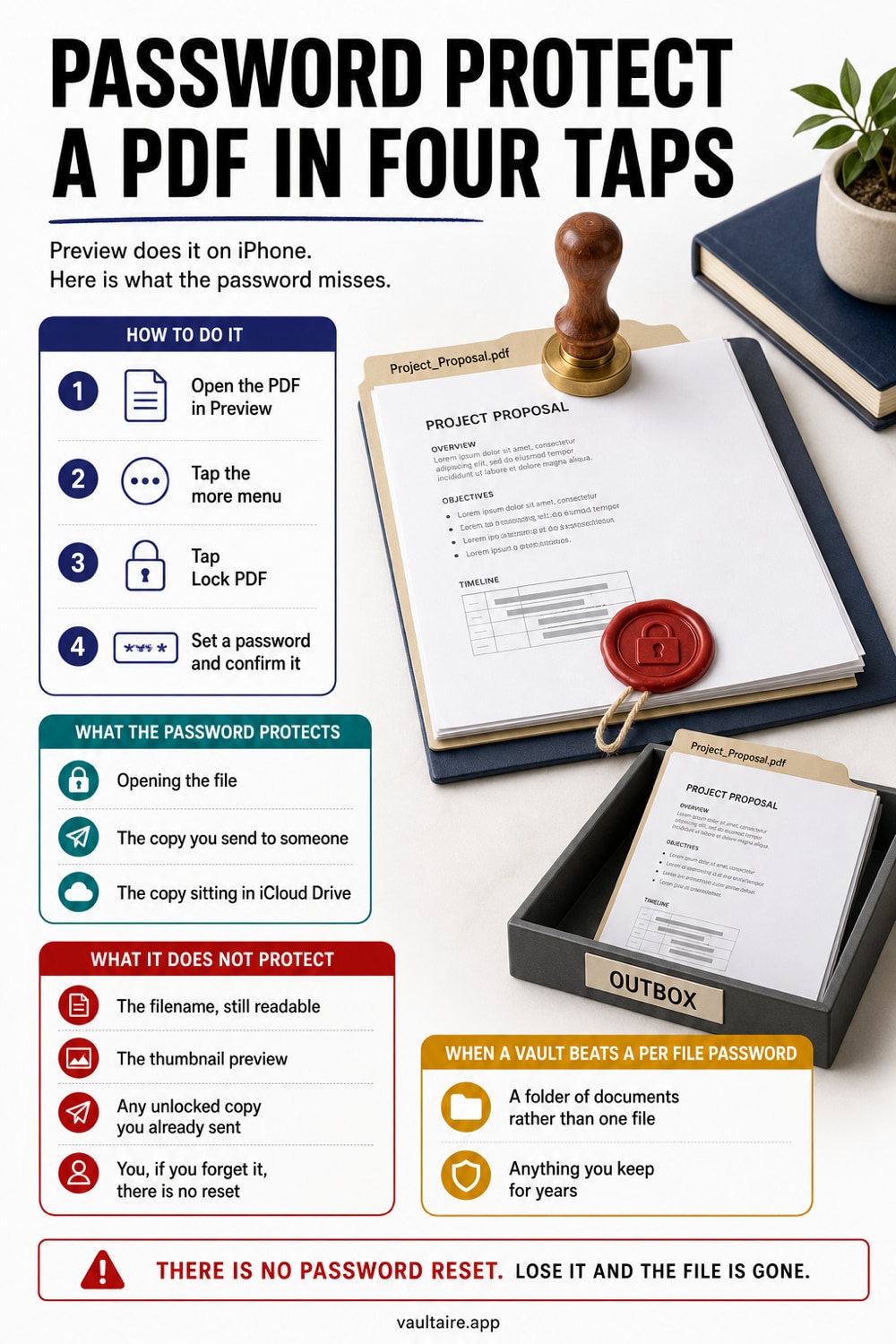
How to Password Protect a PDF on iPhone
Locking a PDF on an iPhone takes about four taps, and the part that goes wrong is never the taps. It is what the password does not cover, and what happens the day you cannot remember it.
Open the PDF in Preview on iPhone, tap the file name at the top of the screen, tap Lock, turn on Require Password, then type the same password into both fields. The document is encrypted in place and asks for that password every time anyone opens it, on any device. Save the password somewhere you will still have it in a year, because nothing on the iPhone and nobody at Apple can open the file without it.
Lock a PDF with Preview in under a minute
Open the PDF in Preview, the PDF app Apple ships on iPhone, then tap the file name at the top of the screen to open the document menu. Tap Lock, turn on Require Password, and type the same password into the Password field and the Verify field. iPhone encrypts the document where it sits, so the next time anyone taps that file, it asks for the password before a single page renders. The whole flow takes well under a minute, and it needs no third party app, no subscription, and no account.
Two details decide whether this is the right tool. The password is set on the file itself rather than on the app, so the lock travels with the PDF into Mail, Messages, a chat app, or a USB drive, and it behaves the same way on a Mac or a Windows machine. Preview also keeps no spare key: there is no account recovery, no security question, and no support path back into the document. Write the password into a password manager before you confirm it, not after, because the file is encrypted the moment you do.
What the password actually protects
A PDF password encrypts the contents of the document. It does not hide the document. The file keeps its name, its size, its date, and its place in whatever folder you left it in, so anyone scrolling through Files or iCloud Drive still sees that you keep a document called Settlement Agreement or Bloodwork Results in your Documents folder. In plenty of situations the file name leaks more than the pages would, and a lock that advertises itself is the wrong shape of privacy for anything you would rather nobody knew existed.
The password also travels with every copy. Send the locked PDF to an accountant and that one password becomes the permanent key to that copy, on their laptop, in their mail archive, and in their backups. You cannot rotate it, expire it, or pull it back, and if you later change the password on your own copy, every copy already out there keeps opening with the old one. That is acceptable for a single handoff to one person. It is a poor fit for a document you send repeatedly or keep sharing over years.
The mistakes that lock you out or leak the file anyway
The first mistake is locking the only copy you have with a password you improvised in the moment. There is no recovery, so a forgotten password means the contents are gone for good. The second mistake is the opposite failure: you lock the PDF but leave the original scan in Photos, the emailed attachment in Mail, a duplicate in Recently Deleted for another thirty days, and a copy in whatever chat you first received it in. The locked file is now the only protected item in a set of four, and the other three are the ones somebody actually stumbles onto.
Removing the password later is the step people assume will be simple. On iPhone you can turn Require Password back off from the same Lock menu, but only when you can already open the document. A PDF that arrived locked from a bank or a clinic, with a password you were never given, stays shut no matter which app you try. One more trap is worth naming: sending the password in the same message thread as the file protects nothing at all, because anyone who reads that thread now holds both halves.
When a vault beats a per file password
One tax return, one password, sent once to one person: Preview handles that job well and you should use it. A standing collection of medical records, ID scans, contracts, and pay stubs that you open every few weeks is a different job entirely. Per file passwords leave you two bad options. Either every document gets its own password, which you will eventually forget, or every document gets the same password, which puts the whole collection one lucky guess away from being open. Neither of those is a filing system you can rely on.
An encrypted vault changes the storage boundary. Vaultaire protects each file with AES-256-GCM under a random master key, needs no identity account, and keeps its encrypted CloudKit backup on by default until you turn it off in Settings; sync and sharing run only when you set them up. A copied, locked app container or client-side encrypted CloudKit backup contains ciphertext rather than a readable passport or contract. The running app, iOS, recovery credentials, system backups, and an already-unlocked vault remain part of the trust model. Free for up to 3 vaults.
Related guides
- How to password protect a folder on iPhone
- Where to store tax documents on iPhone
- Locked Notes versus a real vault on iPhone
- 7 photo vault apps ranked by encryption
Sources
Frequently Asked Questions
Can I password protect a PDF on iPhone without another app?
Yes. Preview, the PDF app on iPhone, locks a document from the Lock menu behind the file name at the top of the screen, with no third party app and no subscription. Turn on Require Password, enter the password twice, and the file is encrypted where it sits.
How do I remove a password from a PDF on iPhone?
Open the file, unlock it with the current password, then return to the same Lock menu and switch Require Password off. That only works when you already know the password. If the PDF arrived locked from a bank or a clinic and you were never given the password, nothing on the iPhone will open it.
What happens if I forget the PDF password?
The contents are unrecoverable. PDF encryption has no reset path, Apple support cannot open the file for you, and no backup key is stored in your account. Put the password in a password manager the moment you set it, and keep an unlocked working copy in encrypted storage if it is a document you will need again.
Is a password protected PDF safe in iCloud Drive?
The pages are encrypted, so a synced copy is not readable without the password. The file name, size, and location stay visible to anyone browsing Files or signed into your account, and anyone holding both the file and the password can open it on any device. A password hides the contents, not the fact that the document exists.