How to Remove AI Metadata From an Image
An image from an AI tool carries more than pixels. Depending on the tool, the file can name the generator, declare that it was made by AI, hold a signed C2PA record and, for some local tools, store the full prompt you typed. This guide shows which fields each kind of tool writes, how to remove them without uploading the file, and what no metadata remover can take out.
Short answer
To remove AI metadata from an image, open it in a metadata remover that runs in your browser, such as Vaultaire's free photo metadata tool, and save the clean copy. That drops C2PA Content Credentials, IPTC and XMP AI labels, generator names, PNG prompt text, EXIF and GPS, but no metadata tool can remove a watermark hidden in the pixels, such as SynthID.
What AI Metadata an Image Can Carry
AI metadata is not one field. OpenAI adds C2PA Content Credentials to images made with ChatGPT, and Adobe adds them to images from Firefly. A C2PA record is a signed manifest stored inside the file that names the tool and the actions it took. Other tools write a simpler label: an IPTC Digital Source Type value of trained algorithmic media, or an XMP field that names the generator. A checker reads these fields to decide that a picture came from AI.
Local tools can store far more. Stable Diffusion WebUI writes the prompt, the negative prompt, the seed, the model and the sampler settings into a text field of the PNG it saves, and ComfyUI stores its whole workflow there. Anyone who opens the file with a metadata viewer can read that text. If your prompt named a real person, a client or a private project, the image file still says so after you post it. Ordinary EXIF and GPS fields can also be present when you edited a phone photo with an AI tool.
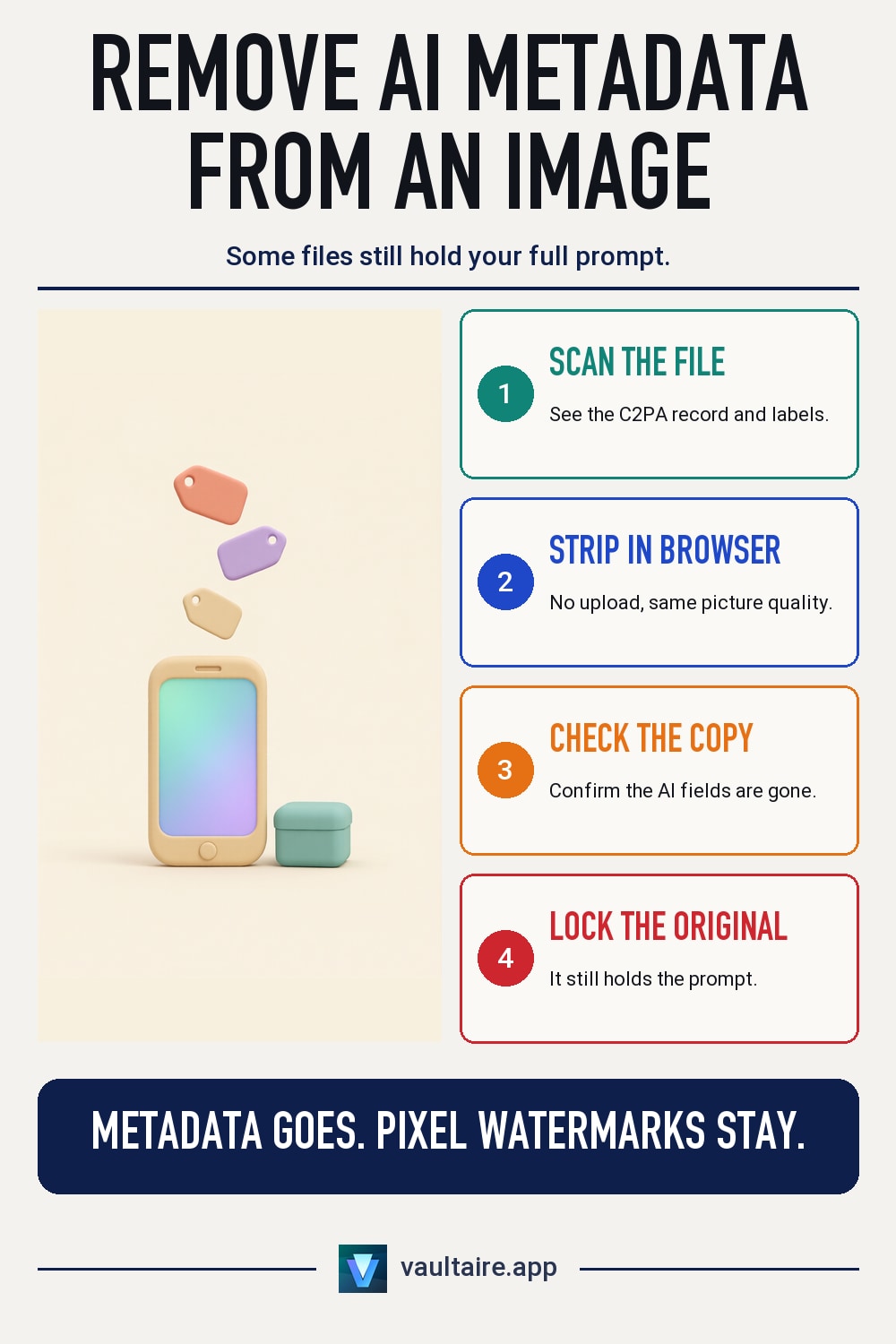
How To Remove It Step by Step
Open Vaultaire's free photo metadata tool in Safari, Chrome or any modern browser and choose the image. The tool reads JPEG, PNG, WebP, GIF, HEIC, HEIF and AVIF files up to 25 MB, and the scan runs in a Web Worker inside your browser with no upload. Its report has an AI and origin section that shows any generator it can name, such as ChatGPT, Adobe Firefly, Midjourney or Stable Diffusion, and any C2PA record it found.
Select Remove metadata. The clean copy drops the supported AI source labels, the XMP and IPTC provenance fields, the identified C2PA containers, PNG text fields, EXIF and GPS. The tool leaves the encoded image data unchanged, so the picture looks the same and keeps its quality, and it scans the copy again before it enables the download. Save the copy under a new name and keep the original until you have checked the result.
Common Mistakes To Avoid
The first mistake is asking an AI chatbot to remove the metadata. To do that, the chatbot needs the file, so the original goes to the AI company's servers with every field you wanted to remove, GPS included. The chatbot then runs code that saves a new copy, and what that copy keeps depends on the code. If the picture is private, that upload is the one step you were trying to avoid.
The second mistake is trusting a screenshot or a quick re-save without checking it. A screenshot starts a new file without the original's C2PA record or prompt text, but it captures the screen at screen resolution, so a large image loses detail. Re-saving in another app often drops some fields and keeps others. The third mistake is skipping the check: open the clean copy in a metadata viewer or a C2PA checker and confirm that the AI fields are gone before you share it.
What Removing AI Metadata Cannot Do
Metadata lives in fields beside the picture. Some AI makers also hide a signal in the pixels themselves: Google DeepMind's SynthID is one, and Google describes it as an imperceptible watermark that its own detector can read. A metadata remover never changes pixels, so it cannot find or erase that signal. Visible marks, such as a logo in a corner, also stay. Removing the fields changes what a metadata checker reports, and nothing more. For videos and chatbot text, see the AI metadata remover guide for photos, videos and text.
A clean copy is still a file you may not want in your camera roll, along with the original that holds the prompt. A short checklist covers both: clean the copy, check it, then keep the original and the copy somewhere locked or delete them on purpose. Vaultaire is a free iPhone app for the locked part. It stores the files you choose in an encrypted vault that opens with a pattern you draw, with no Vaultaire account. It does not remove metadata on import, so clean the image first and then import the clean copy.
Ways to remove AI metadata from an image
| Question | Browser metadata remover | Screenshot or re-save | Asking an AI chatbot |
|---|---|---|---|
| Where the image goes | Stays in your browser | Stays on your device | Uploaded to the AI company |
| Removes C2PA and AI labels | Yes, then checks the clean copy | Often, but check the copy | Depends on the code it runs |
| Picture quality | Unchanged; image data is kept as is | Screen resolution or a new compression | Depends on how it saves the copy |
| Removes PNG prompt text | Yes | A screenshot does; a re-save may not | Depends on the code it runs |
| Removes pixel watermarks such as SynthID | No | No | No |
Related reading:
- How to remove location metadata from iPhone photos
- How to hide photos on iPhone
- Best photo vault apps for iPhone
- How to make a secret folder on iPhone
Sources
Frequently Asked Questions
Can you turn off metadata on photos?
Yes, on iPhone you can turn off location for one share: tap Share, tap Options at the top and turn off Location before you send. That removes GPS only. To turn off location for new photos, go to Settings, Privacy and Security, Location Services, Camera and choose Never. AI labels and C2PA records are added by the tool that makes the image, so you remove them afterwards with a metadata remover.
How can I check the details of a photo?
On iPhone, open the photo in Photos and swipe up, or tap the info button, to see the date, the camera, the lens and the location. Photos does not show C2PA records, AI labels or PNG text. For those, open the file in a metadata viewer such as Vaultaire's free photo metadata tool, which lists every field it can read without uploading the file.
What is the difference between EXIF and metadata?
Metadata is any data stored with a file besides its main content. EXIF is one standard for photo metadata, written mostly by cameras: the date, the exposure, the lens and the GPS position. AI labels use other standards, such as IPTC, XMP and C2PA, so a tool that removes only EXIF can leave the AI fields in place.
How can I remove metadata from a PDF online?
Most online PDF metadata removers upload the file to their server first, so avoid them for private documents. On a Mac, open the PDF in Preview and choose Tools, then Show Inspector to see the title, author and other fields it carries. Adobe Acrobat removes them with its Remove Hidden Information command. Vaultaire's photo metadata tool reads images only, not PDFs.