How to View the iPhone Hidden Album on a Windows PC
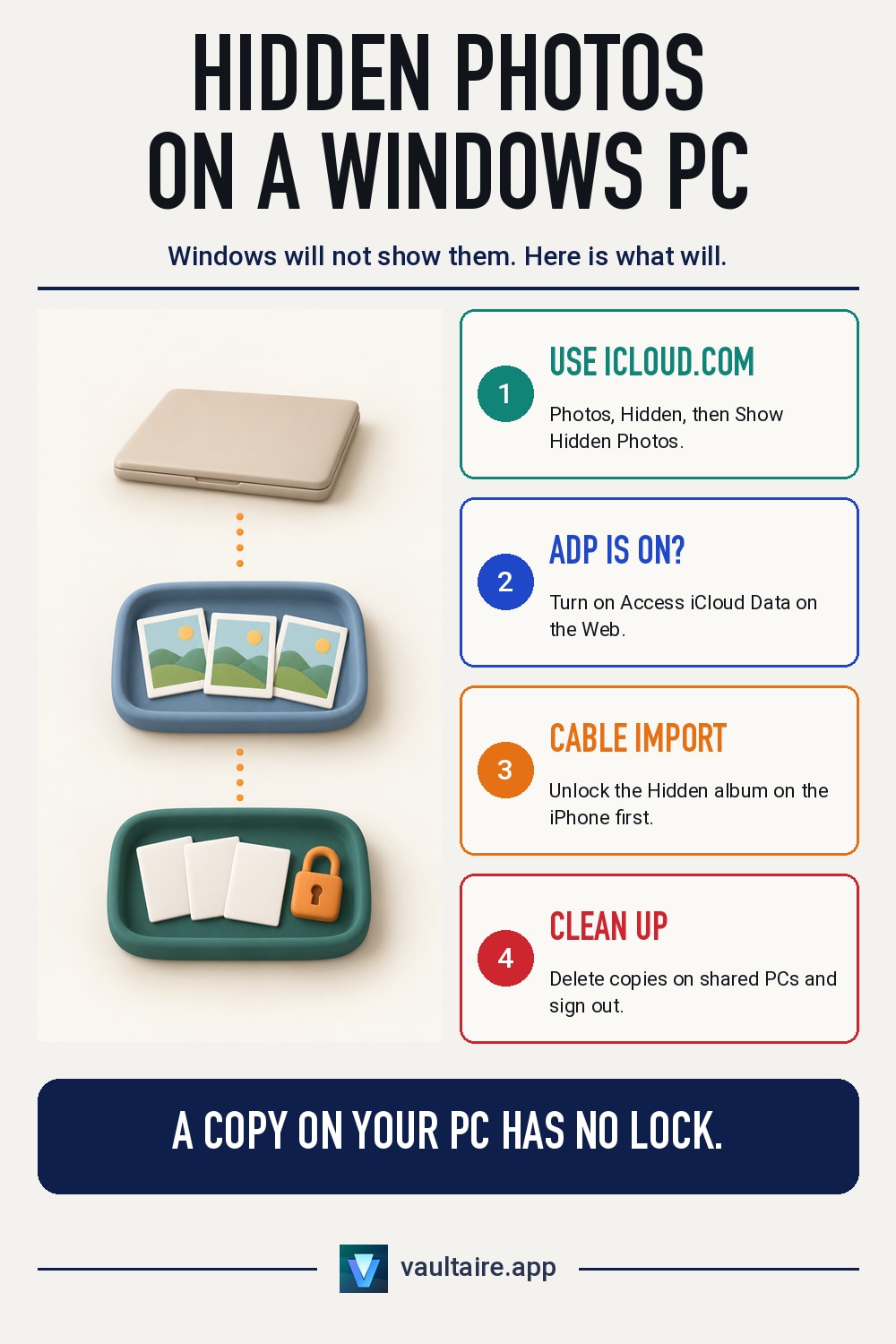
You plug your iPhone into a Windows PC, open the Photos app to import, and the pictures you hid are nowhere in the list. Nothing is broken. The Hidden album is built to stay out of the way, and Windows has no Hidden album of its own to put those photos in. There are two ways to reach them from a PC: open the album in a web browser at iCloud.com, or unlock it on the iPhone before a cable import. This guide walks through both, explains which one leaves fewer copies behind, and lists what to remove from the PC when you are finished.
Windows cannot open the iPhone Hidden album directly. The simplest way to view it on a PC is a browser: go to icloud.com/photos, sign in with your Apple Account, select Hidden in the sidebar, then select Show Hidden Photos. This works only if iCloud Photos is on, and with Advanced Data Protection you must first turn on Access iCloud Data on the Web. To copy hidden photos over a USB cable instead, unlock the Hidden album on the iPhone first, or unhide the photos, because a locked Hidden album is not a reliable part of a photo import.
Why hidden photos do not show up on a PC
On the iPhone, hiding a photo moves it out of your Library and into the Hidden album. Since iOS 16 that album is locked by default and opens only with Face ID, Touch ID, or your passcode. A computer import does not pass through that lock. Apple states for the Mac that, with macOS 15.4 or later, photos in a locked Hidden album are not imported. Apple publishes no matching rule for Windows, but people who import through the Microsoft Photos app regularly report the same result: the hidden pictures are simply missing from the list.
The second reason is iCloud Photos. If it is on and Optimize iPhone Storage is selected, many originals live in iCloud and only small previews stay on the phone. Apple says you must download full-resolution versions to the iPhone before you import to a PC. So a photo can be missing from a Windows import because it is hidden, because it is not fully on the phone, or both. Before you assume anything is lost, open the Hidden album on the iPhone itself and confirm the photos are there.
View the Hidden album in a browser at iCloud.com
If iCloud Photos is on, your Hidden album is part of your iCloud Photos library, and iCloud.com shows it. On the PC, open Edge, Chrome, or Firefox, go to icloud.com/photos, and sign in with your Apple Account. Approve the sign-in on your iPhone if asked. Then select Hidden in the sidebar and select Show Hidden Photos. You can view each photo, download the ones you need, or select Unhide from the More menu. Nothing is installed on the PC, and no copy is saved unless you download it.
Two settings can block this route. If iCloud Photos is off, the Hidden album exists only on the phone, so iCloud.com has nothing to show. If you turned on Advanced Data Protection, Apple turns off web access, because iCloud.com no longer holds the keys to display your data. Turn on Access iCloud Data on the Web in your iCloud settings, sign in, and approve temporary access on a trusted device. The iCloud for Windows app is a different tool: it syncs photos into a folder in File Explorer without album views, so it is the wrong place to look for the Hidden album.
Copy hidden photos to a PC with a cable
If you want the files on the PC, use the import route Apple describes. Install the Apple Devices app from the Microsoft Store, connect the iPhone with a USB cable, unlock it, and tap Trust or Allow when the phone asks. Before you import, unlock the Hidden album on the iPhone: open Settings, tap Apps, tap Photos, and turn off Use Face ID, Use Touch ID, or Use Passcode. Then open the Microsoft Photos app on the PC and import. If the hidden photos still do not appear, unhide them on the iPhone, import again, then hide them again.
When the import is done, turn the lock back on in the same Photos settings, and hide again anything you unhid. That step is easy to forget, and until you do it, the photos sit in your main Library where anyone who picks up the phone can scroll past them. If you only need a few pictures, the browser route is faster and leaves the phone settings untouched. A cable import makes sense when you want the full-resolution originals in bulk on a computer you trust.
What to clean up on the PC afterward
Once hidden photos are on Windows, they are ordinary image files. They usually land in your Pictures folder, and the Photos app shows them to anyone who uses that Windows account. No lock carries over from the iPhone. If OneDrive backs up your Pictures folder, the files also go to OneDrive. On a shared or work PC, delete the imported files, empty the Recycle Bin, and check OneDrive's recycle bin too. If you used iCloud.com, sign out and close the private window.
If you keep private photos on your iPhone and do not want them to reach a PC at all, a separate vault app keeps them out of the Photos library entirely, so neither iCloud.com nor a Windows import lists them. Vaultaire encrypts files on your iPhone with AES-256 and backs them up to your private iCloud database, where Apple stores only encrypted data and holds no keys. Someone who gets that data can still try to guess your pattern offline, so choose a long pattern with several turns. Our guide comparing the Hidden album and a photo vault explains the difference in detail.
Related guides
- How to See Hidden Photos on Mac, and Fix a Missing Album
- Hidden Photos on iPhone: Where They Are and What iCloud Keeps
- Can Anyone See My Hidden Photos on iCloud?
- Hidden Album vs Photo Vault App: Which Protects iPhone Photos?
Sources
Frequently asked questions
Why don't hidden photos show up when I connect my iPhone to my PC?
The Hidden album is locked on the iPhone, and a computer import does not unlock it. Apple documents that a Mac skips a locked Hidden album, and Windows imports usually miss those photos too. Unlock the album in Settings, Apps, Photos, or unhide the photos before you import.
Can I see the Hidden album on iCloud.com?
Yes, if iCloud Photos is on. Sign in at icloud.com/photos, select Hidden in the sidebar, then select Show Hidden Photos. With Advanced Data Protection on, first turn on Access iCloud Data on the Web in your iCloud settings.
Does iCloud for Windows show the Hidden album?
No. iCloud for Windows syncs your photos into a folder in File Explorer and does not show albums. To view the Hidden album from a PC, use icloud.com/photos in a browser.
Are hidden photos still private once they are on my PC?
No. On Windows they are ordinary image files with no lock, visible to anyone who uses that account, and OneDrive may back them up if it backs up your Pictures folder. Delete them from shared PCs when you are done.