How to See Hidden Photos on Mac, and Fix a Missing Album
After you hide photos in the Photos app on a MacBook, it is easy to lose track of where they went. Hidden photos move to the Hidden album, but that album can itself be hidden from the sidebar, and in macOS Ventura and later it is also locked. This guide walks you through how to view hidden photos on Mac, why the hidden folder may be missing or won't open, and why photos you hid on iPhone don't appear on your Mac.
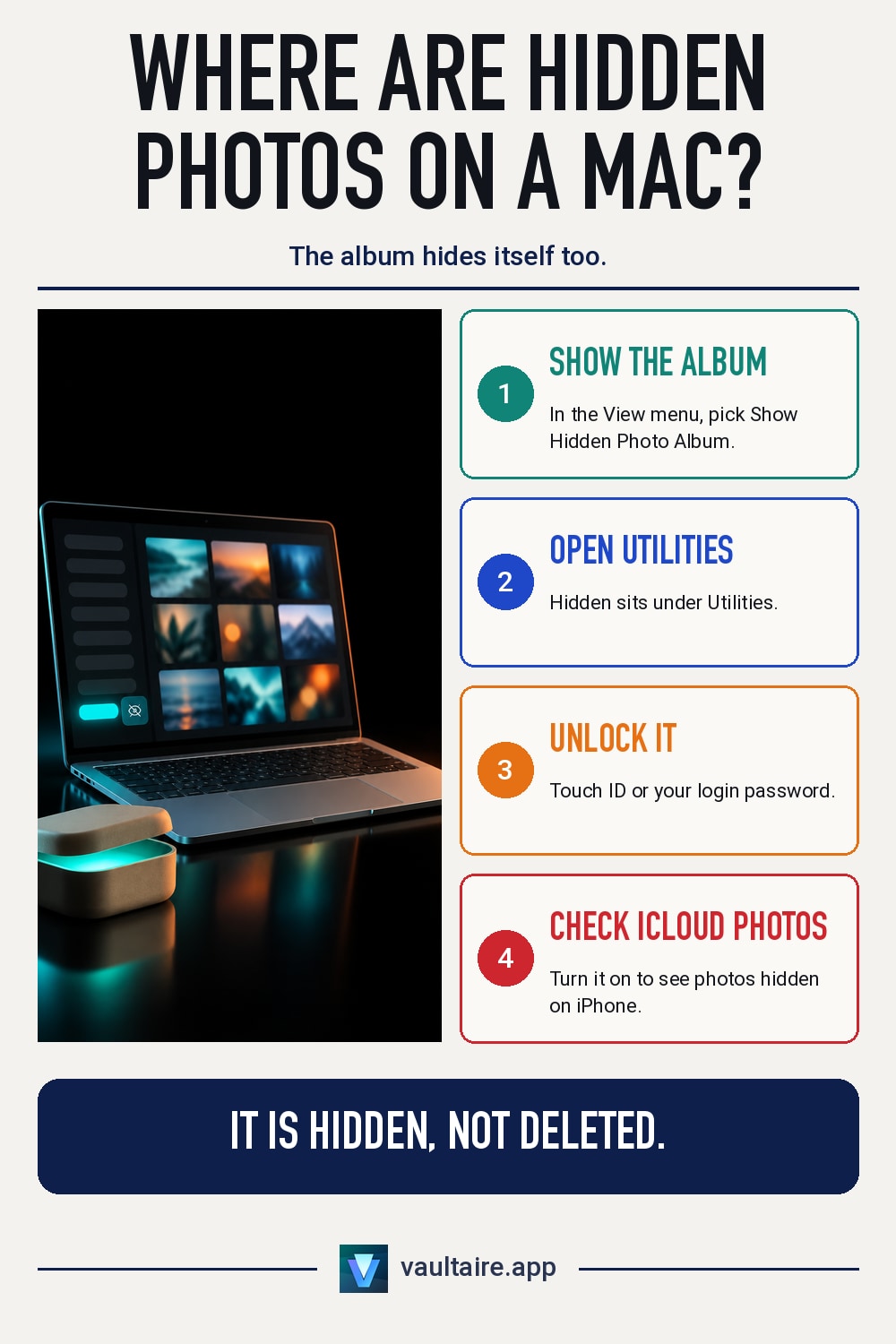
To see hidden photos on Mac, click Library in the Photos sidebar, then choose View > Show Hidden Photo Album from the menu bar. Next, open Hidden under Utilities in the sidebar, click View Album, and unlock it with Touch ID or your Mac login password. If you can't find the hidden folder, Utilities is collapsed or this menu option is turned off. If photos you hid on iPhone don't show up, check that iCloud Photos is turned on in the Photos app on your Mac and that you are signed in with the same Apple Account.
How to view hidden photos on Mac
In the Photos app on Mac, a photo you hide disappears from normal views such as your library, albums and Memories, and stays only in the Hidden album. The photo itself is not deleted. To see it, first click Library in the sidebar, then choose View > Show Hidden Photo Album from the menu bar. Hidden now appears under Utilities in the sidebar. If the Utilities section is collapsed, hold the pointer over the Utilities heading and click the arrow that appears on the right to expand it.
When you click Hidden in macOS Ventura and later, you first see a locked screen. Click View Album, then place your finger on Touch ID or enter your Mac login password, and your photos appear. To move photos back to their original place, select them, Control-click, and choose Unhide [number] Photos. Unhidden photos return to your library at the position of their capture date. For the steps to hide photos, and how safe each method is, see how to hide photos on Mac.
Why the hidden folder is missing or won't open
When the hidden folder seems to be gone, the most common cause is that Show Hidden Photo Album in the View menu is turned off. This setting hides only the sidebar entry, not the contents of the album. The next most common cause is a collapsed Utilities section in the sidebar. In both cases your photos are safe, so check the menu and Utilities using the steps above. If Hidden still doesn't appear, make sure Photos hasn't opened a different library. Hold the Option key while you open Photos to choose which library to use.
If photos you hid on iPhone don't show on your Mac, look at iCloud Photos sync. With iCloud Photos, photos you hide on iPhone also go into the Hidden album on Mac. But if you choose Photos > Settings in the Photos app on your Mac, click the iCloud tab, and find iCloud Photos turned off, your iPhone photos never reached your Mac in the first place. The same happens if your iPhone and Mac use different Apple Accounts. For which photos are sent to iCloud, see are hidden photos saved to iCloud. Sync can take a while right after you turn it on, so keep your Mac connected to power and the network and wait.
The lock setting, and what the Hidden album can't protect
To turn the Hidden album lock on or off, choose Photos > Settings in the Photos app, then use the Touch ID or password option in the General tab. If you turn this option off, anyone who opens Photos can open the Hidden album without unlocking it. The lock does not use a separate password. It uses your Mac login password. So if you share a Mac user account with family, or someone else knows your login password, the lock does not stop that person.
Also keep in mind that hiding only changes what the Photos app shows. Your photo files sit inside the Photos library in the same form as your other photos, and if you open the library's package contents in Finder, you can see the original files. With iCloud Photos, the Hidden album also reaches any iPhone, iPad or iCloud.com signed in with the same Apple Account. For who can see it and from where, see can anyone see my hidden photos on iCloud. If you want to keep photos separate between your Mac and iPhone, how to stop photos from syncing can also help.
Moving photos somewhere your Mac can't see
The Hidden album is an organizing feature that removes photos from your library view. If you want to move photos somewhere your Mac and iCloud Photos can't see, you need to keep them outside the Photos app. Vaultaire is an iPhone app for that. There is no Mac version. Photos and videos you import into Vaultaire are encrypted and stored inside the app, and they don't go into your Photos library, so they don't appear in the Photos app on your Mac or in the Hidden album. After you import them, delete the original photos left in the Photos app yourself, and remove them from Recently Deleted too. With iCloud Photos, that deletion also carries over to your Mac.
You open Vaultaire by drawing a pattern on a 5x5 grid. It does not open with Face ID, Touch ID or a passcode, so knowing your Mac login password is not enough to open it. Encrypted iCloud backup is on from the start, and Apple stores only encrypted data. Apple does not hold the keys. The free version stores up to 100 photos and 10 videos in total across 3 vaults.
Related guides
- How to hide photos on Mac
- Are hidden photos saved to iCloud
- What to do when hidden photos disappear on iPhone
- Change the Hidden album password on iPhone
Sources
Frequently asked questions
Why can't I find the Hidden album in the Photos app on Mac?
Either Show Hidden Photo Album in the View menu is turned off, or Utilities in the sidebar is collapsed. Select Library in the sidebar, then turn on the menu option, and Hidden appears under Utilities.
Do photos I hide on iPhone also show on my Mac?
If your iPhone and Mac use the same Apple Account and iCloud Photos is on for both, they go into the Hidden album on your Mac too. If iCloud Photos is off on either one, those photos don't reach your Mac.
What password unlocks the Hidden album on Mac?
Your Mac login password. On a Mac with Touch ID, you can also open it with your fingerprint. The Hidden album has no password of its own.
How do I unhide photos on Mac?
Open the Hidden album, Control-click the photos you want back, and choose Unhide [number] Photos. With iCloud Photos, the same photos are unhidden on your iPhone too.